Local & Remote Software License Management
C Tech License File Updates provide a way to install and update licenses on both local and remote machines. The main functions of C Tech License File Updates include upgrading and/or updating C Tech Software Licenses for EnterVol for ArcGIS.
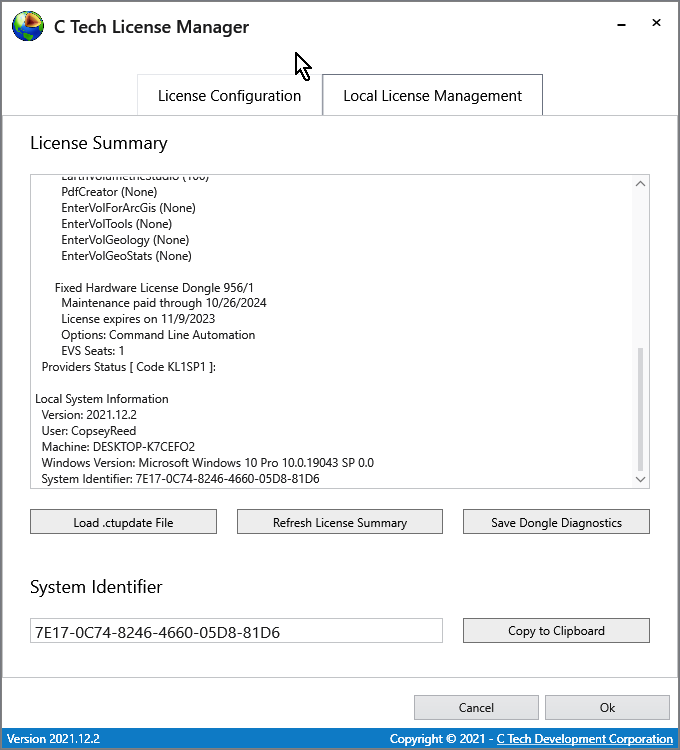
The Local License Management tab provides several important functions:
- Load .ctupdate File: Allows you to apply a C Tech License Update File (.ctupdate) to install a new software license for supporting products or update existing licenses.
- License Summary: Provides a summary of licenses installed on the local machine, as well as (local) system information such as the System Identifier used by software based (vs dongle) licenses. Also shows information related to the license providers, whether they come from C Tech USB Dongles or from C Tech Software Licensing.
- System Identifier: Unique Identifier that is unique to the local system. This is used for C Tech Software Licenses. Please refer to the following section for more info on Local Installation.
- Save Dongle Diagnostics: In cases where the dongle needs troubleshooting, this will prompt you to select a destination folder and will then generate a file containing diagnostics of all installed C Tech USB Dongles. If requested by C Tech support, please include all generated files as attachments for subsequent support emails.
Local Updates
For both license updates and license installations, if they are to be performed on the local workstation, then select the “Local License Management” tab in the C Tech License Manager, and click on the “Load .ctupdate File” button.
Warning
If your C Tech License Manager does not match the images in this topic, you are likely running an old version and need to install the latest version from https://client.ctech.com/.

You will be prompted to select the .ctupdate file emailed to you. Select the .ctupdate and the license manager will report the result of the local update and also show the status of the updated licenses in the Licenses Summary area.
Remote Updates
For both license updates and license installations, if they are to be performed on a remote server, then select the “License Configuration” tab in the C Tech License Manager, which should already be selected on first launch. Ensure that you have configured a server by clicking on the “Add” button and then entering the Name or IP of the server. See License Configuration > Configuring License Servers for more information. Then you may click on the “Load Remote Update File” button.

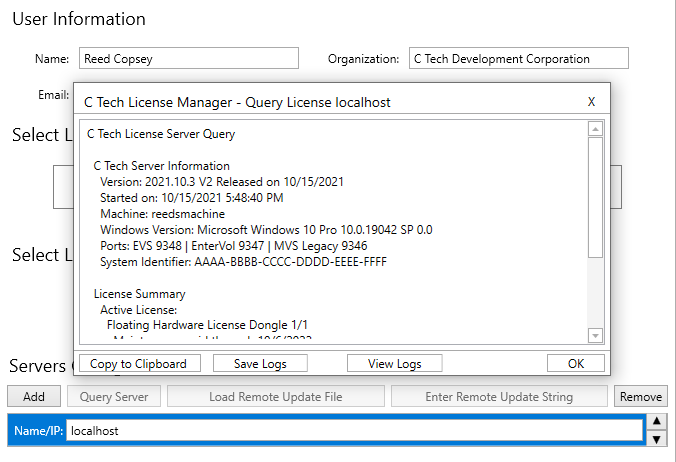
You will be prompted to select the .ctupdate from the computer’s file system. Select the .ctupdate file emailed to you. After a brief moment, the license manager will report the result of the remote update. To view the status of the server, you may now click on the “Query Server” on the same row as the previous button.
Privacy Selection
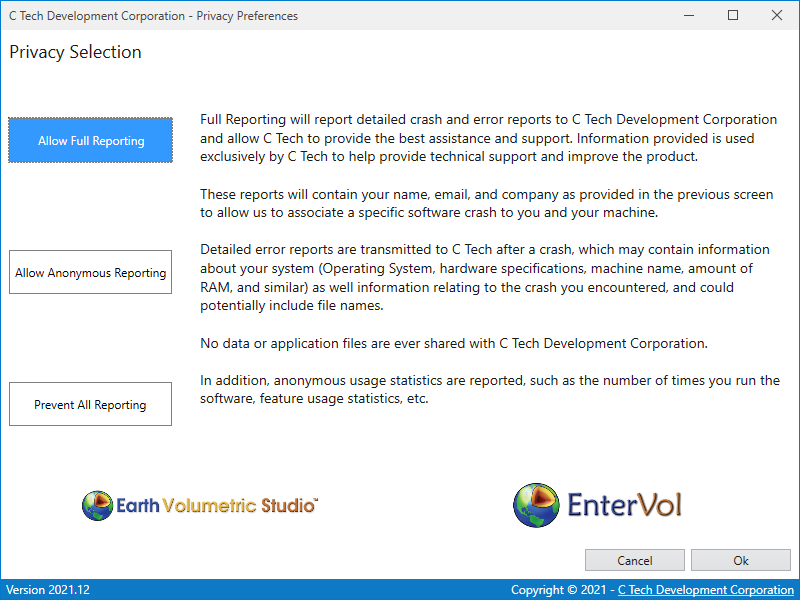
After the previously mentioned fields have been configured, you may press the Ok button at the bottom right, this will take you to the Privacy Selection window. You may choose between “Allow Full Reporting”, “Allow Anonymous Reporting”, and “Prevent All Reporting”. Please read the provided descriptions for each option in the Privacy Selection window for more information.
Tip
It is highly recommended to “Allow Full Reporting” since this can provide C Tech with information which may be crucial in debugging possible software errors or crashes.