License Troubleshooting
1) Unable to authenticate with licensing service
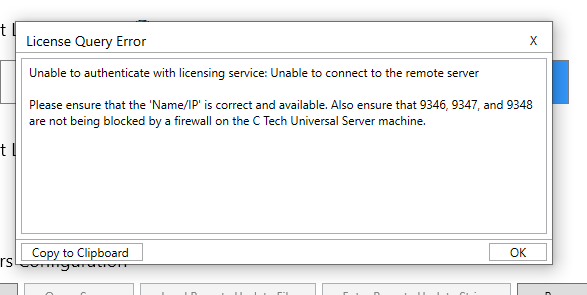
First ensure that the Name/IP that was provided in the Server Configuration is correct and accessible on your network. When running into this issue, the next most likely cause is that the required inbound TCP ports for the C Tech Universal License Server have not been configured to allow inbound network traffic.
Warning
Please ensure that the ports 9346, 9347, and 9348 are open and allow TCP network traffic on the machine where the C Tech Universal License Server is installed.
2) C Tech License Update File is corrupted
Please go back to the original email from C Tech which contains the update to verify that the files are the same. Sometimes email attachments may become corrupted by anti-virus or anti-malware tools. Please white list (protect) the file extension .ctupdate from being modified by any anti-virus or anti-malware tool.
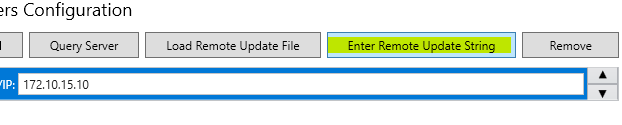
When this remains an issue, the C Tech License Update may be provided in the form of an ASCII string which you can then use the “Enter Remote Update String” button in the C Tech License Manager to install a license or apply an update.
3) The dongle (key) you are trying to update may not have been included in the update
Please refer to the invoice from C Tech for a list of supported keys. If your dongle is not listed, it was not included in the update.
4) C Tech USB License Dongles are returning an error when attempting to do a local license update
For security reasons, the license dongles will sometimes not work when the machine is accessed via Remote Desktop Connection, as direct hardware access can be prevented by remote access software. In this case, use the alternate Server Configuration buttons to interact with the Name/IP set to “localhost”. This will apply updates to the local hardware.