EVS Floating or Enterprise License Client Installation
Earth Volumetric Studio is available only as download from https://client.ctech.com/
Each user requires:
- Installation of the latest version of Earth Volumetric Studio available from the download site
- Installation of the latest version of Earth Volumetric Studio Sample Projects
- Hostname or IP Access of the computer running the C Tech Universal License Server (with C Tech’s USB key attached).
- THIS REPLACES “localhost” IN THE IMAGES BELOW unless you are installing a Floating or Enterprise license on your local computer (includes laptops), in which case the C Tech Universal License Server must be installed locally and configured as shown below.
Warning
Installation requires Administrator rights.
Run each executable and follow the instructions to set your preferred install folder and options.
With all license types, the first step of client setup (after EVS software installation) is to set up the proper license type in the C Tech License Manager. The C Tech License Manager has many additional functions discussed in this topic.
Below are the correct options for a Floating (USB Dongle) License.
Info
You need to enter Name, email and Organization of the User (if on a client computer) or the IT Administrator if on a server.
For Floating Licenses
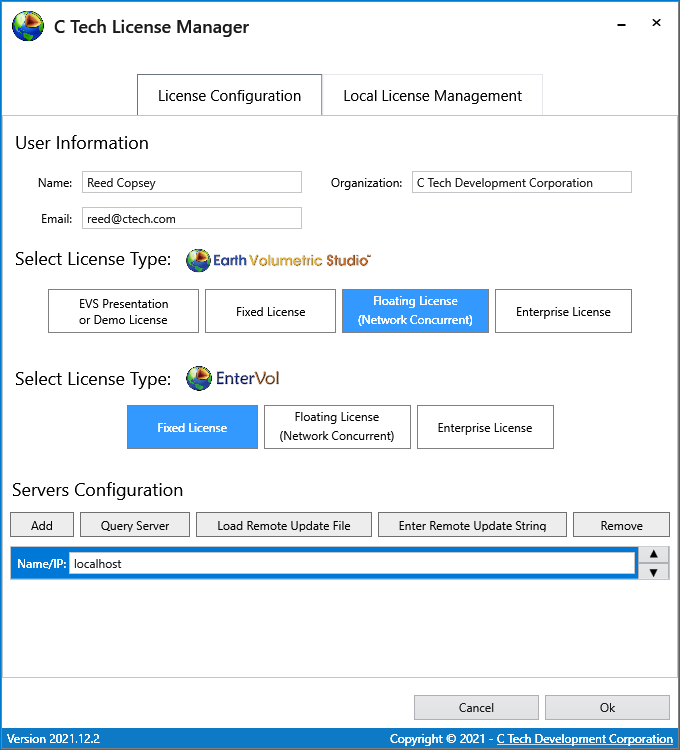
For Enterprise Licenses

When you click OK on the window above, it will open the last C Tech License Manager window shown below. In this window we request your permission to send automated error reports to C Tech should you encounter a problem while using the software.
Tip
Allowing Reporting (especially Full Reporting) will allow us to provide you with a higher level of Technical Support should you encounter an unexpected problem.
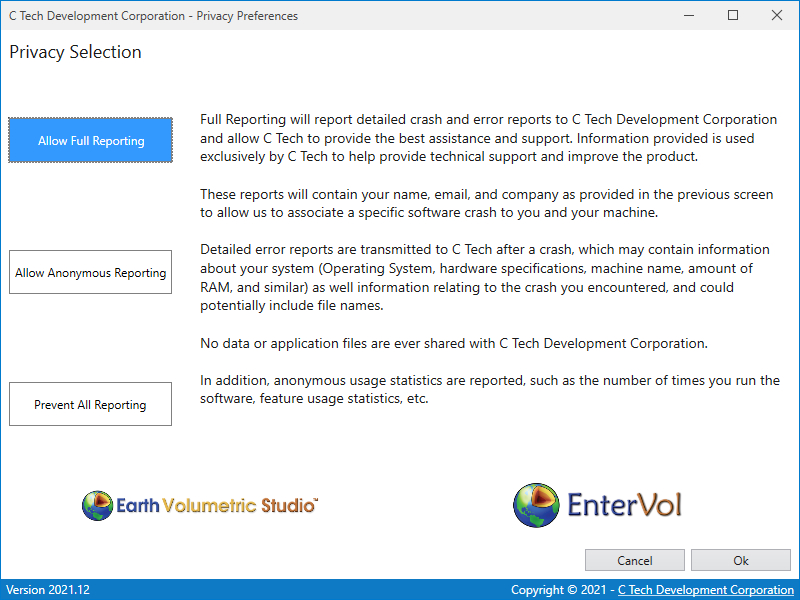
Once the C Tech License Manager (shown above) is closed, it will not reopen unless you run it explicitly. Each time you start Earth Volumetric Studio, the options you have set above will apply.