Client Installation for EnterVol Concurrent or Enterprise Licenses
This topic applies to EnterVol for ArcGIS.
EnterVol is available only as download from https://client.ctech.com/
Each user requires:
- Installation of the latest version of EnterVol for ArcGIS available from the download site
- Hostname or IP Access of the computer running the C Tech Universal License Server
Warning
Installation requires Administrator rights.
Run each executable and follow the instructions to set your preferred install folder and options.
With all license types, the first step of client setup (after software installation) is to set up the proper license type in the C Tech License Manager. The C Tech License Manager has many additional functions discussed in this topic.
If your organization has purchased EnterVol concurrent licenses and properly installed and configured the C Tech Universal License Server locally or on your network, you can follow the simple steps below to configure a client installation for a concurrent license.
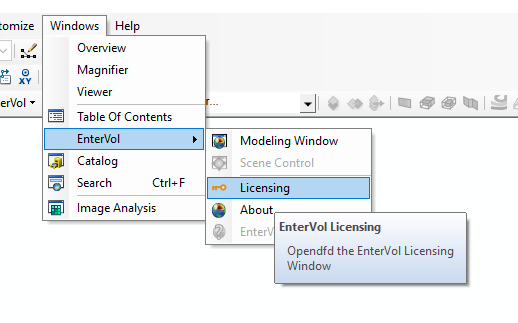
Launch the C Tech License Manager by clicking on the Licensing Option in the EnterVol menu entry under Windows > EnterVol > Licensing
If your client computer can connect to a valid server, your licensing window should show something like the above.