C Tech License Manager (CTLM)
The C Tech License Manager comes bundled with most C Tech Products to facilitate license configuration and management. A standalone installer can also be downloaded from C Tech Development Corporation: Downloads.
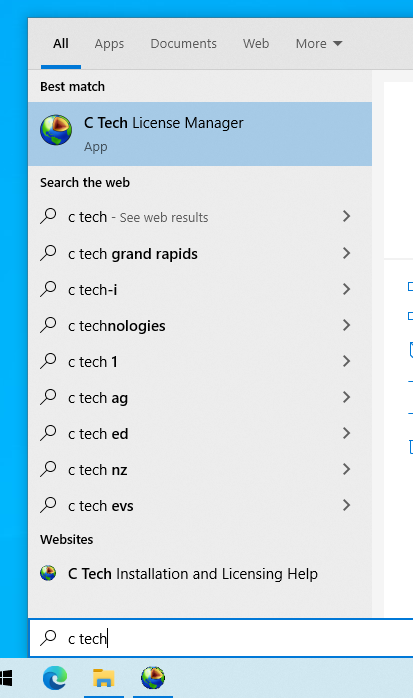
To launch, simply search for the C Tech License Manager entry in the Windows Start Menu:
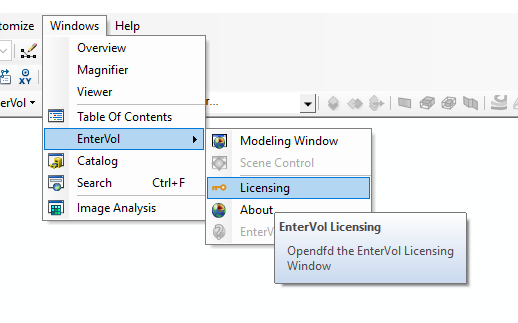
If you are using the C Tech License Manager to configure an EnterVol for ArcGIS license, you can additionally launch the License Manager from within EnterVol’s menus in ArcGIS (ArcScene).
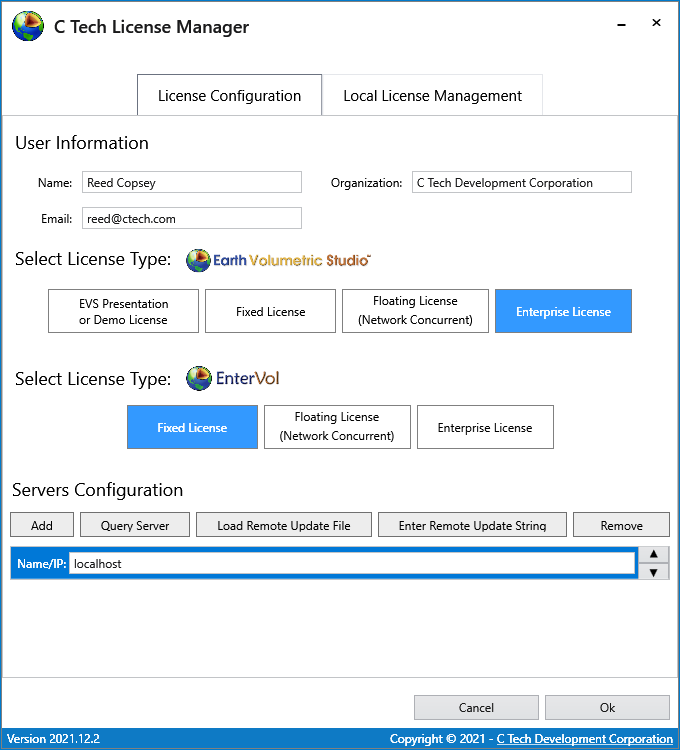
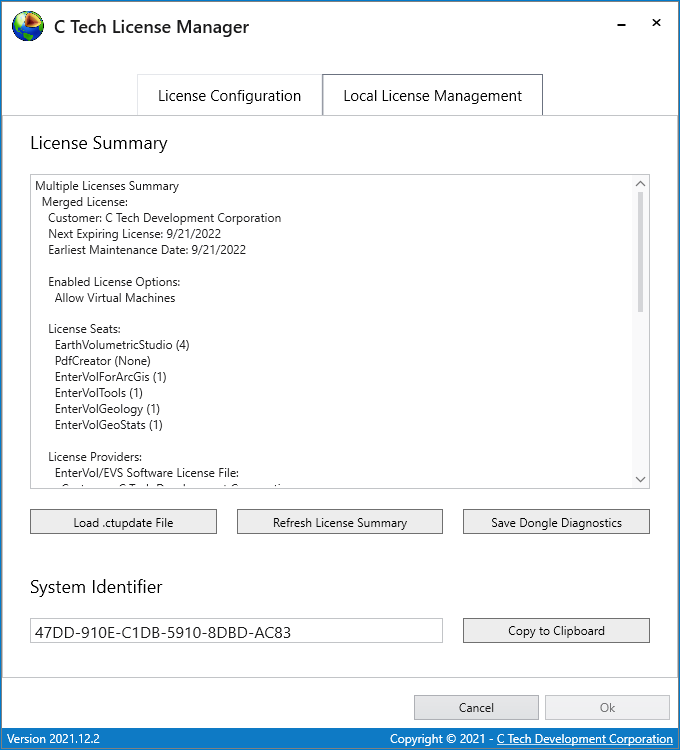
Once opened, you will see two different Tabs. The main section found under the “License Configuration” tab, lets the user provide their information, configure their product’s license, and configure any remote concurrent servers providing licenses. The second tab, “Local License Management” allows for verifying the status of local licenses as well as applying new software licenses and updates files (.ctupdate).
-
User Info & Server Configuration
How to configure user information and license server settings in the C Tech License Manager
-
Local & Remote Dongle (Key) License Management
How to update and manage C Tech USB License Dongles using the C Tech License Manager
-
Local & Remote Software License Management
How to install and update C Tech Software Licenses for EnterVol for ArcGIS
-
Common licensing issues and solutions for C Tech products