Requesting Enterprise Software or EnterVol Licenses
Enterprise EVS and EnterVol for ArcGIS users can use the C Tech Software License installed with a C Tech Universal License Server to provide licensing to its users. Unlike the C Tech USB License Dongle for Earth Volumetric Studio, these software licenses are locked to the machine’s hardware where the license server is installed.
Info
- Fixed EnterVol Licenses use a locally installed C Tech Universal License Server and the “System Identifier” we require is on your local computer.
- Concurrent and Enterprise Licenses use a remotely installed C Tech Universal License Server and the “System Identifier” we require corresponds to the server.
You will need to provide a “System Identifier” as well as additional information in order to receive a license file for a license that has been purchased and paid for. To obtain the “System Identifier”, please use the following instructions depending on where you have the licensing server configured.
Local Installation
Select the “Local License Management” tab in the C Tech License Manager. There you will see at the bottom the System Identifier section. For your convenience you can click on the “Copy to Clipboard” button.
Remote Installation (On a different machine over the network)
From the “License Configuration” tab in the C Tech License Manager, ensure that a Server is properly configured.
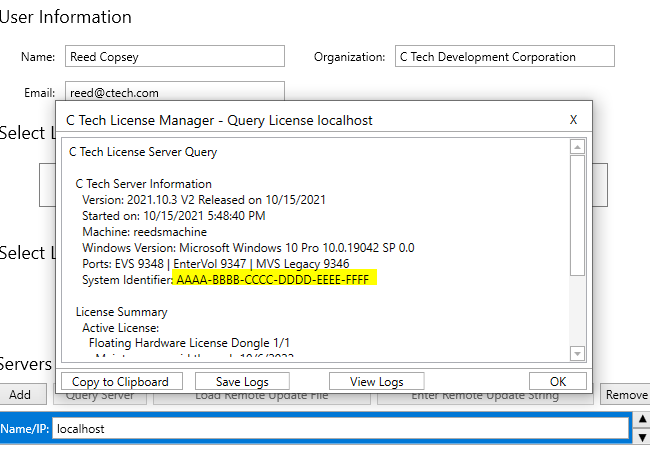
When the connection to the server was successful, you will see the following window when you click the “Query Server” button.
Licensing Procedure
For Fixed, Concurrent and Enterprise License Customers, the licensing procedure is below.
EVS Enterprise and EnterVol Client-Server installations use the C Tech Universal License Server just as other EVS licenses do, but the license is locked to the server CPU, not to the USB dongle (key).
To request a license that has been purchased and paid for, you must do the following:
- Run the C Tech License Manager
- This can be done on the server or any EVS Client computer
- When this is done on a computer that is not the server, you must complete the Servers Configuration first.
- Click the Query Server button
- In the “Update License on This System” Window, you will see the “System Identifier”.
- Select the System Identifier (string) and Copy (Ctrl-C)
- This can be done on the server or any EVS Client computer
- For Fixed EnterVol Licenses, run C Tech License Manager on the computer to be licensed and you will see:
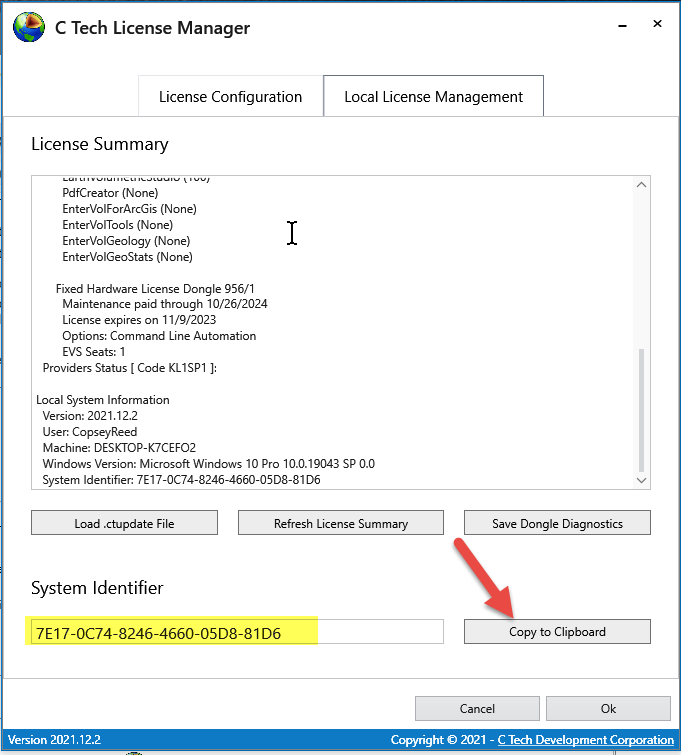
- Click on “Copy to Clipboard”
Info
Your System Identifier will be unique to your computer.
Then send that string to sales@ctech.com along with the required information below:
- System Identifier: (your identifier string)
- Company: (your company name)
- User: (your name)
- E-Mail: (your email address)
- Phone: (your phone number)
- C Tech’s Invoice number for your order (this is to ensure that you receive the proper licenses)
Upon verification of the information you provide, C Tech will generate a license file which will be sent to the e-mail address provided above.
Once you receive the .ctupdate file, you will perform the update using the C Tech License Manager and the instructions which will accompany the file.