The Model Tree panel appears when View Model Tree is selected in the left portion of the toolbar. It contains two sections:
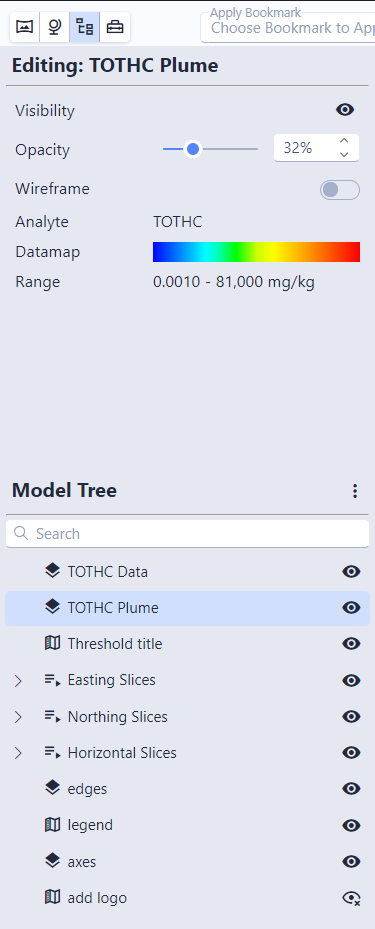
Editing
The Edit panel shows the properties of the currently selected model in the Model Tree below. Different model types include differing controls for editing. These typically include the ability to view or change settings for a specific model, including a mix of the following:
- Visibility
- Opacity
- Wireframe
- Analyte being displayed
- Lithology information
- Datamap and data range
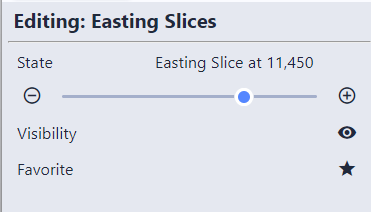
- Sequence state
- Favorite or unfavorite the sequence
The exact data displayed varies depending on the type of object chosen. Choosing a sequence, for example, allows the current state of that model to be changed:
Model Tree
The bottom half of the panel is the Model Tree. This is the entire set of models used in the scene:
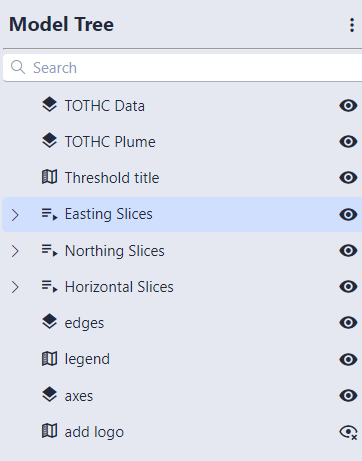
The three dots to the right allow you to immediately mark all models as visible or hidden, as well as to expand or collapse the tree.
Clicking on a model within the tree will edit its properties. Groups and sequences can be expanded, allowing you to change individual models contained within:
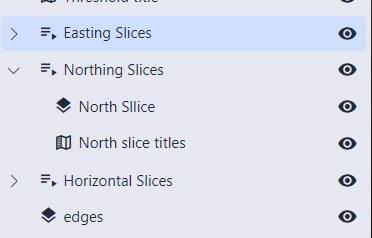
The eye icons on the right allow you to see and immediately change the visibility of individual models. Groups and sequences toggle the visibility of all of their children when clicked.