The Viewer is the primary 3D visualization window in Earth Volumetric Studio. It includes a dedicated user interface for navigating the 3D scene, managing the visibility of objects, and accessing various tools. Additional, more advanced properties are available in the Properties window when the viewer module is selected.
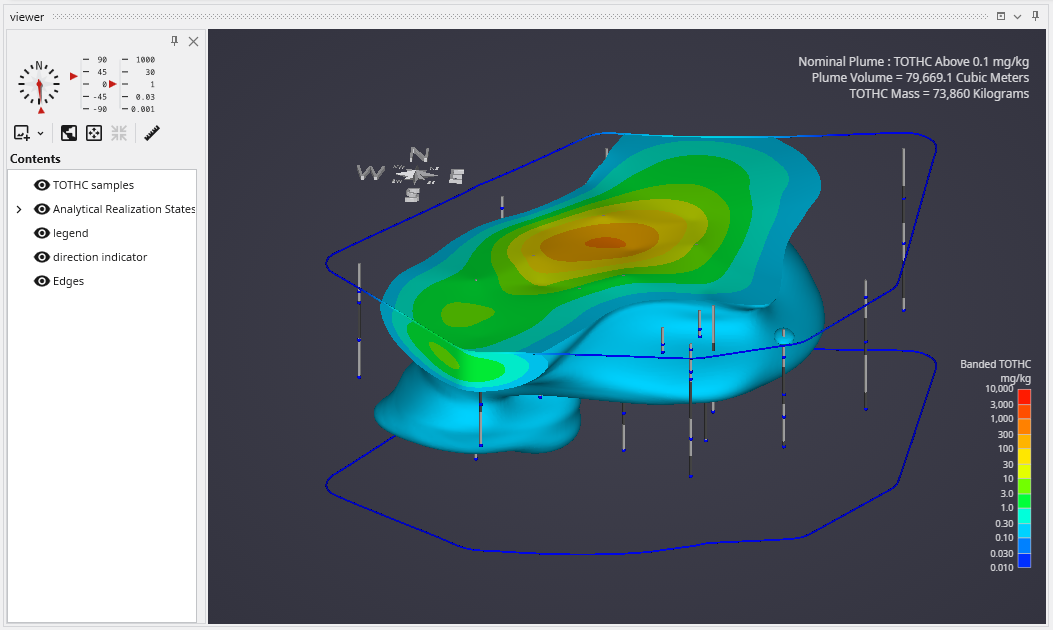
Viewer Window Interface
The Viewer window features a sidebar on the left that contains controls for orientation, scene management, and a table of contents
View Orientation Controls
At the top of the sidebar, the orientation controls allow for precise camera positioning.
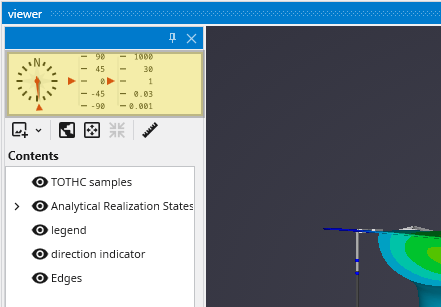
| Control | Description |
|---|---|
| Compass Rose | Provides a visual indicator of the current view orientation (North, South, East, West). You can click and drag the needle on the compass to adjust the camera’s Azimuth (horizontal rotation) or click any of the subdivisions to set the view direction. |
| Inclination Slider | The vertical slider next to the compass controls the camera’s Inclination (vertical tilt). Drag the indicator up or down to change the viewing angle, from a top-down plan view (90°) to a side profile view (0°) or click any of the subdivisions for pre-set values. |
Scene and View Controls Toolbar
A toolbar below the orientation controls provides quick access to common scene management functions.
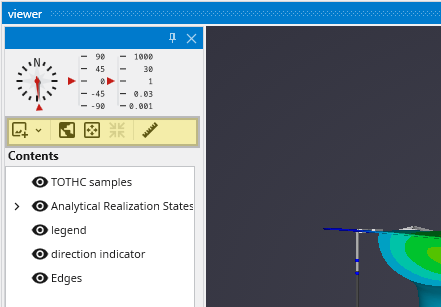
| Button | Icon | Description |
|---|---|---|
| Save Viewer Snapshot | 
| Saves the current contents of the viewer to an image file. Clicking the main button saves with the last used settings, while the dropdown arrow reveals several options to control the output: |
- **Use Transparent Background**: If enabled (and using PNG format), the viewer background will be transparent in the saved image.
- **Prefer Lossless**: When enabled, attempts to save in a lossless format like PNG.
- **Quality**: Sets the compression quality for lossy formats like JPEG (1-100).
- **View Scale**: A multiplier for the output resolution. A scale of 2.0 will produce an image twice the width and height of the current viewer size.
- **Scale Forward Facing Text**: Ensures that text elements scale correctly with the View Scale to maintain their relative size.
Table of Contents
The Contents section at the bottom of the sidebar acts as a layer manager for your scene. It displays a hierarchical tree view of every object connected to the viewer module in the Application Network.
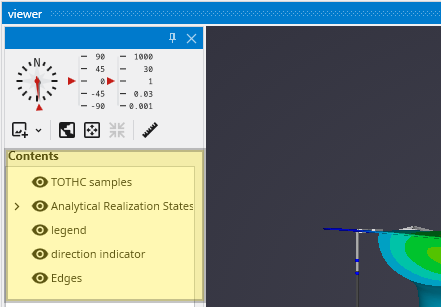
- Visibility Control: Each item in the list has an eye icon next to it. Clicking this icon toggles the visibility of that object in the viewer. This allows you to quickly show or hide different components of your model without disconnecting modules. Objects hidden in the Table of Contents will also be hidden in exported C Tech Web Scenes (.ctws).
- Tree Structure: If you use modules like
group_objects, the Table of Contents will reflect that structure. You can expand or collapse parent items to show or hide their children, and toggling the visibility of a parent will affect all the objects grouped under it. - Double Click Interaction: Double left-click with your mouse on any item in the Table of Contents will select that module in the the-application-window.mdApplication, as well as show it’s properties in the Properties Window.