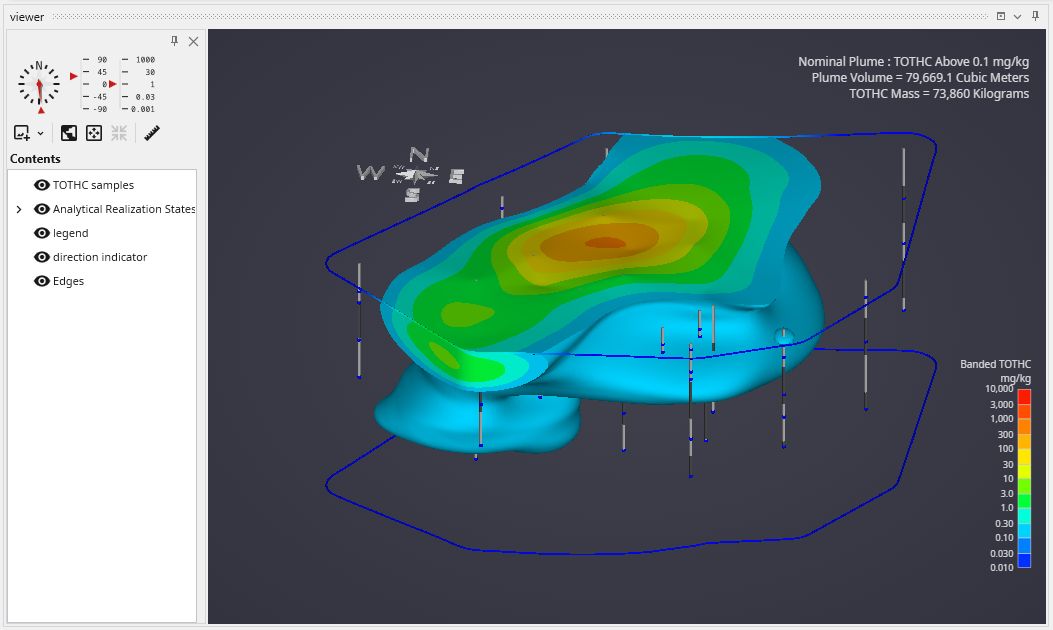
The Viewer is the primary 3D visualization window in Earth Volumetric Studio. It serves as the canvas where all the visual outputs from your Application Network - such as geologic layers, contaminant plumes, sample data, and annotations - are rendered and combined into a single, interactive scene. This is the main environment for exploring, analyzing, and presenting your 3D model.
The Viewer Module and the Application Network
While the Viewer window is where you see your final 3D model, its content is entirely controlled by the viewer module within the Application Network. The viewer module acts as the final destination for all visual elements in your workflow.
Any module that generates a visual object will have a red Renderable Object output port. This port contains all the information needed to draw that object, including its geometry, colors, and rendering properties. See Red Port Properties (Renderable Port).
To display an object, you must connect its red output port to the input port on a viewer module. The Viewer window will then render all the objects it receives from these connections, layering them together to create the final, composite scene. A single application can have multiple viewer modules, each controlling a separate Viewer window with different content.
The Viewer allows you to intuitively navigate and inspect your model from any angle, providing a dynamic way to understand spatial relationships and validate your results.
Basic Mouse Controls
Navigating the 3D scene is done primarily with the mouse. The basic controls are designed to be intuitive for exploring your model.
| Action | Mouse Control |
|---|---|
| Rotate / Tilt | Click and drag with the Left Mouse Button to rotate the view (azimuth) and change the vertical viewing angle (inclination). |
| Pan | Click and drag with the Right Mouse Button to pan the camera, moving the view horizontally and vertically without changing the rotation. |
| Zoom | Use the Mouse Wheel to zoom in and out of the scene. |
Viewer UI Components
The Viewer window includes a dedicated sidebar on the left that provides access to a variety of tools for controlling the scene and managing its contents. This interface is divided into several key sections.
| Component | Overview |
|---|---|
| View Orientation Controls | At the top of the sidebar, a compass rose and associated controls allow you to set precise viewing angles or snap to standard orthographic views (e.g., Top, Front, Side). This is essential for creating consistent, reproducible images and analyses. |
| Scene and View Controls | A toolbar below the compass provides buttons for managing the camera and scene. These controls allow you to perform actions like fitting the entire scene into the view, resetting the camera to a default state, and other view manipulations. |
| Table of Contents | The lower section of the sidebar contains the Table of Contents, which lists every object currently being displayed in the Viewer. This acts as a layer manager, allowing you to quickly toggle the visibility of individual objects or groups of objects. |
The Viewer is the primary 3D visualization window in Earth Volumetric Studio. It includes a dedicated user interface for navigating the 3D scene, managing the visibility of objects, and accessing various tools. Additional, more advanced properties are available in the Properties window when the viewer module is selected.