The Application window is the central workspace in Earth Volumetric Studio for creating and managing your data processing and visualization workflows. It provides a visual, node-based environment where you build networks by placing and connecting modules to define a data flow.
The window is divided into two main sections: the Module Library on the left and the Application Network on the right.
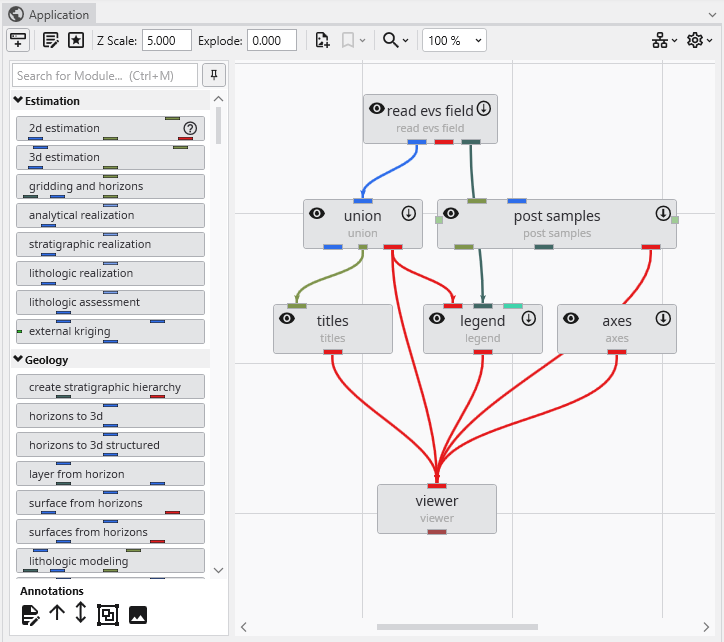
Module Library
The Module Library contains a comprehensive list of all available modules, organized into categories such as Estimation, Geology, and Annotations. To build your application, you can find the desired module in the library and drag it onto the Application Network canvas.
This topic is discussed in more detail in the Module Library topic.
Application Network
The Application Network is the gridded canvas where you assemble your workflow. Modules are placed here and connected to one another to control the flow of data. Each module has input and output ports, and you create connections between matching ports on different modules. This visual representation allows you to easily understand and modify the data processing pipeline. The style of the connections (curved, straight) can be controlled in the Application Options.
See the Application Network topic and its subtopics for more.
Toolbar Functions
A toolbar at the top of the Application window provides quick access to various tools and settings for managing your application.
| Tool | Icon | Description |
|---|---|---|
| Show Module Library | 
| Toggles the visibility of the Module Library panel on the left. |
| Edit Application Properties | 
| Opens the Application Properties in the Properties window. These properties are global settings that apply to the entire application, such as Bookmarks and Colors. |
| Edit Application Favorites | 
| Opens the Application Favorites in the Properties window. This panel contains a collection of all module properties that you have manually marked as favorites, providing quick access to them. |
| Z Scale | 
| Controls the global vertical exaggeration for all viewers in the application. |
| Explode | 
| Controls the global explode factor, which separates objects in the viewer for better visibility. |
| Create Snapshot | 
| Saves a snapshot image of the current state of the Application Network. |
| Bookmarks | 
| A dropdown menu that allows you to quickly toggle between saved bookmarks, which store specific camera views and other scene settings. |
| Find in Application | 
| A search bar that helps you locate modules within your application by name. See Searching for a Module in the Application Window topic for more details. |
| Zoom | 
| Provides controls to manage the zoom level of the Application Network. You can zoom in or out, reset the zoom to its default level, or automatically adjust the zoom to fit the entire network within the view. |
| Application Overview | 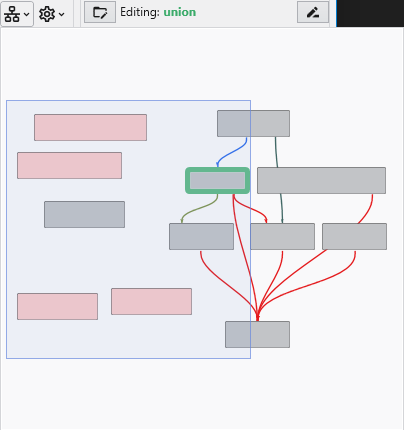
| Shows a stylized, high-level overview of your Application Network, which is useful for navigating large and complex applications. You can click on that overview to zoom in on that part in the Application Network. |
Options Menu 
The Options menu contains settings related to connections and the Module Library.
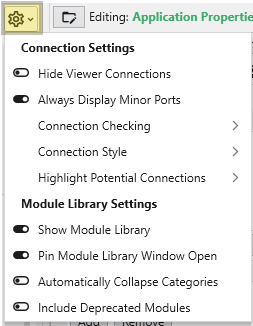
- Connection Settings
Hide Viewer Connections: Toggles the visibility of connection lines leading to any viewer modules.Always Display Minor Ports: When enabled, all module ports (both major and minor) are displayed. When disabled, only major ports are shown by default.Connection Checking: Submenu for settings related to data type validation when connecting modules.Connection Style: Submenu to change the appearance of connection lines (e.g., curved or straight).Highlight Potential Connections: Submenu to control which ports a connection can connect to when you are creating a new connection.
- Module Library Settings
Show Module Library: Toggles the visibility of the Module Library.Pin Module Library Window Open: Keeps the Module Library panel open and prevents it from automatically collapsing.Automatically Collapse Categories: If enabled, module categories are collapsed by default.Include Deprecated Modules: Toggles the visibility of older, outdated modules in the Module Library.
The Module Library is a core component of the Application window, serving as the repository for all modules used to build data processing and visualization workflows. It is located on the left side of the Application window and a fixed part of it. Unlike most other windows, it cannot be undocked, but it can be hidden when not in use.
The Application Network is the primary workspace in Earth Volumetric Studio for building and managing your data processing workflows. It is a visual,
Searching for a Module in the Application Window
Finding Modules in the Application Network For large or complex application networks, the search functionality provides an efficient way to locate specific modules. The search tool is located in the toolbar at the top of the Application window. Using the Search Tool The appearance of the search tool depends on the available width of the Application window. In narrower views, it may appear as a magnifying glass icon. In wider views, it will be displayed as a full search box labeled “Search for Module in Application”.