Modules in the Application Network feature a set of icons directly on their surface that provide at-a-glance information and quick control over their execution and visibility. Modules that can be executed or produce a visible output have icons on their left and right sides. The right-side icon controls execution, while the left-side icon controls visibility in the viewer.
Execution Control
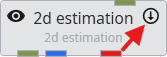
The icon on the right side of a module indicates its execution status. Clicking this icon toggles the module’s Run property, which is the same setting found in the Module Properties window.
| State | Icon | Description |
|---|---|---|
| Run | 
| The downward-pointing arrow signifies that the module is active. It will execute automatically whenever its properties change or when it receives new data from an upstream module. |
| Off | 
| The pause symbol indicates that the module’s automatic execution is turned off. It will not run until it is manually triggered through the Run Once button in its Module Properties window or its status is toggled back to Run. |
Visibility Control
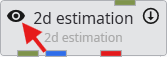
The icon on the left side of a module controls the visibility of its output in the 3D viewer. Clicking this icon cycles through the available visibility states, which is the same as the visibility icon in the Table of Content in the Viewer.
| State | Icon | Description |
|---|---|---|
| Visible | 
| The open eye indicates that the module’s output is currently visible in the viewer. |
| Hidden | 
| The crossed-out eye indicates that the module’s output is hidden in the viewer. |
| Excluded | 
| This special state also hides the output in the main EVS viewer. More importantly, it completely excludes the object from being exported to web formats (CTWS) or 3D PDFs. |
| Locked | 
| This state ensures the module’s output is always visible. It is primarily used for web exports (CTWS), where it forces the object to be visible, overriding any user attempts to hide it. |
Special Visibility States for Parent Modules
Modules that can have multiple renderable children connected to them (such as group_objects or sequence modules) can display combined visibility states if their children have different settings.
| State | Icon | Description |
|---|---|---|
| Indeterminate | 
| Shown when some connected children are Visible and others are Hidden. |
| Visible with Excluded Child | 
| Shown when the parent is set to Visible, but at least one child is Excluded. |
| Hidden with Locked Child | 
| Shown when the parent is set to Hidden, but at least one child is Locked. |