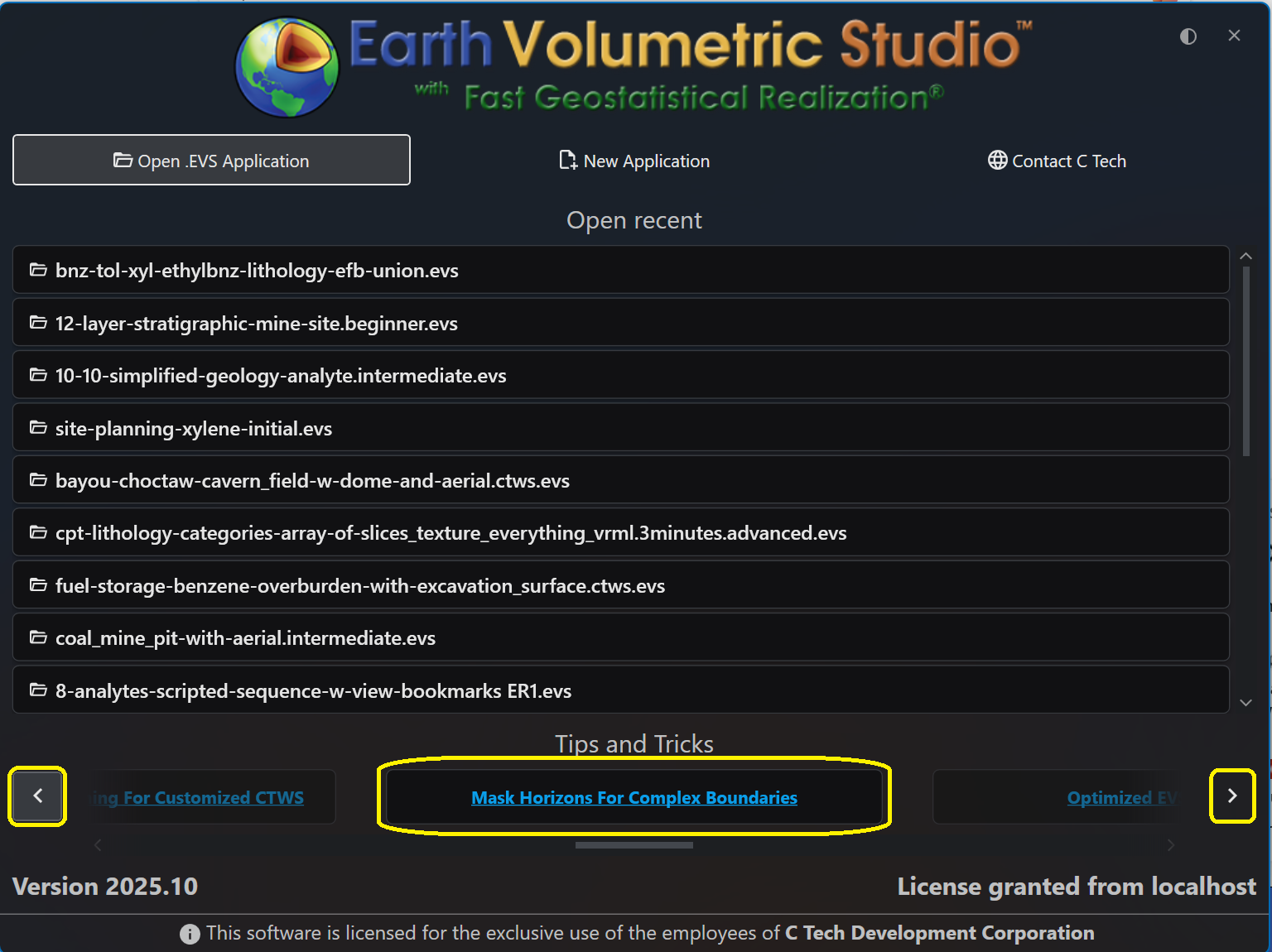
The Earth Volumetric Studio startup window is your launchpad for any project. From here, you can start with a clean slate by creating a new application, jump back into a previous project by opening an existing file, or access helpful resources.
Licensing and Version Information
The bottom of the window shows you the current version of EVS as well as well as your license status.
Alerts will also be displayed near the top of the Window when your license subscription is close to its end date. This helps with preventing an unexpected shutdown due to license subscription termination.
Navigating the Startup Screen
The startup screen provides several options to begin your session:
- Open .EVS Application: Allows you to browse your file system to open any existing
.evsproject file. - New Application: Closes the startup screen and opens a blank workspace to begin a new project from scratch.
- Open recent: Displays a list of your most recently used applications for quick access.
Additionally, the startup screen provides a button with C Tech’s contact information and links to helpful Tips and Tricks articles.
Creating a New Application
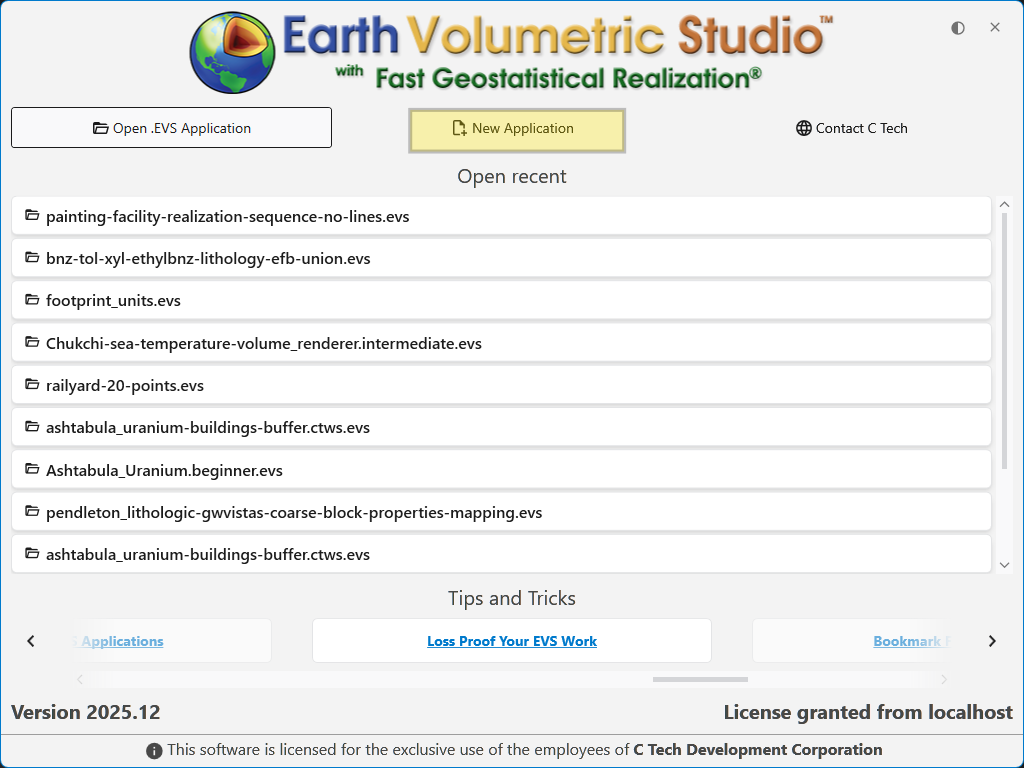
To start a project from scratch, click the New Application button.
This will immediately close the startup screen and open the main EVS workspace with a blank Application Network. This provides a clean canvas, ready for you to begin building your data processing and visualization workflow by adding and connecting modules.
Opening an Existing Application
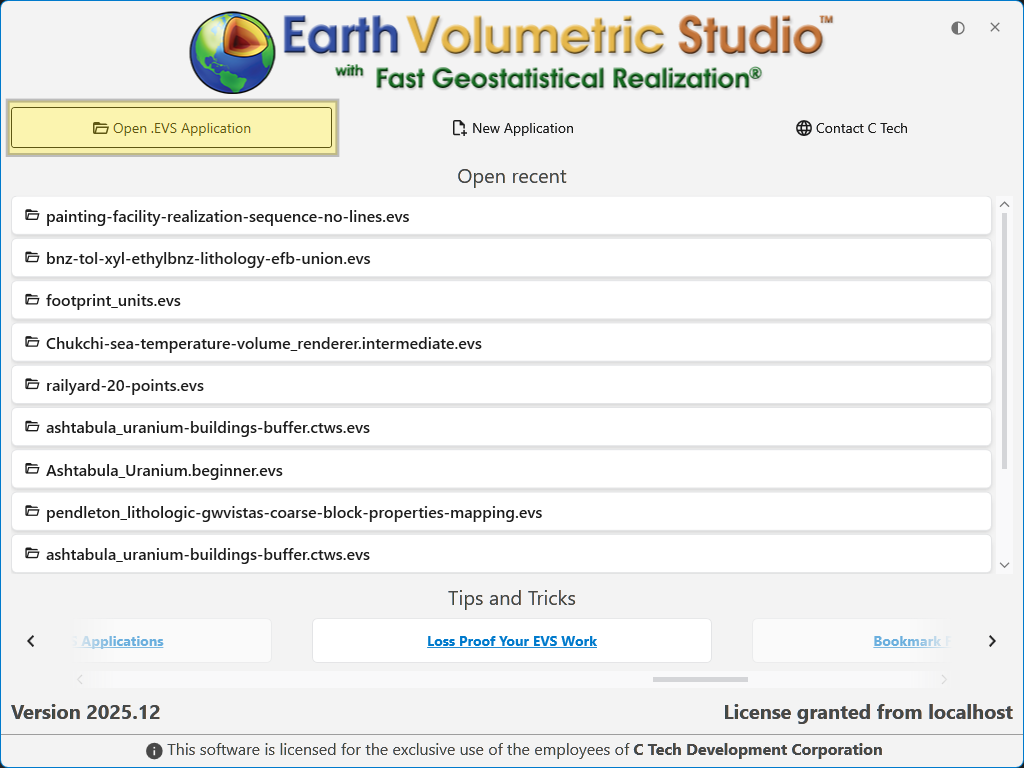
If you want to work on a project that is not in your “Open recent” list, you can browse your computer to find it. Click the Open .EVS Application button which will start EVS and navigate to the Open Files pane in the Menu.
Using the Recent Applications List
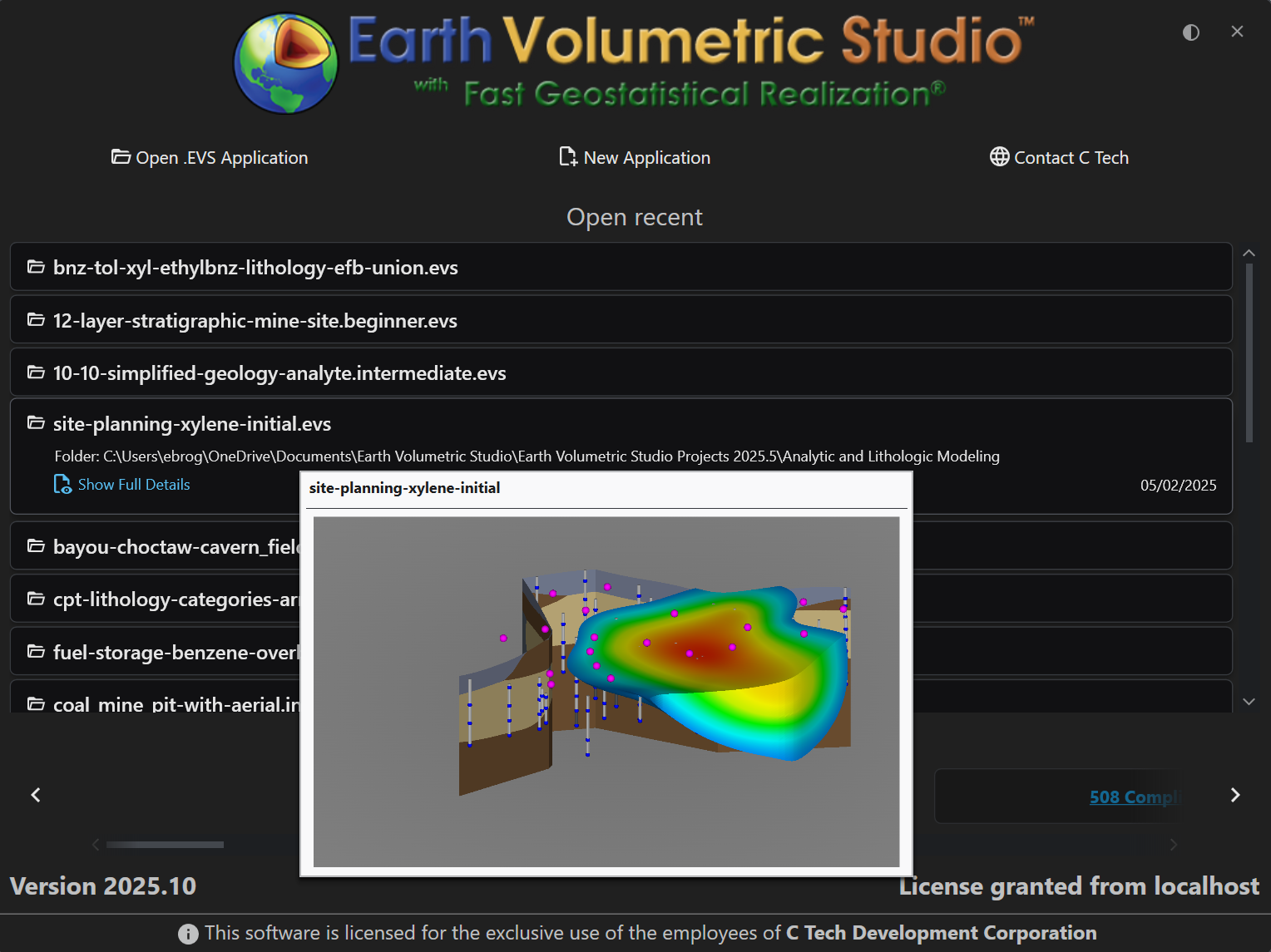
The list is interactive and provides helpful information to ensure you are opening the correct project. When you hover your mouse over an application in the list, a preview window appears with key details.
Preview Window Details
The hover preview provides the following information:
| Element | Description |
|---|---|
| Preview Image | A visual snapshot of the application’s 3D viewer as it appeared the last time the project was saved. This gives you an immediate visual reminder of the project’s output. |
| File Name | The name of the application file (e.g., site-planning-xylene-initial.evs). |
| Folder Path | The full directory path where the file is located on your system. |
| Last Modified Date | The date the file was last saved. |
| Show Full Details | A link that navigates to the main Open screen, where you can see more comprehensive metadata, including the application network preview. |
Opening an Application
To open a project from the list, simply click directly on the application’s name. The application will load immediately, allowing you to resume your work.
Navigating to Tips and Tricks
Click on any Tips and Tricks link, which will open a browser to read the selected article.