The Python Script Editor is the integrated environment within Earth Volumetric Studio for writing, editing, and running Python scripts. It provides a full-featured text editor with syntax highlighting, code formatting tools, and direct access to execution and debugging functions, making it the central hub for all your scripting activities.
Accessing the Python Script Editor
You can open the editor through the Python Scripting button located in the Main Toolbar.
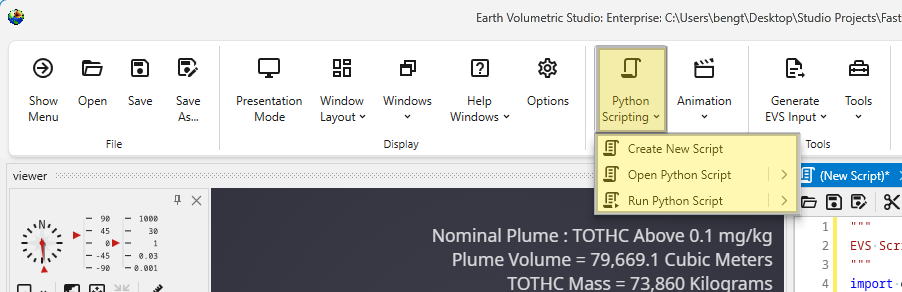
The dropdown menu provides three main options:
| Option | Description |
|---|---|
| Create New Script | Opens the Python Script Editor with a new, blank script. The new script is prepopulated with default import statements for the essential EVS libraries (evs, evs_util) to get you started quickly. |
| Open Python Script | Allows you to browse for and open an existing Python (.py) file from your computer. Clicking the button opens up a file dialog while hovering over the right arrow opens a list of recently used Python script files. |
| Run Python Script | Executes a Python script. Hovering over this option will also show a list of recent scripts for quick execution. |
Once a script is created or opened, the Python Script Editor window will appear.
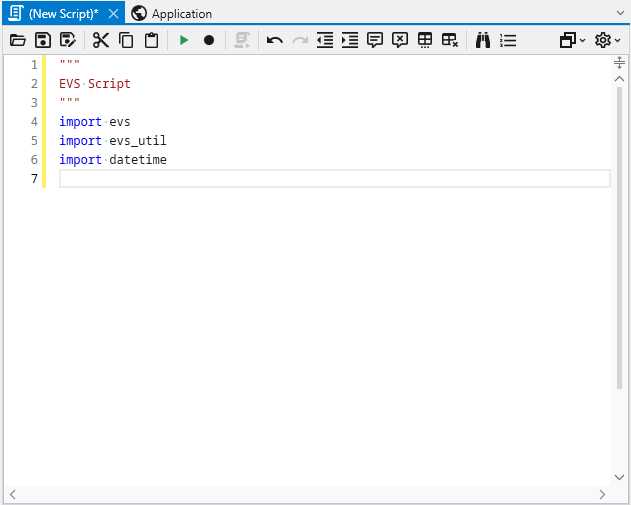
Editor Toolbar Reference
The toolbar at the top of the editor provides a wide range of tools for managing and editing your code.

File and Edit Operations
| Button | Function | Description |
|---|---|---|
| Open Script | Open a python file | Opens a file browser to load an existing script. |
| Save Script | Save the current python file | Saves the currently active script. |
| Save Script As | Save the current python file with a new filename | Saves the script to a new file. |
| Cut (Ctrl+X) | Cut the selection and put it on the Clipboard. | Removes the selected text and copies it to the clipboard. |
| Copy (Ctrl+C) | Copy the selection and put it on the Clipboard. | Copies the selected text to the clipboard. |
| Paste (Ctrl+V) | Paste the Clipboard contents into the document. | Inserts text from the clipboard at the cursor location. |
| Undo (Ctrl+Z) | Undo the last edit. | Reverts the last change made to the script. |
| Redo (Ctrl+Y) | Redo the last edit. | Re-applies the last change that was undone. |
Execution and Recording
| Button | Function | Description |
|---|---|---|
| Run (F5) | Execute the Current Script. | Runs the script. |
| Record (F12) | Record all Property interactions. | Toggles recording mode. When active, your interactions with module properties in the UI are automatically translated into Python code and appended to the script. |
| Run in Interactive (Alt+Enter) | Execute the Selected Code in Python Interactive. | Runs only the selected lines of code in the Python Interactive window, which is useful for testing small snippets. |
Code Formatting and Navigation
| Button | Function | Description |
|---|---|---|
| Decrease Indentation | Decrease indentation amount. | Shifts the selected lines of code to the left. |
| Increase Indentation | Increase indentation amount. | Shifts the selected lines of code to the right. |
| Comment Lines | Comment out the selected lines. | Adds a ‘#’ character to the beginning of each selected line, disabling them as code. |
| Uncomment Lines | Uncomment out the selected lines. | Removes the ‘#’ character from the beginning of each selected line. |
| Untabify Selected Lines | Convert tabs to spaces in selected lines. | Replaces tab characters with the equivalent number of spaces. |
| Trim Trailing Whitespace | Remove all trailing whitespace. | Deletes any spaces or tabs at the end of each line in the script. |
| Find or Replace (Ctrl+F) | Find or Replace in the current script. | Opens a dialog to search for text and optionally replace it. |
| Goto Line (Ctrl+G) | Goto a specific line by number. | Jumps the cursor directly to the specified line number. |
Additional Menus
On the far right of the toolbar are two dropdown menus for additional functionality.
Information Menu
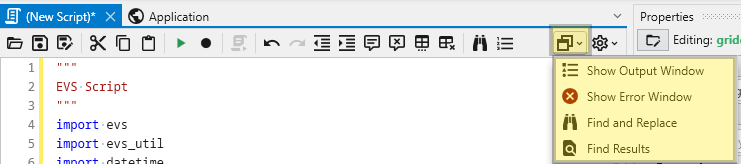
This menu provides access to related information and output windows.
| Option | Description |
|---|---|
| Show Output Window | Opens the Output window, where script print() statements and execution status are displayed. |
| Show Error Window | Opens a window that displays any errors encountered during script execution. |
| Find and Replace | Opens the search and replace dialog. |
| Find Results | Shows the results from a find operation. |
Editor Options Menu
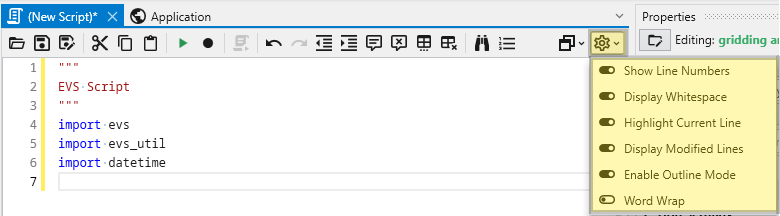
This menu (gear icon) controls the visual display of the text editor itself.
| Option | Description |
|---|---|
| Show Line Numbers | Toggles the visibility of the line number column on the left. |
| Display Whitespace | Toggles the visibility of characters for spaces and tabs. |
| Highlight Current Line | Toggles a background highlight for the line the cursor is currently on. |
| Display Modified Lines | Toggles a visual indicator in the margin for lines that have been changed since the last save. |
| Enable Outline Mode | Toggles a feature that allows you to collapse and expand code blocks (like functions and classes). |
| Word Wrap | Toggles whether long lines of code wrap to the next line or extend off-screen. |