The Python Interactive window provides a real-time environment to execute Python statements and expressions. This tool allows you to test code snippets, perform quick calculations, and inspect data without needing to run a full script.
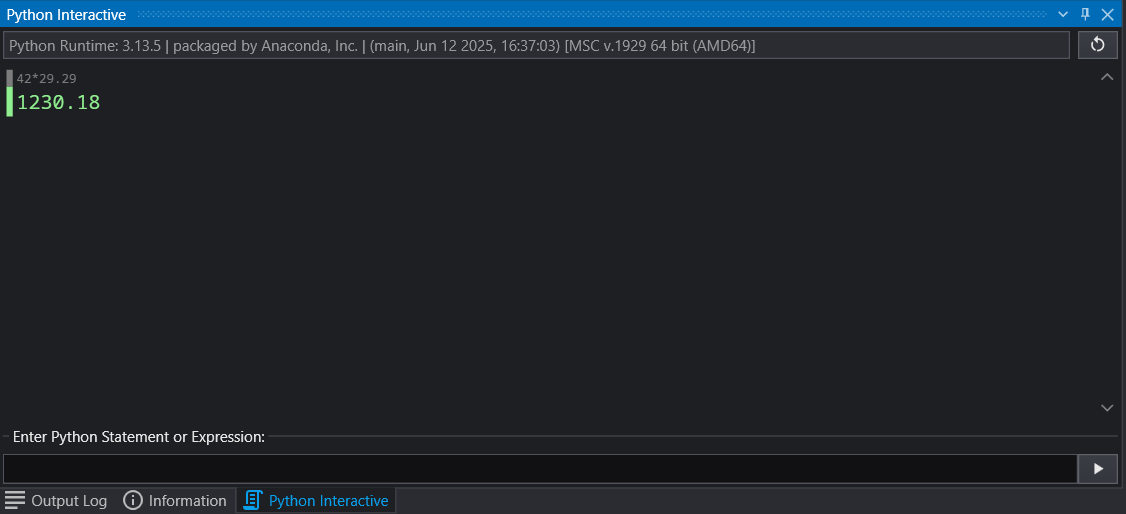
Window Components
The interface is divided into three primary sections:
| Component | Description |
|---|---|
| Header Bar | Displays the current Python runtime version used by EVS (e.g., Anaconda). Use the Reset button (circular arrow) on the right to restart the interactive session. |
| Output Area | Shows a history of your inputs and the resulting outputs. Results are color-coded (e.g., gray for what you typed, green for successful evaluation) for high visibility. |
| Input Box | The “Enter Python Statement or Expression” field at the bottom where you type your code. Press the Play button or Enter to execute. |
To get started with the Python Interactive window, follow these steps:
- Enter Code: Click into the input field at the bottom of the window.
- Evaluate: Type a mathematical expression (e.g.,
42 * 29.29) or a Python command. - Submit: Click the play icon on the right or press your execution hotkey.
- Review: Check the Output Area for the result or any potential error messages.
While useful as a general tool (such as using as a calculator, as shown above), the window is typically used for interacting with the EVS API directly.
This is particularly useful when writing scripts, as you can interactively inspect the structure of the EVS API calls, and modify as needed.
For example, you can see the values in a dictionary returned by the API directly:

Clicking on the grey text in the Output Area will re-select it and enter it into the Input Box, which can then be edited. Using the above, this allows us to click on the previous code (evs.get_module_exte….), and then add the entry for SelectedOption to test and make sure we are fetching the results we would expect (the name of the analyte):
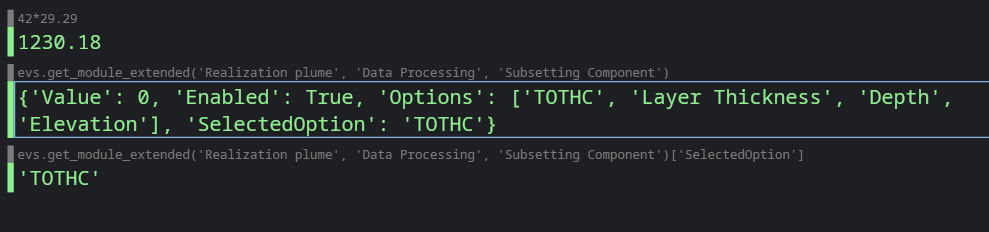
This shows us the results of the entered code, which could then be reused in a Python script (such as fetching the current analyte name above for use in a title).