Python Scripting

Introduction to Python Scripting

Python scripting in Earth Volumetric Studio provides a method to programmatically control and automate virtually every aspect of the application. By leveraging the Python programming language, you can move beyond manual interaction to create dynamic, data-driven workflows, automate repetitive tasks, and perform custom analyses that are not possible with standard interface controls alone.

This topic provides a high-level overview of what Python scripting is, why it is useful, and what it can achieve.

Accessing Python Scripting Features

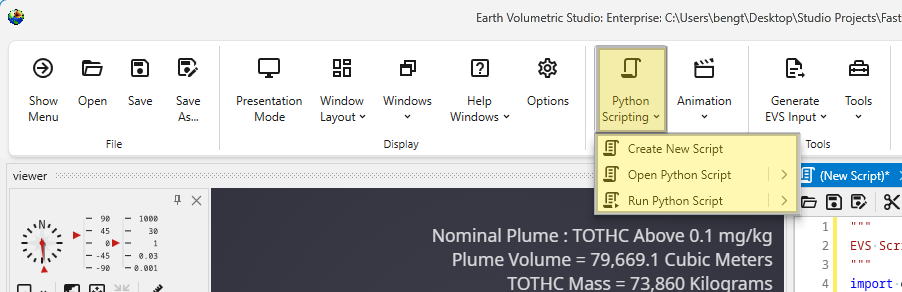
The main entry point for all scripting functionality is the Python Scripting button in the main toolbar.

The Python Scripting button in the main toolbar. The Python Scripting button in the main toolbar.

This dropdown menu provides options to create, open, and run scripts, which are managed in the dedicated Python Window.

Why Use Python Scripting?

While the graphical interface is ideal for building and exploring applications, scripting excels at tasks that require logic, repetition, and automation. It allows you to codify your workflow, making it precise, repeatable, and easy to share.

The primary benefits of scripting include:

  • Automation: Automate repetitive tasks, such as generating reports or exporting images for a series of different datasets or parameters.
  • Custom Logic: Implement complex conditional logic and loops that are not possible with other features.
  • Data Integration: Read data from external sources (like CSV files, databases, or web APIs) and use it to dynamically control your EVS application.
  • Advanced Analysis: Use popular Python libraries like NumPy and Pandas to perform sophisticated data analysis and feed the results back into EVS modules.

Python Scripting vs. Sequences

Both Python scripts and Sequences can be used to create dynamic applications, but they serve different purposes.

FeatureSequencesPython Scripting
NatureA finite collection of predefined, static states.A program that can execute logic, loops, and calculations dynamically.
Use CaseIdeal for presentations and guided exploration through a set series of steps (e.g., a slider for plume levels).Ideal for automation, custom analysis, and workflows that require conditional logic or external data.
FlexibilityLimited to the states that were explicitly saved by the creator.Nearly limitless. Can respond to data, create or destroy modules, and change application structure on the fly.

In short, use sequences when you want to present a curated set of options to a user. Use Python scripting when you need to automate a process or perform actions that are data-dependent and cannot be predefined.

Common Use Cases and Examples

Python scripting opens up a vast range of possibilities. Here are a few common examples of what you can achieve.

Batch Processing and Report Generation

Imagine you have 50 different data files that all require the same analysis. A Python script can automate this entire workflow:

  1. Loop through a directory of input files.
  2. For each file, update the file path in a module.
  3. Execute the application.
  4. Export a screenshot of the final viewer with a unique name.
  5. Read a result from the volumetrics module and write it to a summary CSV file.

Parametric Studies

A script can be used to investigate how changing a key model parameter affects the results. For example, you could write a script to:

  • Loop through a range of values for the 3d estimation module’s Reach parameter (e.g., from 500 to 5000 in steps of 100).
  • For each value, execute the application and log the resulting plume volume.
  • This allows you to systematically assess the sensitivity of your model to that parameter.

Dynamic Application Control

Scripts can modify the application in response to data. For example, a script could:

  • Read a text file containing a list of coordinates.
  • For each coordinate, move the slice module to that location.
  • If a certain condition is met (e.g., the average concentration on the slice exceeds a threshold), the script could automatically log these locations to the Output Log.
  • Python Script Editor

    The Python Script Editor is the integrated environment within Earth Volumetric Studio for writing, editing, and running Python scripts. It provides a full-featured text editor with syntax highlighting, code formatting tools, and direct access to execution and debugging functions, making it the central hub for all your scripting activities. Accessing the Python Script Editor You can open the editor through the Python Scripting button located in the Main Toolbar.

  • Python Interactive Window

    The Python Interactive window provides a real-time environment to execute Python statements and expressions. This tool allows you to test code sni

  • Accessing Properties Using Python

    You can programmatically read and set the properties of any module using Python Scripting. This is a powerful feature for automating workflows and creating complex interactions between modules. The scripting engine provides programmatic access to the same underlying properties that are exposed as controls in the Properties window. This allows scripts to read, evaluate, and update values, mirroring manual user interaction. The easiest way to script a property is to copy the required syntax directly from the Properties window.

  • Python Functions & Operators

    Python Functions & Operators Earth Volumetric Studio supports Python 3.12 and 3.13. It will use the highest supported system installed version by default, but can be configured in options. A listing of Python Functions & Operators can be found at python.org. Below are links to relevant pages: Functions Math Operators String Operators Date and Time Operators
Subsections of Python Scripting

The Python Script Editor is the integrated environment within Earth Volumetric Studio for writing, editing, and running Python scripts. It provides a full-featured text editor with syntax highlighting, code formatting tools, and direct access to execution and debugging functions, making it the central hub for all your scripting activities.

Accessing the Python Script Editor

You can open the editor through the Python Scripting button located in the Main Toolbar.

The Python Scripting menu in the main toolbar. The Python Scripting menu in the main toolbar.

The dropdown menu provides three main options:

OptionDescription
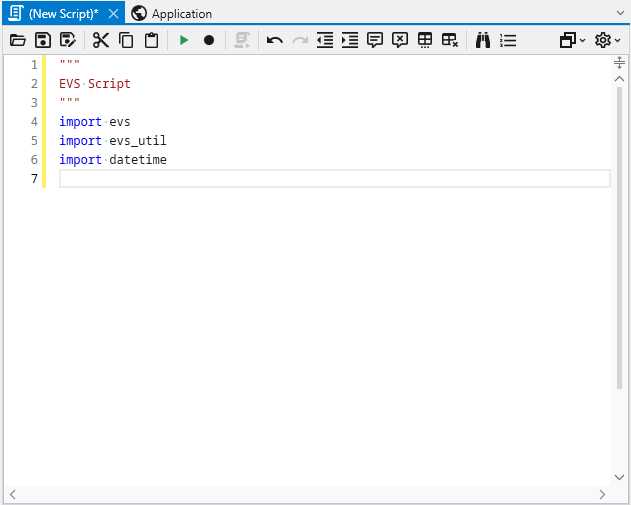
Create New ScriptOpens the Python Script Editor with a new, blank script. The new script is prepopulated with default import statements for the essential EVS libraries (evs, evs_util) to get you started quickly.
Open Python ScriptAllows you to browse for and open an existing Python (.py) file from your computer. Clicking the button opens up a file dialog while hovering over the right arrow opens a list of recently used Python script files.
Run Python ScriptExecutes a Python script. Hovering over this option will also show a list of recent scripts for quick execution.

Once a script is created or opened, the Python Script Editor window will appear.

The Python Script Editor window with a new script. The Python Script Editor window with a new script.

Editor Toolbar Reference

The toolbar at the top of the editor provides a wide range of tools for managing and editing your code.

A composite image showing all buttons and tooltips in the Python Script Editor toolbar. A composite image showing all buttons and tooltips in the Python Script Editor toolbar.

File and Edit Operations

ButtonFunctionDescription
Open ScriptOpen a python fileOpens a file browser to load an existing script.
Save ScriptSave the current python fileSaves the currently active script.
Save Script AsSave the current python file with a new filenameSaves the script to a new file.
Cut (Ctrl+X)Cut the selection and put it on the Clipboard.Removes the selected text and copies it to the clipboard.
Copy (Ctrl+C)Copy the selection and put it on the Clipboard.Copies the selected text to the clipboard.
Paste (Ctrl+V)Paste the Clipboard contents into the document.Inserts text from the clipboard at the cursor location.
Undo (Ctrl+Z)Undo the last edit.Reverts the last change made to the script.
Redo (Ctrl+Y)Redo the last edit.Re-applies the last change that was undone.

Execution and Recording

ButtonFunctionDescription
Run (F5)Execute the Current Script.Runs the script.
Record (F12)Record all Property interactions.Toggles recording mode. When active, your interactions with module properties in the UI are automatically translated into Python code and appended to the script.
Run in Interactive (Alt+Enter)Execute the Selected Code in Python Interactive.Runs only the selected lines of code in the Python Interactive window, which is useful for testing small snippets.

Code Formatting and Navigation

ButtonFunctionDescription
Decrease IndentationDecrease indentation amount.Shifts the selected lines of code to the left.
Increase IndentationIncrease indentation amount.Shifts the selected lines of code to the right.
Comment LinesComment out the selected lines.Adds a ‘#’ character to the beginning of each selected line, disabling them as code.
Uncomment LinesUncomment out the selected lines.Removes the ‘#’ character from the beginning of each selected line.
Untabify Selected LinesConvert tabs to spaces in selected lines.Replaces tab characters with the equivalent number of spaces.
Trim Trailing WhitespaceRemove all trailing whitespace.Deletes any spaces or tabs at the end of each line in the script.
Find or Replace (Ctrl+F)Find or Replace in the current script.Opens a dialog to search for text and optionally replace it.
Goto Line (Ctrl+G)Goto a specific line by number.Jumps the cursor directly to the specified line number.

Additional Menus

On the far right of the toolbar are two dropdown menus for additional functionality.

Information Menu

This menu provides access to related information and output windows.

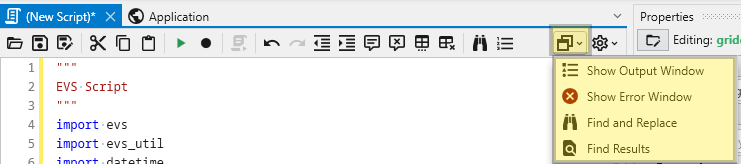
The Information Menu in the Python Script Editor toolbar. The Information Menu in the Python Script Editor toolbar.

OptionDescription
Show Output WindowOpens the Output window, where script print() statements and execution status are displayed.
Show Error WindowOpens a window that displays any errors encountered during script execution.
Find and ReplaceOpens the search and replace dialog.
Find ResultsShows the results from a find operation.

Editor Options Menu

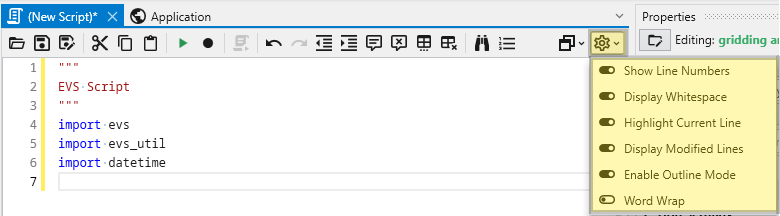
This menu (gear icon) controls the visual display of the text editor itself.

The Editor Options Menu in the Python Script Editor toolbar. The Editor Options Menu in the Python Script Editor toolbar.

OptionDescription
Show Line NumbersToggles the visibility of the line number column on the left.
Display WhitespaceToggles the visibility of characters for spaces and tabs.
Highlight Current LineToggles a background highlight for the line the cursor is currently on.
Display Modified LinesToggles a visual indicator in the margin for lines that have been changed since the last save.
Enable Outline ModeToggles a feature that allows you to collapse and expand code blocks (like functions and classes).
Word WrapToggles whether long lines of code wrap to the next line or extend off-screen.

The Python Interactive window provides a real-time environment to execute Python statements and expressions. This tool allows you to test code snippets, perform quick calculations, and inspect data without needing to run a full script.

Window Components

The interface is divided into three primary sections:

ComponentDescription
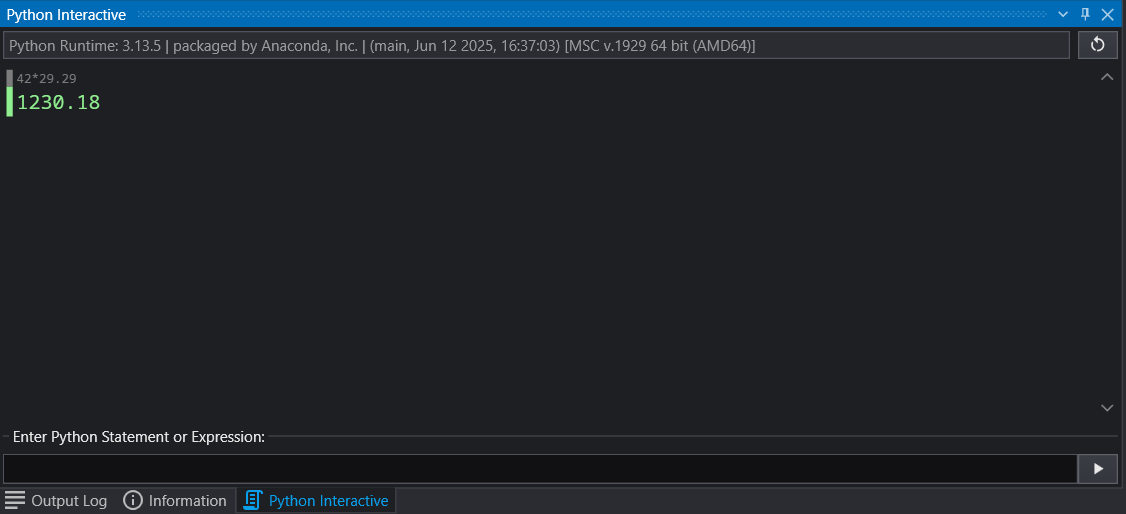
Header BarDisplays the current Python runtime version used by EVS (e.g., Anaconda). Use the Reset button (circular arrow) on the right to restart the interactive session.
Output AreaShows a history of your inputs and the resulting outputs. Results are color-coded (e.g., gray for what you typed, green for successful evaluation) for high visibility.
Input BoxThe “Enter Python Statement or Expression” field at the bottom where you type your code. Press the Play button or Enter to execute.

To get started with the Python Interactive window, follow these steps:

  1. Enter Code: Click into the input field at the bottom of the window.
  2. Evaluate: Type a mathematical expression (e.g., 42 * 29.29) or a Python command.
  3. Submit: Click the play icon on the right or press your execution hotkey.
  4. Review: Check the Output Area for the result or any potential error messages.

While useful as a general tool (such as using as a calculator, as shown above), the window is typically used for interacting with the EVS API directly.

This is particularly useful when writing scripts, as you can interactively inspect the structure of the EVS API calls, and modify as needed.

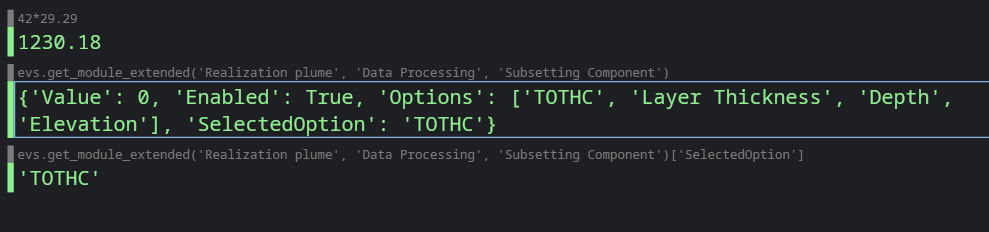
For example, you can see the values in a dictionary returned by the API directly:

Clicking on the grey text in the Output Area will re-select it and enter it into the Input Box, which can then be edited. Using the above, this allows us to click on the previous code (evs.get_module_exte….), and then add the entry for SelectedOption to test and make sure we are fetching the results we would expect (the name of the analyte):

This shows us the results of the entered code, which could then be reused in a Python script (such as fetching the current analyte name above for use in a title).

You can programmatically read and set the properties of any module using Python Scripting. This is a powerful feature for automating workflows and creating complex interactions between modules. The scripting engine provides programmatic access to the same underlying properties that are exposed as controls in the Properties window. This allows scripts to read, evaluate, and update values, mirroring manual user interaction. The easiest way to script a property is to copy the required syntax directly from the Properties window.

Getting a Property’s Value

To get the current value of a property and assign it to a Python variable:

  1. Open the Properties window for the module you want to control.
  2. Right-click on the property you want to read.
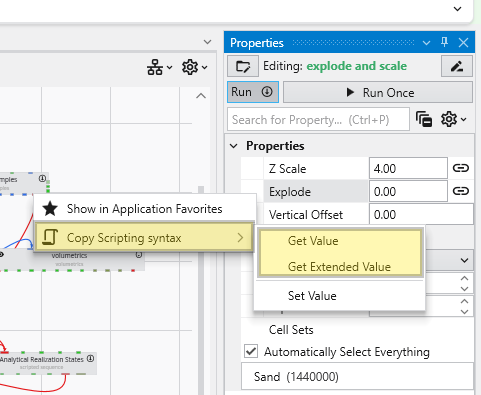
  3. Select Get Value or Get Extended Value from the context menu.

This action copies a line of Python code to your clipboard. You can then paste this code into the Python Script Editor.

Reading Value Example

Right-clicking on the Explode property of the explode and scale module and selecting Get Value will copy the following syntax:

explode = evs.get_module('explode and scale', 'Properties', 'Explode')

After executing this line, the explode variable in your script will hold the current value of the Explode property. Note that the Python API call has three arguments: the module name, the category name, then the property name.

Difference between Get Value and Get Extended Value

The context menu provides two options for getting a value. The Get Value option will use the evs.get_value API call, which fetches the value that is used when saving an application, and contains whatever is required to set the property. This is the value that should be used if using evs.set_value.

The extended option will use evs.get_extended_value, which typically results in a dictionary with the original value, as well as other metadata. For example, a drop down with a list of analytes will typically just return the selected item by index in get_value, but the extended option will include other information, such as the list of options, the selected value by name and index, and more.

Setting a Property’s Value

To set the value of a property:

  1. In the Properties window, right-click on the property you want to modify.
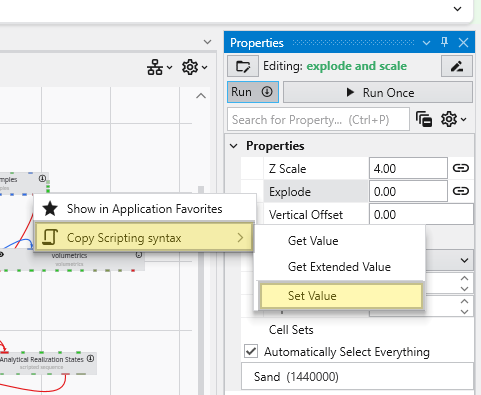
  2. Select Set Value from the context menu.

This copies the Python syntax for setting the property to your clipboard. Paste the code into the Python Script Editor or the Python Interactive Window and utilize the value as needed.

Updating Value Example

For example, using the same Explode property, the copied syntax would be:

evs.set_module('explode and scale', 'Properties', 'Explode', {'Linked': True, 'Value': 0.0})

You can change 0.0 to any valid value for that property, such as:

evs.set_module('explode and scale', 'Properties', 'Explode', {'Linked': False, 'Value': 1.0})

When dealing with a Linked Property, you must first disable the link to manually set its value. This is done by setting the corresponding Linked boolean property to false. If you attempt to set the value while it is still linked, your change will be overridden as the value is determined automatically.

Executing this command in the Python Script Editor or the Python Interactive Window will update the property in the module, and the change will be immediately visible in the Properties window.

Python Functions & Operators

Earth Volumetric Studio supports Python 3.12 and 3.13. It will use the highest supported system installed version by default, but can be configured in options.

A listing of Python Functions & Operators can be found at python.org. Below are links to relevant pages:

Please note: C Tech does not provide Python programming or syntax assistance as a part of Technical Support (included with valid subscriptions). Python scripting and functionality is provided as an advanced feature of Earth Volumetric Studio, but is not required to use the basic functionality.

Below are Earth Volumetric Studio specific functions which provide means to get and set parameters and to act upon the modules in the libraries and network.

evs.check_cancel():

Inserting this function at one or more locations in your Python script allows you to terminate (exit) the script when it is running once this function is reached. This should be inserted in loops which may run repeatedly so that canceling the script is possible.

Keyword Arguments: None

evs.get_application_info():

Gets basic information about the current application.

Keyword Arguments: None

evs.get_module(module, category, property):

Get a value from a module within the application.

Keyword Arguments:

module – the name of the module (required)

category – the category of the property (required)

property – the name of the property to read (required)

evs.get_modules():

Gets a list of all module names in the application.

Keyword Arguments: None

evs.get_module_type(module):

Gets the type of a module given its name.

Keyword Arguments:

module – the name of the module (required)

evs.rename_module(module, newName):

Renames a module, and returns the new name.

Keyword Arguments:

module – the name of the module (required)

newName – the suggested name of the module after renaming (required)

evs.get_module_extended(module, category, property):

Get an extended value from a module within the application.

Keyword Arguments:

module – the name of the module (required)

category – the category of the property (required)

property – the name of the property to read (required)

evs.set_module(module, category, property, value):

Set a property value in a module within the application.

Keyword Arguments:

module – the name of the module (required)

category – the category of the property (required)

property – the name of the property to set (required)

value – the new value for the property (required)

evs.get_port(module, port, category, property):

Get a value from a port in a module within the application.

Keyword Arguments:

module – the name of the module (required)

port – the name of the port (required)

category – the category of the property (required)

property – the name of the property to read (required)

evs.get_port_extended(module, port, category, property):

Get an extended value from a port in a module within the application.

Keyword Arguments:

module – the name of the module (required)

port – the name of the port (required)

category – the category of the property (required)

property – the name of the property to read (required)

evs.set_port(module, port, category, property, value):

Set a property value in a port in a module within the application.

Keyword Arguments:

module – the name of the module (required)

port – the name of the port (required)

category – the category of the property (required)

property – the name of the property to set (required)

value – the new value for the property (required)

evs.connect(starting_module, starting_port, ending_module, ending_port):

Connect two modules in the application.

Keyword Arguments:

starting_module – the starting module (required)

starting_port – the port on the starting module (required)

ending_module – the ending module (required)

ending_port – the port on the ending module (required)

evs.disconnect(starting_module, starting_port, ending_module, ending_port):

Disconnect two modules in the application.

Keyword Arguments:

starting_module – the starting module (required)

starting_port – the port on the starting module (required)

ending_module – the ending module (required)

ending_port – the port on the ending module (required)

evs.delete_module(module):

Delete a module from the application.

Keyword Arguments:

module – the module to delete (required)

evs.instance_module(module, suggested_name, x, y):

Instances a module in the application.

Keyword Arguments:

module – the module to instance (required)

suggested_name – the suggested name for the module to instance (required)

x – the x coordinate (required)

y – the y coordinate (required)

Result - The name of the instanced module

evs.get_module_position(module):

Gets the position of a module.

Keyword Arguments:

module – the module (required)

Result - A tuple containing the (x,y) coordinate

evs.suspend():

Suspends the execution of the application until a resume is called.

Keyword Arguments: None

evs.resume():

Resumes the execution of the application, causing any suspended operations to run.

Keyword Arguments: None

evs.refresh():

Refreshes the viewer and processes all mouse and keyboard actions in the application. Potentially unsafe operation.

Keyword Arguments: None

Refreshes the viewer and processes all mouse and keyboard actions in the application. At each occurrence of this function, your scripts will catch-up to behave more like manual actions. In most cases this is the only way that you can see the consequences of the commands reflected in your viewer upon this function’s execution.

This is a potentially unsafe operation under certain (hard to predict) circumstances.

If your script is malfunctioning with this command, try removing or commenting all occurrences.

We do not recommend using this command within Python scripts executed by the trigger_script module.

evs.sigfig(number, digits):

Rounds a number to a specific number of significant figures.

Keyword Arguments:

number – the number to round (required)

digits – the number of significant digits (required)

Result - The rounded value

evs.fn(number, digits = 6, include_thousands_separators = True, preserve_trailing_zeros = False):

Formats a number as string using a specific number of significant figures.

Keyword Arguments:

number – the number to round (required)

digits – the number of significant digits (optional, defaults to 6)

include_thousands_separators – whether to include separators for thousands (optional, defaults to True)

preserve_trailing_zeros – whether to preserve trailing zeros when computing significant digits (optional, defaults to False)

Result - The formatted number as a string

evs.is_module_executed():

Returns true if the script is being executed by a module.

Returns false when user executes (ie: hitting play in script window).

Keyword Arguments: None

evs_util.evsdate_to_datetime(d):

Convert a scripting “date” value to a datetime.datetime

Keyword Arguments:

d: the date to convert (required)

Result - The converted date

evs_util.datetime_to_evsdate(d):

Convert a datetime.datetime to a scripting “date” value

Keyword Arguments:

d: the date to convert (required)

Result - The converted date

evs_util.datetime_to_excel(d):

Convert a datetime.datetime into an excel compatible date number

Keyword Arguments:

d: the date to convert (required)

Result - The converted date

evs_util.evsdate_to_excel(d):

Convert a scripting “date” into an excel compatible date number

Keyword Arguments:

d: the date to convert (required)

Result - The converted date

evs_util.excel_to_datetime(d):

Convert form an excel compatible date number into a datetime.datetime

Keyword Arguments:

d: the date to convert (required)

Result - The converted date

evs_util.excel_to_evsdate(d):

Convert form an excel compatible date number into a scripting date value

Keyword Arguments:

d: the date to convert (required)

Result - The converted date