You can programmatically read and set the properties of any module using Python Scripting. This is a powerful feature for automating workflows and creating complex interactions between modules. The scripting engine provides programmatic access to the same underlying properties that are exposed as controls in the Properties window. This allows scripts to read, evaluate, and update values, mirroring manual user interaction. The easiest way to script a property is to copy the required syntax directly from the Properties window.
Getting a Property’s Value
To get the current value of a property and assign it to a Python variable:
- Open the Properties window for the module you want to control.
- Right-click on the property you want to read.
- Select Get Value or Get Extended Value from the context menu.
This action copies a line of Python code to your clipboard. You can then paste this code into the Python Script Editor.
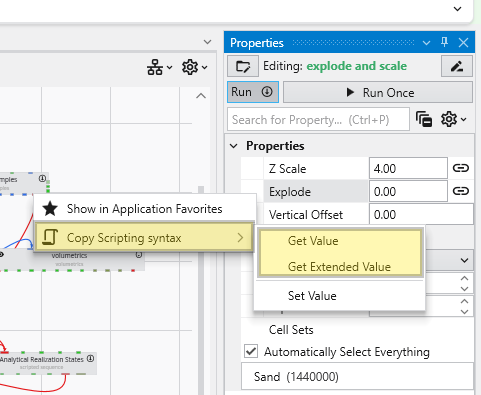
Reading Value Example
Right-clicking on the Explode property of the explode and scale module and selecting Get Value will copy the following syntax:
After executing this line, the explode variable in your script will hold the current value of the Explode property. Note that the Python API call has three arguments: the module name, the category name, then the property name.
Difference between Get Value and Get Extended Value
The context menu provides two options for getting a value. The Get Value option will use the evs.get_value API call, which fetches the value that is used when saving an application, and contains whatever is required to set the property. This is the value that should be used if using evs.set_value.
The extended option will use evs.get_extended_value, which typically results in a dictionary with the original value, as well as other metadata. For example, a drop down with a list of analytes will typically just return the selected item by index in get_value, but the extended option will include other information, such as the list of options, the selected value by name and index, and more.
Setting a Property’s Value
To set the value of a property:
- In the Properties window, right-click on the property you want to modify.
- Select Set Value from the context menu.
This copies the Python syntax for setting the property to your clipboard. Paste the code into the Python Script Editor or the Python Interactive Window and utilize the value as needed.
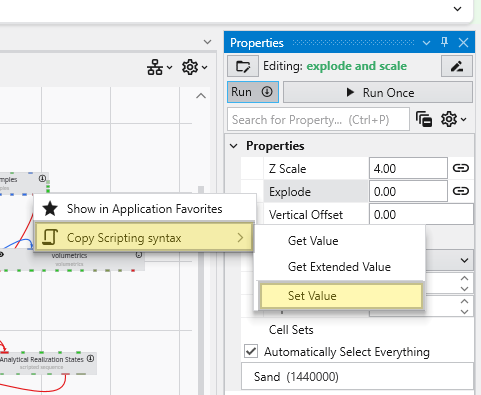
Updating Value Example
For example, using the same Explode property, the copied syntax would be:
You can change 0.0 to any valid value for that property, such as:
When dealing with a Linked Property, you must first disable the link to manually set its value. This is done by setting the corresponding Linked boolean property to false. If you attempt to set the value while it is still linked, your change will be overridden as the value is determined automatically.
Executing this command in the Python Script Editor or the Python Interactive Window will update the property in the module, and the change will be immediately visible in the Properties window.