Renderable Object Port Properties
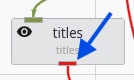
In Earth Volumetric Studio, a red port is a Renderable Object port. It outputs a visual object—such as a surface, a set of points, or a volume—that can be displayed in a viewer. By editing the properties of this port, you can control every aspect of how the object is visualized in the 3D scene. See the Visualization Fundamentals section for additional details on rendering options.
To access these properties, you can double-click on a red port in the Application Network, which will load its settings into the Properties window.
Port Information
General information about the port as described in the Port Properties topic.
General Properties
This is the primary section for controlling the object’s appearance, coloring, and visibility in the 3D scene.
| Property | Description |
|---|---|
| Visible | A master toggle to show or hide the object in the viewer. |
| Pickable | Determines if the object can be selected in the viewer using the probe tool (Ctrl + Left-click). Disabling this can be useful for large, transparent objects that might interfere with selecting objects behind them. |
| Opacity | Controls the transparency of the object. A value of 100% makes the object fully opaque, while 0% makes it completely invisible. |
| Faces To Display | Controls which faces of a 3D object are rendered.
|
| Color By | Determines the source of the object’s color.
|
| Node Data / Cell Data | If coloring by data, these dropdowns let you select which specific data component to use for coloring. |
| Vector Component / Use Vector Magnitude | If the selected data is a vector, this allows you to color the object by a single component or by the vector’s overall magnitude. |
| Node/Cell Data Datamap | Opens the datamap editor to define the mapping between data values and colors. See the Datamaps topic for more information. |
| Object Color | If Color By is set to Solid Color, this control allows you to select the specific color for the object. |
| Object Secondary Color | This color is primarily used for drawing the outlines of cells when “Hide Cell Outlines” is disabled. |
| Normals Generation | Affects how lighting is calculated on surfaces.
|
| Rendering Priority | A numeric value that influences the drawing order of objects. Objects with higher numbers are drawn later (on top of others). |
Export Properties
This section contains settings related to exporting the application.
| Property | Description |
|---|---|
| Exclude From Compression | If checked, this object’s geometry will not be compressed when exporting to a C Tech Web Scene. This preserves full precision but can result in a significantly larger file size. |
Advanced Properties
These settings provide fine-grained control over geometry processing and rendering. They are intended for advanced users and should generally be left at their default values unless you are addressing a specific rendering issue.
Rendering Modes
This section controls how different geometric components of the object are displayed.
| Property | Description |
|---|---|
| Point/Line/Surface/Volume/Bounds Display Mode | Each dropdown allows you to change the rendering style for a specific component (e.g., render a surface as a wireframe (Lines) or display points as spheres (Glyphs)). |
| Hide Cell Outlines | Toggles the visibility of the wireframe edges of the cells that make up the object. |
Surface Properties
These properties control how the object’s surface interacts with light in the scene. They are intended for advanced users and should generally be left at their default values unless you are addressing a specific rendering issue.
| Property | Description |
|---|---|
| Ambient | Controls how much ambient light the surface reflects (the object’s color in the absence of direct light). |
| Diffuse | Controls how much light the surface reflects from direct light sources, determining the primary illuminated color. |
| Specular | Controls the color of specular highlights (bright spots where light reflects directly toward the camera). |
| Gloss | Controls the size and intensity of specular highlights. Higher values create smaller, sharper highlights, making the surface appear shinier. |
Point And Line Properties
This section contains settings that apply specifically to objects composed of points or lines.
| Property | Description |
|---|---|
| Line Style | Sets the pattern for lines.
|
| Line Thickness | Controls the width of lines in pixels. A value of 0 uses a default, fast-rendering single-pixel line. |
| Glyph Size | If points or lines are rendered as glyphs (e.g., quads), this controls their size. |
| Smooth Lines | Toggles anti-aliasing for lines. When enabled, lines will appear smoother with less jaggedness. |
Texture Settings
If the object has a texture applied, these properties control how it is mapped and rendered. They are intended for advanced users and should generally be left at their default values unless you are addressing a specific rendering issue.
| Property | Description |
|---|---|
| Interpolation | Determines how the texture is sampled when magnified or minified. Bilinear (default) averages the four nearest texels for a smooth but potentially blurry appearance. |
| Tile | Controls the texture’s behavior at its boundaries. Clamp causes the edge pixels to be stretched to fill the rest of the surface. |
| Blending | Defines how the texture’s color is combined with the object’s underlying color. Replace causes the texture’s color to completely overwrite the object’s original color. |
| Type | Relates to the use of mipmaps. Single Level indicates that only the original, full-resolution texture is used, without any lower-resolution versions for distant objects. |