Application Properties

The Application Properties provide a centralized location to access critical parameters needed to control your application. Any property that impacts the application itself and is not specific to an instanced module will show here.

Accessing Application Properties

The Application Properties are available via a button in the Application Window toolbar:
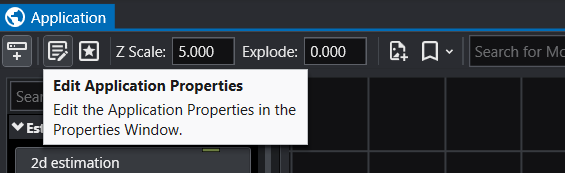
Alternatively, you can also access these when editing the Application Favorites. When the Application Favorites are displayed in the Properties window, click the Switch to Application Properties button at the top.
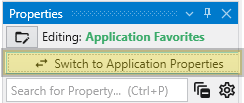
Finally, double clicking on the background of the network area will open the Application Favorites or Application Properties (whichever was most recently viewed).

Available Application Properties

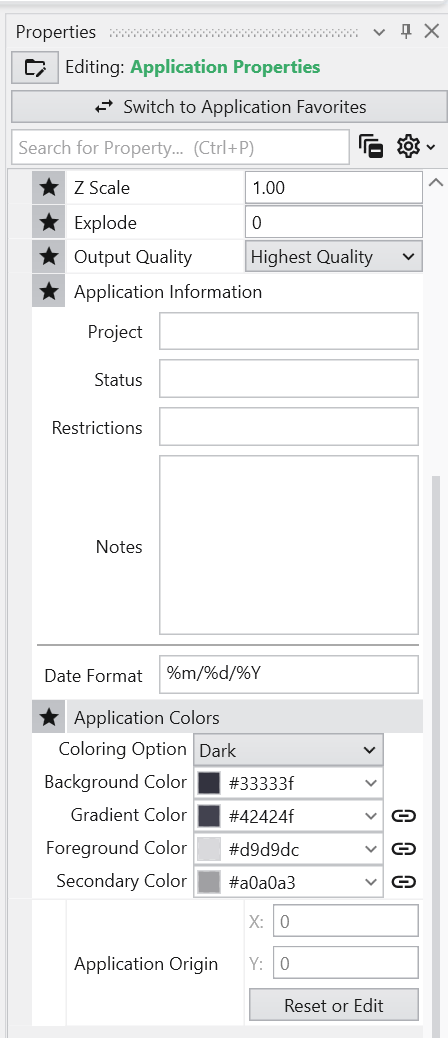
Below is the default content of Application properties.
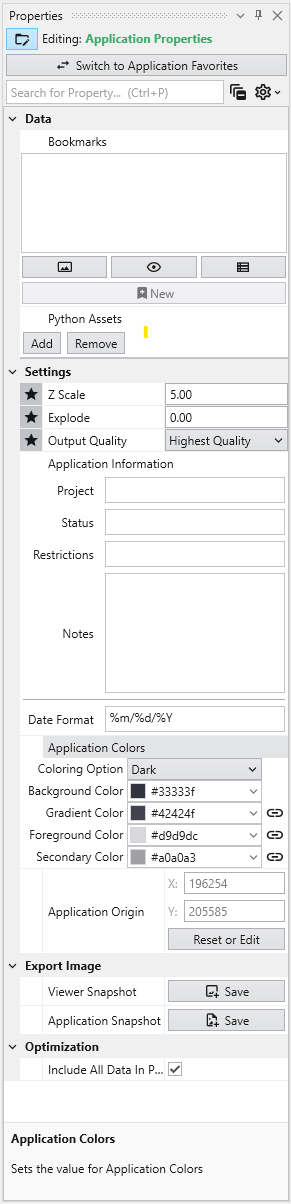
Following is a description of each category:

CategoryPropertyDescription
DataBookmarksView and manage saved bookmarks. See BookmarksĀ for details.
Python AssetsPython scripts reusable from other Python files in your application. Right-clicking will generate the proper import syntax using the EVS python API, which allows these to be imported in scripts even when packaged.
SettingsZ ScaleAdjusts the vertical exaggeration of 3D data.
ExplodeControls the separation of layered data components.
Output QualitySet the quality setting used in certain modules (e.g., Highest Quality). Allows optimization of workflow by using a low quality file while manipulating and a high quality file when producing output.
Application InformationProvides a mechanism to supply reusable metadata in various outputs and scripts. Often available as environment variables in modules which produce text, as well as used in CTWS output.
Application ColorsCustomize the appearance of many module outputs by default. See Application ColorsĀ for details.
Application OriginDefines the spatial anchor for the project coordinates. The first time a file is read, the origin will be set based off the coordinates of that data. Everything is then computed relative to the application origin from then on in order to maintain the best precision for 3d calculations. If you reuse an application and change the data, you must reset the application origin.
Reset or Edit OriginAllows manual recalibration of the project center.
Export ImageViewer SnapshotWrites the contents of the viewer to an image file.
Application SnapshotWrites the contents of the application window (the network) to an image file.
OptimizationInclude All Data In ProbeWhen enabled, all data is included in probe results in the viewer. This uses more memory, but increases the functionality for inspecting the data.
  • Bookmarks

    Bookmarks provide an easy way to save and recall specific configurations of your application. They act as saved ā€œsnapshotsā€ that can instantly change the camera view, which objects are visible, and the current state of any sequences. They also export to C Tech Web Scenes. This is essential for creating presentations, standardizing views for analysis, and optimizing the user experience in any exported C Tech Web Scenes.

  • Application Colors

    The Application Colors feature provides a centralized way to manage a consistent color palette across your entire application. By setting a few base colors, you can ensure that various annotation modules - such as titles, legends, and axes - as well as the viewer background all share a coordinated and professional look. This feature is particularly powerful when used with linked properties, as it allows you to switch between entire color themes (e.g., from a light to a dark theme) with a single click.
Subsections of Application Properties

Bookmarks provide an easy way to save and recall specific configurations of your application. They act as saved “snapshots” that can instantly change the camera view, which objects are visible, and the current state of any sequences. They also export to C Tech Web Scenes.

This is essential for creating presentations, standardizing views for analysis, and optimizing the user experience in any exported C Tech Web Scenes.

What Bookmarks Control

A single bookmark can be configured to control one, two, or all three of the following aspects of your application:

AspectDescription
ViewThe camera’s position, orientation, and zoom level in the Viewer.
VisibilityThe visibility and opacity settings of all modules in the application.
Sequence StateThe currently selected state of all Sequence modules.

Finding the Bookmarks Panel

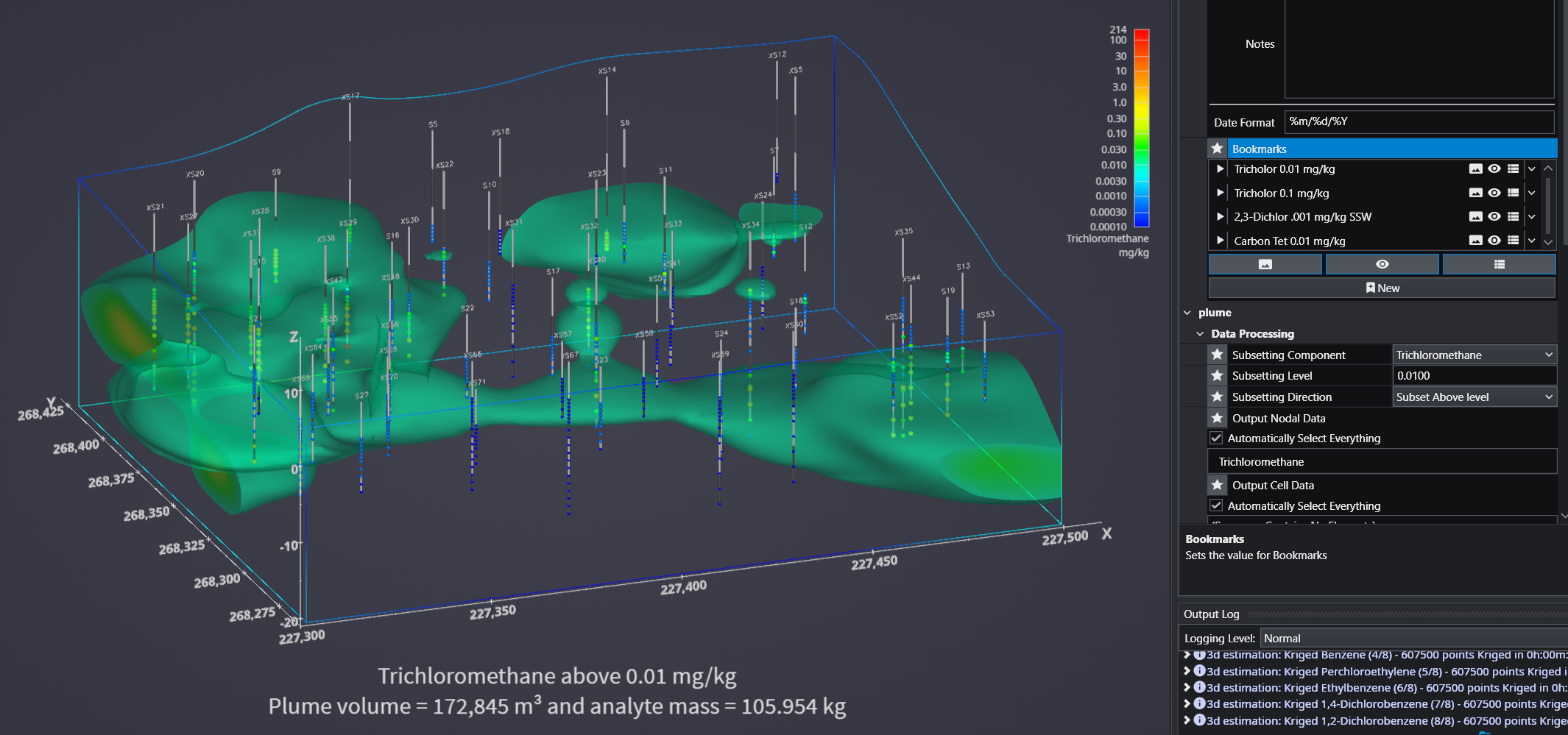
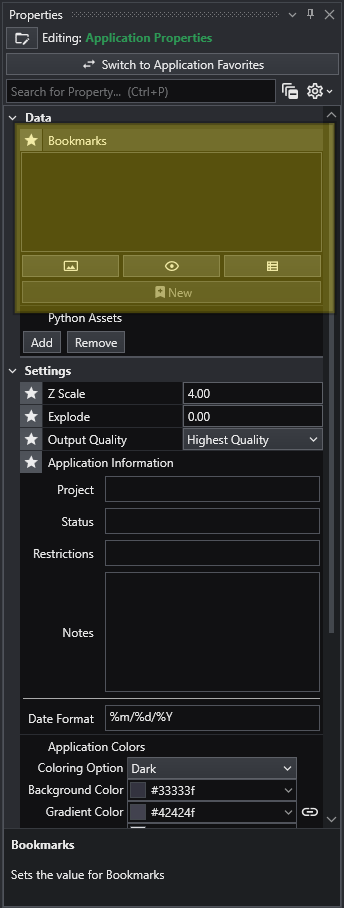
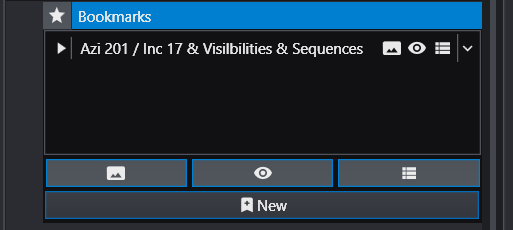
The Bookmarks panel is part of theĀ Application Properties window.

Creating Bookmarks

Bookmarks are created and managed from the Bookmarks panel in the Application Properties.

Follow these steps to create a new bookmark:

  1. Set up your scene: Arrange the application to the exact state you want to save.

    • Adjust the camera to the desired view.
    • Set the visibility and opacity of each object in the Viewer.
    • Select the desired frame for any sequence animations.
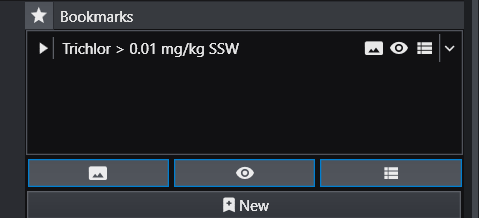
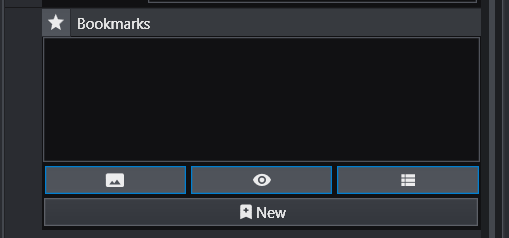
  2. Select Action Types: In the Bookmarks panel, click the buttons to activate the aspects you want this bookmark to control. The active buttons are highlighted in blue. From left to right, they are Views, Visibilities, and Sequence States. One or more of these must be selected to create a new bookmark.

  3. Create the Bookmark: Click the New button (the plus icon). A new bookmark will appear in the list with a default name.

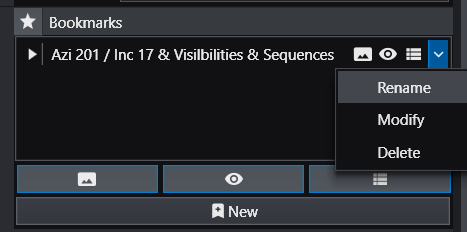
  4. Rename the Bookmark: The default name can be generic. It is highly recommended to give it a descriptive name. Click the dropdown arrow on the far right of the bookmark and select Rename.

    For example, a name like “Trichlor Plume > 0.01 mg/kg” is much more informative.

Using Bookmarks

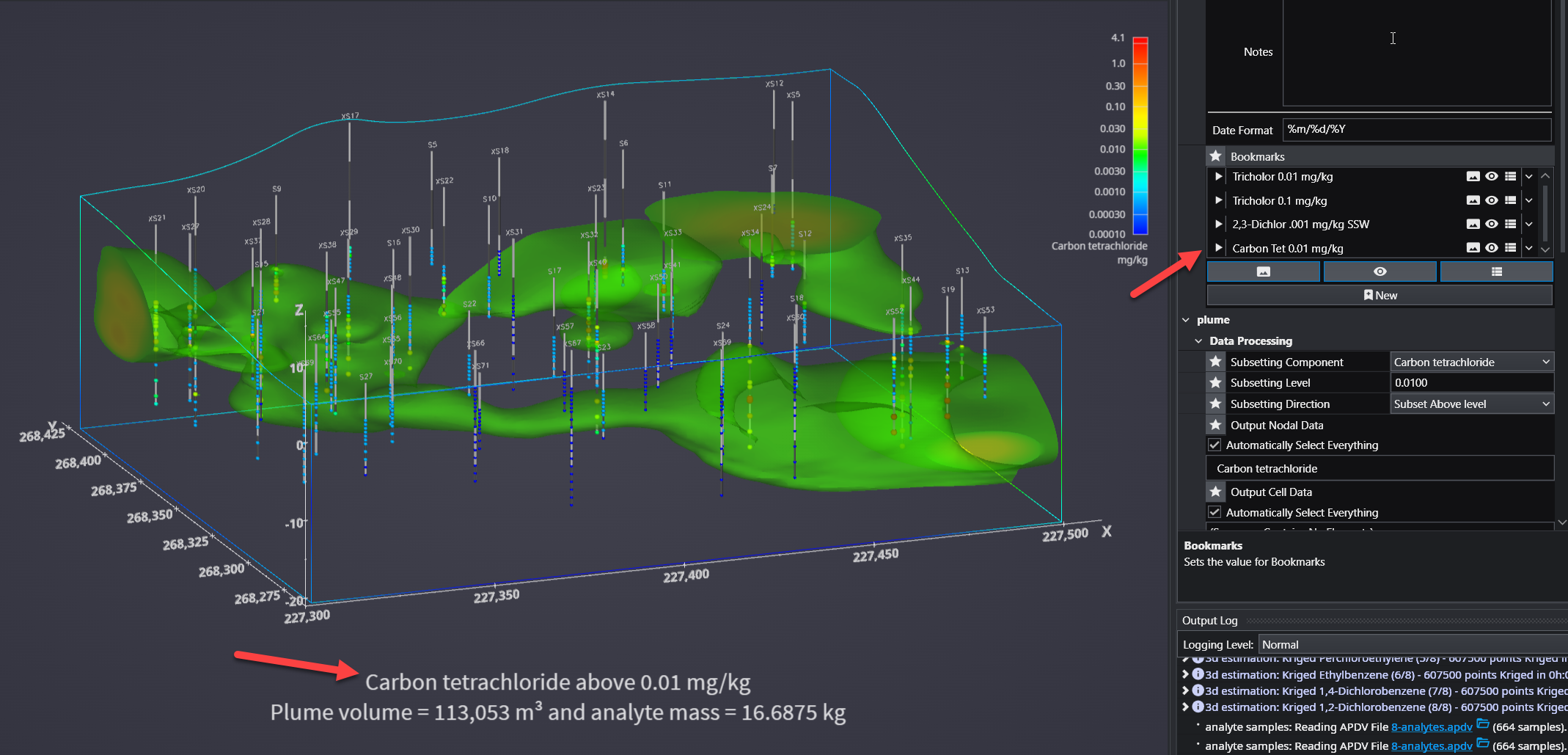
To apply a bookmark, simply click the “Play” icon (the white triangle) next to the bookmark’s name in the list. This will instantly update the application to the saved view, visibility, and/or sequence state defined by that bookmark.

When you save your project as a C Tech Web Scene (.ctws file), these bookmarks are included, allowing others to interact with your scene in the predefined ways you have designed.

Advanced Visibility Options

When saving visibility in a bookmark, you have advanced control over how objects behave, which is especially useful for Web Scenes.

OptionDescription
LockedA “Locked” object is always visible and cannot be turned off by the user in the C Tech Web Scene Viewer. This is ideal for essential items like a site map, buildings, or a company logo that should always remain in view.
ExcludedAn “Excluded” object is not written to the Web Scene at all. This is equivalent to disconnecting the module from the viewer and can be used to hide intermediate or unnecessary components from the final output.

For more information on setting these properties, see Module IconsĀ and Module Status Indicators.

The Application Colors feature provides a centralized way to manage a consistent color palette across your entire application. By setting a few base colors, you can ensure that various annotation modules - such as titles, legends, and axes - as well as the viewer background all share a coordinated and professional look.

This feature is particularly powerful when used with linked properties, as it allows you to switch between entire color themes (e.g., from a light to a dark theme) with a single click.
Accessing Application Colors

The Application Colors settings are located in the **Application Properties**application-properties.md panel.

Application Colors settings in the Application Properties panel. Application Colors settings in the Application Properties panel.

Color Properties and Options

The panel contains several options for defining your color scheme.

OptionDescription
Coloring OptionThis dropdown menu allows you to quickly switch between predefined color themes. By default, it includes “White” and “Dark” themes, which are designed for light and dark viewer backgrounds, respectively.
Interface ColorsThese four properties define the core colors of your theme.
  • Background Color: Sets the background color of the viewer.
  • Gradient Color: Used with the Background Color to create a two-color gradient in the viewer background.
  • Foreground Color: The primary color used for text and lines in most annotation modules.
  • Secondary Color: A supplementary color used for secondary elements, such as shading on the compass rose in the direction_indicator module.

Linked Properties: The Key to Automatic Updates

For the Application Colors to automatically update your modules, the color properties within those modules must be linked. When a property is linked, it inherits its value from the global Application Colors settings. If you unlink a color property in a module, it will use its own manually set color and will no longer be affected by theme changes.

You can identify a linked property by the link icon next to it. For more information, see the Linked Properties topic.

Affected Modules

The following modules are designed to use the Application Colors when their color properties are linked:

ModuleUsage
viewerUses the Background Color and Gradient Color for its background.
axes, titles, 3d_titles, legend, and 3d_legendThese modules primarily use the Foreground Color for their text and lines.
direction_indicatorThis module uses the Foreground Color for its text and the Secondary Color for shading effects on elements like the compass rose.

Example of Switching Coloring Option

When the modules’ color properties are linked, changing the Coloring Option has an immediate effect on the entire scene.

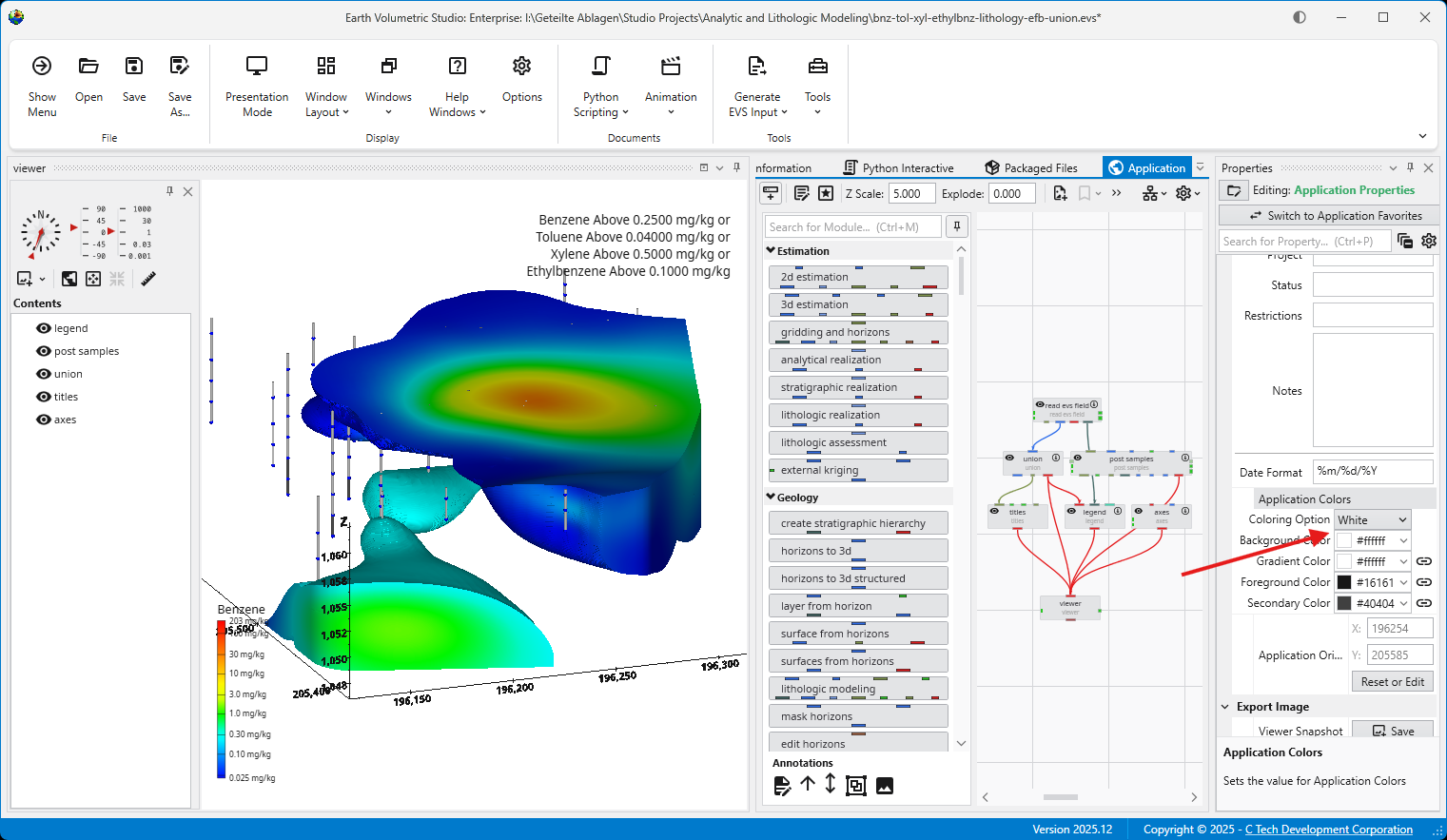
The application below is using the White Coloring Option. Note the dark text and lines on the title, axes, and legend, which provide high contrast against the light background.

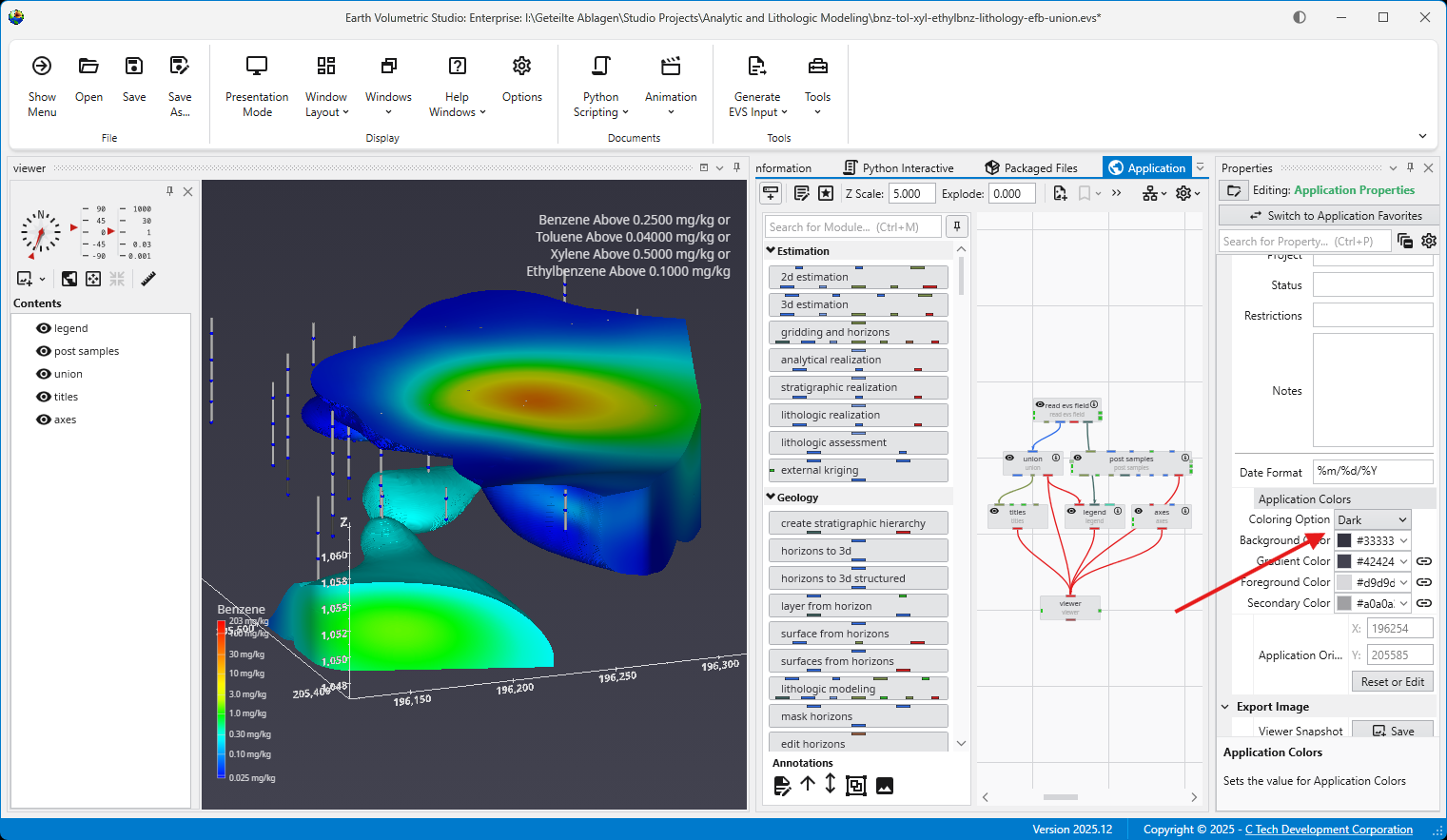
By simply switching the Coloring Option to Dark, all linked modules automatically update. The text and lines change to a light color to maintain contrast against the new dark viewer background.

Light and dark themes can also be toggled in theĀ OptionsĀ panel in theĀ Menu.