The Application Properties provide a centralized location to access critical parameters needed to control your application. Any property that impacts the application itself and is not specific to an instanced module will show here.
Accessing Application Properties
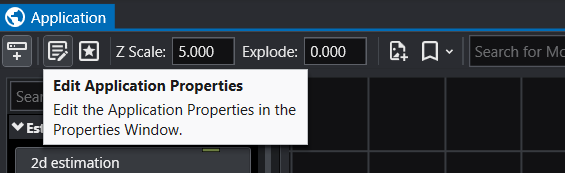
The Application Properties are available via a button in the Application Window toolbar:
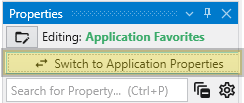
Alternatively, you can also access these when editing the Application Favorites. When the Application Favorites are displayed in the Properties window, click the Switch to Application Properties button at the top.
Finally, double clicking on the background of the network area will open the Application Favorites or Application Properties (whichever was most recently viewed).
Available Application Properties
Below is the default content of Application properties.
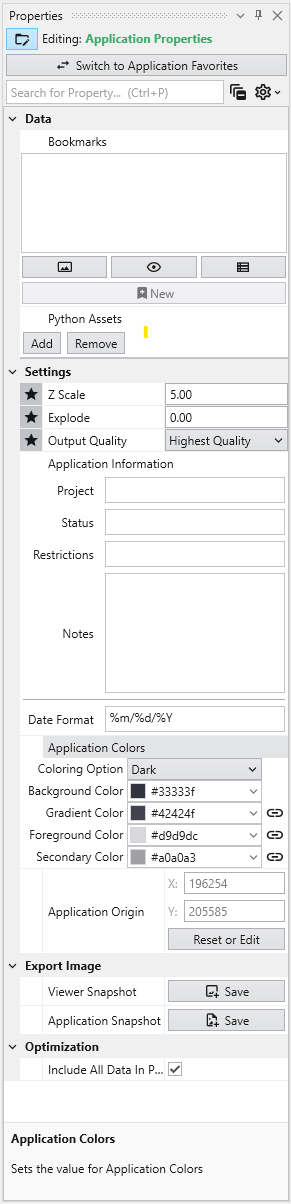
Following is a description of each category:
| Category | Property | Description |
|---|---|---|
| Data | Bookmarks | View and manage saved bookmarks. See Bookmarks for details. |
| Python Assets | Python scripts reusable from other Python files in your application. Right-clicking will generate the proper import syntax using the EVS python API, which allows these to be imported in scripts even when packaged. | |
| Settings | Z Scale | Adjusts the vertical exaggeration of 3D data. |
| Explode | Controls the separation of layered data components. | |
| Output Quality | Set the quality setting used in certain modules (e.g., Highest Quality). Allows optimization of workflow by using a low quality file while manipulating and a high quality file when producing output. | |
| Application Information | Provides a mechanism to supply reusable metadata in various outputs and scripts. Often available as environment variables in modules which produce text, as well as used in CTWS output. | |
| Application Colors | Customize the appearance of many module outputs by default. See Application Colors for details. | |
| Application Origin | Defines the spatial anchor for the project coordinates. The first time a file is read, the origin will be set based off the coordinates of that data. Everything is then computed relative to the application origin from then on in order to maintain the best precision for 3d calculations. If you reuse an application and change the data, you must reset the application origin. | |
| Reset or Edit Origin | Allows manual recalibration of the project center. | |
| Export Image | Viewer Snapshot | Writes the contents of the viewer to an image file. |
| Application Snapshot | Writes the contents of the application window (the network) to an image file. | |
| Optimization | Include All Data In Probe | When enabled, all data is included in probe results in the viewer. This uses more memory, but increases the functionality for inspecting the data. |
Bookmarks provide an easy way to save and recall specific configurations of your application. They act as saved “snapshots” that can instantly change the camera view, which objects are visible, and the current state of any sequences. They also export to C Tech Web Scenes. This is essential for creating presentations, standardizing views for analysis, and optimizing the user experience in any exported C Tech Web Scenes.
The Application Colors feature provides a centralized way to manage a consistent color palette across your entire application. By setting a few base colors, you can ensure that various annotation modules - such as titles, legends, and axes - as well as the viewer background all share a coordinated and professional look. This feature is particularly powerful when used with linked properties, as it allows you to switch between entire color themes (e.g., from a light to a dark theme) with a single click.