Bookmarks provide an easy way to save and recall specific configurations of your application. They act as saved “snapshots” that can instantly change the camera view, which objects are visible, and the current state of any sequences. They also export to C Tech Web Scenes.
This is essential for creating presentations, standardizing views for analysis, and optimizing the user experience in any exported C Tech Web Scenes.
What Bookmarks Control
A single bookmark can be configured to control one, two, or all three of the following aspects of your application:
| Aspect | Description |
|---|---|
| View | The camera’s position, orientation, and zoom level in the Viewer. |
| Visibility | The visibility and opacity settings of all modules in the application. |
| Sequence State | The currently selected state of all Sequence modules. |
Finding the Bookmarks Panel
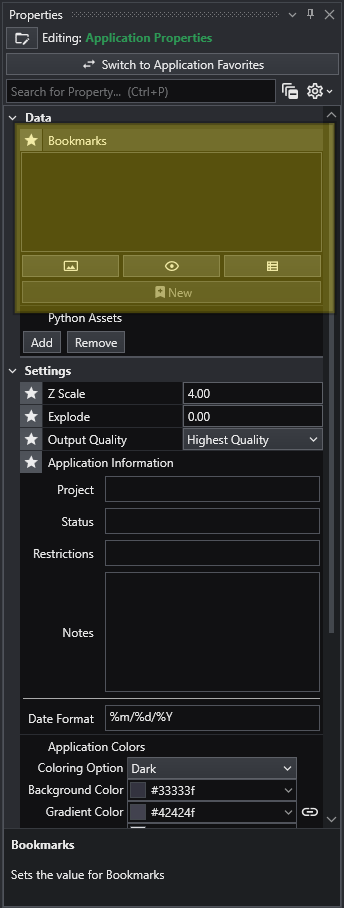
The Bookmarks panel is part of the Application Properties window.
Creating Bookmarks
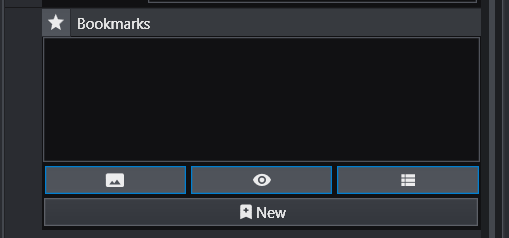
Bookmarks are created and managed from the Bookmarks panel in the Application Properties.
Follow these steps to create a new bookmark:
Set up your scene: Arrange the application to the exact state you want to save.
- Adjust the camera to the desired view.
- Set the visibility and opacity of each object in the Viewer.
- Select the desired frame for any sequence animations.
Select Action Types: In the Bookmarks panel, click the buttons to activate the aspects you want this bookmark to control. The active buttons are highlighted in blue. From left to right, they are Views, Visibilities, and Sequence States. One or more of these must be selected to create a new bookmark.
Create the Bookmark: Click the New button (the plus icon). A new bookmark will appear in the list with a default name.
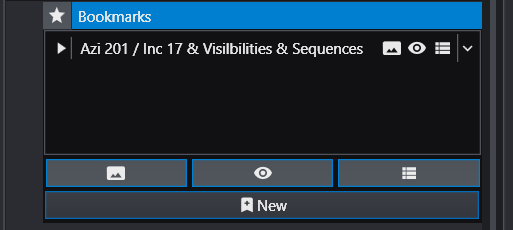
Rename the Bookmark: The default name can be generic. It is highly recommended to give it a descriptive name. Click the dropdown arrow on the far right of the bookmark and select Rename.
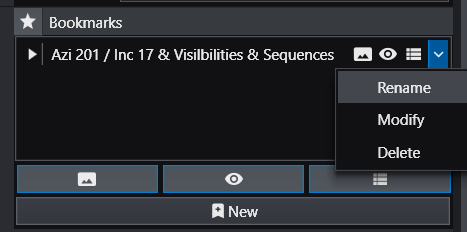
For example, a name like “Trichlor Plume > 0.01 mg/kg” is much more informative.
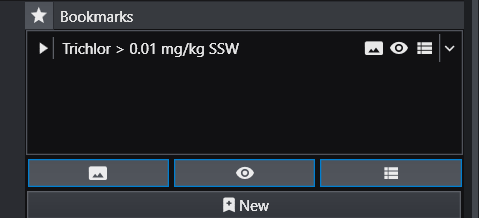
Using Bookmarks
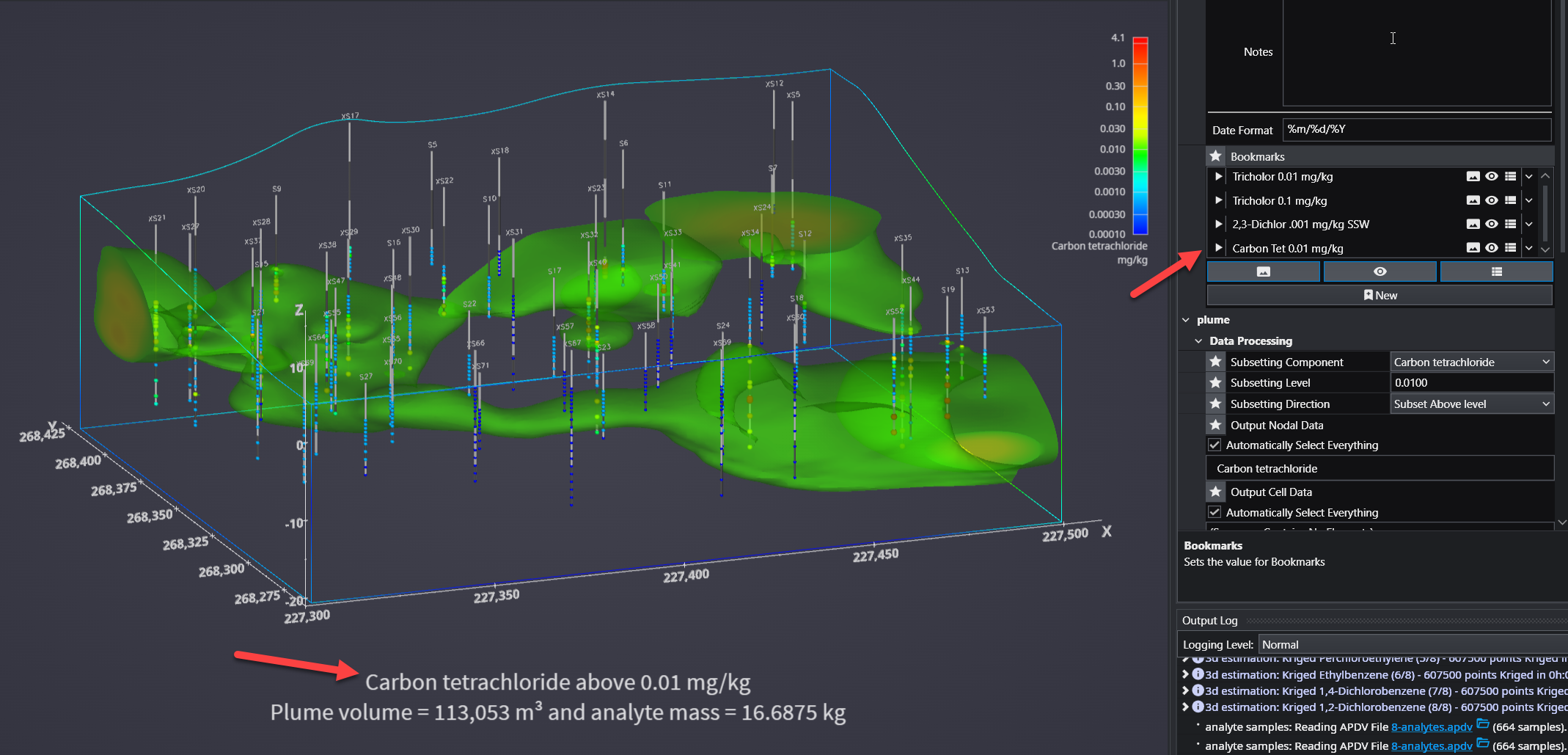
To apply a bookmark, simply click the “Play” icon (the white triangle) next to the bookmark’s name in the list. This will instantly update the application to the saved view, visibility, and/or sequence state defined by that bookmark.
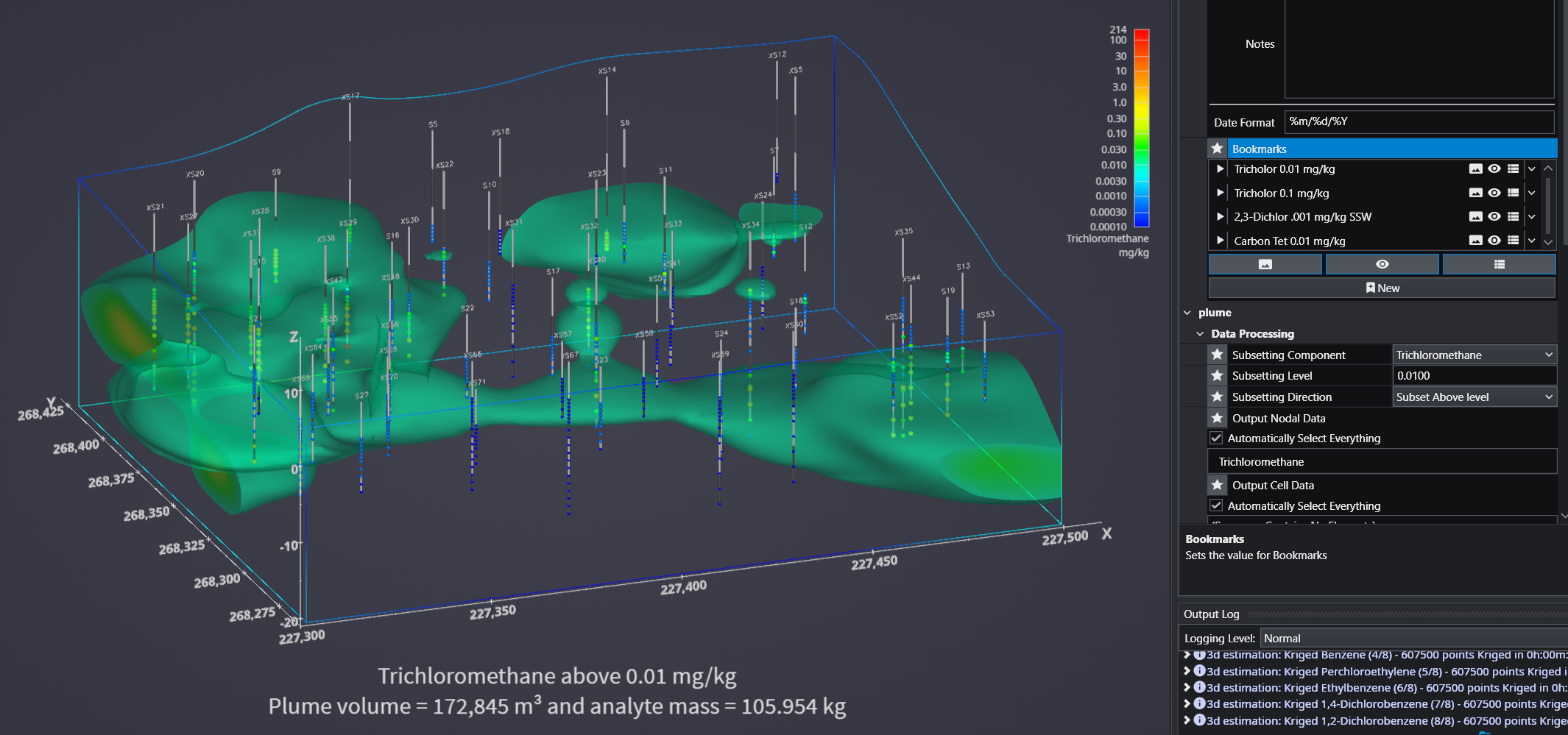
When you save your project as a C Tech Web Scene (.ctws file), these bookmarks are included, allowing others to interact with your scene in the predefined ways you have designed.
Advanced Visibility Options
When saving visibility in a bookmark, you have advanced control over how objects behave, which is especially useful for Web Scenes.
| Option | Description |
|---|---|
| Locked | A “Locked” object is always visible and cannot be turned off by the user in the C Tech Web Scene Viewer. This is ideal for essential items like a site map, buildings, or a company logo that should always remain in view. |
| Excluded | An “Excluded” object is not written to the Web Scene at all. This is equivalent to disconnecting the module from the viewer and can be used to hide intermediate or unnecessary components from the final output. |
For more information on setting these properties, see Module Icons and Module Status Indicators.