The Application Favorites feature provides a powerful way to create a custom control panel for your EVS application. It allows you to gather the most important properties from various modules and global settings into a single, centralized location within the Properties window.
Info
When creating EVS Presentations, the only properties which will be editable in the resulting Presentation Application (*.evsp) are the Application Favorites. All other properties are unavailable in an EVS Presentation.
This is especially useful in large or complex applications, as it eliminates the need to navigate to each individual module to adjust key parameters. Instead, you can manage all critical settings from one convenient view.
Accessing Application Favorites
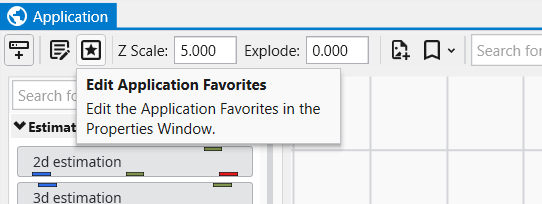
The Application Favorites are available via a button in the Application Window toolbar:
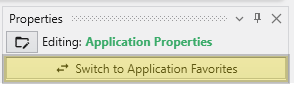
Alternatively, you can also access these when editing the Application Properties. When the Application Properties are displayed in the Properties window, click the Switch to Application Favorites button at the top.
Finally, double clicking on the background of the network area will open the Application Favorites or Application Properties (whichever was most recently viewed).
The Application Favorites View
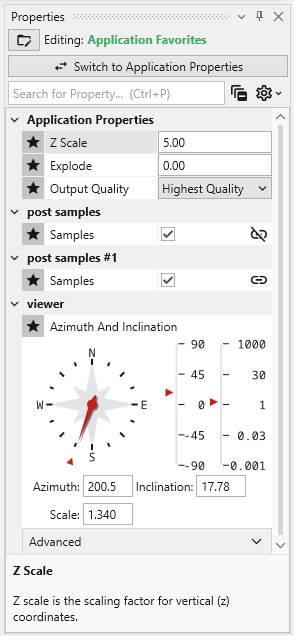
Once you switch to the Application Favorites view, you will see a list of all the properties you have marked with a star. The properties are organized into groups based on their source module. For example, global settings like Z Scale and Explode are listed under “Application Properties,” while module-specific properties are grouped under the name of their respective module (e.g., “viewer”).
You can edit any of these properties directly from this view, just as you would in the standard properties editor.
How to Favorite a Property
You can favorite almost any property from any module.
- Select a module in the Application Network to display its parameters in the Properties window.
- To favorite a property, click in the empty space to the left of its name. A star icon will appear, indicating that the property has been added to your Application Favorites.
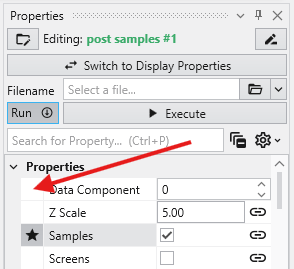
It is important to note that this action favorites the property for that specific instance of the module, not for all modules of that type. This allows you to select different key parameters from different modules. The same property from different modules can appear in the Application Favorites at the same time.
How to Remove a Property from Favorites
To remove a favorited property, simply click the star icon in either the module or the Application Favorites again.