The Packaged Files feature in Earth Volumetric Studio provides a robust solution for managing project dependencies. Packaged Files are external data files that are embedded directly into your Earth Volumetric Studio application (.evs) file.
This creates a completely self-contained project, ensuring that all necessary input files are always available. It eliminates the problem of broken file paths and the need to manually copy dependent files when sharing your application with colleagues or moving it to a different computer. While this increases the size of the application file, the benefit of portability is often more important.
The Packaged Files Window
The Packaged Files window is the central interface for managing which files are embedded in your application. It is typically located as a tabbed window at the bottom of the main interface.
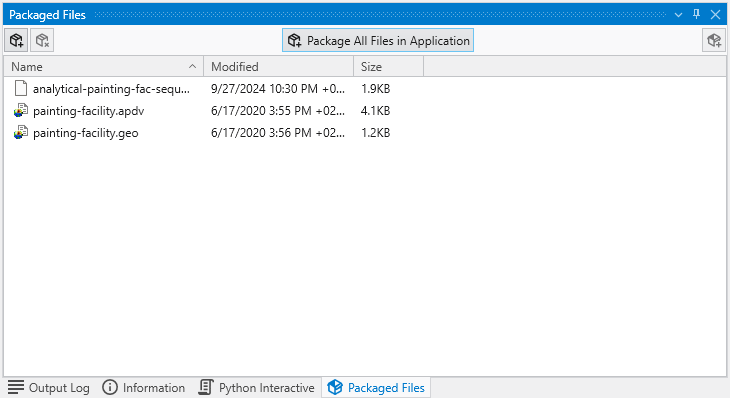
The window includes a toolbar with several key functions:

| Function | Description |
|---|---|
| Add File(s) | The first button on the toolbar (a package with a plus sign) allows you to manually select one or more files from your computer to embed into the application. |
| Remove File(s) | The second button removes the selected file(s) from the package. This does not delete the original file from your computer; it only un-embeds it from the .evs file. |
| Package All Files in Application | This powerful button automatically finds every external file currently referenced by any module in your application and packages them all in a single operation. This is the quickest way to make an entire project self-contained. |
| Export Selected Packaged File to Disk | This button, located on the far right of the toolbar, allows you to save a copy of a selected packaged file to an external location on your disk. This is useful if you need to access the raw data file without un-packaging it from the application. |
The main area of the window lists all currently packaged files, showing their Name, the date they were last Modified, and their Size.
Identifying Packaged Files
Earth Volumetric Studio provides a clear visual indicator for packaged files directly within the module properties. When a module is referencing a file that is embedded in the application, the filename in the input field will be displayed in blue text.
If the file is being read from an external path on your computer’s file system, the filename will be displayed in standard black text. The file tooltips shown when hovering over the control also reflect their embedded or external location.

Working with Packaged Files in Modules
In addition to the main window, you can manage packaged files directly from the properties of the modules that use them.
Note that you can select to read a packaged file in a module by dragging the packaged file from the Packaged Files Window over the filename in the module.
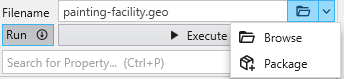
Packing a file from the property
A file can be directly packed and switched to the embedded file from the Package option in the dropdown in filename controls in the Properties window.
Unpackaging a File
If you need to extract a packaged file and save it as a separate, external file, you can also do so directly from the file input control.

To unpackage a file:
- In the module’s properties, locate the file input control displaying the blue, packaged filename.
- Click the dropdown arrow next to the folder icon.
- Select Unpackage from the menu.
- You will be prompted to choose a location on your computer to save the file.
Once saved, the embedded file is extracted to that location, and the module’s property is automatically updated to reference the new external file path. The filename text will change from blue to black, indicating it is no longer a packaged file.
When to Use Packaged Files
Packaging files is highly recommended in the following scenarios:
| Scenario | Reason |
|---|---|
| Sharing Projects | When you need to send an application to a colleague or to technical support, packaging all files ensures they can open and run it without any missing data issues. |
| Archiving Projects | For long-term storage, a self-contained .evs file is much more reliable than relying on external file paths that may change or be deleted over time. |
| Working Across Multiple Computers | If you move projects between a desktop and a laptop, packaging files prevents problems that can arise from different drive letters or folder structures. |
| Creating EVS Presentations | When making an EVS Presentation, all data must be packaged prior to converting to an .evsp file. |