Opening Projects
The Open screen, accessible from the main application Menu, provides a comprehensive interface for loading existing projects. It is designed to give you quick access to your recent work, sample files, and any project on your system, complete with metadata and visual previews to help you find the right file quickly.
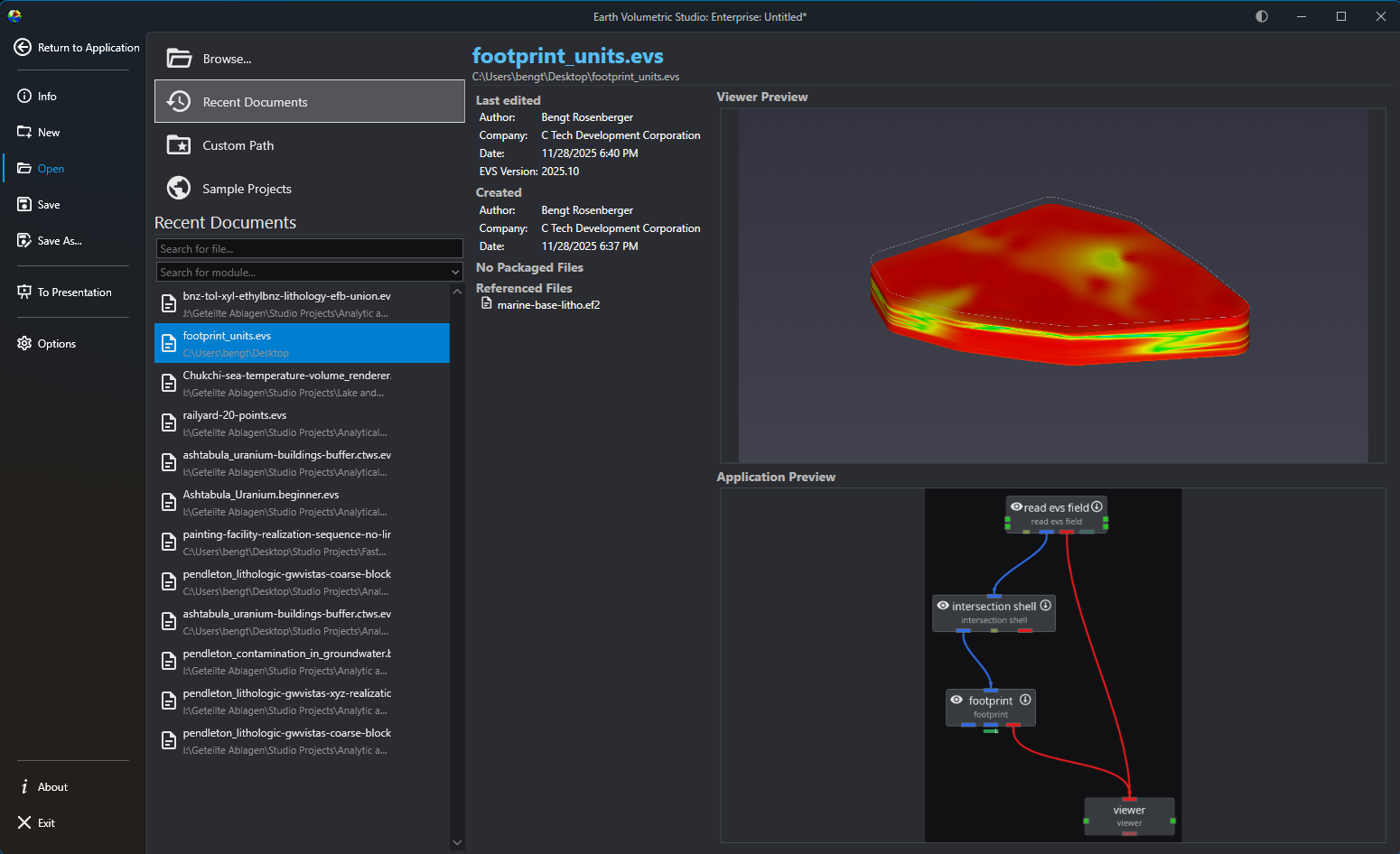
File Access Options
| Option | Description |
|---|---|
| Browse… | Launches your operating system’s standard file explorer, allowing you to navigate your entire file system (local drives, network locations, etc.) to locate and open any .evs project file. This is ideal for accessing files not in your recent list or usual project folders. |
Info
While applications on network drives or shared drives may load, our customers often experienced file locking or similiar access issues when saving them. For the best experience, we recommend loading applications from a local filesystem if possible.
| | Recent Documents | The default view, offering the quickest way to resume work. It presents a scrollable and searchable list of your most recently accessed projects, ordered from newest to oldest. | | Custom Path | Acts as a configurable bookmark for frequently used folders. Once you set a directory in the application’s options, this button lists all application files in that location, saving you from navigating to it manually.
Note: The Custom Path option will not recurse subdirectories. Only application files directly in the favorited directories will be shown.
| | Sample Projects | Provides access to a curated collection of official C Tech sample applications that demonstrate best practices and diverse capabilities. These are the applications used in the EVS Training tutorials.Note: If this list is empty, the C Tech Sample Applications have not been installed. You can obtain the installer from the C Tech website at www.ctech.com.
|
Filtering and Searching
When using the open file views, you can use the search and filter boxes to quickly locate a specific project. These tools are especially useful when dealing with a long list of files.
| Tool | Description |
|---|---|
| Search for file… | This text box allows you to filter the list by filename. As you type, the list dynamically updates to show only the files whose names contain the text you have entered. |
| Search for module… | This dropdown helps you find projects based on their content. Selecting a module type will filter the view to show only application files containing that module. This is useful for finding examples or projects when you remember a key component but not the file name. |
Project Information and Preview
When you select a file, the right-hand side of the screen populates with detailed information about that project.
| Panel | Description |
|---|---|
| Metadata Panel | At the top, you will find key details about the file. This includes when it was last edited and by whom, its creation date, the software version used, and (for applications saved in recent releases) a list of any external files it references and any packaged data in the application. |
| Viewer Preview | This panel displays a static image of the 3D viewer’s contents as they appeared the last time the project was saved. This gives you an immediate visual reminder of the project’s output. |
| Application Preview | Below the viewer preview, a snapshot of the application network is shown. This allows you to see the module layout and connections, providing insight into the project’s workflow and structure. |