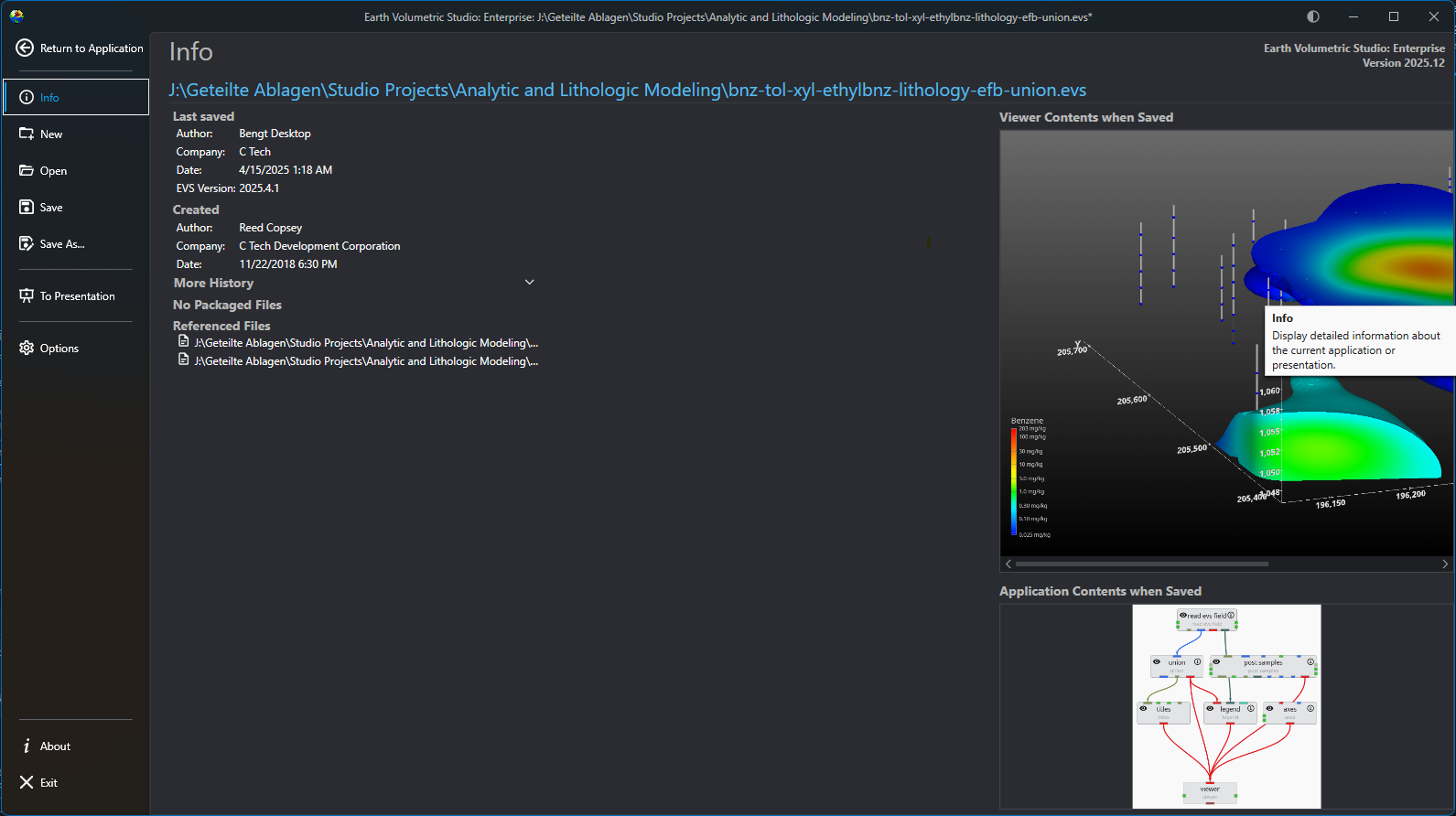
The main application menu serves as the central hub for managing your projects and configuring the application. Opening this menu will temporarily replace the standard workspace, including the Application Network and viewers, with a dedicated interface for file management, options, and project oversight. The Menu defaults to the Info screen, which provides an at-a-glance summary of your current project’s metadata and saved state.
Accessing the Menu
To open the menu, click the Show Menu button in the Main Toolbar.

Menu Screens
The navigation bar on the left side of the menu allows you to switch between several screens, each with a specific function.
| Option | Description |
|---|---|
| Return to Application | Located at the top of the navigation bar, this button closes the menu and takes you back to your main workspace. |
| Info | The default screen, which serves as a dashboard for your current project. It displays important metadata (author, save date, version, etc.) and shows preview images of the Viewer Contents and Application Contents from the last save. |
| New | Allows you to start a new, empty project. |
| Open | Navigates to a screen for loading existing projects. This screen provides several ways to find and open files:
|
| Save | Saves the current project. |
| Save As… | Saves the current project to a new file or location. |
| To Presentation | Used to prepare or export your work for presentation purposes. See Creating Presentation Applications. |
| Options | Opens the application’s settings and preferences window. |
| About | Displays information about the software. |
| Exit | Closes the application entirely. |
Opening Projects The Open screen, accessible from the main application Menu, provides a comprehensive interface for loading existing projects. It is designed to give you quick access to your recent work, sample files, and any project on your system, complete with metadata and visual previews to help you find the right file quickly.
The Operation and User Preferences window is the central hub for configuring application-wide settings in Earth Volumetric Studio. It allows you to customize the user interface, set default behaviors for new projects, manage system resources, and personalize user information. Tailoring these settings can significantly improve your workflow and efficiency. To access this window, click the Options button on the main application menu located on the left side of the screen.
Earth Volumetric Studio features a flexible interface composed of several windows. You can customize their size, position, and docking state to create