The EVS Environment

This section of the documentation provides a guide to the main components of the Earth Volumetric Studio (EVS) user interface. It is designed to help you understand the layout, functionality, and interaction between the different windows and tools that form the core of the application.

From the initial Startup Window to the detailed Properties panels and the powerful Viewer, these articles cover everything you need to know to navigate and manage your workspace effectively.

By familiarizing yourself with these components, you will be able to build, visualize, and analyze your projects more efficiently.

  • Startup Window

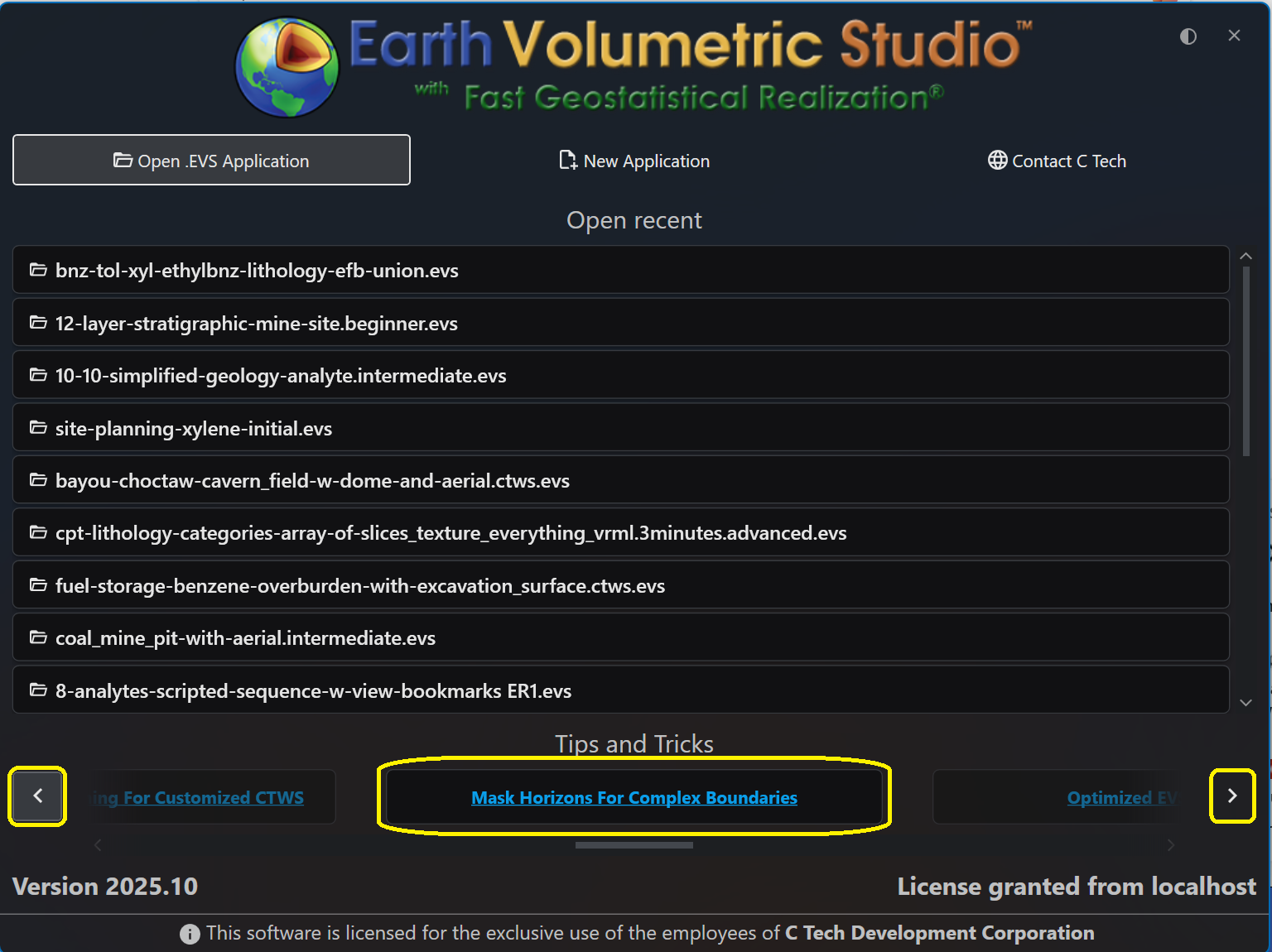
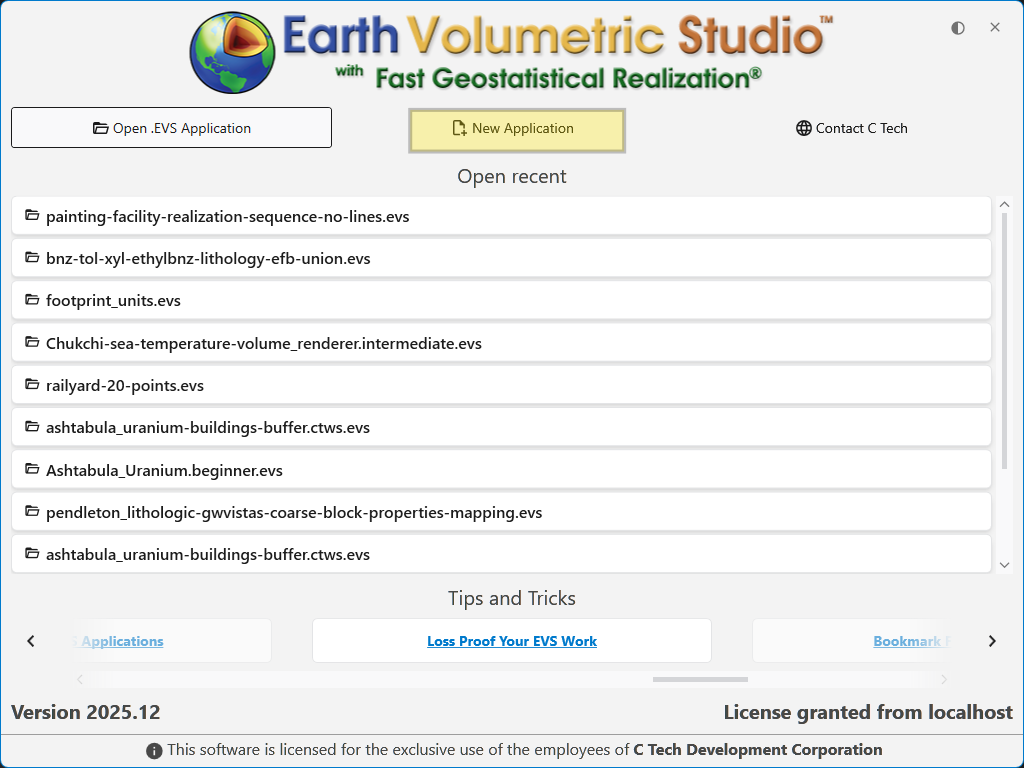
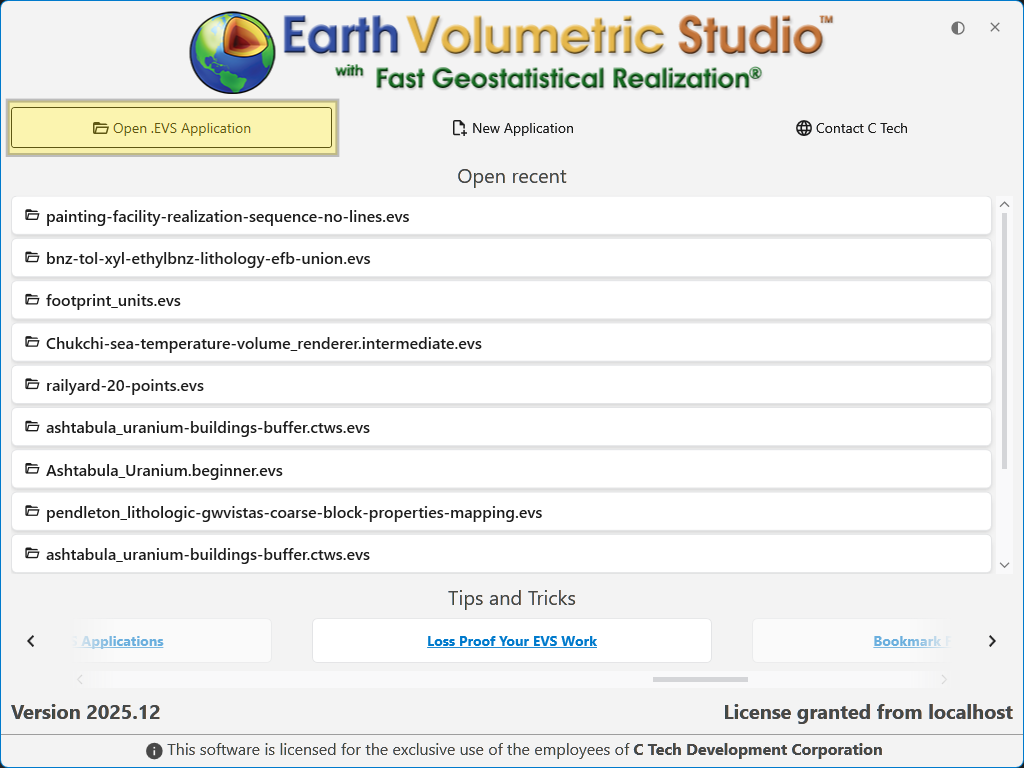
    The Earth Volumetric Studio startup window is your launchpad for any project. From here, you can start with a clean slate by creating a new application, jump back into a previous project by opening an existing file, or access helpful resources. Licensing and Version Information The bottom of the window shows you the current version of EVS as well as well as your license status.

  • Main EVS Window

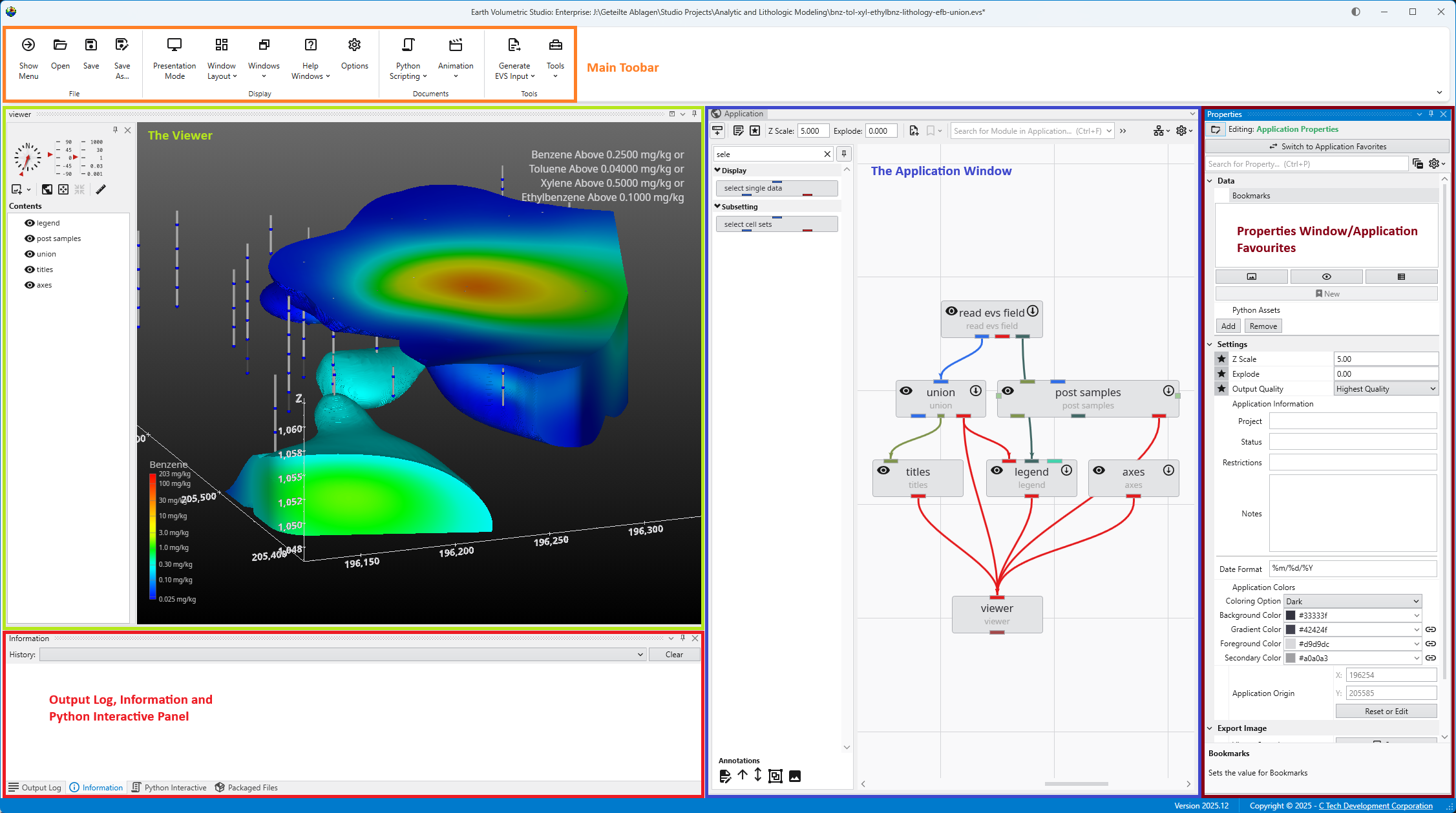
    Getting Started with the EVS User Interface The main window is organized into five primary sections in the default layout configuration, each designed to provide a streamlined workflow for your data processing, visualization, and analysis needs. Most windows can be freely docked or undocked in any configuration and layouts can be loaded and saved.

  • Themes

    The application offers both a Light and a Dark theme to customize the appearance of the user interface. This choice is purely a matter of personal pre

  • Main Toolbar

    The Main Toolbar The Main Toolbar is the primary command bar in Earth Volumetric Studio, located at the top of the main application window. It provides streamlined access to the application’s most common features and functions. The toolbar is organized into logical sections: File, Display, Documents, and Tools, making it easier to locate and use the necessary commands for your projects.

  • Menu

    The main application menu serves as the central hub for managing your projects and configuring the application. Opening this menu will temporarily rep

  • Properties

    The Properties window is the primary interface in Earth Volumetric Studio for viewing and editing the parameters of various objects within your applic

  • Application

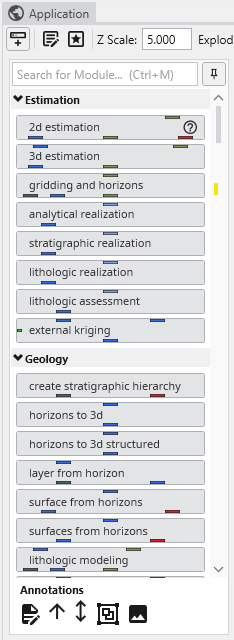
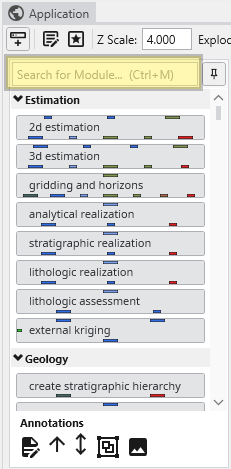
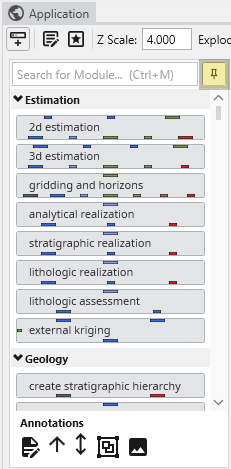
    The Application window is the central workspace in Earth Volumetric Studio for creating and managing your data processing and visualization workfl

  • Viewer

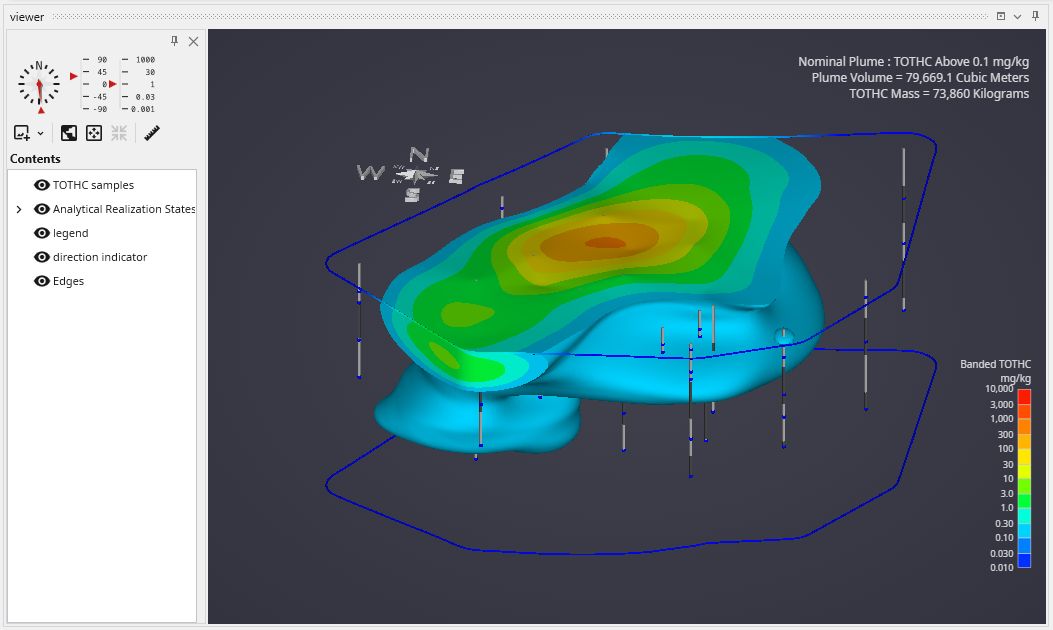
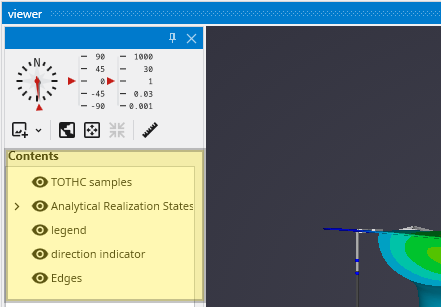
    The Viewer is the primary 3D visualization window in Earth Volumetric Studio. It serves as the canvas where all the visual outputs from your Application Network - such as geologic layers, contaminant plumes, sample data, and annotations - are rendered and combined into a single, interactive scene. This is the main environment for exploring, analyzing, and presenting your 3D model.

  • Information Window

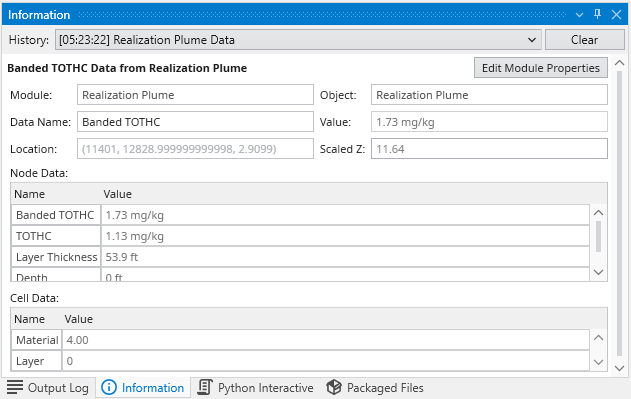
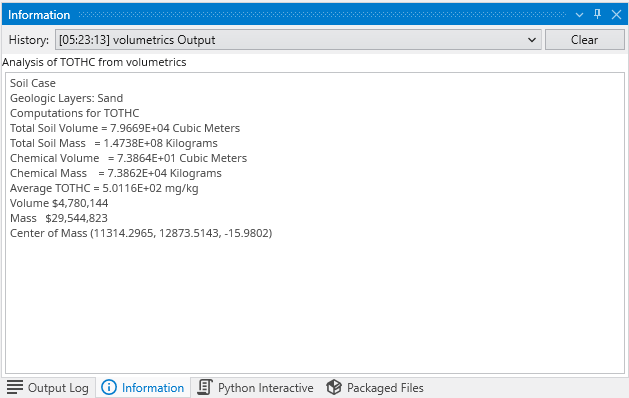
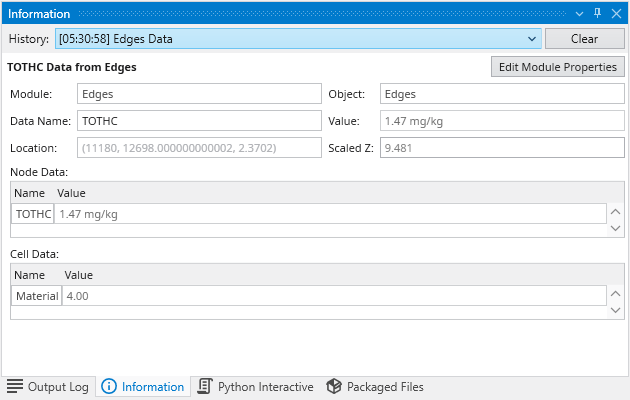
    The Information Window provides detailed, contextual output from various components within Earth Volumetric Studio. Unlike the Output Log, which primarily displays text-based messages and system logs, the Information Window is designed to present data in a structured, readable, and often interactive format. It is commonly used by modules to display analysis reports or to show detailed data about a specific point in the model that a user has ā€œpickedā€ in the Viewer (via Ctrl+Left Mouse Click).

  • Output Log

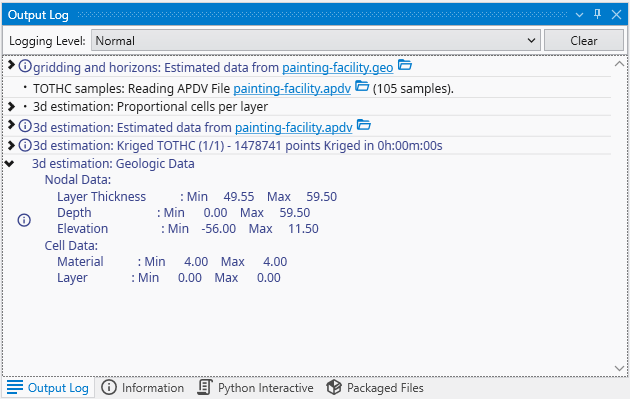
    The Output Log window is a critical tool for monitoring the real-time status of Earth Volumetric Studio. It provides a chronological and hierarchical record of events, module execution details, warnings, and diagnostic messages. Whether you are running a complex analysis or troubleshooting an unexpected issue, the Output Log offers valuable insight into the application’s internal processes.

  • Packaged Files

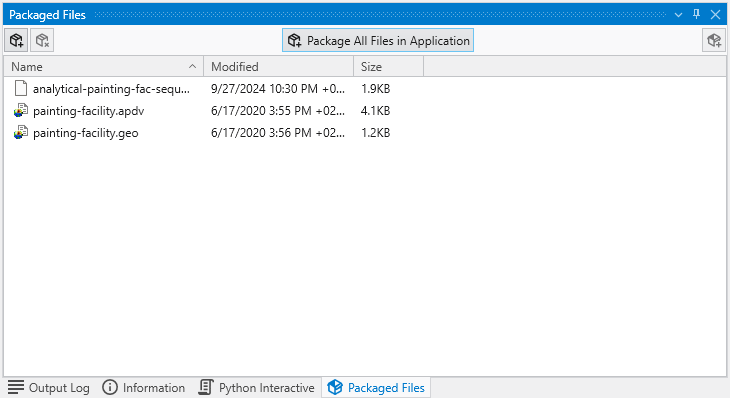
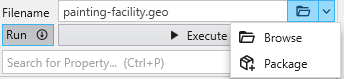
    The Packaged Files feature in Earth Volumetric Studio provides a robust solution for managing project dependencies. Packaged Files are external data files that are embedded directly into your Earth Volumetric Studio application (.evs) file. This creates a completely self-contained project, ensuring that all necessary input files are always available. It eliminates the problem of broken file paths and the need to manually copy dependent files when sharing your application with colleagues or moving it to a different computer. While this increases the size of the application file, the benefit of portability is often more important.

  • Python Scripting

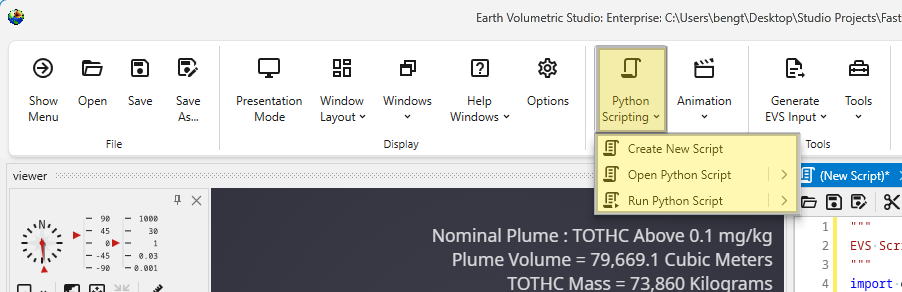
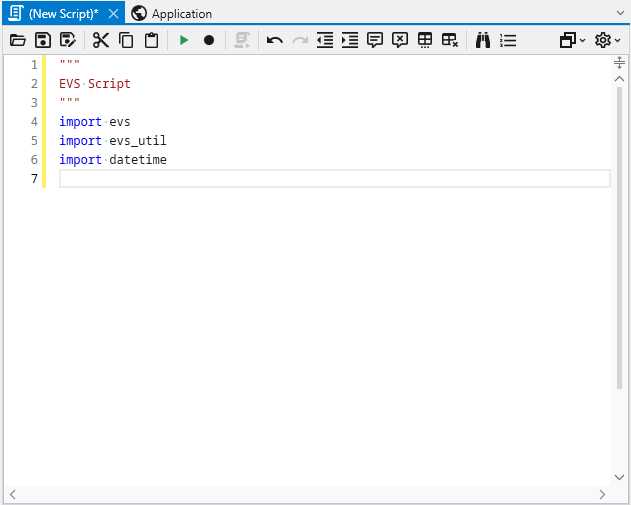
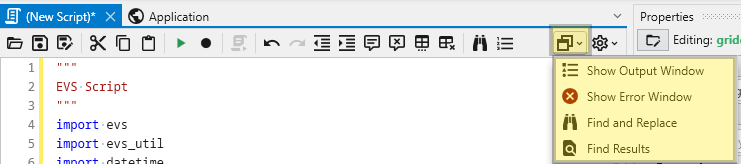
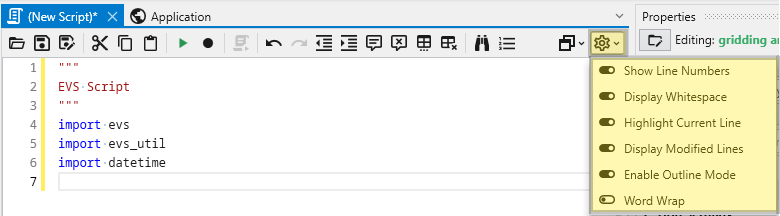
    Introduction to Python Scripting Python scripting in Earth Volumetric Studio provides a method to programmatically control and automate virtually every aspect of the application. By leveraging the Python programming language, you can move beyond manual interaction to create dynamic, data-driven workflows, automate repetitive tasks, and perform custom analyses that are not possible with standard interface controls alone.

  • Sequences in EVS

    Sequences are used to create dynamic and interactive applications by managing an ordered collection of predefined ā€œstates.ā€ A state can capture and control the properties of one or more modules simultaneously. This functionality allows you to guide a user through a narrative or a series of analytical steps, such as changing an isosurface level, animating a cutting plane through a model, or stepping through time-based data.

  • Animation

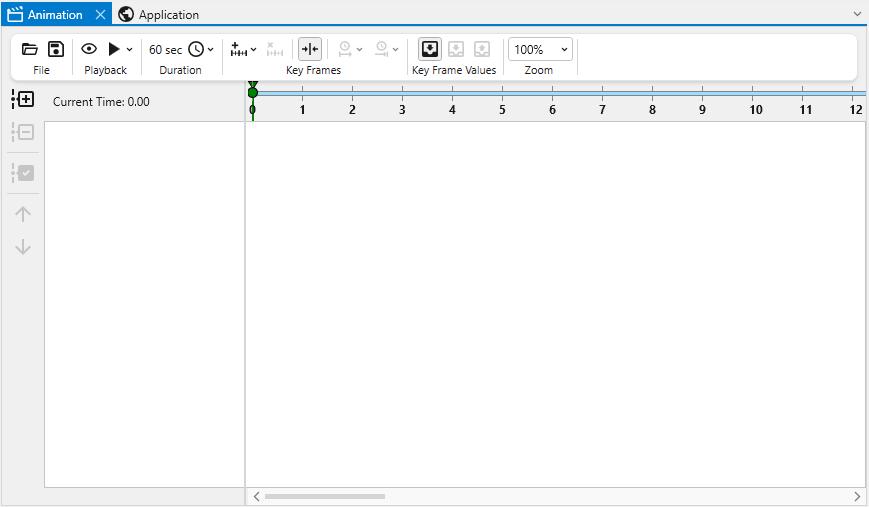
    Animations in EVS Animations allow you to generate video files of smoothly changing content and views. This allows for complete control over the messaging conveyed in a single, often small deliverable file. In Earth Volumetric Studio, an animation is built from one or more timelines. Each timeline represents a single, animatable property within your application. This could be anything from the camera’s position in the 3D viewer to the visibility of a specific object, a numeric value like a plume level, or the current frame of a sequence.
Subsections of The EVS Environment

The Earth Volumetric Studio startup window is your launchpad for any project. From here, you can start with a clean slate by creating a new application, jump back into a previous project by opening an existing file, or access helpful resources.

Licensing and Version Information

The bottom of the window shows you the current version of EVS as well as well as your license status.

Alerts will also be displayed near the top of the Window when your license subscription is close to its end date. This helps with preventing an unexpected shutdown due to license subscription termination.

The startup screen provides several options to begin your session:

  • Open .EVS Application: Allows you to browse your file system to open any existing .evs project file.
  • New Application: Closes the startup screen and opens a blank workspace to begin a new project from scratch.
  • Open recent: Displays a list of your most recently used applications for quick access.

Additionally, the startup screen provides a button with C Tech’s contact information and links to helpful Tips and Tricks articles.

Creating a New Application

To start a project from scratch, click the New Application button.

This will immediately close the startup screen and open the main EVS workspace with a blank Application Network. This provides a clean canvas, ready for you to begin building your data processing and visualization workflow by adding and connecting modules.

Opening an Existing Application

If you want to work on a project that is not in your “Open recent” list, you can browse your computer to find it. Click the Open .EVS Application button which will start EVS and navigate to the Open Files pane in the Menu.

Using the Recent Applications List

The list is interactive and provides helpful information to ensure you are opening the correct project. When you hover your mouse over an application in the list, a preview window appears with key details.

The startup screen showing the ‘Open recent’ list with a hover preview. The startup screen showing the ‘Open recent’ list with a hover preview.

Preview Window Details

The hover preview provides the following information:

ElementDescription
Preview ImageA visual snapshot of the application’s 3D viewer as it appeared the last time the project was saved. This gives you an immediate visual reminder of the project’s output.
File NameThe name of the application file (e.g., site-planning-xylene-initial.evs).
Folder PathThe full directory path where the file is located on your system.
Last Modified DateThe date the file was last saved.
Show Full DetailsA link that navigates to the main Open screen, where you can see more comprehensive metadata, including the application network preview.

Opening an Application

To open a project from the list, simply click directly on the application’s name. The application will load immediately, allowing you to resume your work.

Click on any Tips and Tricks link, which will open a browser to read the selected article.

The Tips and Tricks window showing a list of articles and navigation arrows. The Tips and Tricks window showing a list of articles and navigation arrows.

Getting Started with the EVS User Interface

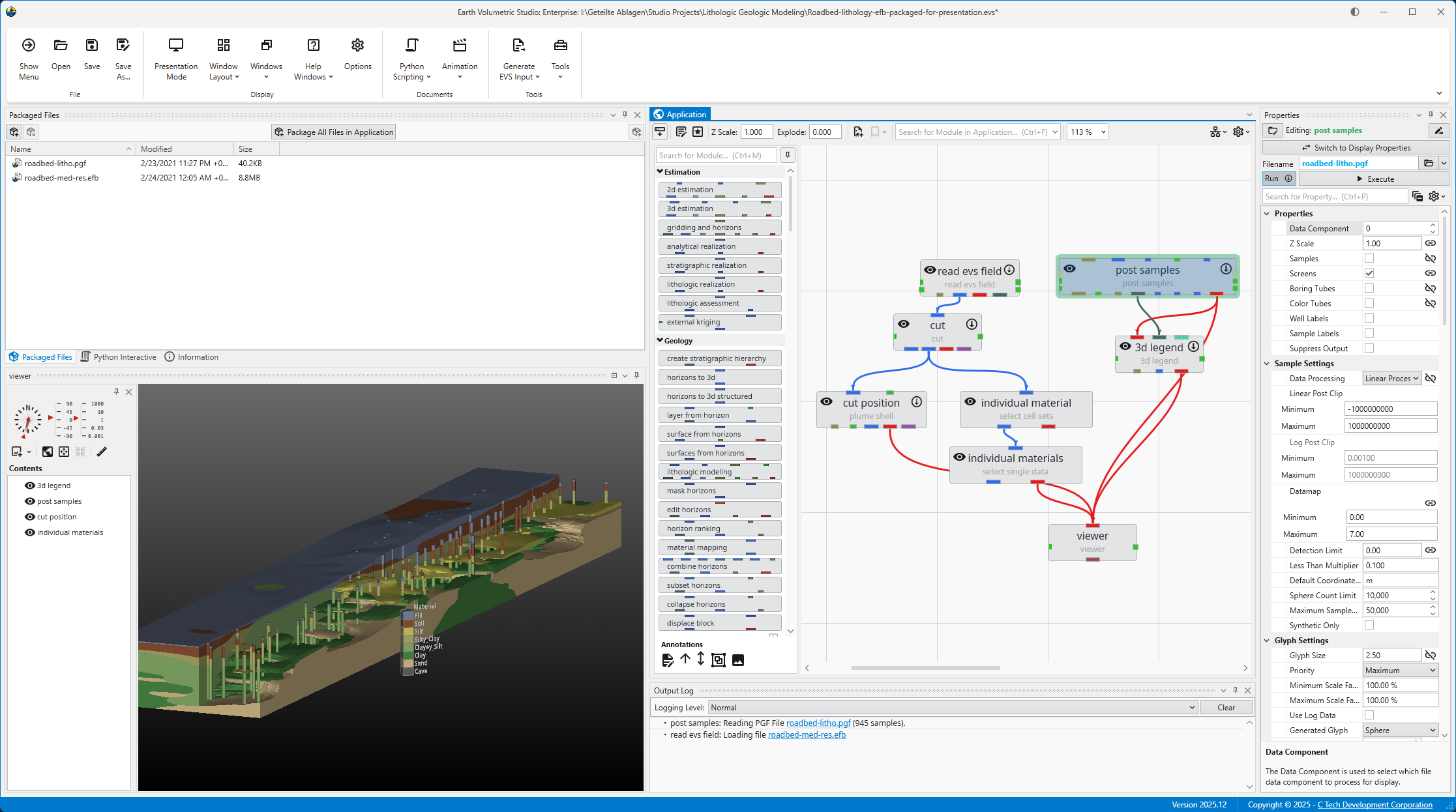
The main window is organized into five primary sections in the default layout configuration, each designed to provide a streamlined workflow for your data processing, visualization, and analysis needs. Most windows can be freely docked or undocked in any configuration and layouts can be loaded and saved.

1. Main Toolbar

The Main Toolbar is the row of icons at the top of the window that provides immediate access to essential commands. It is designed to help you manage your projects and control your application workflow efficiently. From here, you can perform file management tasks like opening and saving EVS applications. You can also control visual aspects of the UI by loading layouts and hiding or showing individual windows. The toolbar also includes access to automatisation through Python scripting or animations and several input file creation options.

2. Viewer

The Viewer is your primary window for 3D visualization, displaying the output of your data processing networks. It offers a suite of tools for interacting with your model. You can intuitively rotate, pan, and zoom to inspect your model from any angle. The Viewer provides dedicated controls to switch between standard viewing angles or to set a precise camera azimuth and inclination. A scene tree allows you to toggle the visibility of individual model components, helping you focus on specific parts of your data. You can also access built-in measurement tools to calculate distances directly within the 3D scene. For reports and presentations, you can capture and export the current view as high-resolution images or animations.

3. Application Window

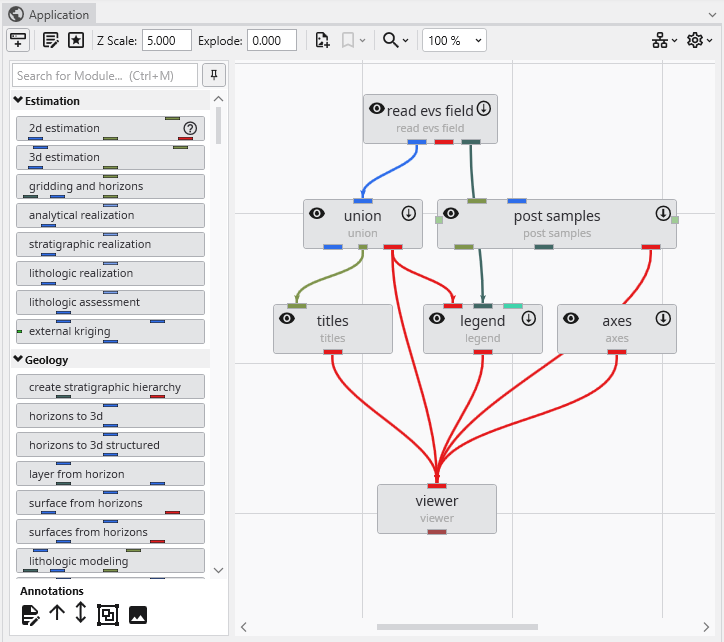
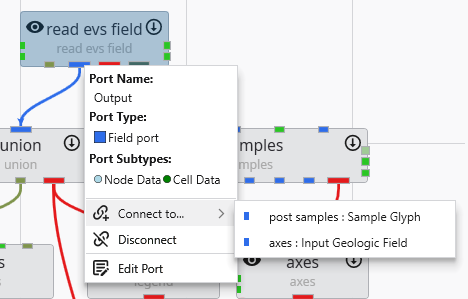
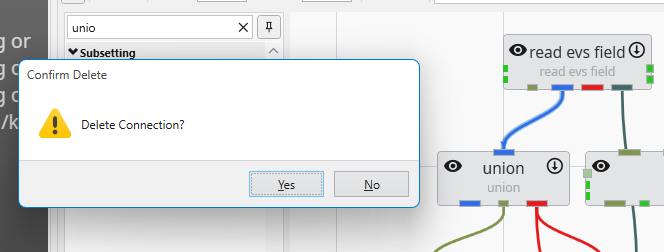
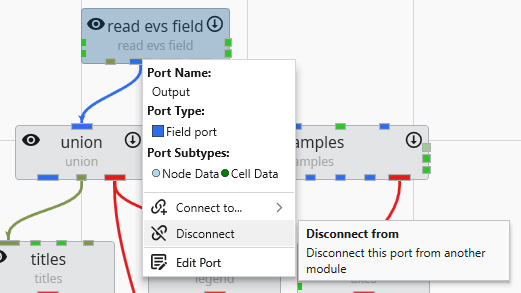
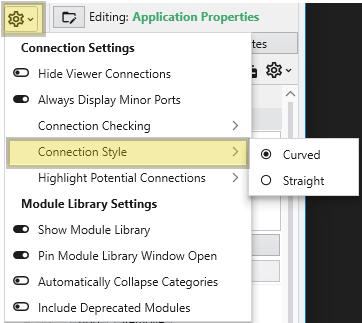
The Application Window is a dynamic, node-based workspace where you construct your data processing pipelines. This visual programming environment, often called a “pegboard,” is central to the EVS workflow. You can drag and drop modules from the module library onto this canvas, where each module represents a specific function like data input, filtering, or visualization. To create complex workflows, you draw connections between modules to define the flow of data from inputs through various processing steps to the final outputs. The connection style can be customized to use either curved or straight lines. You can also organize and group modules to create logical and readable application networks.

4. Properties Window & Application Properties

This multi-functional section allows you to configure every aspect of your project. When a module is selected in the Application Window, this panel displays all of its configurable parameters, allowing you to control how it processes data. You can also modify global settings that affect the entire project, such as adjusting the vertical exaggeration with z-scale or separating objects for better visibility with an explode factor. This area also lets you save and manage specific camera positions as bookmarks, enabling you to quickly return to important views. The Application Favorites allows you to build a custom collection of frequently used or important module and application properties.

5. Output Log, Information, and Python Interactive Panel

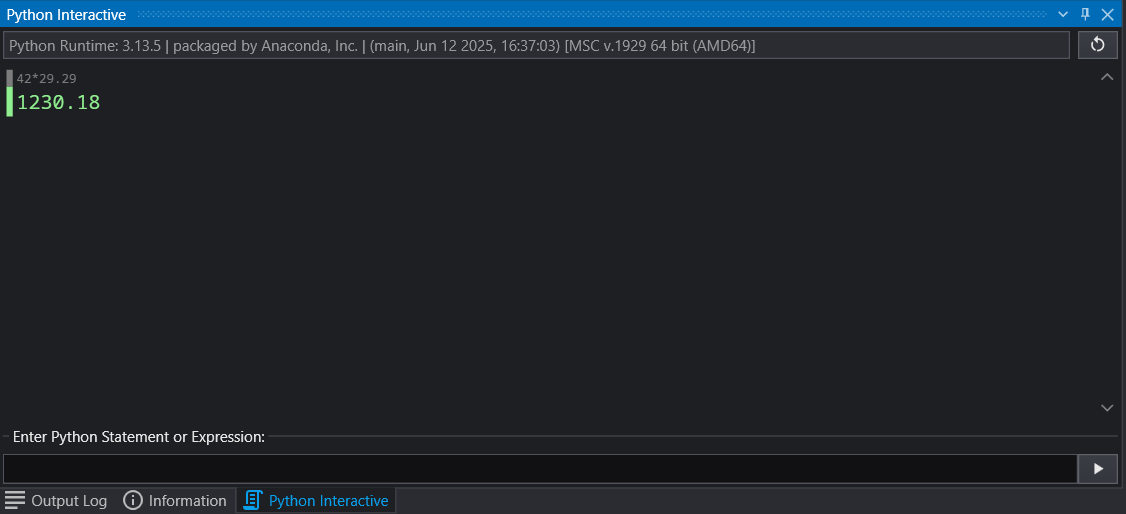
This tabbed panel at the bottom of the screen provides critical feedback, logs, and advanced scripting capabilities. The Output Log displays the information your modules provide, along with execution warnings and errors. The Information tab provides details about probed locations or objects and the data at the probe point. For advanced users, the integrated Python Interactive Panel offers a full scripting console to programmatically control the EVS application, manipulate data, and extend the built-in functionality.

  • Docking and Undocking Windows

    The application’s user interface is highly customizable, allowing you to arrange tool windows like the Viewer, Properties, and Application Network to best suit your workflow. Windows can be ā€œdockedā€ to the edges of the main application or other window, grouped with other windows in tabs, or ā€œfloatedā€ as independent windows on your desktop. This flexibility enables you to create a personalized layout that keeps the tools you need most frequently within easy reach.

Subsections of Main EVS Window

The application’s user interface is highly customizable, allowing you to arrange tool windows like the Viewer, Properties, and Application Network to best suit your workflow. Windows can be “docked” to the edges of the main application or other window, grouped with other windows in tabs, or “floated” as independent windows on your desktop. This flexibility enables you to create a personalized layout that keeps the tools you need most frequently within easy reach.

Window Title Bar and Context Menu

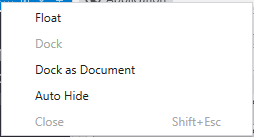
Each tool window has a title bar containing several controls for managing its state. You can access these functions by right-clicking the title bar or by using buttons provided on the title bar directly.

Undocking and Floating Windows

A floating window is one that is detached from the main application window and can be moved freely around your screen, even to a second monitor. To make a window float:

  • Drag the Title Bar: Click and hold the title bar of any docked window and drag it away from the edge. As you drag it towards the center of the screen, it will detach and become a floating window.
  • Drag the Tab: For windows docked as tabs in same pane as other windows, drag the window by its tab.
  • Use the Context Menu: Open the window’s context menu and select the Float option. The window will immediately detach from its docked position.

Docking Windows

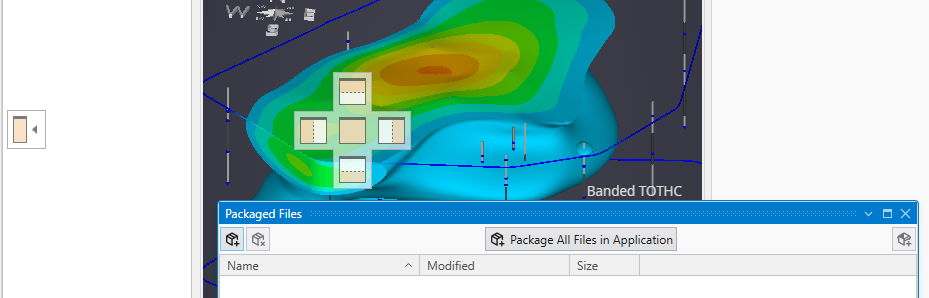
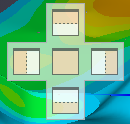
To dock a floating window, simply drag it by its title bar. As you move it over the main application window or any floating window, a set of docking guide icons will appear. Dropping the window onto one of these icons will dock it to the corresponding location.

  • Edge Docking: The four arrow icons at the edges of the screen will dock the window to the top, bottom, left, or right side of the main application, spanning its full width or height.
  • Pane Docking: The five-icon control that appears in the center of an existing window pane allows for more precise placement. The four outer arrows will dock the window to the side of that specific pane, creating a split view. The center icon will dock the window as a new tab within that pane group.
  • Document Area: One pane is designated as the central document area.Ā It occupies the main, central space of the application window. The other docking guides for top, bottom, left, and right positions are usually arranged around this central area.
  • Context Menu Docking: You can also use the context menu of a floating window. Dock will typically return it to its last docked position, while Dock as Document will place it as a tab in the central document area.

Note: The Application window is the central point of any EVS application and layout. It can only be either docked in the Document Area or made a floating window.

Auto-Hiding Windows (Pinning)

The Auto-Hide feature allows you to keep windows accessible without them permanently taking up screen space. You can control this using the pin icon in the window’s title bar or the Auto Hide option in the context menu.

  • Pinned (Vertical Pin): When the pin icon is vertical, the window is pinned open. It will remain visible in its docked location.
  • Unpinned / Auto-Hidden (Horizontal Pin): When the pin icon is horizontal, the window is set to auto-hide. It will collapse into a named tab on the edge of the window. To temporarily view it, simply hover your cursor over its tab. It will slide out for you to use and slide away again when you move your cursor off it. To keep it open, click the pin icon to return it to the pinned state.

Saving and Loading Layouts

When you created a layout you like, you can save it through theĀ OptionsĀ in theĀ Menu. Layouts can be switched to previously saved ones through either the Menu or theĀ Window LayoutsĀ button in the Main Toolbar.

The application offers both a Light and a Dark theme to customize the appearance of the user interface. This choice is purely a matter of personal preference and does not affect the application’s functionality or the output of your visualizations. You can switch between themes at any time to best suit your working environment and visual comfort.

Choosing Your Theme: Light vs. Dark

Selecting a theme can have a significant impact on readability and eye comfort depending on your work environment and personal preferences.

  • Dark Theme: The dark theme uses a dark background with light-colored text. Many users find this reduces eye strain, especially when working for long periods or in low-light conditions. It can also help reduce screen glare and improve focus on the central content by making the surrounding interface elements recede.
  • Light Theme: The light theme provides a traditional light background with dark text. This often offers superior readability in brightly lit environments, such as a well-lit office or a room with significant natural light. For some users, the high contrast of dark text on a light background can appear sharper and more familiar.

How to Change Themes

You can switch between the Light and Dark themes from three different locations within the application.

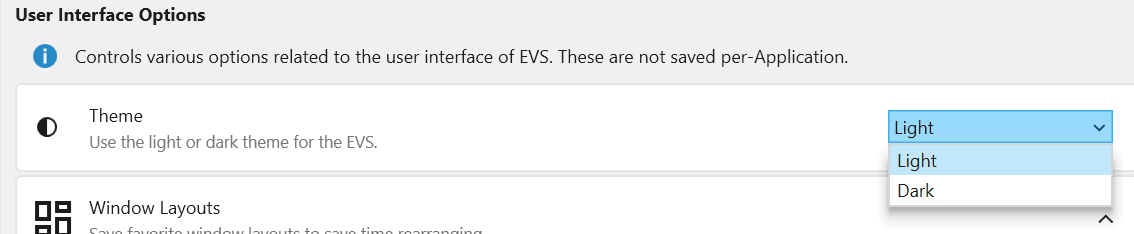
1. Setting the Default Theme in Options

To set your preferred theme that the application will use every time it starts, you can use the Options window.

  1. Navigate to the main application Menu > Options.
  2. In the Options window, select User Interface Options.
  3. Under “Color Options for Applications”, choose your desired theme.

Setting the default theme in the User Interface Options. Setting the default theme in the User Interface Options.

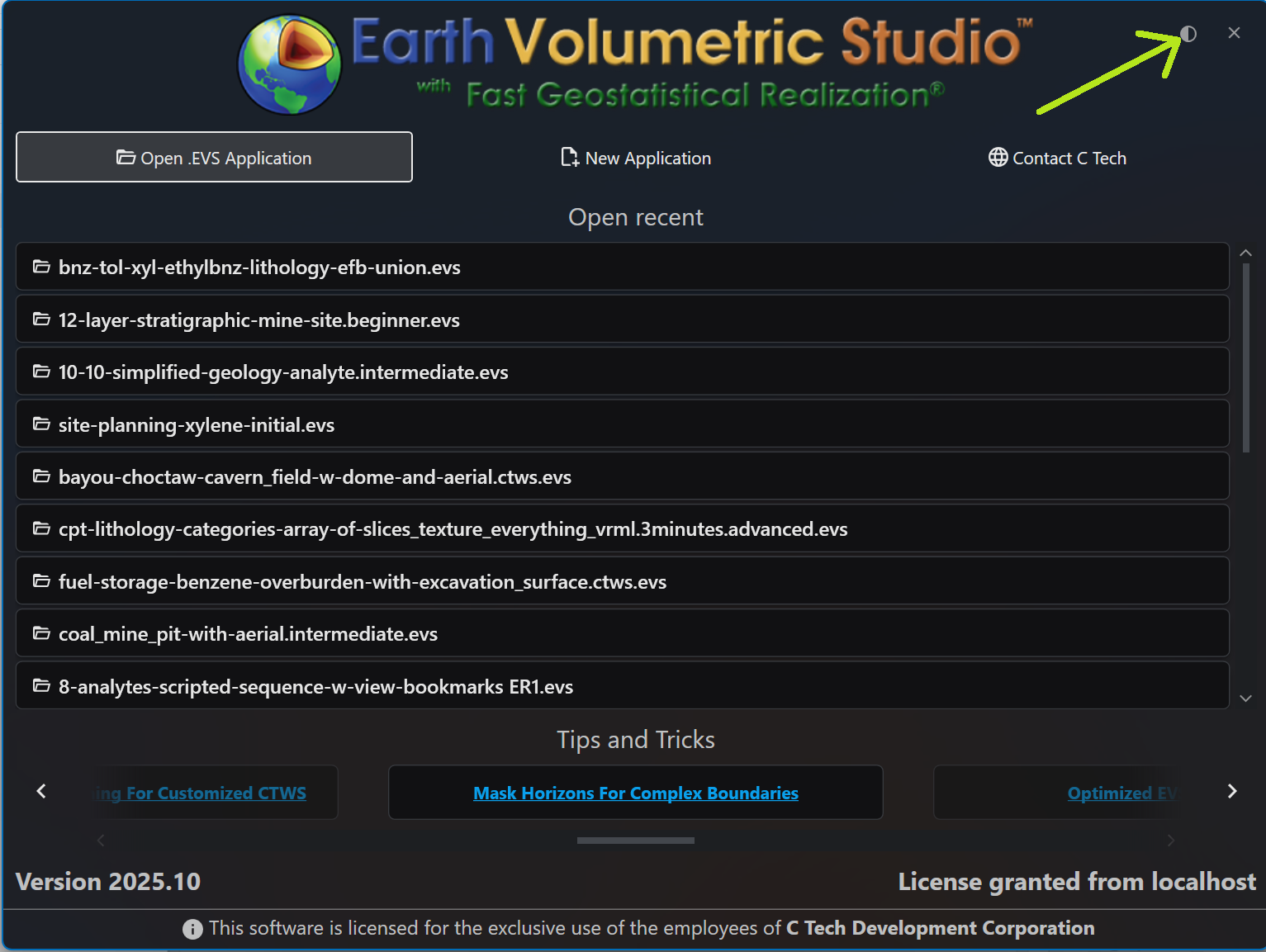
2. Toggling on the Launch Window

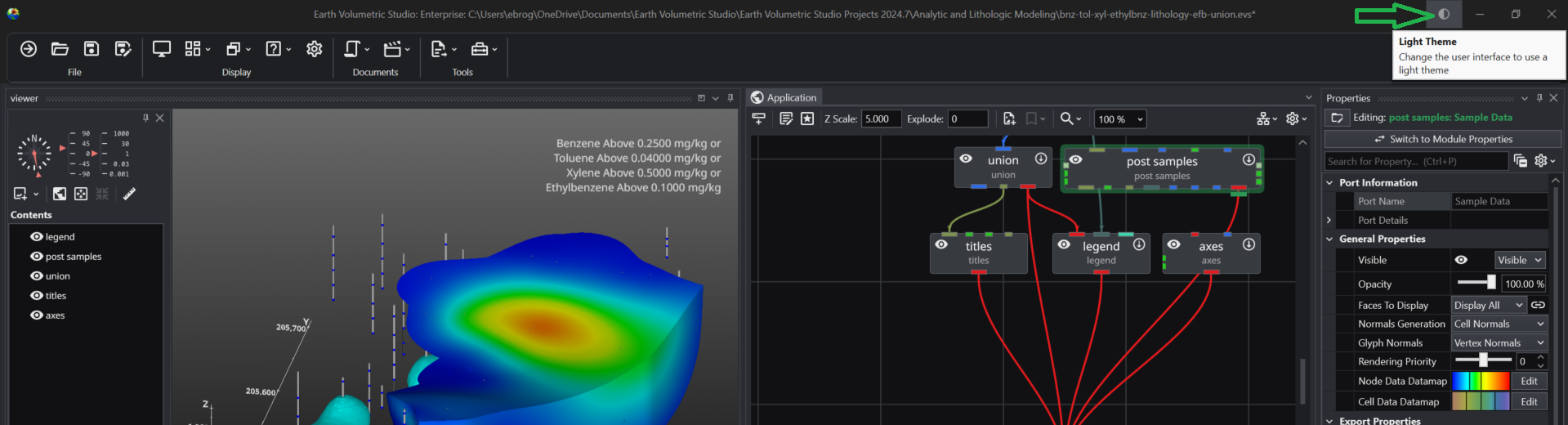
When you first start the application, you can quickly toggle the theme directly from the launch window before opening a project. Click the half-moon icon in the upper-right corner to switch between the Light and Dark themes.

Toggling the theme from the launch window. Toggling the theme from the launch window.

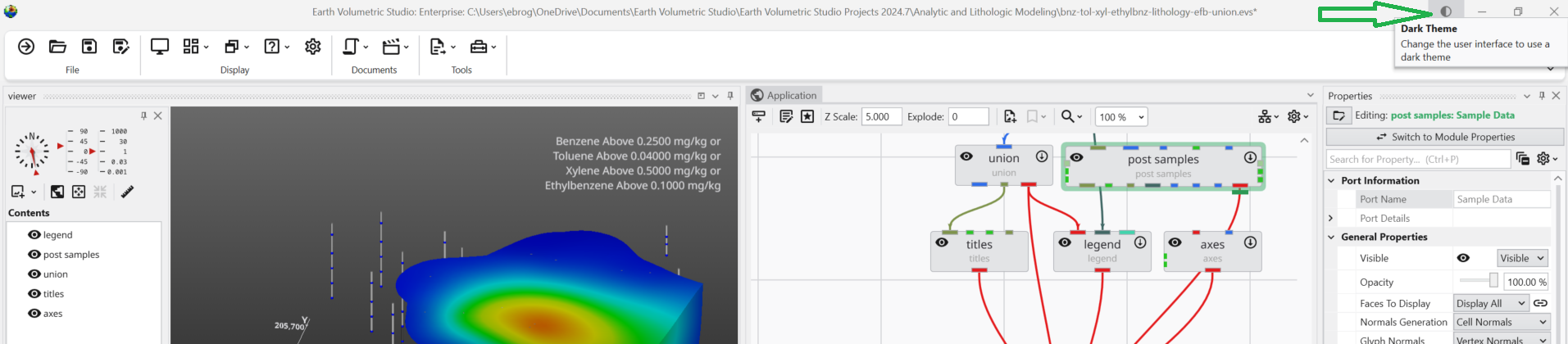
3. Toggling in the Main Application Window

You can also switch themes on-the-fly while you are working. In the upper-right corner of the main application window, you will find the same half-moon icon. Clicking this icon will instantly toggle the interface between the Light and Dark themes, allowing you to adapt to changing lighting conditions or preferences without interrupting your workflow.

Main window with Light Theme active:

Main application window in Light Theme. Main application window in Light Theme.

Main window after toggling to Dark Theme:

Main application window in Dark Theme. Main application window in Dark Theme.

The Main Toolbar

The Main Toolbar is the primary command bar in Earth Volumetric Studio, located at the top of the main application window. It provides streamlined access to the application’s most common features and functions. The toolbar is organized into logical sections: File, Display, Documents, and Tools, making it easier to locate and use the necessary commands for your projects.

File

This section contains essential commands for file management.

File section of the Main Toolbar. File section of the Main Toolbar.

ButtonDescription
Show MenuOpens the main application menu, which provides access to a comprehensive list of commands, including those not present on the Main Toolbar.
OpenProvides quick access to open Earth Volumetric Studio project files.
SaveSaves the currently active project. If the project has not been saved before, it will prompt you for a file name and location.
Save As…Saves the current project under a new name or in a different location.

Display

This section provides tools to manage the application’s user interface, windows, and general options.

Display section of the Main Toolbar. Display section of the Main Toolbar.

ButtonDescription
Presentation ModeToggles a full-screen mode that maximizes the viewer and hides certain UI elements, ideal for presentations.
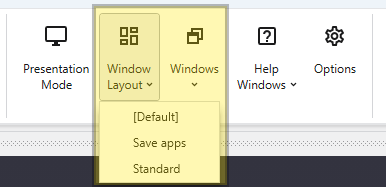
Window LayoutA dropdown menu that allows you to quickly load saved window layout configurations. Use the Windows Layouts section in the Options menu to create new layouts.
WindowsA dropdown menu to show, hide, or bring focus to specific windows within the application, such as the Properties or Output Log windows.
Help WindowsA dropdown menu to access the main help file or show the module help window.
OptionsOpens the main Options dialog, where you can configure application-wide settings.

Documents

This section is dedicated to managing document-centric features like scripting and animation.

Documents section of the Main Toolbar. Documents section of the Main Toolbar.

ButtonDescription
Python ScriptingA dropdown menu that provides access to the Python scripting interface, allowing you to create, open, and run Python scripts to automate tasks and extend functionality.
AnimationA dropdown menu for creating and opening animations. This includes commands for the Animation Control panel, which allows you to define keyframes and playback your animated sequences.

Tools

This section contains a collection of specialized tools and utilities.

Tools section of the Main Toolbar. Tools section of the Main Toolbar.

ButtonDescription
Generate EVS InputA dropdown menu with tools that assist in creating or formatting data files for use in Earth Volumetric Studio from various input file formats.
ToolsA dropdown menu that provides access to a variety of supplementary tools and utilities available within the application.

Toolbar Styles

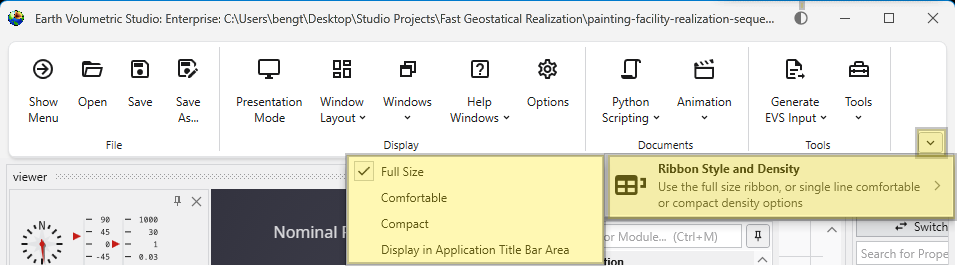
You can customize the appearance of the Main Toolbar to suit your preferences. Right-click anywhere on the toolbar to open the “Ribbon Style and Density” menu, or use the arrow to the right of the toolbar.

The Ribbon Style and Density menu. The Ribbon Style and Density menu.

These settings can also be configured in the main Options dialog in the Menu. The available styles are detailed below.

StyleDescriptionExample
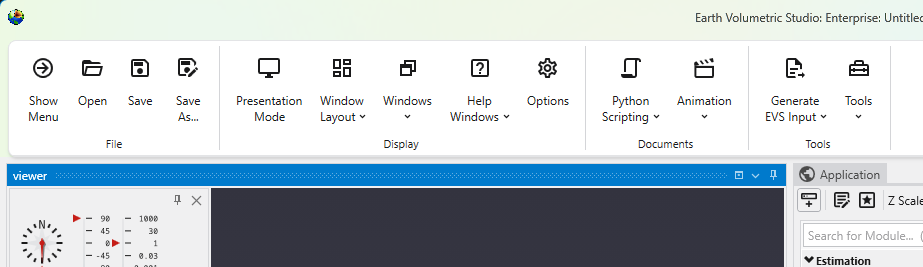
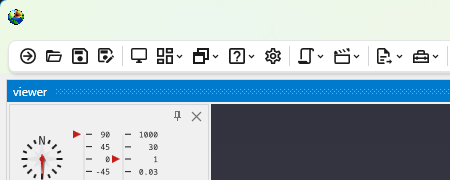
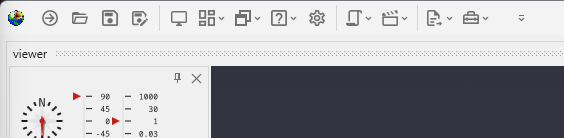
Full SizeThe default style, featuring large buttons with descriptive text for clarity.Full Size toolbar style. Full Size toolbar style.
ComfortableA more compact style that reduces the size of buttons and text, providing a balance between usability and screen space.Comfortable toolbar style. Comfortable toolbar style.
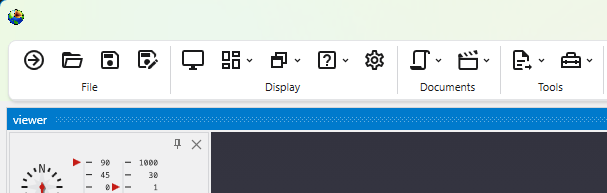
CompactThe most space-efficient style, displaying only icons without text labels for a minimal footprint.Compact toolbar style. Compact toolbar style.
Display in Application Title Bar AreaThis option moves the toolbar into the application’s title bar, freeing up additional vertical space in the main window.Toolbar displayed in the application title bar. Toolbar displayed in the application title bar.
  • Presentation Mode

    Presentation Mode optimizes the user interface for interacting with a completed application. It simplifies the workspace by hiding development-focused UI elements, allowing you to focus on the application’s controls and outputs. Accessing Presentation Mode You can enable Presentation Mode using the Presentation Mode button in the Main Toolbar.

  • Help Windows

    Accessing Help The help can be found through the Help Windows button in the Main Toolbar. General Application Help For general information, searching, and browsing all help topics, you can use the main Help window.

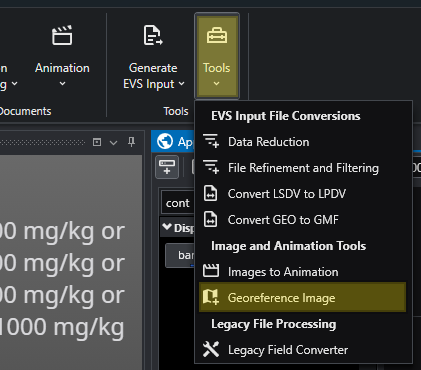
  • Tools

    The Tools menu provides a collection of utilities for file conversion, data processing, and creating animations. These tools are designed to help you prepare your data for use in EVS. Accessing Tools The Tools button can be found in the Main Toolbar. Clicking it will open a list of available tools.

Subsections of Main Toolbar

Presentation Mode optimizes the user interface for interacting with a completed application. It simplifies the workspace by hiding development-focused UI elements, allowing you to focus on the application’s controls and outputs.

Accessing Presentation Mode

You can enable Presentation Mode using the Presentation Mode button in the Main Toolbar.

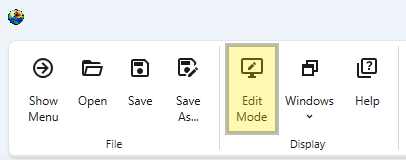
Presentation mode can be left using the Edit Mode button in theĀ Main Toolbar. This button is only visible when Presentation Mode is active.

Purpose of Presentation Mode

Presentation Mode provides a cleaner, more streamlines experience idealĀ for presenting your work or for any scenario where you are primarily executing and interacting with the application rather than building or modifying it.

For this reason, the following elements are hidden or inactive:

  • Application Window: The window containing the application workflow and for adding new modules is hidden.
  • Module and Port Connections: The ability to create or modify connections between modules is disabled.
  • Main Toolbar: Most buttons focused on creating applications are hidden.

Presentation Mode vs. EVS Presentation Files

While Presentation Mode is similar to the view when loading an EVS Presentation file, it is less restrictive. An EVS Presentation file (.evsp) is a self-contained, read-only version of an application that limits user editing and intended for delivery to end users. Its main purpose is for distribution to clients who need to run an application and change predetermined properties, but not modify it.

In contrast, Presentation Mode still allows for editing of module and application properties and options. It is merely a simplified user interface. This provides a flexible way to display interactive applications that are simplified for presentations but not entirely locked down.

Accessing Help

The help can be found through the Help Windows button in the Main Toolbar.

General Application Help

For general information, searching, and browsing all help topics, you can use the main Help window.

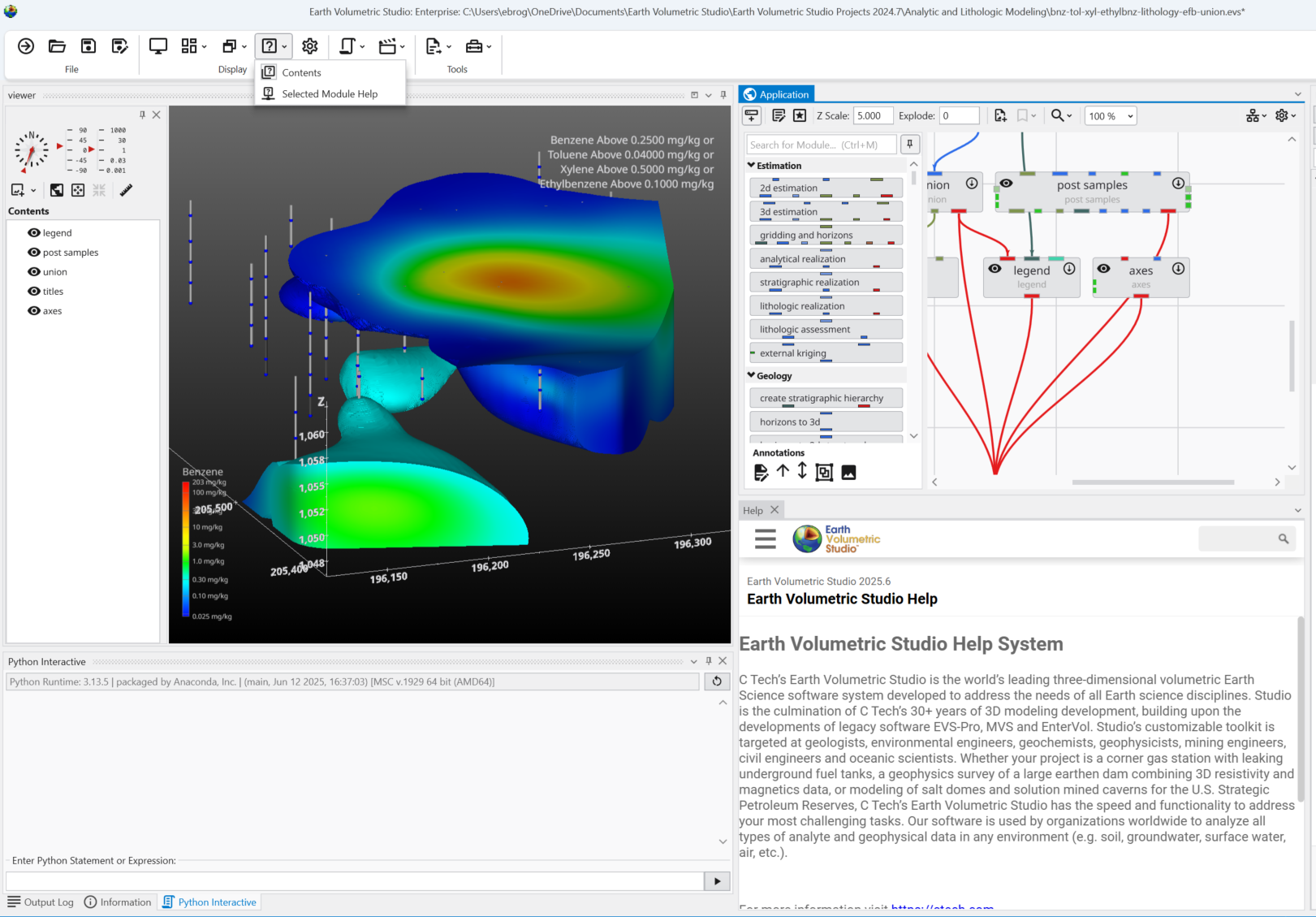
  1. In the Main Toolbar, click the Help Windows button.
  2. From the dropdown menu, select Contents.

This action opens the main Help window, where you can search for topics.

Module-Specific Help

When the Module Help window is opened, any module being edited (selected in the application window) will also show its help contents in the Module Help window. As you edit different modules, the Module Help will reflect the currently selected module.

To get help for a module which hasn’t been instanced, follow these steps:

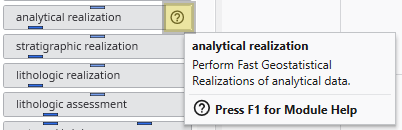
  1. Hover your mouse over the question mark in the desired module in the Module Library.
  2. Wait for the module’s tooltip to appear:
  3. While the tooltip is visible, press the F1 key.

This will open the Module Help window containing specific information for that module.

The Tools menu provides a collection of utilities for file conversion, data processing, and creating animations. These tools are designed to help you prepare your data for use in EVS.

Accessing Tools

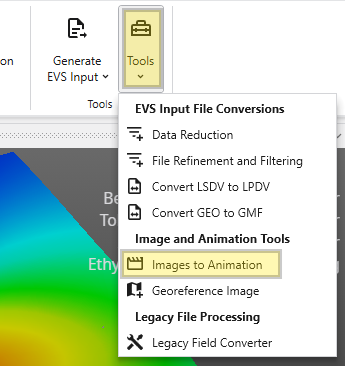
The Tools button can be found in the Main Toolbar. Clicking it will open a list of available tools.

Tool Buttons

EVS Input File Conversions

This section contains tools for processing and converting various data files into formats optimized for EVS.

ToolDescription
Data ReductionThis utility helps you manage large datasets by reducing the number of data points. It can be used to sample or filter your data, which can improve application performance and reduce processing times with configurable loss of detail. It is used to get optimal results when kriging dense data. See theĀ Dense DataĀ tutorial video.
File Refinement and FilteringUse this tool to clean and refine your data files. It allows you to apply filters to remove outliers, correct errors, or extract a specific subset of your data based on defined criteria, ensuring higher quality input for your models.
Convert LSDV to LPDVThis is a file conversion utility to transform boring basedĀ Lithology Screen Data Value (.lsdv) files into the point basedĀ Lithology Point Data Value (.lpdv) format.
Convert GEO to GMFThis tool converts the Borehole Geology (.geo) file format into the Geology Multi-File (.gmf) format.Ā This is useful if you want to replace a single surface in a GEOĀ hierarchy (such as the ground surface) with more high-resolution data that is not synchronous with your .GEOĀ borings.

Image and Animation Tools

This group of tools helps you create animations and prepare images for use in your projects.

ToolDescription
Images to AnimationThis utility takes a sequence of individual image files and compiles them into a single animation video. This is useful for creating time-lapse visualizations of your models or other dynamic presentations.
Georeference ImageCreates and edits world files or .gcp (ground control point) files for images. Use this tool to assign real-world geographic coordinates to a raster image, such as an aerial photograph or a scanned map. Georeferencing allows the image to be accurately positioned and scaled within your 3D scene alongside other spatial data.

Legacy File Processing

This section provides tools for working with older, outdated file formats.

ToolDescription
Legacy Field ConverterReads older format files that can contain EVSĀ Fields, such as Field (.FLD), UCDĀ (.INP)Ā and netCDF files (.CDF) and converts them to standard EVSĀ Field File format (.EFB). The .EFBĀ format is used because it is the smallest and old file formats do not require the more complex features that the .EF2 format allows.
  • Images To Animation

    The Images To Animation tool allows you to compile a sequence of individual image files into a single video animation. This is ideal for creating time-lapse visualizations, showcasing model changes over time, or presenting a series of related images, for example written by EVS through sequences and Python Scripting, as a dynamic video.

  • Georeference Image

    The Georeference Image tool is a useful utility for assigning real-world geographic coordinates to raster images. This process, known as georeferencing, allows you to accurately overlay images with other spatial data in your project. The tool enables you to create and edit world files (e.g., .jgw, .tfw) or ground control point files (.gcp), which store the image’s location, scale, and orientation information.

Subsections of Tools

The Images To Animation tool allows you to compile a sequence of individual image files into a single video animation. This is ideal for creating time-lapse visualizations, showcasing model changes over time, or presenting a series of related images, for example written by EVS through sequences and Python Scripting, as a dynamic video.

Accessing the Images to Animation Tool

The Images to Animation tool can be opened from the Tools button in the Main Toolbar.

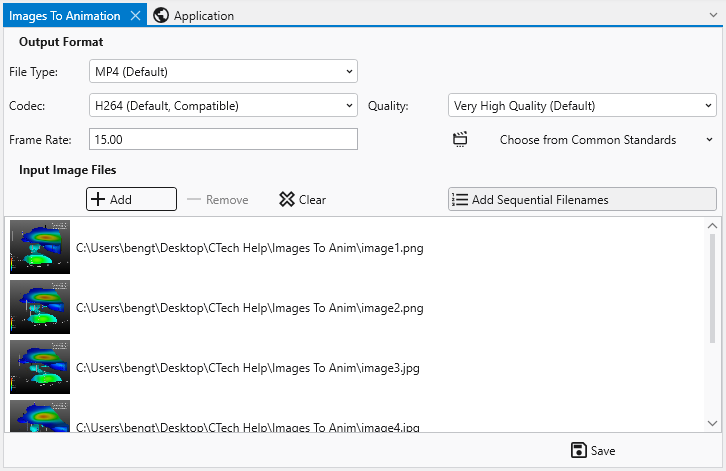
Animation Settings

Before creating your animation, you can configure the output settings to meet your specific needs for quality, file size, and compatibility.

SettingDescription
Frame RateDetermines the number of frames (images) displayed per second. You can enter a custom value or select from standard presets:
  • 60 FPS
  • 30 FPS
  • NTSC (29.97 FPS)
  • PAL (25 FPS)
File TypeLets you choose the container format for your output video file.
  • MP4 (Default): A widely supported modern option with a good balance of quality and file size.
  • AVI: An older, less compressed option that may result in larger files.
  • WebM: An open-source choice designed for web use, providing efficient compression.
QualityControls the trade-off between visual quality and file size.
  • Lossless: Preserves the exact quality of the source images but results in very large files.
  • Very High & High Quality: Produce excellent quality with efficient compression.
  • Medium & Low Quality: Offer progressively more compression for smaller file sizes, with some loss of visual detail.
CodecDetermines the compression algorithm used to encode your video.
  • H264: A highly compatible codec supported by most devices and platforms.
  • H265: A newer codec offering better compression than H264, resulting in smaller file sizes for the same quality.
  • H264RGB: A variant of H264 that preserves full color information, ideal for technical or scientific visualizations.

Managing Files

The File List section is where you add and manage the images that will make up your animation.

FunctionDescription
The File List ViewThis area displays the list of images you have added. Each entry shows a small preview thumbnail of the image on the left and its full file path on the right. The order of the files in this list determines the sequence in which they will appear in the final animation.
Adding and Removing FilesTo add images, click the Add button to open a file dialog, where you can browse for and select one or more files. To remove a specific image, select it from the list and click the Delete button. The Clear button will remove all images from the list, allowing you to start over.
Adding Sequential FilenamesWhen the Add Sequential FilenamesĀ toggle is enabled, the behavior of the Add button is modified to streamline the import of numbered image sequences. If you select a single file that has a number at the end of its name (e.g., image1.png), the tool will automatically search for and add all other files in the same directory that share the same base name and have a matching extension (e.g., image2.png, image3.png, etc.).

Note that this feature requires both the file extension and the base filename (the part before the number) to match exactly. For example: Adding image1.png would add image2.png, but not image3.jpg because of its differing extension. |

About source image sizes

You may encounter a warning messages about image dimensions during conversion. This occurs because most video codecs require the dimensions of the video frame (both width and height) to be even numbers. This requirement is due to the way video compression algorithms process images. If a source image has an odd dimension, the encoder may not be able to process it. To ensure compatibility, the Images to Animation tool will automatically resize the image to the nearest even resolution before adding it to the video. While this automatic resizing is necessary for the video encoding process, it may result in a slight loss of image quality or the softening of fine features in the image.

The Georeference Image tool is a useful utility for assigning real-world geographic coordinates to raster images. This process, known as georeferencing, allows you to accurately overlay images with other spatial data in your project. The tool enables you to create and edit world files (e.g., .jgw, .tfw) or ground control point files (.gcp), which store the image’s location, scale, and orientation information.

When you launch the tool, you will first be prompted to open an image file. Once loaded, the main interface provides all the necessary functions to link pixel coordinates on the image to known map coordinates.

Accessing the Georeference Image tool

The Georeference Image tool can be opened from the main Tools tab in the Main Toolbar.

Interface Overview

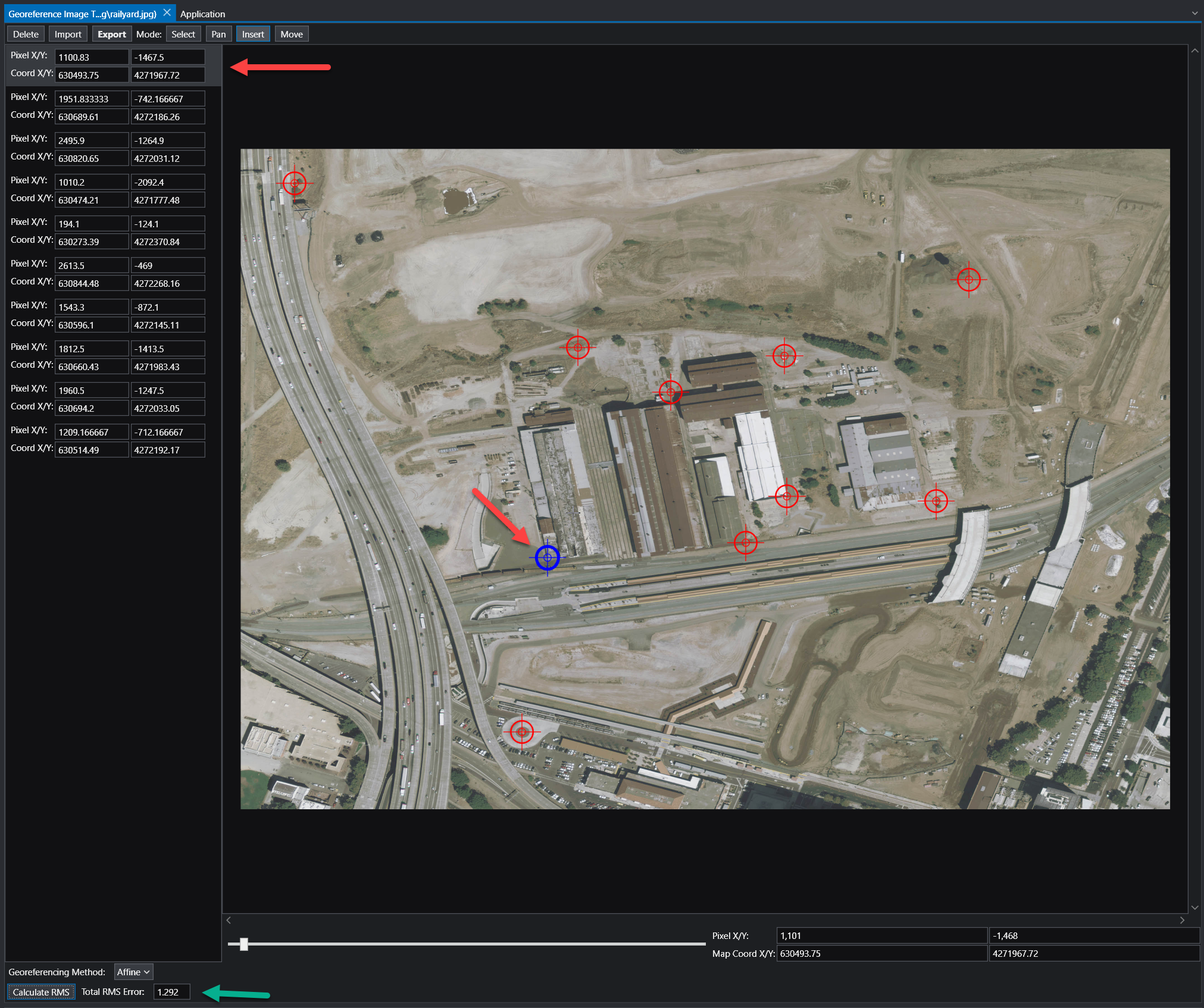
The Georeference Image tool is organized into several key areas:

ComponentDescription
Image PanelThe central part of the window displays your image. This is your primary workspace for viewing the image and placing, selecting, and moving ground control points.
GCP ListThe panel on the left lists all the Ground Control Points (GCPs) for the current image. Each point has an entry showing its pixel coordinates (Pixel X/Y) and the corresponding map coordinates (Coord X/Y).
ToolbarLocated at the top, the toolbar provides access to the main functions for managing GCPs and the georeferencing process.
Status BarThe area at the bottom of the window displays important information, including the georeferencing method, accuracy metrics, and live coordinate readouts for your cursor’s position.

Workflow: How to Georeference an Image

Georeferencing involves creating links between points on the image and their known real-world coordinates. These links are called Ground Control Points (GCPs).

  1. Choose a Georeferencing Method: Use the Georeferencing Method dropdown in the status bar to select the mathematical model that will be used to transform the image from pixel coordinates to map coordinates. The best method depends on the quality of the image and the number of GCPs you have. The available methods are:

    • Map to Min/Max: Stretches the image to fit a bounding box defined by two GCPs representing the minimum and maximum map coordinates. Requires 2 GCPs.
    • Translate: Shifts the entire image based on the location of a single GCP without any rotation or scaling. Requires 1 GCP.
    • 2 Point Translate / Rotate: Moves and rotates the image to align with two GCPs, but does not perform any scaling. Requires 2 GCPs.
    • Translate / Scale: Moves and uniformly resizes the image to fit two GCPs, but does not perform any rotation. Requires 2 GCPs.
    • Affine: A first-order polynomial transformation that can perform translation, scaling, rotation, and skewing. This is a versatile and common method for standard georeferencing. Requires a minimum of 3 GCPs. This is the recommended option, but requires at least 3 GCP points to be specified.
    • 2nd, 3rd, and 4th Order: These are higher-order polynomial transformations used to correct for more complex, non-linear distortions in an image (e.g., lens distortion or terrain relief). They require progressively more GCPs (a 2nd Order transformation needs at least 6 GCPs) and should be used when a simpler model like Affine is not sufficient.
  2. Add Ground Control Points:

    • Set the Mode on the toolbar to Insert.
    • Zoom and pan to a recognizable feature on the image (e.g., a road intersection, a building corner).
    • Click on the feature. A new entry will be created in the GCP in the list on the left of the pixel location selected.
    • Alter the X/Y coordinates to your desired real-world coordinates.
    • Repeat this process for several points distributed across the image.
  3. Review Accuracy:

    • Once you have enough GCPs for your chosen method, click the Calculate RMS button. The Total RMS Error value will update. This value represents the root mean squared error, which is a measure of the average distance between the true map locations of your GCPs and their calculated locations based on the current transformation. A lower RMS error indicates a more accurate fit.
  4. Export the Georeference File:

    • When you are satisfied with the accuracy, click the Export button on the toolbar. This will save the coordinate information to a file (e.g., a world file or a .gcp file) that accompanies your image.

    NOTE: In general, add as many control points as possible. More control points will almost always result in a better georeferencing, as any error due to precision will be averaged out across all of the entered control points. Our recommendation is to use an Affine transformation method (which is typically the industry standard) with as many control points as possible. While three is the minimum required, ten or more is typically recommended.

Toolbar Functions

FunctionDescription
DeleteDeletes the currently selected GCP.
ImportLoads GCPs from an existing file (e.g., a .gcp file).
ExportSaves the current set of GCPs to a world file or .gcp file. The .gcp files are compatible with ArcGIS image link files.
ModeSelect: Allows you to select a GCP from the list or by clicking it on the image.
Pan: Allows you to pan around the image by clicking and dragging. You can also pan using the middle mouse button.
Insert: Enables you to add new GCPs by clicking on the image.
MoveAllows you to adjust the position of a selected GCP. After clicking this button, select a GCP and click its new desired location on the image to update its pixel coordinates.

Interpreting Coordinates

Once an image is georeferenced, you can use the tool to find the map coordinates of any point. As you move your cursor over the image, the Pixel X/Y and Map Coord X/Y displays in the status bar will update in real-time, showing the pixel location and the corresponding calculated geographic coordinate.

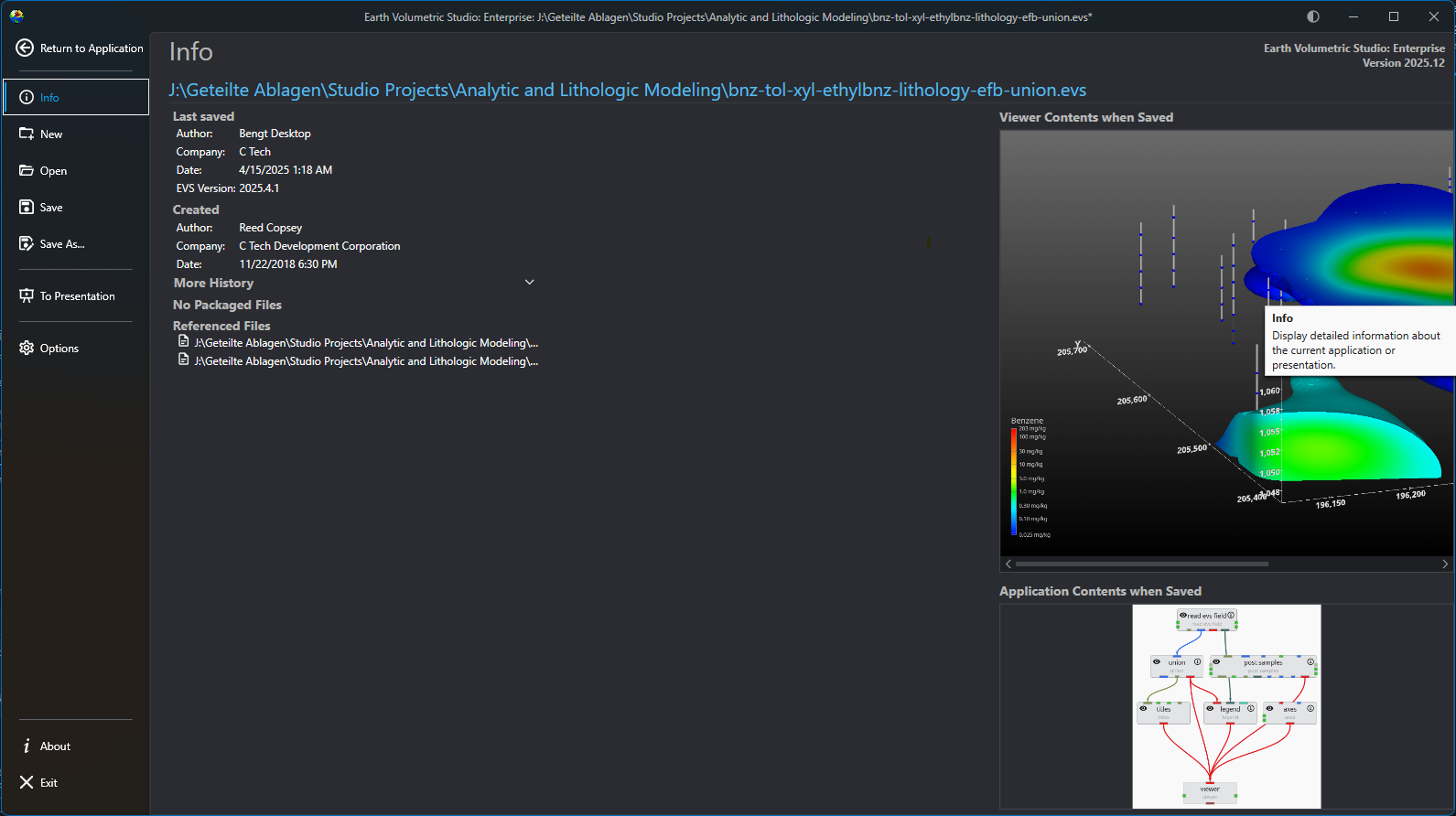
The main application menu serves as the central hub for managing your projects and configuring the application. Opening this menu will temporarily replace the standard workspace, including the Application Network and viewers, with a dedicated interface for file management, options, and project oversight. The Menu defaults to the Info screen, which provides an at-a-glance summary of your current project’s metadata and saved state.

The main application menu showing the Info screen. The main application menu showing the Info screen.

Accessing the Menu

To open the menu, click the Show Menu button in the Main Toolbar.

The Show Menu button in the main toolbar. The Show Menu button in the main toolbar.

The navigation bar on the left side of the menu allows you to switch between several screens, each with a specific function.

OptionDescription
Return to ApplicationLocated at the top of the navigation bar, this button closes the menu and takes you back to your main workspace.
InfoThe default screen, which serves as a dashboard for your current project. It displays important metadata (author, save date, version, etc.) and shows preview images of the Viewer Contents and Application Contents from the last save.
NewAllows you to start a new, empty project.
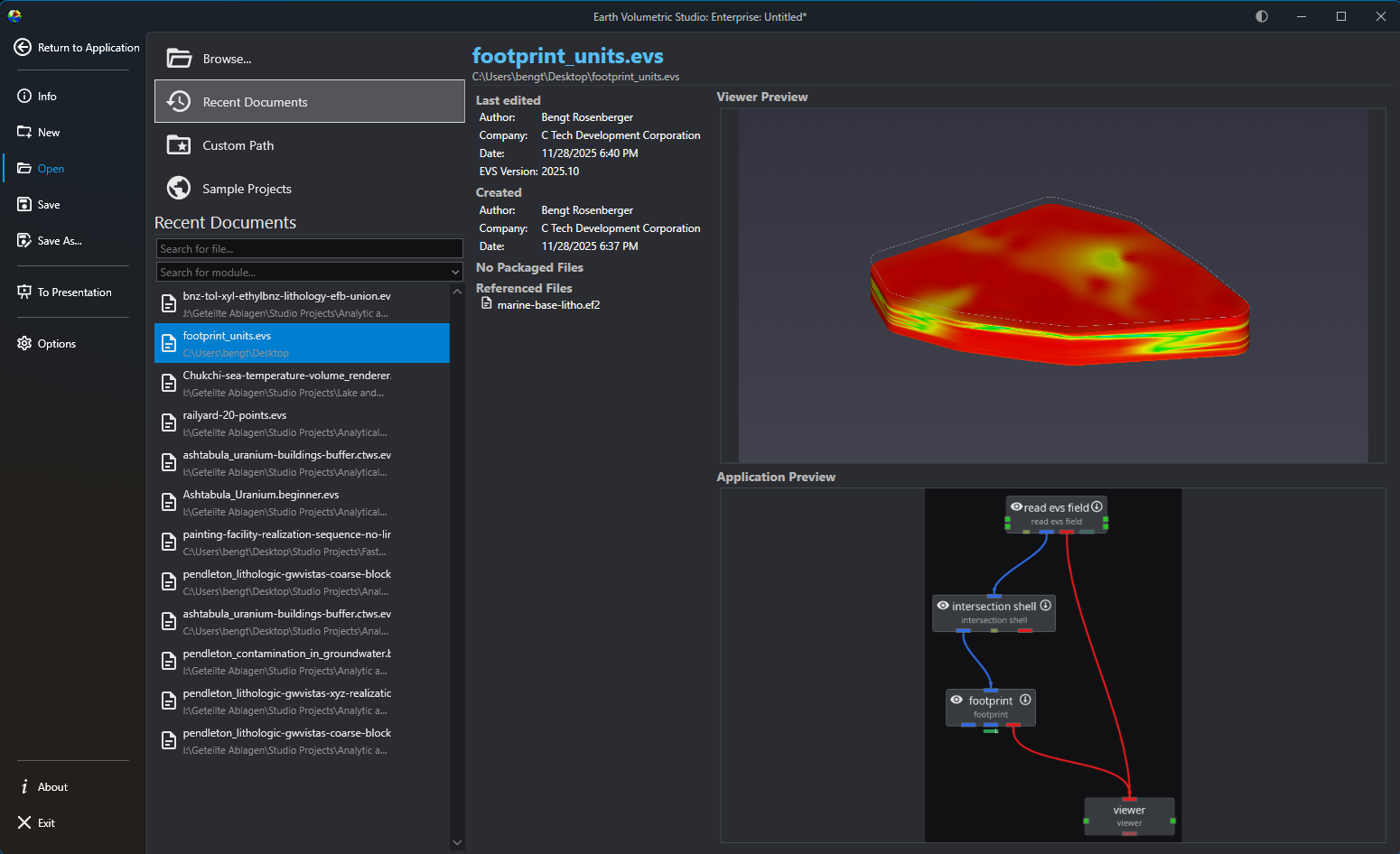
OpenNavigates to a screen for loading existing projects. This screen provides several ways to find and open files:
  • Recent Documents: Shows a searchable list of your recently opened files. Selecting a file displays its metadata and preview images.
  • Browse…: Opens a standard file dialog to navigate your file system.
  • Custom Path: Allows you to navigate to a user-defined file path. Included paths can be configured in the Options tab in the Menu.
  • Sample Projects: Provides access to a collection of example projects to learn about the software’s capabilities, if installed.
SaveSaves the current project.
Save As…Saves the current project to a new file or location.
To PresentationUsed to prepare or export your work for presentation purposes. SeeĀ Creating Presentation Applications.
OptionsOpens the application’s settings and preferences window.
AboutDisplays information about the software.
ExitCloses the application entirely.
  • Open Files

    Opening Projects The Open screen, accessible from the main application Menu, provides a comprehensive interface for loading existing projects. It is designed to give you quick access to your recent work, sample files, and any project on your system, complete with metadata and visual previews to help you find the right file quickly.

  • Options

    The Operation and User Preferences window is the central hub for configuring application-wide settings in Earth Volumetric Studio. It allows you to customize the user interface, set default behaviors for new projects, manage system resources, and personalize user information. Tailoring these settings can significantly improve your workflow and efficiency. To access this window, click the Options button on the main application menu located on the left side of the screen.

  • Windows and Layout

    Earth Volumetric Studio features a flexible interface composed of several windows. You can customize their size, position, and docking state to create

Subsections of Menu

Opening Projects

The Open screen, accessible from the main application Menu, provides a comprehensive interface for loading existing projects. It is designed to give you quick access to your recent work, sample files, and any project on your system, complete with metadata and visual previews to help you find the right file quickly.

File Access Options

OptionDescription
Browse…Launches your operating system’s standard file explorer, allowing you to navigate your entire file system (local drives, network locations, etc.) to locate and open any .evs project file. This is ideal for accessing files not in your recent list or usual project folders.
Info

While applications on network drives or shared drives may load, our customers often experienced file locking or similiar access issues when saving them. For the best experience, we recommend loading applications from a local filesystem if possible.

| | Recent Documents | The default view, offering the quickest way to resume work. It presents a scrollable and searchable list of your most recently accessed projects, ordered from newest to oldest. | | Custom Path | Acts as a configurable bookmark for frequently used folders. Once you set a directory in the application’s options, this button lists all application files in that location, saving you from navigating to it manually.

Note: The Custom PathĀ option will not recurse subdirectories. Only application files directly in the favorited directories will be shown.
| | Sample Projects | Provides access to a curated collection of official C Tech sample applications that demonstrate best practices and diverse capabilities. These are the applications used in the EVS Training tutorials.

Note:Ā If this list is empty, the C Tech Sample Applications have not been installed. You can obtain the installer from the C Tech website at www.ctech.com.
|

Filtering and Searching

When using the open file views, you can use the search and filter boxes to quickly locate a specific project. These tools are especially useful when dealing with a long list of files.

ToolDescription
Search for file…This text box allows you to filter the list by filename. As you type, the list dynamically updates to show only the files whose names contain the text you have entered.
Search for module…This dropdown helps you find projects based on their content. Selecting a module type will filter the view to show only application files containing that module. This is useful for finding examples or projects when you remember a key component but not the file name.

Project Information and Preview

When you select a file, the right-hand side of the screen populates with detailed information about that project.

PanelDescription
Metadata PanelAt the top, you will find key details about the file. This includes when it was last edited and by whom, its creation date, the software version used, and (for applications saved in recent releases) a list of any external files it references and any packaged data in the application.
Viewer PreviewThis panel displays a static image of the 3D viewer’s contents as they appeared the last time the project was saved. This gives you an immediate visual reminder of the project’s output.
Application PreviewBelow the viewer preview, a snapshot of the application network is shown. This allows you to see the module layout and connections, providing insight into the project’s workflow and structure.

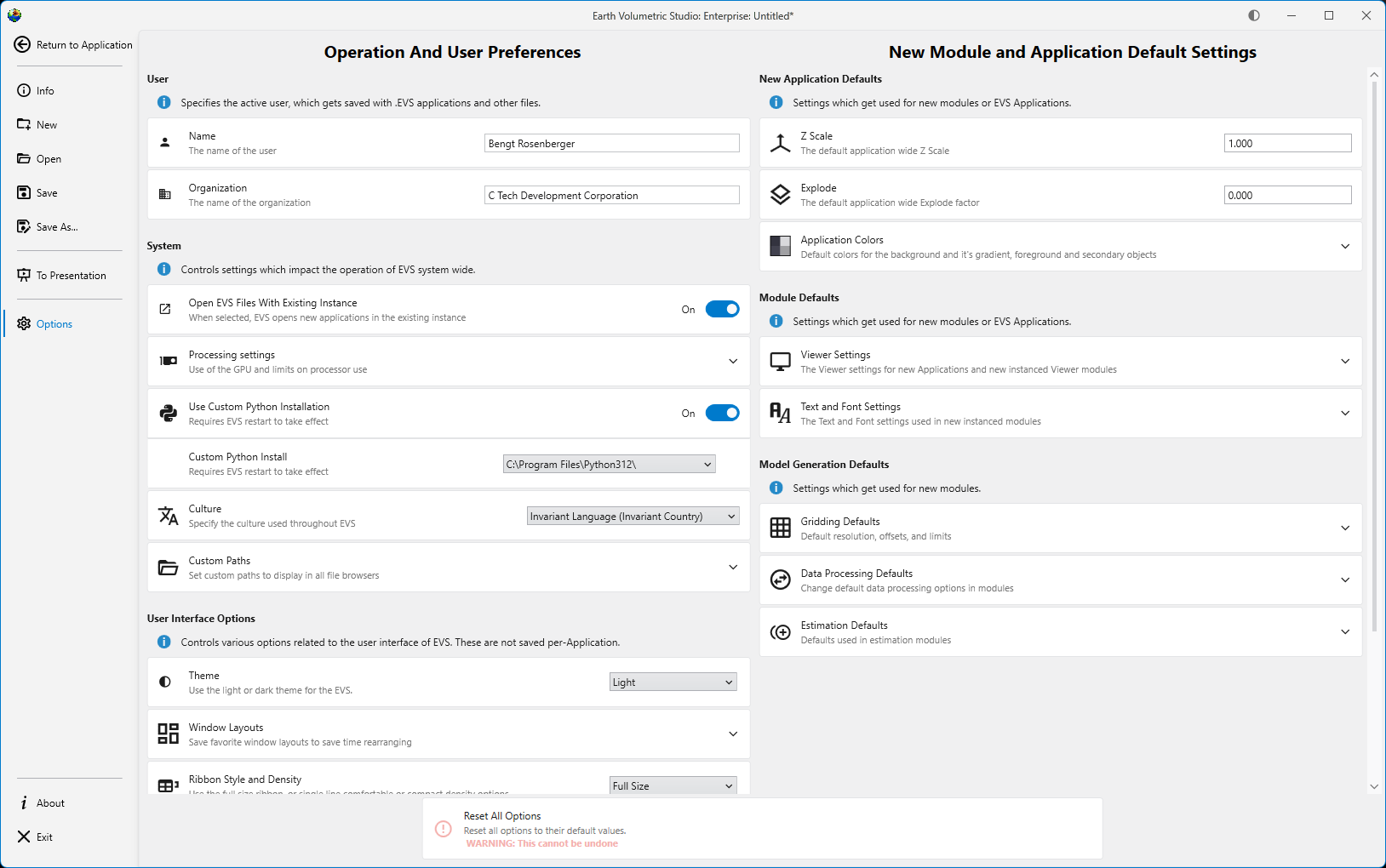
The Operation and User Preferences window is the central hub for configuring application-wide settings in Earth Volumetric Studio. It allows you to customize the user interface, set default behaviors for new projects, manage system resources, and personalize user information. Tailoring these settings can significantly improve your workflow and efficiency.

To access this window, click the Options button on the main application menu located on the left side of the screen.

Operation and User Preferences Window Operation and User Preferences Window

The window is divided into several logical sections, each handling a different aspect of the application’s configuration.

The options on the left side are all user preferences, and determine the look, feel, and operation of EVS for the current user. The options on the right side change the default values used for new modules and applications.

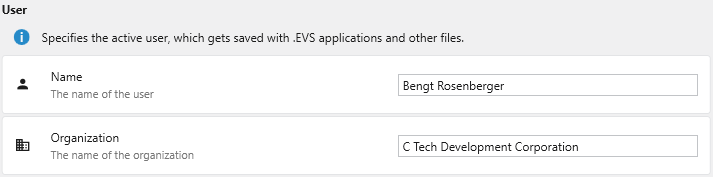
User

This section specifies the active user and their organization. This information is saved with .evs application files and other outputs, helping to track authorship and ownership of projects.

SettingDescription
NameThe name of the primary user. This name is stored as metadata within your project files.
OrganizationThe name of your company or organization. This is also saved as metadata for project management and collaboration.

System

The System section controls settings that impact the core operation of EVS system-wide, including file handling, hardware utilization, and integration with external tools like Python.

SettingDescription
Open EVS Files With Existing InstanceWhen enabled, any .evs file you open from Windows File Explorer will launch within the currently running instance of Earth Volumetric Studio. If disabled, a completely new instance of the program will be launched for each file.
Processing settingsThis section allows you to manage how EVS utilizes your computer’s hardware.
  • **Logical Processors (CPU) to keep unused**: Reserves a specific number of your CPU's logical processors (cores/threads) for the operating system and other applications. This prevents EVS from consuming 100% of your CPU during intensive calculations, keeping your system responsive.
  • **Use GPU for fast calculations**: When enabled, EVS leverages your graphics processing unit (GPU) to accelerate certain calculations. It is recommended to keep this enabled if you have a dedicated graphics card.
  • **Force Emulated GPU**: An advanced troubleshooting setting. It forces EVS to use a software-based GPU emulator instead of your physical graphics card, which can help diagnose graphics-related issues but at a significant performance cost.
| | **Use Custom Python Installation** | Enable this toggle to use a specific Python installation on your system, rather than the one bundled with EVS. NOTE: A restart of EVS is required for this change to take effect. | | **Custom Python Install** | When "Use Custom Python Installation" is enabled, this field becomes active. Specify the path to the root directory of the desired Python installation. EVS must be restarted after changing this path. Any Python 3.10-3.13 installation will be detected and work, including Anaconda and similar (provided they are registered as a system Python install). Do not use Microsoft Store installed Python installations, as they are not allowed by Windows to be used by other software packages directly. | | **Culture** | Specifies the language and regional format used throughout the EVS user interface, which affects language as well as the display of dates, times, and numbers. | | **Custom Paths** | Define shortcuts to frequently used folders. These paths will appear directly in the **Open** menu and other file browsers, allowing you to navigate to project directories with a single click. ![](options_window_3.png) |

User Interface Options

This section controls the visual appearance and layout of the EVS user interface.

SettingDescription
ThemeChoose a visual theme for the application. For more details, see the Themes topic.
  • Light: A bright theme with dark text.
  • Dark: A dark theme with light text, which can reduce eye strain.
Window LayoutsSave, manage, and apply different arrangements of the application’s windows. For more about creating layouts, see Docking and Undocking WindowsĀ and Windows and Layout.
  • **Layout List**: Displays all saved layouts.
  • **+ / - Buttons**: Save the current window arrangement as a new layout or delete the selected layout.
  • **Apply Selected Layout**: Applies the window positions from the selected layout.
  • **Overwrite Current Layout**: Updates the selected layout with the current arrangement of windows.
  • **Revert to Default**: Resets the selected layout to its original state.
| | **Ribbon Style and Density** | Customizes the appearance of the [Main Toolbar](../../main-toolbar/).
  • **Full Size**: The default style, featuring large icons with descriptive text.
  • **Comfortable**: A more compact style with smaller icons and text.
  • **Compact**: A minimal style with icons only.
  • **Display in Title Bar**: Moves the toolbar into the application's title bar to maximize vertical space.
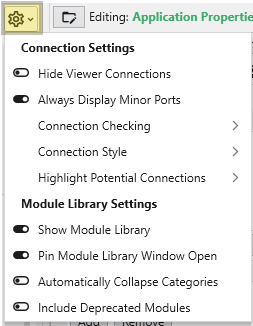
| | **Application Window Options** | Controls the visual complexity and behavior of module connections in the [Application](../../the-application-window/) window. ![](options_window_5.png)
  • **Hide Viewer Connections**: Hides connection lines to and from Viewer modules to reduce visual clutter.
  • **Always Display Minor Ports**: When enabled, all module ports are visible. When disabled, less-used "minor" ports are hidden until you hover over the module.
  • **Connection Checking**: Determines how strictly EVS validates module connections. "Strict Checking" ensures data types are perfectly compatible.
  • **Connection Style**: Sets the visual style of connection lines (Curved or Straight).
  • **Highlight Potential Connections**: Controls which available ports are highlighted as valid targets when dragging a connection (Major Ports Only, Include Minor Ports, or None).
  • **Max Potential Connections**: Limits the number of potential connections highlighted at once to maintain performance.
| | **Properties Window Options** | Customizes the behavior of the EVS Properties Window. ![](options_window_6.png)
  • **Display Expert Properties**: Reveals advanced or less commonly used module parameters.
  • **Always Show Critical Properties**: Ensures that important parameters are always visible, even if their category is collapsed.
  • **Automatically Collapse Categories**: When enabled, all property categories collapse when you select a new module.
| | **Module Window Options** | Options specific to the EVS [Module Library](../../the-application-window/module-library/) window. ![](options_window_7.png)
  • **Include Deprecated Modules**: Shows older modules kept for backward compatibility.
  • **Automatically Collapse Module Categories**: When enabled, all module categories in the Module Library will be collapsed by default.
|

New Module and Application Default Settings

This area defines the default settings that are applied to new applications, modules, and data processing tasks.

New Application Defaults

SettingDescription
Z ScaleSets the default vertical exaggeration (Z-Scale) for new applications.
ExplodeSets the default explode factor for new applications, which pushes modules apart in the 3D viewer.
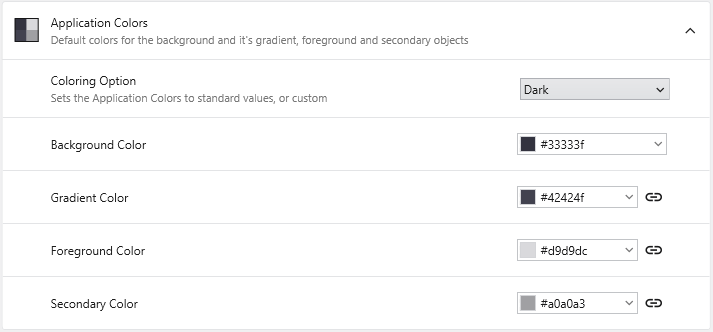
Application ColorsSets the default colors for elements in the Viewer window for new applications.
  • **Coloring Option**: Select from predefined color schemes (Light, Dark) or choose "Custom" to enable the color pickers below.
  • **Background Color**: Sets the solid background color of the Viewer.
  • **Gradient Color**: Creates a two-color vertical gradient with the Background Color.
  • **Foreground Color**: Defines the default color for text, axes, and other primary annotations.
  • **Secondary Color**: Defines the default color for less prominent visual elements.
|

Module Defaults

SettingDescription
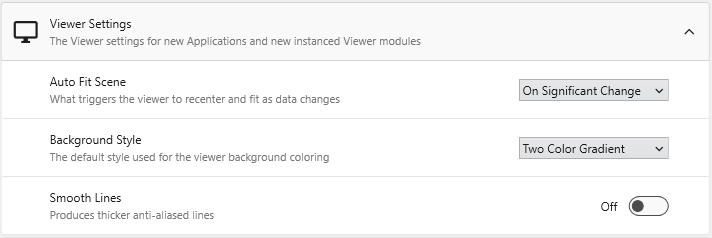
Viewer SettingsDefines the default rendering and behavior for new Viewer modules.
  • **Auto Fit Scene**: Controls when the viewer automatically rescales to fit all objects (On Significant Change, On Any Change, or Never).
  • **Background Style**: Sets the default background rendering style (Two Color Gradient, Solid, or Vignette).
  • **Smooth Lines**: When enabled, applies anti-aliasing to produce thicker, smoother lines.
| | **Text and Font Settings** | Controls the default font settings for new modules that display text. ![](options_window_10.png)
  • **Default Font**: Sets the default font family for text in new modules.
  • **Force True Type Fonts**: When enabled, forces modules to use scalable TrueType fonts.
  • **Include Language Specific Fonts**: Loads additional font sets for displaying characters from non-Latin languages (e.g., Chinese, Japanese, or Korean).
|

Model Generation Defaults

Provides fine-grained control over the default parameters used in modules for gridding, data processing, and statistical estimation.

Setting AreaDescription
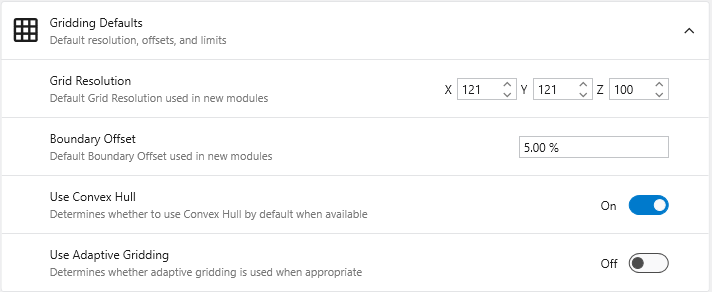
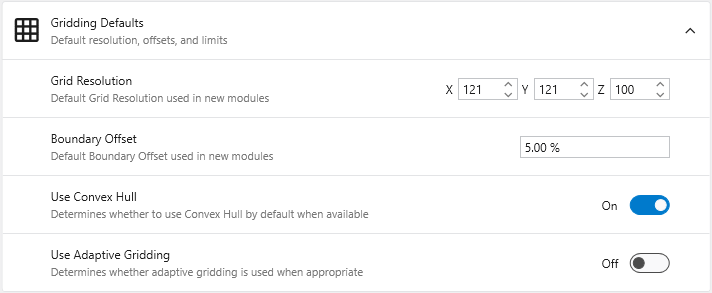
Gridding DefaultsDefines the default settings for new gridding modules like krige_3d.
  • **Grid Resolution**: Sets the default number of nodes in the X, Y, and Z dimensions.
  • **Boundary Offset**: Defines a default percentage to expand the grid boundary beyond the input data extents.
  • **Use Convex Hull**: When enabled, automatically uses the convex hull of the input data as the gridding boundary.
  • **Use Adaptive Gridding**: When enabled, uses adaptive gridding techniques by default.
| | **Data Processing Defaults** | Changes the default data processing options in various modules.
  • **Pre Clip Minimum**: Sets the default minimum clipping value applied to data **before** interpolation.
  • **Post Clip Minimum**: Sets the default minimum clipping value applied to data **after** interpolation.
| | **Estimation Defaults** | Defines the default parameters for estimation modules. ![](options_window_13.png)
  • **Horizontal Vertical Anisotropy**: Sets the default ratio of horizontal to vertical anisotropy.
  • **Use all samples if # samples below**: When enabled, the module uses all data samples for estimation if the total count is below the specified limit.
  • **Number of Points**: Specifies the number of nearby data points to use for estimation.
  • **Statistical Confidence Tolerance**: Sets the default tolerance for statistical confidence when data processing is "Linear".
  • **Statistical Confidence Factor**: Sets the default factor for statistical confidence when data processing is set to "Log Processing".
  • **Confidence for Min and Max Plume**: Sets the default statistical confidence level for determining plume extents.
|

Reset All Options

The Reset All Options button at the bottom of the window reverts all settings to their original factory defaults. This action is irreversible and affects all sections, so it should be used with caution.

Earth Volumetric Studio features a flexible interface composed of several windows. You can customize their size, position, and docking state to create a layout that suits your workflow.

Customizing Your Workspace with Window Layouts

EVS provides a flexible windowing system that allows you to customize the layout of your workspace. You can control the position, size, grouping, and visibility of most windows to suit your workflow. These customized layouts can be saved and reloaded, which is useful for different tasks or screen resolutions.

For example, here is an application with a personalized window layout:

Window Visibility and Docking

You can manage window visibility and docking using the controls located on each window’s title bar. While most windows can be moved, resized, or closed, there are a couple of exceptions:

  1. Application Window: The main area for adding and connecting modules is always part of the main EVS application window, except in EVS PresentationsĀ or when working in Presentation mode.
  2. Viewer Window: The Viewer cannot be closed, but it can be undocked and moved to another monitor for a multi-screen setup.

Example: Optimizing for a Larger Viewer

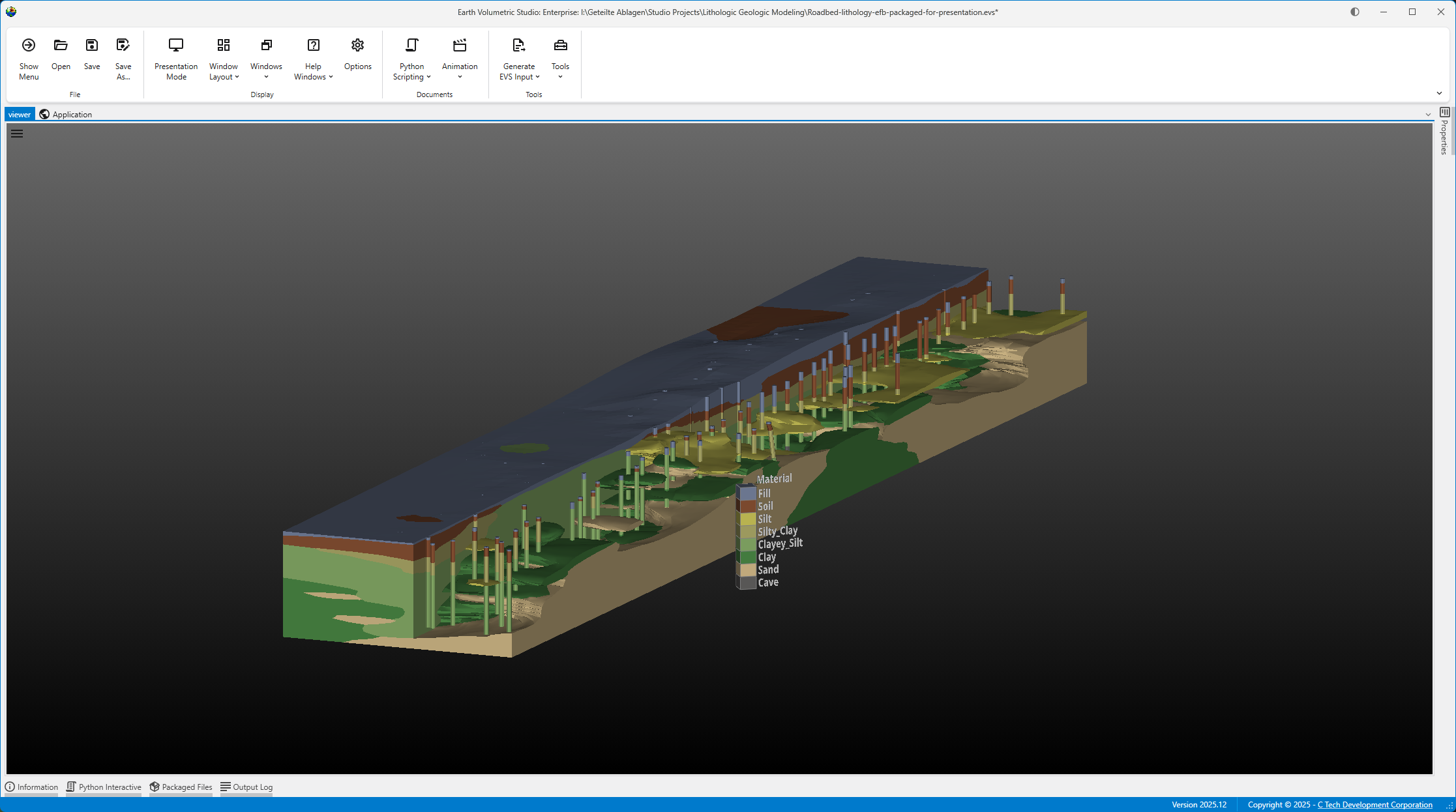
You can create different layouts to optimize your workspace. For instance, the layout below is configured to maximize the Viewer’s screen space. Notice how windows are tabbed together to save space:

  • The Application and Viewer windows are tabbed, with the Viewer active.
  • The Information, Packaged Files, and Output Log windows are tabbed, with the Output Log active.

Saving a Custom Window Layout

Once you have arranged the windows to your liking, you can save the layout for future use.

  1. Click the Options button in the Main Toolbar.
  2. In the Options window, expand the Window Layouts section.
  3. Here you have the option to create a new layout or overwrite the currently active layout.
    1. Create a new layout:Ā Click the + (Add) button to save your current window arrangement as a new layout. It will appear in the list along with any previously saved layouts and the “Default” configuration.
    2. Overwrite the current layout: Click the Overwrite Current LayoutĀ button.

Loading or reverting a Custom Window Layout

There are two ways to switch to a different layout.

The Options window

You can load a previous or revert a layout in the same section as described above.

  1. Click the Options button in the Main Toolbar.
  2. In the Options window, expand the Window Layouts section.
  3. Here you have the option to load a layout or revert to the “Default” layout.
    1. Load a layout:Ā Select the desired layout and click the Apply Selected Layout button or alternatively revert to the “Default” layout using the Revert to Default button.
    2. Revert to default: Click the Revert to Default button to revert the current layout to the one saved as “Default”.

The Quick Access Button

You can easily switch between your saved layouts directly from the Main Toolbar.

  1. Click the dropdown arrow next to the Window Layouts button in the Main Toolbar.
  2. Select your desired layout from the list to apply it instantly.

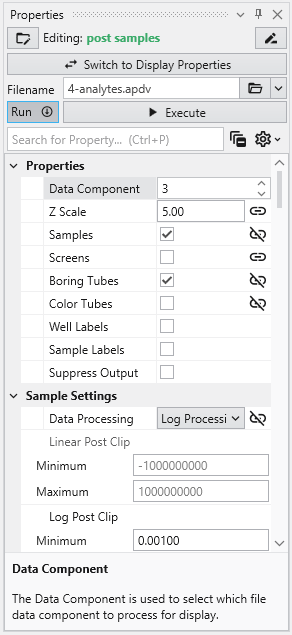
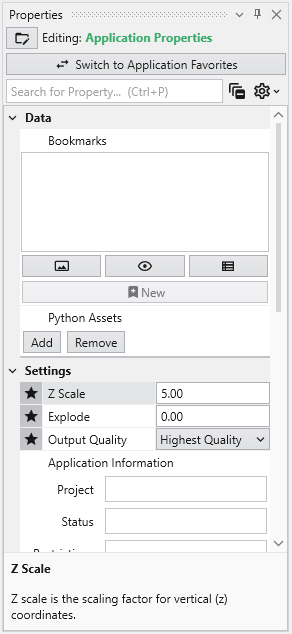
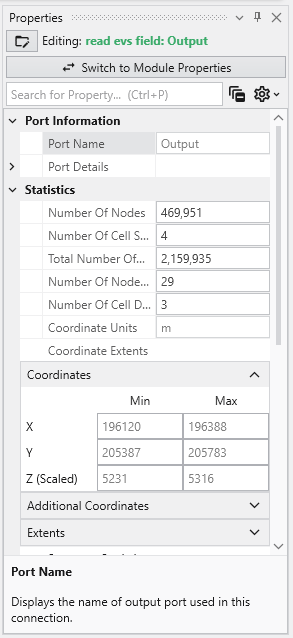
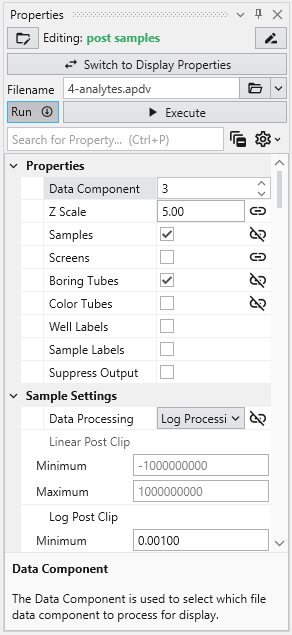
The Properties window is the primary interface in Earth Volumetric Studio for viewing and editing the parameters of various objects within your application. These objects can include modules, output ports, or the application itself. All properties for a selected object are displayed here, organized into logical, collapsible categories.

Module properties:Application properties:Port properties:

Accessing the Properties Window

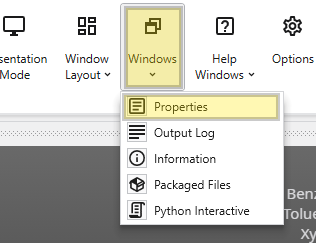
If the Properties window is not already open, navigate to the Windows button in the Main ToolbarĀ to show it.

Editing Objects

Once the window is visible, you can load an object’s properties for editing. The most direct method is to double-click a module or a port of a module in the Application Network. Alternatively, you can use the Choose Object to Edit dropdown menu at the top of the Properties window, which provides a list of all objects in your application and allows you to quickly switch between them.

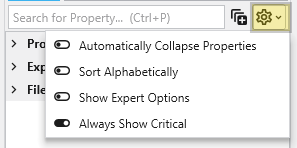
The Properties window includes several tools to help you find and manage parameters efficiently. A Search for Property box at the top of the window allows you to filter the displayed properties by typing a search string; you can also use the Ctrl+P keyboard shortcut to focus on the search box. Next to the search box, the Collapse Categories button lets you expand or collapse all property categories at once.

Options

Further customization is available through the Options menu, accessible via the gear icon. These are global settings for the Properties window and allow you to change how properties are displayed.

OptionDescription
Automatically Collapse PropertiesWhen enabled, all property categories are collapsed when properties of a new object are loaded.
Sort AlphabeticallyChanges the order of properties to an alphabetical sorting.
Show Expert OptionsReveals advanced parameters.
Always Show CriticalEnsures essential properties are never hidden.

Toggling Module and Display Properties

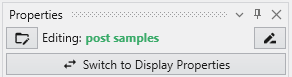
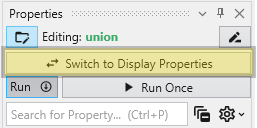
The Switch to Display PropertiesĀ button allows quick switching between the properties of the selected module and the properties of the primary red output port of it, if it has one. This is the same as double-clicking on the primary red port, but allows faster swapping right within the Properties window.

Toggling Application Properties and Application Favorites

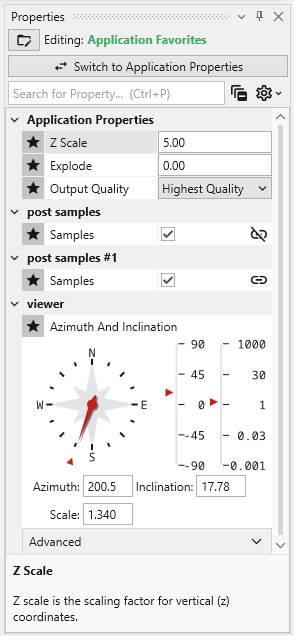
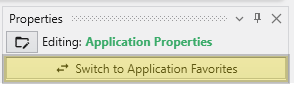
The same button when shown in the Application Properties is labeled Switch To Application Favorites. It allows toggling between the two.

Property Descriptions

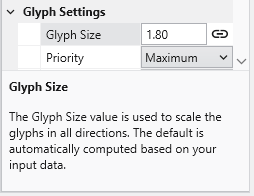
At the bottom of the Properties window is a description area. When you select a property from the list, this area displays a brief explanation of what the property does and how to use it, providing helpful context as you configure your modules.

  • Application Properties

    The Application Properties provide a centralized location to access critical parameters needed to control your application. Any property that impacts the application itself and is not specific to an instanced module will show here. Accessing Application Properties The Application Properties are available via a button in the Application Window toolbar:

  • Application Favorites

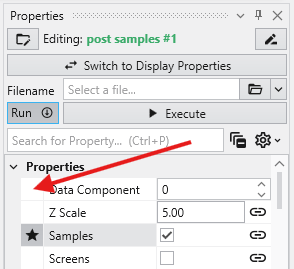
    The Application Favorites feature provides a powerful way to create a custom control panel for your EVS application. It allows you to gather the most

  • Module Properties

    Module Properties When you select a module in the Application Network, its settings are displayed in the Properties window. This window allows you to configure the module’s parameters and control its execution behavior. At the top of the window, the name of the module you are editing is displayed.

  • Linked Properties

    Understanding Linked Properties In Earth Volumetric Studio, a Linked Property is a parameter whose value is automatically determined within the application, rather than being manually set by the user. This dynamic connection allows for a more intelligent and consistent workflow. You can identify a linked property by the link icon located next to it in the Properties window

  • Port Properties

    Port Properties When you double-click an output port on a any module in the Application Network, the Properties window displays detailed information and settings for that specific port. While the properties shown vary depending on the type of data the port provides, certain elements are common to all ports.

  • Datamaps

    Introduction to Datamaps In the fields of scientific and geometric visualization, a datamap is a fundamental concept that serves as the bridge between raw numerical data and its visual representation. At its core, a datamap is a function or a lookup table that translates data values into visual properties, most commonly color. Think of it as a sophisticated legend that instructs the rendering engine how to ā€œpaintā€ the data onto a geometric object, such as a surface, a volume, or a set of points.

Subsections of Properties

The Application Properties provide a centralized location to access critical parameters needed to control your application. Any property that impacts the application itself and is not specific to an instanced module will show here.

Accessing Application Properties

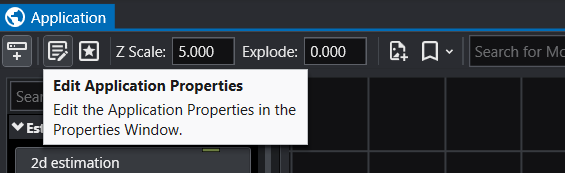
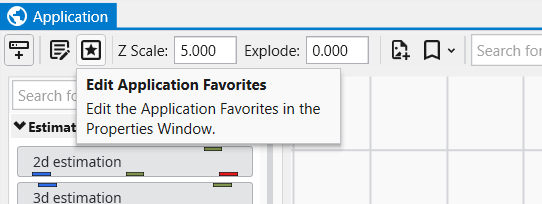
The Application Properties are available via a button in the Application Window toolbar:

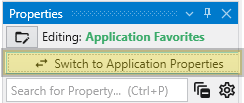
Alternatively, you can also access these when editing the Application Favorites. When the Application Favorites are displayed in the Properties window, click the Switch to Application Properties button at the top.

Finally, double clicking on the background of the network area will open the Application Favorites or Application Properties (whichever was most recently viewed).

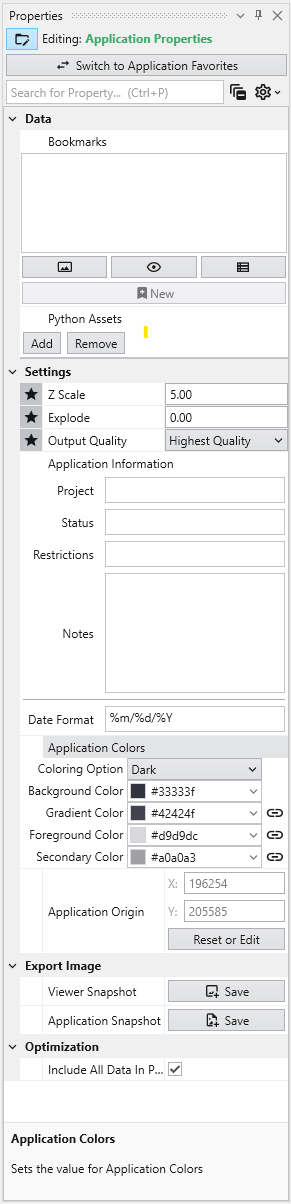
Available Application Properties

Below is the default content of Application properties.

Following is a description of each category:

CategoryPropertyDescription
DataBookmarksView and manage saved bookmarks. See BookmarksĀ for details.
Python AssetsPython scripts reusable from other Python files in your application. Right-clicking will generate the proper import syntax using the EVS python API, which allows these to be imported in scripts even when packaged.
SettingsZ ScaleAdjusts the vertical exaggeration of 3D data.
ExplodeControls the separation of layered data components.
Output QualitySet the quality setting used in certain modules (e.g., Highest Quality). Allows optimization of workflow by using a low quality file while manipulating and a high quality file when producing output.
Application InformationProvides a mechanism to supply reusable metadata in various outputs and scripts. Often available as environment variables in modules which produce text, as well as used in CTWS output.
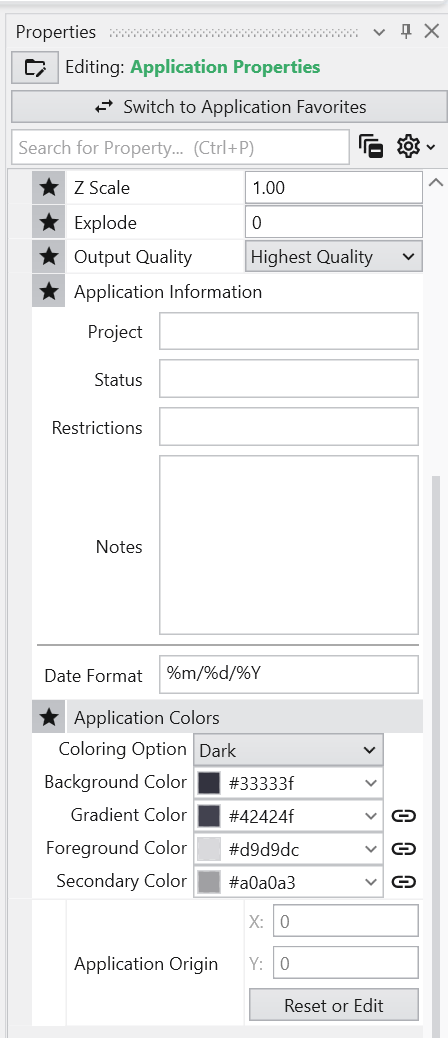
Application ColorsCustomize the appearance of many module outputs by default. See Application ColorsĀ for details.
Application OriginDefines the spatial anchor for the project coordinates. The first time a file is read, the origin will be set based off the coordinates of that data. Everything is then computed relative to the application origin from then on in order to maintain the best precision for 3d calculations. If you reuse an application and change the data, you must reset the application origin.
Reset or Edit OriginAllows manual recalibration of the project center.
Export ImageViewer SnapshotWrites the contents of the viewer to an image file.
Application SnapshotWrites the contents of the application window (the network) to an image file.
OptimizationInclude All Data In ProbeWhen enabled, all data is included in probe results in the viewer. This uses more memory, but increases the functionality for inspecting the data.
  • Bookmarks

    Bookmarks provide an easy way to save and recall specific configurations of your application. They act as saved ā€œsnapshotsā€ that can instantly change the camera view, which objects are visible, and the current state of any sequences. They also export to C Tech Web Scenes. This is essential for creating presentations, standardizing views for analysis, and optimizing the user experience in any exported C Tech Web Scenes.

  • Application Colors

    The Application Colors feature provides a centralized way to manage a consistent color palette across your entire application. By setting a few base colors, you can ensure that various annotation modules - such as titles, legends, and axes - as well as the viewer background all share a coordinated and professional look. This feature is particularly powerful when used with linked properties, as it allows you to switch between entire color themes (e.g., from a light to a dark theme) with a single click.

Subsections of Application Properties

Bookmarks provide an easy way to save and recall specific configurations of your application. They act as saved “snapshots” that can instantly change the camera view, which objects are visible, and the current state of any sequences. They also export to C Tech Web Scenes.

This is essential for creating presentations, standardizing views for analysis, and optimizing the user experience in any exported C Tech Web Scenes.

What Bookmarks Control

A single bookmark can be configured to control one, two, or all three of the following aspects of your application:

AspectDescription
ViewThe camera’s position, orientation, and zoom level in the Viewer.
VisibilityThe visibility and opacity settings of all modules in the application.
Sequence StateThe currently selected state of all Sequence modules.

Finding the Bookmarks Panel

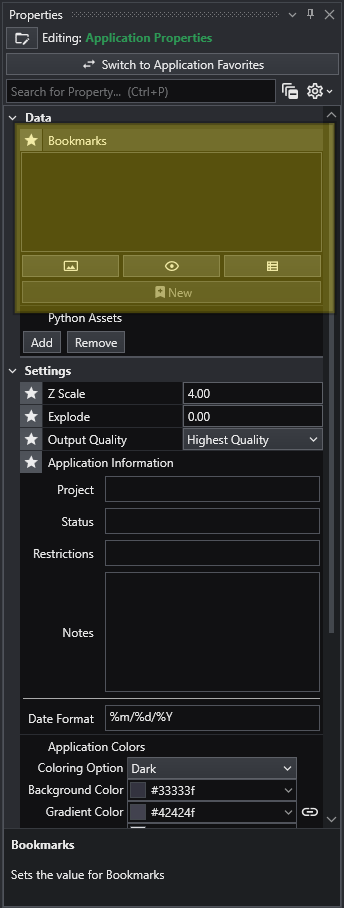
The Bookmarks panel is part of theĀ Application Properties window.

Creating Bookmarks

Bookmarks are created and managed from the Bookmarks panel in the Application Properties.

Follow these steps to create a new bookmark:

  1. Set up your scene: Arrange the application to the exact state you want to save.

    • Adjust the camera to the desired view.
    • Set the visibility and opacity of each object in the Viewer.
    • Select the desired frame for any sequence animations.
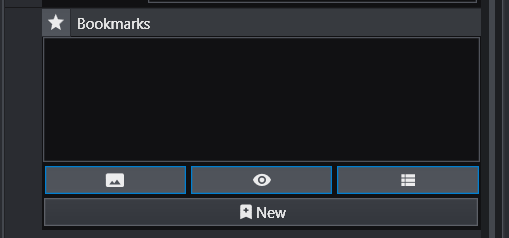
  2. Select Action Types: In the Bookmarks panel, click the buttons to activate the aspects you want this bookmark to control. The active buttons are highlighted in blue. From left to right, they are Views, Visibilities, and Sequence States. One or more of these must be selected to create a new bookmark.

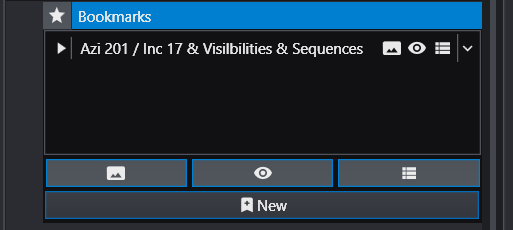
  3. Create the Bookmark: Click the New button (the plus icon). A new bookmark will appear in the list with a default name.

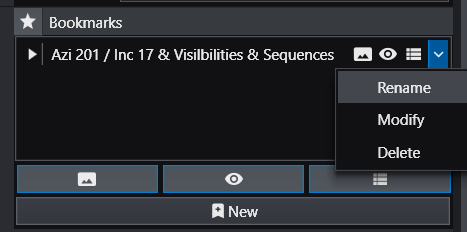
  4. Rename the Bookmark: The default name can be generic. It is highly recommended to give it a descriptive name. Click the dropdown arrow on the far right of the bookmark and select Rename.

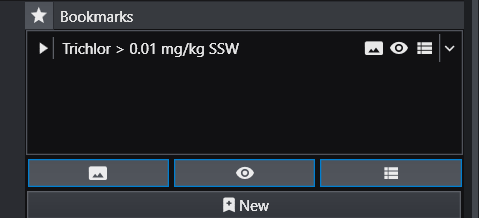
    For example, a name like “Trichlor Plume > 0.01 mg/kg” is much more informative.

Using Bookmarks

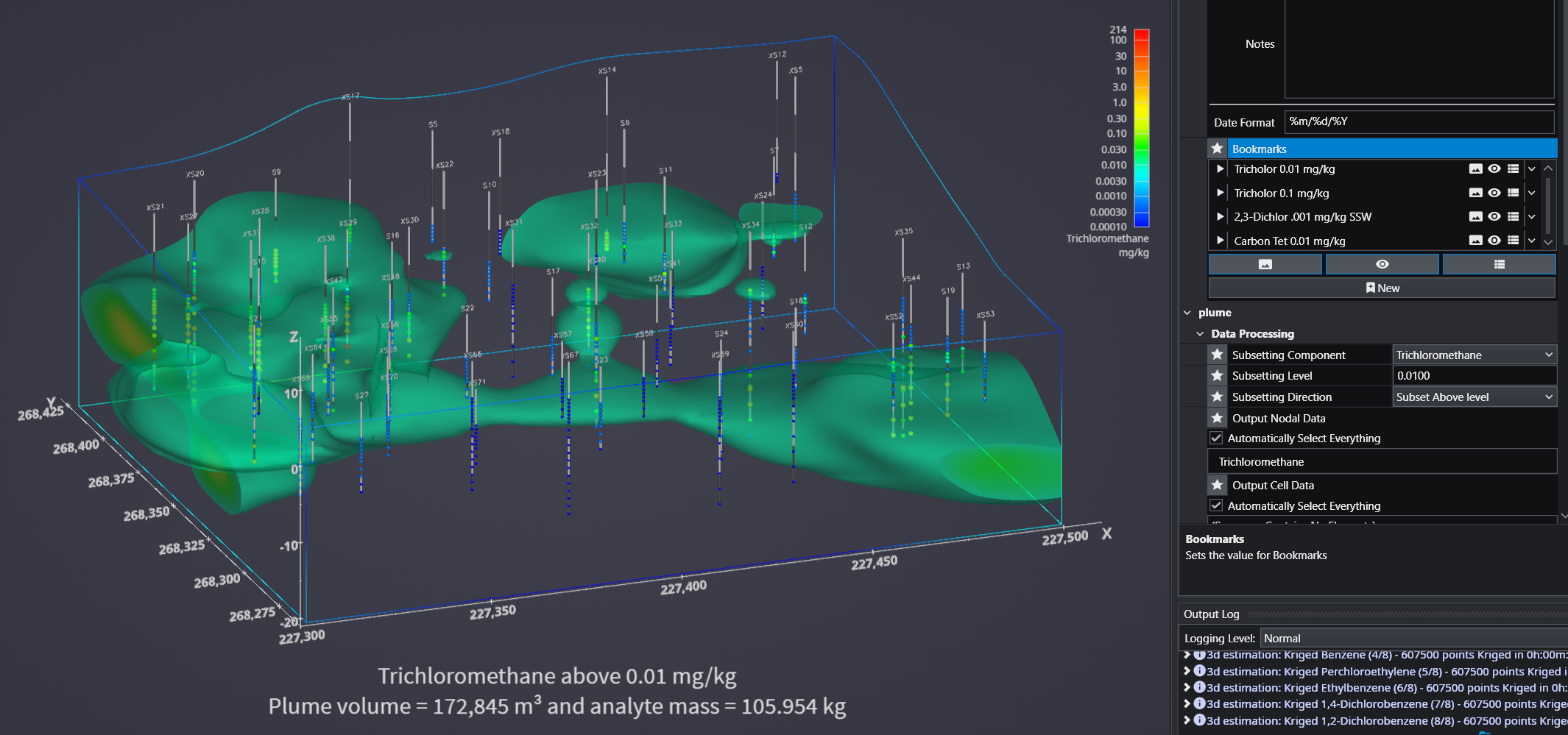
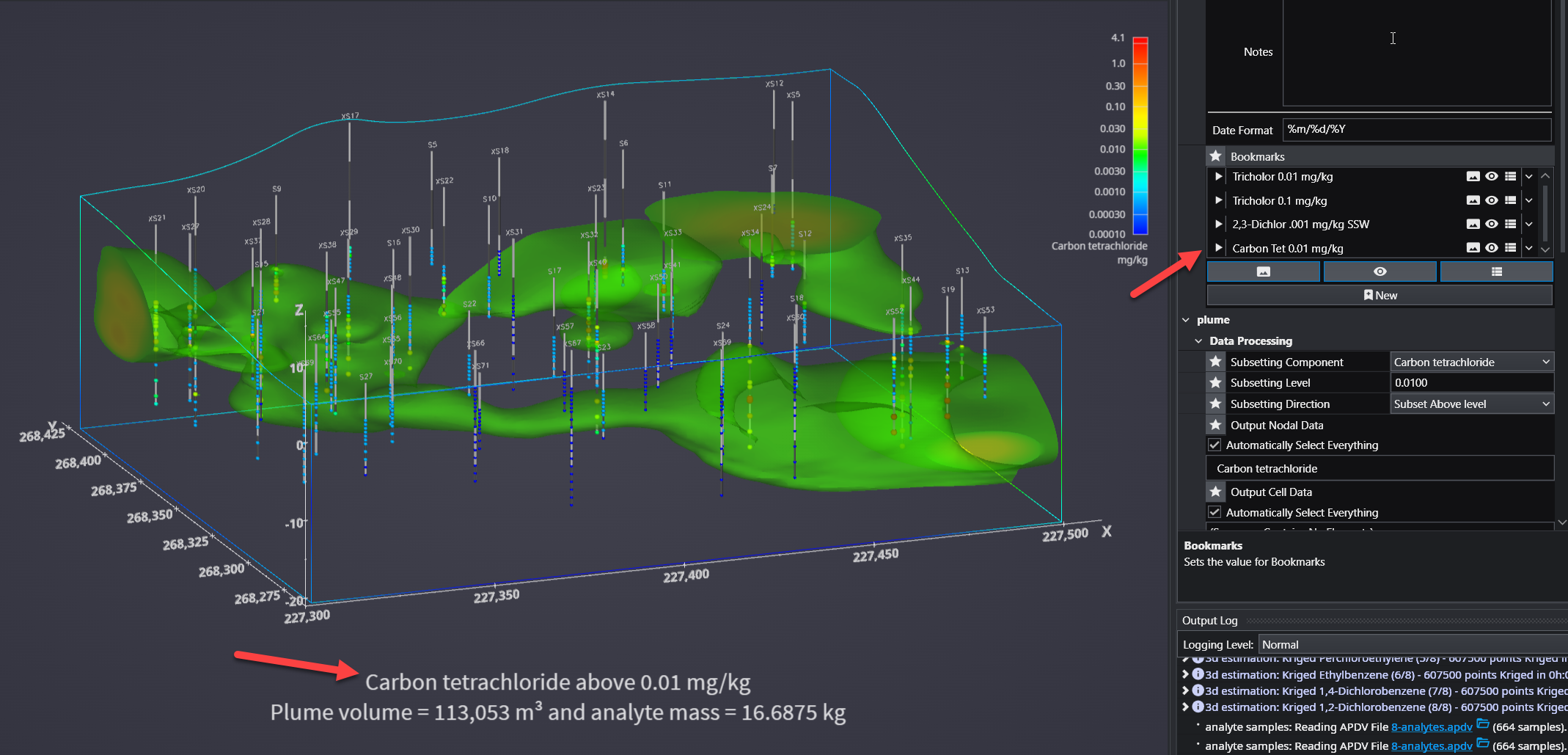
To apply a bookmark, simply click the “Play” icon (the white triangle) next to the bookmark’s name in the list. This will instantly update the application to the saved view, visibility, and/or sequence state defined by that bookmark.

When you save your project as a C Tech Web Scene (.ctws file), these bookmarks are included, allowing others to interact with your scene in the predefined ways you have designed.

Advanced Visibility Options

When saving visibility in a bookmark, you have advanced control over how objects behave, which is especially useful for Web Scenes.

OptionDescription
LockedA “Locked” object is always visible and cannot be turned off by the user in the C Tech Web Scene Viewer. This is ideal for essential items like a site map, buildings, or a company logo that should always remain in view.
ExcludedAn “Excluded” object is not written to the Web Scene at all. This is equivalent to disconnecting the module from the viewer and can be used to hide intermediate or unnecessary components from the final output.

For more information on setting these properties, see Module IconsĀ and Module Status Indicators.

The Application Colors feature provides a centralized way to manage a consistent color palette across your entire application. By setting a few base colors, you can ensure that various annotation modules - such as titles, legends, and axes - as well as the viewer background all share a coordinated and professional look.

This feature is particularly powerful when used with linked properties, as it allows you to switch between entire color themes (e.g., from a light to a dark theme) with a single click.

Accessing Application Colors

The Application Colors settings are located in the **Application Properties**application-properties.md panel.

Application Colors settings in the Application Properties panel. Application Colors settings in the Application Properties panel.

Color Properties and Options

The panel contains several options for defining your color scheme.

OptionDescription
Coloring OptionThis dropdown menu allows you to quickly switch between predefined color themes. By default, it includes “White” and “Dark” themes, which are designed for light and dark viewer backgrounds, respectively.
Interface ColorsThese four properties define the core colors of your theme.
  • Background Color: Sets the background color of the viewer.
  • Gradient Color: Used with the Background Color to create a two-color gradient in the viewer background.
  • Foreground Color: The primary color used for text and lines in most annotation modules.
  • Secondary Color: A supplementary color used for secondary elements, such as shading on the compass rose in the direction_indicator module.

Linked Properties: The Key to Automatic Updates

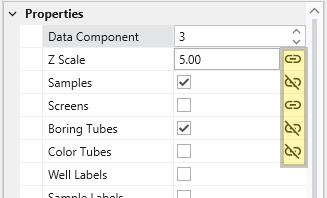
For the Application Colors to automatically update your modules, the color properties within those modules must be linked. When a property is linked, it inherits its value from the global Application Colors settings. If you unlink a color property in a module, it will use its own manually set color and will no longer be affected by theme changes.

You can identify a linked property by the link icon next to it. For more information, see the Linked Properties topic.

Affected Modules

The following modules are designed to use the Application Colors when their color properties are linked:

ModuleUsage
viewerUses the Background Color and Gradient Color for its background.
axes, titles, 3d_titles, legend, and 3d_legendThese modules primarily use the Foreground Color for their text and lines.
direction_indicatorThis module uses the Foreground Color for its text and the Secondary Color for shading effects on elements like the compass rose.

Example of Switching Coloring Option

When the modules’ color properties are linked, changing the Coloring Option has an immediate effect on the entire scene.

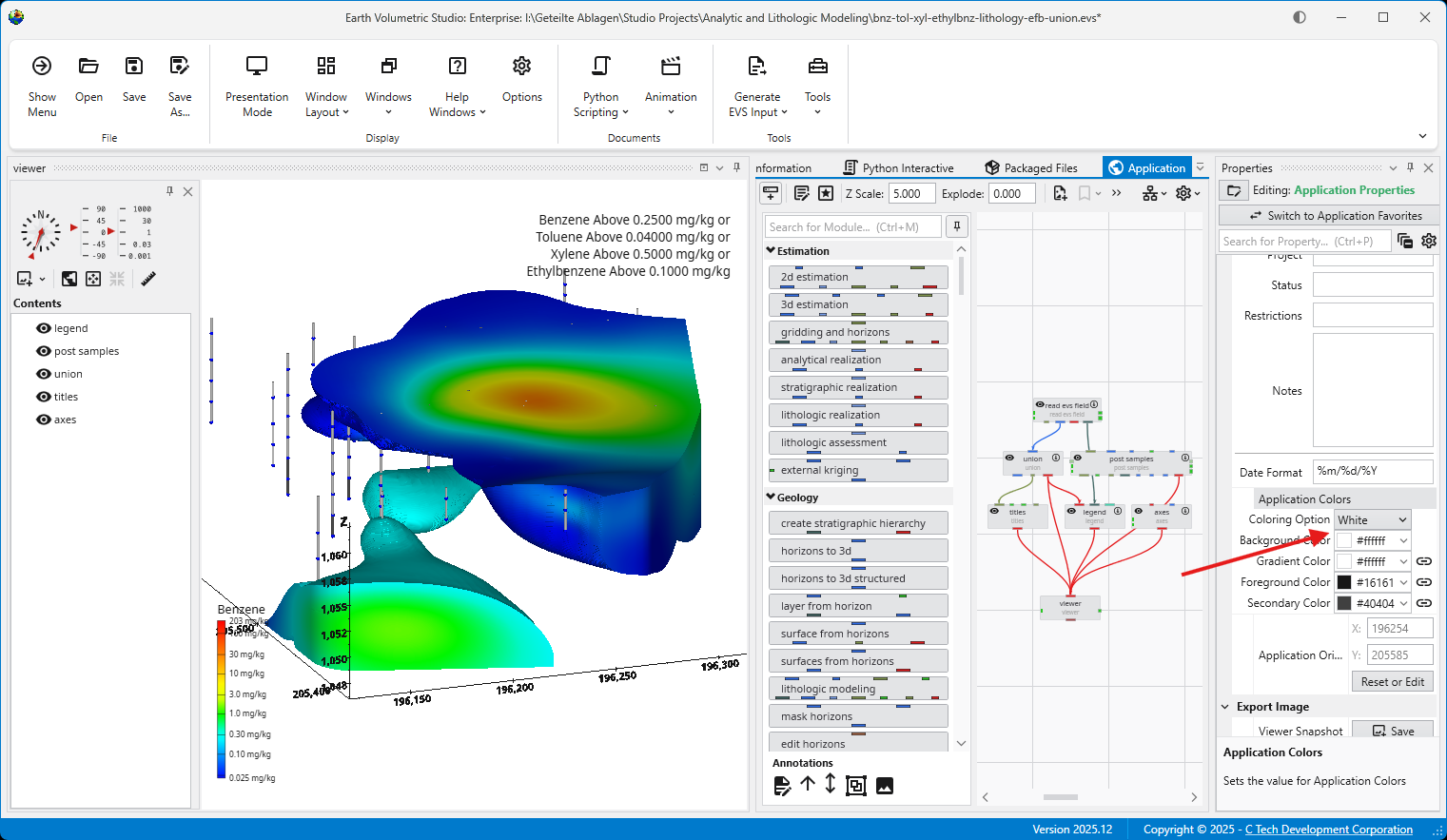
The application below is using the White Coloring Option. Note the dark text and lines on the title, axes, and legend, which provide high contrast against the light background.

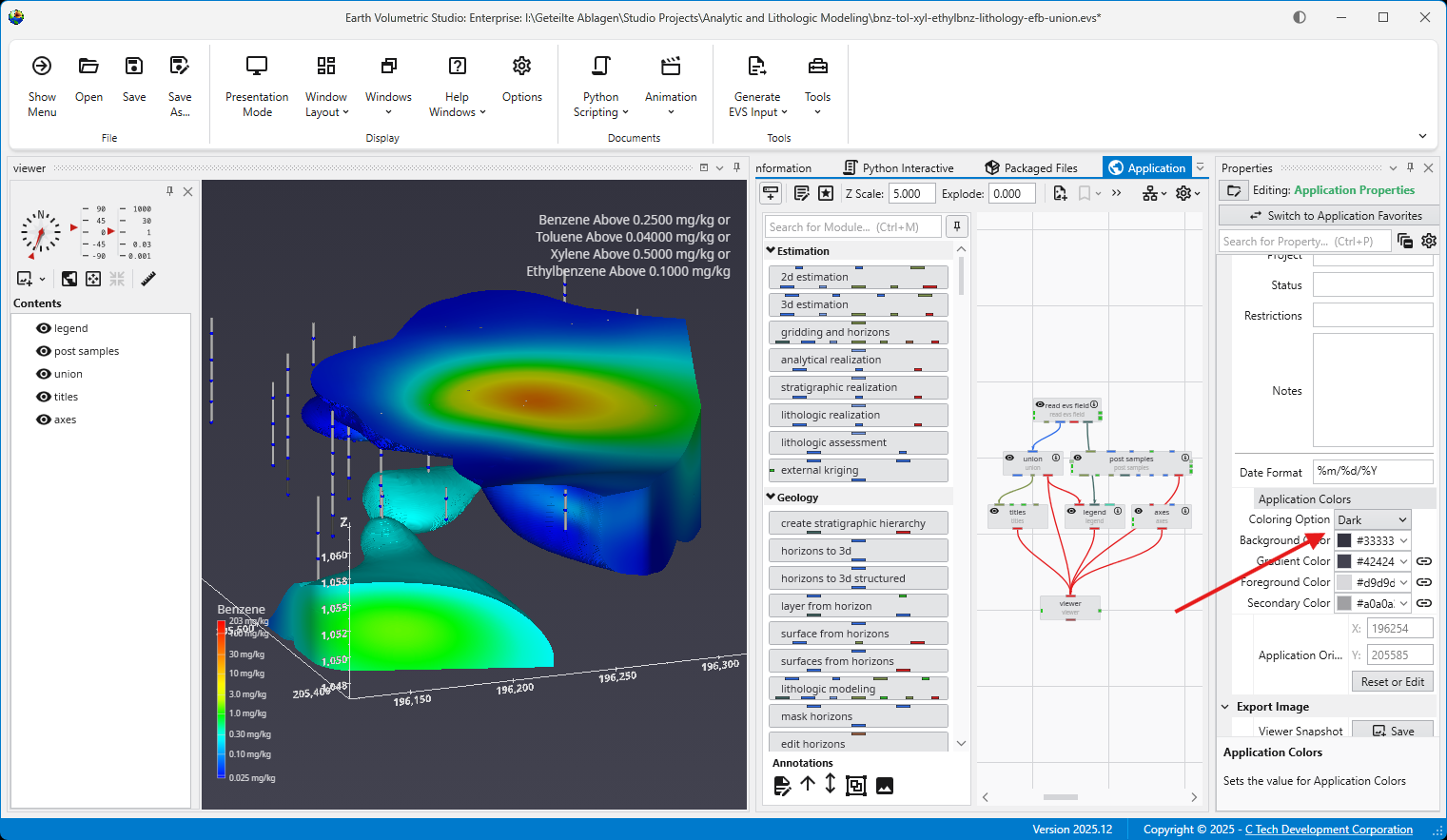
By simply switching the Coloring Option to Dark, all linked modules automatically update. The text and lines change to a light color to maintain contrast against the new dark viewer background.

Light and dark themes can also be toggled in theĀ OptionsĀ panel in theĀ Menu.

The Application Favorites feature provides a powerful way to create a custom control panel for your EVS application. It allows you to gather the most important properties from various modules and global settings into a single, centralized location within the Properties window.

Info

When creating EVS Presentations, the only properties which will be editable in the resulting Presentation Application (*.evsp) are the Application Favorites. All other properties are unavailable in an EVS Presentation.

This is especially useful in large or complex applications, as it eliminates the need to navigate to each individual module to adjust key parameters. Instead, you can manage all critical settings from one convenient view.

Accessing Application Favorites

The Application Favorites are available via a button in the Application Window toolbar:

Alternatively, you can also access these when editing the Application Properties. When the Application Properties are displayed in the Properties window, click the Switch to Application Favorites button at the top.

Finally, double clicking on the background of the network area will open the Application Favorites or Application Properties (whichever was most recently viewed).

The Application Favorites View

Once you switch to the Application Favorites view, you will see a list of all the properties you have marked with a star. The properties are organized into groups based on their source module. For example, global settings like Z Scale and Explode are listed under “Application Properties,” while module-specific properties are grouped under the name of their respective module (e.g., “viewer”).

You can edit any of these properties directly from this view, just as you would in the standard properties editor.

How to Favorite a Property

You can favorite almost any property from any module.

  1. Select a module in the Application Network to display its parameters in the Properties window.
  2. To favorite a property, click in the empty space to the left of its name. A star icon will appear, indicating that the property has been added to your Application Favorites.

It is important to note that this action favorites the property for that specific instance of the module, not for all modules of that type. This allows you to select different key parameters from different modules. The same property from different modules can appear in the Application Favorites at the same time.

How to Remove a Property from Favorites

To remove a favorited property, simply click the star icon in either the module or the Application Favorites again.

Module Properties

When you select a module in the Application Network, its settings are displayed in the Properties window. This window allows you to configure the module’s parameters and control its execution behavior. At the top of the window, the name of the module you are editing is displayed.

Switch to Display Properties

This button provides a quick way to access the properties of the module’s primary Renderable Port (red) if they are being displayed in a viewer. The Red Port Properties will also feature a button to quickly switch back again.

Execution Control

The toolbar at the top of the Module Properties window provides powerful tools for managing when and how a module executes.

  • Run Toggle: This switch controls the module’s automatic execution. By default, it is on, meaning the module will automatically run whenever one of its properties is changed or when an upstream module it depends on finishes running. Toggling this off prevents the module from running automatically. This is particularly useful when you want to make multiple changes to a module’s settings without triggering potentially time-consuming computations after each adjustment. This is also displayed and configurable on the modules in the Application Network. SeeĀ Module Status Indicators.
  • Run Once Button: When available, this button allows you to manually trigger the execution of the currently selected module. It forces the module to run a single time. This is most effective when the Run toggle is turned off, as it lets you apply your changes and see the result without having to re-enable automatic execution.

Module-Specific Properties

Below the execution controls, the Properties section contains all the configurable parameters for the selected module. The settings here are unique to each module’s function. These properties allow you to customize the module’s behavior to fit the specific needs of your analysis.

Property Description

At the bottom of the Properties window is a description panel. This panel is your first and most important resource for understanding what a specific property does. When you select a property from the list, this panel automatically updates to show a detailed explanation of that property and its function. For instance, selecting “Data Processing” will display text explaining that this property allows to declare whether the input data is to be treated as linear or log processed. This immediate, context-sensitive help makes it easy to learn and configure even complex modules without having to consult external documentation.

Here is an example for the Property Description of the “Glyph Size” property:

Understanding Linked Properties

In Earth Volumetric Studio, a Linked Property is a parameter whose value is automatically determined within the application, rather than being manually set by the user. This dynamic connection allows for a more intelligent and consistent workflow. You can identify a linked property by the link icon located next to it in the Properties window

  • When the link icon is closed/connected, the property is linked, and its value will update automatically based on its source.
  • When the link icon is broken, the property is unlinked, and its value is fixed to whatever you have manually set.

You can toggle a property’s linked state by simply clicking on the link icon.

Linked Property:Unlinked Property:
Info

Not all properties can be linked. If a property does not have a link icon next to it, it is a manual property. Its value may be set directly by the user and will not change automatically.

The Purpose of Linked Properties

Linked properties are a core feature of the EVS expert system, designed to streamline the modeling process. By linking properties, EVS can ensure consistency across your entire application, provide smart defaults based on your data, and maintain visual coherence. For example, linking the Z Scale of multiple modules to the global Application Z Scale means you only have to change it in one place, but can still unlink and override it as needed. Linked properties may also provide good automatic starting values for further unlinked manual refinement.

While you can unlink any linked property to gain manual control, it is generally recommended to keep properties linked unless you have a specific reason and understand the effect of the change. This approach leads to a faster and better-looking result.

Info

Re-linking a previously unlinked property will cause its value to revert to the automatic, context-driven setting. This change may also trigger the module to re-execute immediately to reflect the new state, unless the module’s Run toggle is turned off.

Common Categories of Linked Properties

Z Scale

This is the most common linked property and the one you should change least often. Nearly every module that deals with 3D data has a Z Scale property that is, by default, linked to the global Z Scale found in the Application Properties. This ensures that all visual components in your scene use the same vertical exaggeration, which is critical for correct spatial representation.

Colors

Many modules that create visual elements, such as titles or legends, have color properties that are linked to the global Application Colors setting. When you switch the application theme between Dark, White, or Custom, these linked colors will automatically adjust to ensure they remain visible and aesthetically pleasing against the new background color. Unlinking a color property, such as Title Color, will fix it to a specific color, and it will no longer adapt to theme changes.

Coordinates

Many modules that process spatial data have coordinate properties (e.g., Min/Max extents) that are linked to the incoming data. When the module is run, it analyzes the input field and automatically populates these properties with the correct coordinate values. If the input data changes, re-running the module will cause these linked properties to update accordingly.

Expert System Parameters

EVS includes an expert system that analyzes your data to provide intelligent, scientifically appropriate default values for complex parameters. This is most common in geostatistical modules like kriging or lithologic modeling. Parameters for kriging and variogram settings are often linked to the expert system, which suggests optimal values based on the input data. Unlinking these properties allows for manual fine-tuning but overrides the data-driven recommendations.

Port Properties

When you double-click an output port on a any module in the Application Network, the Properties window displays detailed information and settings for that specific port. While the properties shown vary depending on the type of data the port provides, certain elements are common to all ports.

At the top of the window, a Switch to Module Properties button provides a convenient way to navigate back to the properties of the module that owns the port.

Common Port Properties

All output ports display a Port Information section with the following properties:

PropertyDescription
Common ElementsControls as described inĀ Properties, such asĀ searchĀ orĀ general options.
Port NameThis read-only field displays the name of the selected port.
Port DetailsThis expandable property provides in-depth technical information about the port’s data type and status.

  • Red Port Properties (Renderable Port)

    Renderable Object Port Properties In Earth Volumetric Studio, a red port is a Renderable Object port. It outputs a visual object—such as a surface, a set of points, or a volume—that can be displayed in a viewer. By editing the properties of this port, you can control every aspect of how the object is visualized in the 3D scene. See the Visualization Fundamentals sectionĀ for additional details on rendering options.

  • Blue Port Properties (Field Port)

    Field Port Properties In Earth Volumetric Studio, a blue port is a Field Port. It is the most common port type and is responsible for passing grid structures and their associated data between modules. A ā€œfieldā€ contains the geometry (nodes and cells) as well as any data values defined on that grid, such as analytical results or material properties.

Subsections of Port Properties

Renderable Object Port Properties

In Earth Volumetric Studio, a red port is a Renderable Object port. It outputs a visual object—such as a surface, a set of points, or a volume—that can be displayed in a viewer. By editing the properties of this port, you can control every aspect of how the object is visualized in the 3D scene. See the Visualization Fundamentals sectionĀ for additional details on rendering options.

To access these properties, you can double-click on a red port in the Application Network, which will load its settings into the Properties window.

Port Information

General information about the port as described in the Port Properties topic.

General Properties

This is the primary section for controlling the object’s appearance, coloring, and visibility in the 3D scene.

PropertyDescription
VisibleA master toggle to show or hide the object in the viewer.
PickableDetermines if the object can be selected in the viewer using the probe tool (Ctrl + Left-click). Disabling this can be useful for large, transparent objects that might interfere with selecting objects behind them.
OpacityControls the transparency of the object. A value of 100% makes the object fully opaque, while 0% makes it completely invisible.
Faces To DisplayControls which faces of a 3D object are rendered.
  • Display All: Renders both the front and back sides of faces.
  • Camera Facing: Renders only the faces pointing toward the camera. This is useful for making closed transparent objects look correct and can improve performance.
  • Facing Away: Renders only the faces pointing away from the camera.
Color ByDetermines the source of the object’s color.
  • Nodal Data: Colors the object based on data values at the nodes, often resulting in smooth color gradients.
  • Cell Data: Applies a uniform color to each entire cell based on its data value.
  • Solid Color: Applies a single, uniform color to the entire object.
Node Data / Cell DataIf coloring by data, these dropdowns let you select which specific data component to use for coloring.
Vector Component / Use Vector MagnitudeIf the selected data is a vector, this allows you to color the object by a single component or by the vector’s overall magnitude.
Node/Cell Data DatamapOpens the datamap editor to define the mapping between data values and colors. See the Datamaps topic for more information.
Object ColorIf Color By is set to Solid Color, this control allows you to select the specific color for the object.
Object Secondary ColorThis color is primarily used for drawing the outlines of cells when “Hide Cell Outlines” is disabled.
Normals GenerationAffects how lighting is calculated on surfaces.
  • Default: Selects the best method based on the input data type.
  • Cell Normals: Results in flat shading with hard transitions between cells.
  • Point Normals: Averages normals at each point, creating a smooth, continuous appearance.
Rendering PriorityA numeric value that influences the drawing order of objects. Objects with higher numbers are drawn later (on top of others).

Export Properties

This section contains settings related to exporting the application.

PropertyDescription
Exclude From CompressionIf checked, this object’s geometry will not be compressed when exporting to a C Tech Web Scene. This preserves full precision but can result in a significantly larger file size.

Advanced Properties

These settings provide fine-grained control over geometry processing and rendering. They are intended for advanced users and should generally be left at their default values unless you are addressing a specific rendering issue.

Rendering Modes

This section controls how different geometric components of the object are displayed.

PropertyDescription
Point/Line/Surface/Volume/Bounds Display ModeEach dropdown allows you to change the rendering style for a specific component (e.g., render a surface as a wireframe (Lines) or display points as spheres (Glyphs)).
Hide Cell OutlinesToggles the visibility of the wireframe edges of the cells that make up the object.

Surface Properties

These properties control how the object’s surface interacts with light in the scene. They are intended for advanced users and should generally be left at their default values unless you are addressing a specific rendering issue.

PropertyDescription
AmbientControls how much ambient light the surface reflects (the object’s color in the absence of direct light).
DiffuseControls how much light the surface reflects from direct light sources, determining the primary illuminated color.
SpecularControls the color of specular highlights (bright spots where light reflects directly toward the camera).
GlossControls the size and intensity of specular highlights. Higher values create smaller, sharper highlights, making the surface appear shinier.

Point And Line Properties

This section contains settings that apply specifically to objects composed of points or lines.

PropertyDescription
Line StyleSets the pattern for lines.
  • Solid: A continuous, unbroken line.
  • Dashed: A line made of a series of short segments.
  • Dotted: A line made of a series of dots.
  • **Dashed-Dotted: **A combination of the Dashed and Dotted line styles.
Line ThicknessControls the width of lines in pixels. A value of 0 uses a default, fast-rendering single-pixel line.
Glyph SizeIf points or lines are rendered as glyphs (e.g., quads), this controls their size.
Smooth LinesToggles anti-aliasing for lines. When enabled, lines will appear smoother with less jaggedness.

Texture Settings

If the object has a texture applied, these properties control how it is mapped and rendered.Ā They are intended for advanced users and should generally be left at their default values unless you are addressing a specific rendering issue.

PropertyDescription
InterpolationDetermines how the texture is sampled when magnified or minified. Bilinear (default) averages the four nearest texels for a smooth but potentially blurry appearance.
TileControls the texture’s behavior at its boundaries. Clamp causes the edge pixels to be stretched to fill the rest of the surface.
BlendingDefines how the texture’s color is combined with the object’s underlying color. Replace causes the texture’s color to completely overwrite the object’s original color.
TypeRelates to the use of mipmaps. Single Level indicates that only the original, full-resolution texture is used, without any lower-resolution versions for distant objects.

Field Port Properties

In Earth Volumetric Studio, a blue port is a Field Port. It is the most common port type and is responsible for passing grid structures and their associated data between modules. A “field” contains the geometry (nodes and cells) as well as any data values defined on that grid, such as analytical results or material properties.

To access the properties of a Field Port, you can double-click on any blue port in the Application Network. This will load its settings and summary information into the Properties window.

Port Information

General information about the port as described in the Port Properties topic.

Statistics

This section gives a high-level summary of the contents of the field.

PropertyDescription
Number Of NodesThe total count of nodes (points) that define the field geometry.
Number Of Cell SetsThe number of distinct groups of cells. Cell sets are often used to represent different geologic layers or materials.
Total Number Of CellsThe total count of all cells across all cell sets in the field.
Number Of Node Data / Number Of Cell DataThe count of different data components attached to the nodes or cells.
Coordinate UnitsThe measurement unit for the grid’s coordinates (e.g., meters, feet).
Coordinate ExtentsThe overall dimensions (X, Y, Z) of the grid’s bounding box.

Coordinates

This table displays the minimum and maximum coordinate values for the X, Y, and Z axes, defining the spatial bounding box of the grid. The Z (Scaled) value reflects the coordinates after any global Z Scale has been applied.

Summary Statistics

This section provides a quick statistical overview of a selected data component within the field.

PropertyDescription
Data ComponentA dropdown menu to select which data component you wish to analyze.
Data UnitsThe measurement unit for the selected data component.
Is LogA checkbox indicating if the data is on a logarithmic scale.
Data Min / Data MaxThe minimum and maximum values for the selected data component.
HistogramA small histogram plot provides a quick visual summary of the data’s distribution.
Open Statistics WindowThis button launches a separate, more detailed window for in-depth statistical analysis.

The Statistics Window

The Statistics Window provides a comprehensive and interactive environment for analyzing the data within a field. It is composed of several panels that allow you to customize the analysis and view detailed statistical results, both graphically and textually.

Panel / ComponentDescription
Analysis SettingsLocated in the top-left corner, this panel allows you to control how the statistical analysis is performed and displayed.
  • Bin Count: Adjusts the number of columns in the histogram to change the granularity of the distribution plot.
  • Significant Figures: Controls the precision of the displayed numerical results.
  • Restrict Plot Range: When enabled, allows you to manually define the minimum and maximum values for the analysis.
Selected Component StatisticsLocated below the analysis settings, this panel presents key statistical metrics for the chosen data component.
  • Data Mean: The average value.
  • Data Median: The middle value of the dataset.
  • Standard Dev.: The standard deviation, a measure of data dispersion.
  • Interquartile Rng.: The range between the first and third quartiles.
Histogram PlotThe main area on the right, providing a clear visual representation of the data’s distribution by showing the number of data values (Counts) that fall into each bin.
Statistics SummaryA text-based report below the plot, offering a summary of coordinate extents and a detailed breakdown of the statistics.
Bin Data TableLocated at the bottom, this table lists the specific data for each bin, including its minimum and maximum range, the count of values it contains, and the cumulative percentage of the total data set.

Introduction to Datamaps

In the fields of scientific and geometric visualization, a datamap is a fundamental concept that serves as the bridge between raw numerical data and its visual representation. At its core, a datamap is a function or a lookup table that translates data values into visual properties, most commonly color. Think of it as a sophisticated legend that instructs the rendering engine how to “paint” the data onto a geometric object, such as a surface, a volume, or a set of points.

Every value in your dataset, whether it represents temperature, contaminant concentration, pressure, or a geologic material type, is assigned a color based on the rules defined in the datamap. This transformation is what turns an abstract collection of numbers into an intuitive and immediately understandable visual model. Without datamaps, a 3D model of contaminant distribution would be a colorless, featureless shape, providing no insight into where the highest concentrations are or how they vary in space. The datamap is what brings the data to life, allowing us to see the patterns, trends, and anomalies that would otherwise be hidden in spreadsheets and data files.

The Purpose of Datamaps in EVS

In Earth Volumetric Studio, datamaps are the primary tool for communicating the meaning of your data within a visual context. Their purpose extends beyond simply making things colorful; they are a critical component of data analysis and presentation for several key reasons.

First, they make complex data interpretable. A bright red area in a plume model is instantly recognizable as a “hotspot” of high concentration, while a transition from green to blue can clearly show the gradient where values are decreasing.

Second, they provide a quantitative reference. A well-designed datamap, coupled with a legend, ensures that the visualization is not just a pretty picture but a scientifically accurate representation. Each color corresponds to a specific data value or range, allowing a viewer to probe any point on a model and understand its precise quantitative meaning.

Finally, they are essential for highlighting features of interest. Data in environmental and geological sciences often spans many orders of magnitude. A datamap can be carefully designed to focus the visual contrast on the most critical parts of the data range, making subtle but important variations stand out while de-emphasizing less relevant data.

Types of Data and Datamap Processing

Datamaps in EVS are highly flexible and can be configured to handle different types of data and distributions. The way a datamap translates values to color can be linear, non-linear, or categorical.

Linear Datamaps

A linear datamap applies a smooth, uniform color gradient across the entire range of the data. The relationship between a data value and its position in the color gradient is a straight line. For example, in a dataset ranging from 0 to 1000, a value of 500 would be mapped to the exact middle of the color ramp. This type of mapping is best suited for data that is evenly distributed and where the importance of changes is consistent across the entire range, such as a simple temperature scale.

Non-Linear Datamaps

A non-linear datamap is used when the data is not uniformly distributed or when certain ranges are more important than others. In this case, the relationship between data values and colors is not a straight line. This allows you to allocate more “color space” to the most critical parts of your data range.

A classic example is contaminant concentration data, which might range from 0.01 to 10,000. If a linear datamap were used, most of the color gradient would be dedicated to the high-end values, making it impossible to distinguish between low-level concentrations (e.g., 0.1 vs. 1.0), which might be the most critical range for regulatory purposes. A non-linear datamap can be configured to stretch the color gradient across the lower values, providing high visual contrast where it is needed most.

The colors of breaks on both sides don’t have to be continuous. If the Lock Adjacent BreaksĀ toggle in the Datamap EditorĀ is disabled, you can choose both colors separately.

A note on precision: Due to the nature of precision in floating-point calculations, a value that is identical to a break point can be categorized into either the adjacent upper or lower interval. If you need to ensure a specific value is colored correctly, we recommend slightly shifting the break point. For example, changing a break from 500.0 to 500.0001 ensures the value 500.0 falls into the lower interval.

Categorical Data

Datamaps are also used for categorical data, which is qualitative rather than quantitative. Examples include geologic material types (“Sand”, “Clay”, “Gravel”), land-use classifications, or sample location IDs. For this type of data, the datamap assigns a single, discrete color to each unique category. There is no gradient or blending between colors. In EVS, this is typically handled by assigning an integer ID to each category (e.g., Sand=1, Clay=2). The datamap is then configured with distinct colors for each integer value, effectively creating a color key for your categorical data.

Logarithmic Processing

Logarithmic processing is a specific type of non-linear mapping designed for data that spans several orders of magnitude. By taking the logarithm of the data values before mapping them to color, vast ranges are compressed into a more manageable scale. This makes logarithmic datamaps the standard and most effective way to visualize data like hydraulic conductivity or contaminant concentrations. EVS handles this transformation automatically when the log processing option is selected in many modules, so you do not need to manually convert your data. The datamap works with the log-transformed values, but associated legends will still display the original, human-readable values.

  • Datamap Editor

    The Datamap Editor is the primary tool in Earth Volumetric Studio for creating and customizing the mapping between your data values and the colors used to represent them in a visualization. It provides a powerful, interactive interface to control color gradients, data ranges, and scaling, allowing you to effectively highlight the features of interest in your data.

Subsections of Datamaps

The Datamap Editor is the primary tool in Earth Volumetric Studio for creating and customizing the mapping between your data values and the colors used to represent them in a visualization. It provides a powerful, interactive interface to control color gradients, data ranges, and scaling, allowing you to effectively highlight the features of interest in your data.

You can access the Datamap Editor by clicking the Edit button next to the Node Data Datamap or Cell Data Datamap properties in a module’s rendering settings.

The editor is composed of three main areas: the toolbar at the top, the color ramp preview in the middle, and the color break editor at the bottom.

Toolbar

The toolbar provides access to file operations, settings, and tools for manipulating the datamap.

File and Replace Operations

OperationDescription
OpenAllows you to load a previously saved datamap configuration from a .CTDmap file, enabling you to reuse complex color schemes across different projects and models.
SaveThis dropdown menu provides two distinct ways to save the current datamap configuration to a .CTDmap file.
  • Save As Generic: Saves the datamap with its breaks defined by their relative positions (e.g., percentages). This makes the saved datamap a flexible template that will adapt to a new dataset’s minimum and maximum values.
  • Save With Values: Saves the datamap with its breaks locked to their current, fixed data values. This is useful for applying a consistent color mapping to multiple datasets that share the same data extents or have specific, meaningful thresholds.
Use TemplateApplies one of the default datamap templates, such as Default Node Map, Linear Grayscale, or perceptually uniform scientific colormaps.
Copy FromOpens a dialog to copy a datamap from another module in your application, allowing you to select a specific source and apply its datamap to the current module.
Copy ToPerforms the reverse of Copy From. It allows you to apply the current datamap’s configuration to one or more selected modules and ports.

Settings

SettingDescription
Lock Adjacent BreaksThis toggle locks the colors between breaks. When enabled, changing the color of a break point will also update the adjacent break point in the next range, ensuring a continuous color gradient.
Gradient Color RangesThis toggle controls whether to use smoothly changing colors. When enabled, colors blend seamlessly between break points. When disabled, each range is filled with a single, solid color.
Use Perceptual ColorspaceThis option switches the color interpolation method to a “visual perceptual colorspace,” which can produce gradients that are perceived as more uniform and natural by the human eye.

Operations

OperationDescription
Add BreakAdds a new break position to the datamap, allowing you to introduce a new color and data value point to refine your color gradient.
Evenly Space BreaksRedistributes all existing color breaks linearly across the full data range, creating a uniform gradient.
Clear BreaksRemoves all intermediate color breaks, leaving only the start and end points and creating a simple, two-color gradient.
Create Breaks From BandsAutomatically creates new color breaks at the exact data values used by another module (like isolines), ensuring color changes align perfectly with contour lines or other banded visualizations.
Flip RangesReverses the color ramp, so that the color previously at the maximum value is now at the minimum value, and vice-versa.
Apply Geologic MappingDesigned for categorical data, this function creates a series of discrete, solid color ranges corresponding to the integer IDs used to represent different geologic materials.

The toolbar also has similar options to the EVS Main Toolbar in terms of display style and density.

Color Ramp and Break Editor

This is the main interactive part of the editor where you define the datamap.

Color Ramp Preview: The large horizontal bar shows a preview of the final datamap. It displays the colors and the smooth transitions between them, based on the color breaks you have defined below it. The minimum and maximum data values of the current range are displayed at the ends of the ramp.

Logarithmic Scaling Indicator: Text such as “Logarithmic Scaling On” will appear to the right of the color ramp. This indicates that the datamap is currently processing the data on a logarithmic scale. This is essential for effectively visualizing data that spans several orders of magnitude, as it allocates more color variation to the lower-end values.

Color Break Editor: This section is where you define the specific points of your datamap. The datamap is composed of one or more color intervals, and the points that define the start and end of these intervals are called color breaks. Within each interval, the color transitions in a linear gradient based on the data values and colors set at its start and end breaks. A key feature of the editor is that the color at the end of one interval does not need to be continuous with the color at the start of the next. By disabling the Lock Adjacent Breaks setting, you can create a “hard break,” or an abrupt change in color at a specific data value. This is useful for visually separating distinct data ranges. Furthermore, the length of each interval can be adjusted independently, allowing you to create a non-linear datamap by stretching or compressing the color gradient across different parts of the data range.

Each color break is represented by a row in the editor, which includes:

ComponentDescription
Data Value Input BoxAllows for precise numeric entry of the data value for the break.
Color SwatchOpens a color picker to set the color for the break.
SliderProvides interactive adjustment of the data value for the break.
Delete ButtonA trash can icon to remove the break.

The Application window is the central workspace in Earth Volumetric Studio for creating and managing your data processing and visualization workflows. It provides a visual, node-based environment where you build networks by placing and connecting modules to define a data flow.

The window is divided into two main sections: the Module Library on the left and the Application Network on the right.

Module Library

The Module Library contains a comprehensive list of all available modules, organized into categories such as Estimation, Geology, and Annotations. To build your application, you can find the desired module in the library and drag it onto the Application Network canvas.

This topic is discussed in more detail in the Module Library topic.

Application Network

The Application Network is the gridded canvas where you assemble your workflow. Modules are placed here and connected to one another to control the flow of data. Each module has input and output ports, and you create connections between matching ports on different modules. This visual representation allows you to easily understand and modify the data processing pipeline. The style of the connections (curved, straight) can be controlled in the Application Options.

See the Application NetworkĀ topic and its subtopics for more.

Toolbar Functions

A toolbar at the top of the Application window provides quick access to various tools and settings for managing your application.

ToolIconDescription
Show Module LibraryShow Module Library icon Show Module Library iconToggles the visibility of the Module Library panel on the left.
Edit Application PropertiesEdit Application Properties icon Edit Application Properties iconOpens the Application Properties in the Properties window. These properties are global settings that apply to the entire application, such as Bookmarks and Colors.
Edit Application FavoritesEdit Application Favorites icon Edit Application Favorites iconOpens the Application Favorites in the Properties window. This panel contains a collection of all module properties that you have manually marked as favorites, providing quick access to them.
Z Scale Controls the global vertical exaggeration for all viewers in the application.
Explode Controls the global explode factor, which separates objects in the viewer for better visibility.
Create SnapshotCreate Snapshot icon Create Snapshot iconSaves a snapshot image of the current state of the Application Network.
BookmarksBookmarks icon Bookmarks iconA dropdown menu that allows you to quickly toggle between saved bookmarks, which store specific camera views and other scene settings.
Find in ApplicationFind in Application icon Find in Application iconA search bar that helps you locate modules within your application by name. See Searching for a Module in the Application Window topic for more details.
Zoom Provides controls to manage the zoom level of the Application Network. You can zoom in or out, reset the zoom to its default level, or automatically adjust the zoom to fit the entire network within the view.
Application OverviewApplication Overview icon Application Overview iconShows a stylized, high-level overview of your Application Network, which is useful for navigating large and complex applications. You can click on that overview to zoom in on that part in the Application Network.

Options Menu

The Options menu contains settings related to connections and the Module Library.

  • Connection Settings
    • Hide Viewer Connections: Toggles the visibility of connection lines leading to any viewer modules.
    • Always Display Minor Ports: When enabled, all module ports (both major and minor) are displayed. When disabled, only major ports are shown by default.
    • Connection Checking: Submenu for settings related to data type validation when connecting modules.
    • Connection Style: Submenu to change the appearance of connection lines (e.g., curved or straight).
    • Highlight Potential Connections: Submenu to control which ports a connection can connect to when you are creating a new connection.
  • Module Library Settings
    • Show Module Library: Toggles the visibility of the Module Library.
    • Pin Module Library Window Open: Keeps the Module Library panel open and prevents it from automatically collapsing.
    • Automatically Collapse Categories: If enabled, module categories are collapsed by default.
    • Include Deprecated Modules: Toggles the visibility of older, outdated modules in the Module Library.
  • Module Library

    The Module Library is a core component of the Application window, serving as the repository for all modules used to build data processing and visualization workflows. It is located on the left side of the Application window and a fixed part of it. Unlike most other windows, it cannot be undocked, but it can be hidden when not in use.

  • Application Network

    The Application Network is the primary workspace in Earth Volumetric Studio for building and managing your data processing workflows. It is a visual,

  • Searching for a Module in the Application Window

    Finding Modules in the Application Network For large or complex application networks, the search functionality provides an efficient way to locate specific modules. The search tool is located in the toolbar at the top of the Application window. Using the Search Tool The appearance of the search tool depends on the available width of the Application window. In narrower views, it may appear as a magnifying glass icon. In wider views, it will be displayed as a full search box labeled ā€œSearch for Module in Applicationā€.

Subsections of Application

The Module Library is a core component of the Application window, serving as the repository for all modules used to build data processing and visualization workflows. It is located on the left side of the Application window and a fixed part of it. Unlike most other windows, it cannot be undocked, but it can be hidden when not in use.

Modules are organized into collapsible categories, such as Estimation and Geology, allowing you to easily browse and find the tools you need. You can control whether these categories are expanded or collapsed by default in the Options menu of the Application window. To add a module to your workflow, simply drag it from the library and drop it onto the Application Network canvas. Alternatively, double clicking a module will also create a new instance on the Application Network.

At the top of the Module Library, you will find controls for searching and docking.

The Search bar allows you to quickly filter the list of modules. As you type, the library will display only those modules whose names match your search query. You can also use the keyboard shortcut Ctrl+M to focus on the search bar, even if the Module Library is unpinned and closed.

Next to the search bar is the Pin button. This button controls the auto-hide behavior of the Module Library. When the library is pinned, it remains permanently visible. If you unpin it, the library will automatically slide away when not in use and can be reopened by clicking the Show Module Library button in the Application window’s toolbar or via the keyboard shortcut Ctrl+M.

Annotations

At the bottom of the Module Library is a set of tools for adding visual annotations to your Application Network. These elements help document your workflow, clarify connections, and organize complex applications. Clicking on an annotation shows contextual menu items such as Delete, Copy, Paste and a coloring option.

AnnotationDescription
Text AnnotationAdds a text box directly onto the Application Network canvas. You can use it to add notes, titles, or descriptions for different parts of your workflow.
Line AnnotationsThere are two types of line annotations for drawing arrows on the canvas. These are useful for pointing to specific modules or visually grouping related items that may not be physically close to each other.
Group AnnotationCreates a visual container for a set of modules. You can drag modules inside a group annotation to organize them as a logical unit. The group can be named, resized, and collapsed, which can be useful for simplifying the view of a large Application Network. When you collapse a group, it is displayed as a single item, and all connections to the modules it contains are shown connecting to the group instead.
Image AnnotationPlaces an image from a file directly onto the Application Network canvas. This can be used for adding logos, diagrams, or other visual aids to your workflow documentation.

The Application Network is the primary workspace in Earth Volumetric Studio for building and managing your data processing workflows. It is a visual, node-based environment where you construct “applications” by placing modules and connecting them to define a data flow from input to final visualization.

Modules

Modules are the fundamental building blocks of an application. Each module performs a specific task, such as reading data, performing a calculation, creating a geometric object, or rendering a scene. They are represented by rectangles on the Application Network, each stating a user-defined name and the module type under it. You add modules to your network by dragging them from the Module LibraryĀ onto the Application Network canvas.

Each module has a set of icons that appear when you hover over it, providing quick access to key functions:

IconDescription
Disable/Enable ModuleClicking this icon disables the module and any downstream modules that depend on it. A disabled module will not execute when the application is run. The icon appearance will change to quickly notice disabled modules. Clicking the icon again re-enables it and will make it run immediately.
Hide/Show OutputThis icon is available on modules that produce a visual output. Clicking the eye icon toggles the visibility of that module’s output in all viewers.

SeeĀ Module IconsĀ for more information.

Ports and Connections

Modules communicate with each other through ports. Each module has one or more input ports (on the top) and output ports (on the bottom). You create ConnectionsĀ between modules which define the top-downĀ Data Flow of the application, directing the output of one module to become the input for the next. See theĀ Connecting and Disconnecting ModulesĀ topic.

Ports are color-coded to indicate the type of data they handle, and you can only connect ports of a similar color. While there are many port types, the two most critical and frequently used are Field ports and Renderable Object ports.

SeeĀ Port Colors,Ā Red Port Properties (Renderable Port)Ā andĀ Blue Port Properties (Field Port) for more information about ports.

How to Remove connections

Connections can be removed by selecting the connection with the left mouse button in the Application Network and then either using the DEL key or by clicking the right mouse button and choosing the Disconnect option.

Module Right-Click Menu

Right-clicking on any module in the Application Network opens a context menu that provides quick access to several common actions and properties for that module.

OptionDescription
RenameAllows you to change the display name of the module as it appears on the Application Network canvas.
EditOpens the selected module’s parameters in the Properties window.
CopyCreates a duplicate of the selected module, including its current settings. The new module can be pasted with CTRL+V.
VisibleThis toggle, represented by an eye icon, controls the visibility of the module’s output in the viewer (applies only to modules with a red output port).
OpacityThis slider and input box allow you to adjust the transparency of the module’s visual output in the viewer.
PositionDisplays the read-only X and Y coordinates of the module’s top-left corner on the Application Network canvas.
DeleteRemoves the module and all of its connections from the Application Network.

Input Port Context Menu

Right-clicking on a module’s input port opens a context menu providing details and actions for the incoming connection.

OptionDescription
Port NameDisplays the name of the port.
Port TypeShows the type of data the port accepts, indicated by a colored icon and a description.
Port SubtypesLists the specific kinds of data this port requires the output port to provide.
No Connections Available / Connect from…Indicates if compatible output ports are available. If so, it allows you to create a connection.
DisconnectRemoves the connection that is currently feeding data into this port. SeeĀ Connecting and Disconnecting Modules.

Output Port Context Menu

Right-clicking on a module’s output port opens a context menu with information and actions related to that specific port.

OptionDescription
Port NameDisplays the name of the port.
Port TypeShows the type of data the port provides, indicated by a colored icon and a description.
Port SubtypesLists the specific kinds of data this port provides, such as “Node Data” or “Cell Data”.
Connect to…Opens a submenu listing all compatible input ports on other modules in the network to create a new connection.
DisconnectRemoves an existing connection originating from this port. SeeĀ Connecting and Disconnecting Modules.
Edit PortOpens the options for the port in the Properties window for more advanced configuration.
  • Module Icons

    Modules in the Application Network feature a set of icons directly on their surface that provide at-a-glance information and quick control over their execution and visibility. Modules that can be executed or produce a visible output have icons on their left and right sides. The right-side icon controls execution, while the left-side icon controls visibility in the viewer.

  • Module Status Indicators

    Modules in the Application Network display several visual cues to indicate their current status. These indicators help you quickly understand which module is selected, which is being edited, whether a module has run successfully, and if it is set to execute automatically. This allows for efficient management of your application’s workflow. Selection and Editing Status The border of a module changes color to reflect its selection and editing state.

  • Connecting and Disconnecting Modules

    Modules in the Application Network are linked together by connections, which represent the flow of data from an output port of one module to an input port of another. Creating and removing these connections is fundamental to building and modifying your application’s workflow. The system helps ensure that you only make valid connections between compatible port types.

  • Port Colors

    The color of the ports on a module provides an immediate visual cue about the type of data they accept or output. Understanding these colors and types helps in quickly assessing a module’s function and ensuring you are making valid connections within the Application Network. Port Types Each port type is designed to handle a specific kind of data. The primary types are listed below.

Subsections of Application Network

Modules in the Application Network feature a set of icons directly on their surface that provide at-a-glance information and quick control over their execution and visibility. Modules that can be executed or produce a visible output have icons on their left and right sides. The right-side icon controls execution, while the left-side icon controls visibility in the viewer.

Execution Control

The icon on the right side of a module indicates its execution status. Clicking this icon toggles the module’s Run property, which is the same setting found in the Module Properties window.

StateIconDescription
RunRun icon Run iconThe downward-pointing arrow signifies that the module is active. It will execute automatically whenever its properties change or when it receives new data from an upstream module.
OffOff icon Off iconThe pause symbol indicates that the module’s automatic execution is turned off. It will not run until it is manually triggered through the Run Once button in its Module Properties window or its status is toggled back to Run.

Visibility Control

The icon on the left side of a module controls the visibility of its output in the 3D viewer. Clicking this icon cycles through the available visibility states, which is the same as the visibility icon in the Table of Content in the Viewer.

StateIconDescription
VisibleVisible icon Visible iconThe open eye indicates that the module’s output is currently visible in the viewer.
HiddenHidden icon Hidden iconThe crossed-out eye indicates that the module’s output is hidden in the viewer.
ExcludedExcluded icon Excluded iconThis special state also hides the output in the main EVS viewer. More importantly, it completely excludes the object from being exported to web formats (CTWS) or 3D PDFs.
LockedLocked icon Locked iconThis state ensures the module’s output is always visible. It is primarily used for web exports (CTWS), where it forces the object to be visible, overriding any user attempts to hide it.

Special Visibility States for Parent Modules

Modules that can have multiple renderable children connected to them (such as group_objects or sequence modules) can display combined visibility states if their children have different settings.

StateIconDescription
Indeterminate Shown when some connected children are Visible and others are Hidden.
Visible with Excluded Child Shown when the parent is set to Visible, but at least one child is Excluded.
Hidden with Locked Child Shown when the parent is set to Hidden, but at least one child is Locked.

Modules in the Application Network display several visual cues to indicate their current status. These indicators help you quickly understand which module is selected, which is being edited, whether a module has run successfully, and if it is set to execute automatically. This allows for efficient management of your application’s workflow.

Selection and Editing Status

The border of a module changes color to reflect its selection and editing state.

StatusDescription
Selected Module (Darker Background)When you single-click a module, it becomes selected, indicated by a darker background. You can select multiple modules at once (e.g., by holding Ctrl or Shift), and all will show this background.
Selected module with a darker background Selected module with a darker background
Editable Module (Green Border)When you double-click a module, it becomes the single “editable” module, and its properties are displayed in the Properties window. This state is indicated by a thick green border. There can only be one editable module at a time.
Editable module with a green border Editable module with a green border
Editable PortIf you double-click on a specific output port of a module, that port’s properties will be shown in the Properties window. The parent module will receive the green “editable” border to indicate it is the focus of the properties window.
Module with an editable port, showing a green border Module with an editable port, showing a green border

Output Status

A key indicator of a module’s state is the presence or absence of a solid red bar along its bottom edge. This simple visual cue instantly tells you whether a module has successfully run and produced data that is available to downstream modules.

StatusDescription
No Output (Red Bar Visible)When a module displays a prominent red bar, it signifies a “No Output” state. This occurs if the module has not yet been executed or if it failed to generate any valid output. The red bar serves as a clear warning that downstream modules will not receive any data.
Module with a red bar indicating no output Module with a red bar indicating no output
Has Output (No Red Bar)When the red bar is absent, it indicates a “Has Output” state. This confirms that the module has run successfully and its output data is ready and available for downstream modules.
Module without a red bar, indicating it has output Module without a red bar, indicating it has output

Status in the Application Overview

The Application Overview window also provides a simplified summary of module statuses, which is useful for monitoring complex applications. In the overview, you can still see which module is selected for editing (highlighted in green) and which modules have successfully run (those without the red “No Output” bar).

Application Overview showing module statuses Application Overview showing module statuses

Modules in the Application Network are linked together by connections, which represent the flow of data from an output port of one module to an input port of another. Creating and removing these connections is fundamental to building and modifying your application’s workflow. The system helps ensure that you only make valid connections between compatible port types.

Creating Connections

There are two primary methods for connecting modules: dragging with the mouse or using the right-click context menu.

Method 1: Drag and Drop

This is the most common and intuitive way to connect modules.

  1. In the Application Network, locate the output port on the source module that you wish to connect from.
  2. Press and hold the left mouse button on the output port and begin dragging your cursor away from it. A line will appear and follow your cursor, originating from the port.
  3. Drag the cursor towards the target module. While you keep the left mouse button down, all compatible input ports will be highlighted, indicating where a valid connection can be made. Incompatible ports will remain un-highlighted. This guidance behavior can be controlled in theĀ OptionsĀ page in the Menu.
  4. Release the mouse button over one of the highlighted, compatible input ports. The connection will be established, and a solid line will now link the two ports.

Method 2: Using the Context Menu

This method is particularly useful in complex applications where modules are far apart, making dragging impractical.

  1. Move your cursor over the desired port (input or output) on the source module.
  2. Click the right mouse button to open the port’s context menu.
  3. Select the Connect to… option. This will typically open a sub-menu or a dialog window that lists all compatible ports available in the entire application.
  4. Choose the target module and port from the list. The connection will be created automatically.

Removing Connections

You can remove existing connections using either a keyboard shortcut or the right-click context menu.

Method 1: Using the Delete Key

  1. Move your cursor over the connection line you wish to remove. The line will highlight to indicate it is interactive.
  2. Click the connection with the left mouse button to select it. A selected connection is typically indicated by a change in its appearance, such as becoming thicker or changing to a dashed line.
  3. With the connection selected, press the Delete key on your keyboard. The connection will be removed if you confirm the warning that will pop up.

Method 2: Using the Context Menu

  1. Move your cursor directly over the connection line you wish to remove.
  2. Click the right mouse button to open the context menu for that connection.
  3. Select the Disconnect option from the menu. The connection will be removed immediately.

Once a connection is removed, the flow of data between the two modules is stopped. The downstream module will no longer receive updates from the upstream module and may enter a “No Output” state (indicated by a red bar) if it no longer has a valid data source. SeeĀ Module Status Indicators.

Connection Style

The Application Network provides flexibility in how the connections between modules are displayed. You can customize the visual style of these connections, choosing between direct, straight lines or smooth, curved lines. This setting allows you to tailor the appearance of your workspace for optimal clarity, which can be particularly helpful when working with complex applications where numerous connections might overlap.

Curved Connections:Straight Connections:

The color of the ports on a module provides an immediate visual cue about the type of data they accept or output. Understanding these colors and types helps in quickly assessing a module’s function and ensuring you are making valid connections within the Application Network.

Port Types

Each port type is designed to handle a specific kind of data. The primary types are listed below.

Port TypeColor NameColorDescription
Renderable ObjectRedRed port icon Red port iconThis port handles renderable geometry and connects to the Viewer to display objects like isosurfaces, axes, or legends. It contains the fields, data, and rendering information necessary for visualization.
FieldBlueBlue port icon Blue port iconThis is the most common port type, used to pass datasets - such as grids with nodal or cell data - between the modules that create, subset, or modify them.
Realization FieldLight BlueLight Blue port icon Light Blue port iconThis is a special variant of the Field port used in stochastic modeling workflows to pass data for geostatistical realizations.
StringOlive GreenOlive Green port icon Olive Green port iconThis port is used to pass text data, which can range from single words and phrases to full file names and paths.
Geologic Legend InformationDark GreenDark Green port icon Dark Green port iconThis data port contains material names and related information from geology modules, often used to populate legends.
Vistas DataBrownBrown port icon Brown port iconThis port is specifically used to pass geologic surface information to Groundwater Vistas for initializing MODFLOW models.
NumberGreenGreen port icon Green port iconThis port passes a single real number between modules.
Date-TimeYellowish GreenYellowish Green port icon Yellowish Green port iconThis port passes date and time information.
ViewLight MaroonLight Maroon port icon Light Maroon port iconThis port is an output from the viewer that passes the entire scene’s information, used by modules that export the viewer contents.

Port Subtypes

In addition to the primary colors, some ports feature one or more small colored dots. These dots indicate port subtypes, which provide more specific information about the data and enforce stricter connection rules. A connection is only valid if the output port includes all subtypes on the input port. This system prevents invalid connections, such as connecting a module that expects cell-based data to a port that only provides node-based data.

Below is an example of the output port for the 3d estimation module, which has three subtypes: Node Data, Uniform, and Structured.

Example of a port with multiple subtypes. Example of a port with multiple subtypes.

The subtypes are grouped by their primary port category:

CategorySubtypeColorDescription
Field Subtypes
These subtypes describe the structure of the grid or the nature of the data within a Field object.GeologyGoldenrodIndicates that the field contains data representing geologic materials or stratigraphy, typically as integer material IDs.
StructuredLight SalmonIndicates that the field is a structured grid, where the grid points are arranged in a regular, logical pattern (i.e., an i, j, k lattice).
UniformPurpleA more specific version of a structured grid, indicating that the spacing between grid points is constant along each axis.
Node DataLight BlueIndicates that the data values in the field are associated with the nodes (vertices) of the grid.
Cell DataGreenIndicates that the data values in the field are associated with the cells of the grid.
Number Subtypes
These subtypes specify the intended use for a numeric value that is passed between modules.Z ScalePinkRepresents a numeric factor for vertical exaggeration, used to stretch or compress the Z-axis in the 3D viewer.
ExplodeGoldRepresents a numeric factor that controls the “explode” distance, which separates components of a model for better visibility.
String Subtypes
These subtypes specify that the string data represents a path to a particular kind of file.FilenameBlueA generic file path.
Analytical FileGreen YellowA path to a file containing analytical chemistry data.
Stratigraphy FileLight Goldenrod YellowA path to a file defining stratigraphic layers or surfaces.
Lithology FileDark GrayA path to a file defining lithologic materials and their properties.

Identifying Ports

To identify which port on a module corresponds to a specific item in the documentation, follow this order:

  • Input Ports are read from top to bottom on the left side of the module, then left to right on the top side.
  • Output Ports are read from top to bottom on the right side of the module, then left to right on the bottom side.

You can also hover your cursor over any port to see a tooltip with its name and data type details.

Finding Modules in the Application Network

For large or complex application networks, the search functionality provides an efficient way to locate specific modules. The search tool is located in the toolbar at the top of the Application window.

Using the Search Tool

The appearance of the search tool depends on the available width of the Application window. In narrower views, it may appear as a magnifying glass icon. In wider views, it will be displayed as a full search box labeled “Search for Module in Application”.

To use the search, you can either begin typing the name of the module you wish to find or click on the search box (or icon). Clicking will reveal a dropdown list containing all modules currently in the Application Network. Selecting a module from this list will immediately locate it.

Search Results

When you select a module from the search results, two actions occur simultaneously in the user interface:

  1. The Application Network view will automatically pan and zoom to center on the selected module, which will be highlighted with a green outline for easy identification.
  2. The **Properties**window will update to display the parameters for the selected module. This allows for immediate access to view or edit the module’s settings without needing to manually select it in the network.

This integrated functionality streamlines the process of navigating and editing complex workflows, making it easy to manage even the most extensive application networks.

The Viewer is the primary 3D visualization window in Earth Volumetric Studio. It serves as the canvas where all the visual outputs from your Application Network - such as geologic layers, contaminant plumes, sample data, and annotations - are rendered and combined into a single, interactive scene. This is the main environment for exploring, analyzing, and presenting your 3D model.

The Viewer Module and the Application Network

While the Viewer window is where you see your final 3D model, its content is entirely controlled by the viewer module within the Application Network. The viewer module acts as the final destination for all visual elements in your workflow.

Any module that generates a visual object will have a red Renderable Object output port. This port contains all the information needed to draw that object, including its geometry, colors, and rendering properties. SeeĀ Red Port Properties (Renderable Port).

To display an object, you must connect its red output port to the input port on a viewer module. The Viewer window will then render all the objects it receives from these connections, layering them together to create the final, composite scene. A single application can have multiple viewer modules, each controlling a separate Viewer window with different content.

The Viewer allows you to intuitively navigate and inspect your model from any angle, providing a dynamic way to understand spatial relationships and validate your results.

Basic Mouse Controls

Navigating the 3D scene is done primarily with the mouse. The basic controls are designed to be intuitive for exploring your model.

ActionMouse Control
Rotate / TiltClick and drag with the Left Mouse Button to rotate the view (azimuth) and change the vertical viewing angle (inclination).
PanClick and drag with the Right Mouse Button to pan the camera, moving the view horizontally and vertically without changing the rotation.
ZoomUse the Mouse Wheel to zoom in and out of the scene.

Viewer UI Components

The Viewer window includes a dedicated sidebar on the left that provides access to a variety of tools for controlling the scene and managing its contents. This interface is divided into several key sections.

ComponentOverview
View Orientation ControlsAt the top of the sidebar, a compass rose and associated controls allow you to set precise viewing angles or snap to standard orthographic views (e.g., Top, Front, Side). This is essential for creating consistent, reproducible images and analyses.
Scene and View ControlsA toolbar below the compass provides buttons for managing the camera and scene. These controls allow you to perform actions like fitting the entire scene into the view, resetting the camera to a default state, and other view manipulations.
Table of ContentsThe lower section of the sidebar contains the Table of Contents, which lists every object currently being displayed in the Viewer. This acts as a layer manager, allowing you to quickly toggle the visibility of individual objects or groups of objects.
  • Viewer Features

    The Viewer is the primary 3D visualization window in Earth Volumetric Studio. It includes a dedicated user interface for navigating the 3D scene, managing the visibility of objects, and accessing various tools. Additional, more advanced properties are available in the Properties window when the viewer module is selected.

Subsections of Viewer

The Viewer is the primary 3D visualization window in Earth Volumetric Studio. It includes a dedicated user interface for navigating the 3D scene, managing the visibility of objects, and accessing various tools. Additional, more advanced properties are available in the Properties window when the viewer module is selected.

The EVS Viewer window with its user interface sidebar. The EVS Viewer window with its user interface sidebar.

Viewer Window Interface

The Viewer window features a sidebar on the left that contains controls for orientation, scene management, and a table of contents

View Orientation Controls

At the top of the sidebar, the orientation controls allow for precise camera positioning.

ControlDescription
Compass RoseProvides a visual indicator of the current view orientation (North, South, East, West). You can click and drag the needle on the compass to adjust the camera’s Azimuth (horizontal rotation) or click any of the subdivisions to set the view direction.
Inclination SliderThe vertical slider next to the compass controls the camera’s Inclination (vertical tilt). Drag the indicator up or down to change the viewing angle, from a top-down plan view (90°) to a side profile view (0°) or click any of the subdivisions for pre-set values.

Scene and View Controls Toolbar

A toolbar below the orientation controls provides quick access to common scene management functions.

ButtonIconDescription
Save Viewer Snapshot Saves the current contents of the viewer to an image file. Clicking the main button saves with the last used settings, while the dropdown arrow reveals several options to control the output:
  • **Use Transparent Background**: If enabled (and using PNG format), the viewer background will be transparent in the saved image.
  • **Prefer Lossless**: When enabled, attempts to save in a lossless format like PNG.
  • **Quality**: Sets the compression quality for lossy formats like JPEG (1-100).
  • **View Scale**: A multiplier for the output resolution. A scale of 2.0 will produce an image twice the width and height of the current viewer size.
  • **Scale Forward Facing Text**: Ensures that text elements scale correctly with the View Scale to maintain their relative size.
| | **Set Top View** | ![](viewer_features_3.png) | Instantly sets the camera to a top-down plan view (90° inclination), looking straight down the Z-axis. | | **Zoom To Fit** | ![](viewer_features_4.png) | Automatically adjusts the camera's zoom and position to ensure all visible objects in the scene fit perfectly within the viewer window. | | **Center On Picked Point** | ![](viewer_features_5.png) | Recenters the camera's rotation point around the location most recently "picked" in the viewer. To pick a new point, hold **Ctrl** and left-click on an object in the scene. | | **Measure Distances** | ![](viewer_features_6.png) | Activates the distance measurement tool. After enabling, you can pick two points in the scene (using **Ctrl+Left Click** for each) to measure the 2D and 3D distance between them. |

Table of Contents

The Contents section at the bottom of the sidebar acts as a layer manager for your scene. It displays a hierarchical tree view of every object connected to the viewer module in the Application Network.

  • Visibility Control: Each item in the list has an eye icon next to it. Clicking this icon toggles the visibility of that object in the viewer. This allows you to quickly show or hide different components of your model without disconnecting modules. Objects hidden in the Table of Contents will also be hidden in exported C Tech Web Scenes (.ctws).
  • Tree Structure: If you use modules like group_objects, the Table of Contents will reflect that structure. You can expand or collapse parent items to show or hide their children, and toggling the visibility of a parent will affect all the objects grouped under it.
  • Double Click Interaction: Double left-click with your mouse on any item in the Table of Contents will select that module in the the-application-window.mdApplication, as well as show it’s properties in the Properties Window.

The Information Window provides detailed, contextual output from various components within Earth Volumetric Studio. Unlike the Output Log, which primarily displays text-based messages and system logs, the Information Window is designed to present data in a structured, readable, and often interactive format.

It is commonly used by modules to display analysis reports or to show detailed data about a specific point in the model that a user has “picked” in the Viewer (via Ctrl+Left Mouse Click).

Window Components

The Information Window has a simple and functional layout.

ComponentDescription
History DropdownAt the top of the window, the History dropdown maintains a list of recently generated reports and data views. Each time a module or action sends new output to the window, a new entry is added to this list, timestamped for easy identification. You can select any item from this list to recall that specific information.
Clear ButtonThe Clear button removes all entries from the history, providing a clean slate.
Content AreaThe main area of the window displays the content itself. The format of this content is determined by the module or action that generated it.

Examples of Use

The content displayed in the Information Window is highly contextual. Below are two common examples.

Module Analysis Reports

Many analysis modules, such as volumetrics, send their summary reports to the Output Window. This provides a clean, organized summary of complex calculations, which can be easier to read than plain text logs.

In the example above, the output from a volumetrics analysis includes calculated values for soil volume, mass, chemical volume, average concentration, and cost, all presented in a clear, structured format.

Data from Picking

One of the most powerful uses of the Information Window is to display detailed data when you “pick” a location in the Viewer window via Ctrl+Left Mouse Click. This provides an in-depth look at the data values at a specific point in your model.

The example above shows the data displayed after picking a point on a plume. The window can contain structured UI elements, including:

ElementDescription
Header InformationDisplays the source module (Realization Plume), the object name, the data type (TOTHC) that the object is colored by, and the precise X, Y, Z location of the pick.
Interactive ControlsButtons like Edit Module Properties may appear, providing a direct shortcut to open the settings for the source module, allowing for quick adjustments.
Data TablesThe information is organized into tables, such as “Node Data” and “Cell Data”, which list the interpolated values for all available parameters (e.g., concentration, layer thickness, material type) at the selected location.

The Output Log window is a critical tool for monitoring the real-time status of Earth Volumetric Studio. It provides a chronological and hierarchical record of events, module execution details, warnings, and diagnostic messages. Whether you are running a complex analysis or troubleshooting an unexpected issue, the Output Log offers valuable insight into the application’s internal processes.

Key Features

The Output Log window includes several features to help you control and interpret the information it displays.

Logging Level

This dropdown menu controls the verbosity of the log messages, allowing you to filter the information to suit your needs.

LevelDescription
NormalThis is the default level. It displays standard operational messages, such as the start and completion of major processes, file loading information, and general warnings.
Include DiagnosticsThis level includes all “Normal” messages plus additional diagnostic information. It is useful for troubleshooting problems without being overwhelmed by excessive detail.
Detailed DiagnosticsThis is the most verbose level, providing in-depth information for advanced debugging. It may include performance timings, internal state data, and other technical details primarily useful for developers or advanced users.

Clear Button

Clicking the Clear button will immediately remove all current entries from the log display. This is useful for creating a clean slate before running a new process that you want to monitor closely.

Log Content Area

The main area of the window displays the log entries themselves, which have a rich, structured format:

FeatureDescription
Hierarchical ViewEntries are organized in a tree-like structure. A triangle icon ( ˃ ) indicates a collapsible entry that contains more detailed sub-entries. Clicking it expands the view to show the nested information.
Informational IconsAn icon next to a message provides a visual cue about its nature. For example, the ‘i’ in a circle denotes an informational message, while a yellow sign with an exclamation mark indicates a warning.
File LinksFile paths within the log are often rendered as clickable links. Clicking a link will open File Explorer and highlight the file.
Open FileA small folder icon next to an entry allows you to open the file directly in its associated application. For example, installing the Standalone C Tech 3D Scene Viewer will cause exported CTWS files in the log to have that icon, and clicking will open the file in the 3D Scene Viewer automatically.

Understanding Log Entries

The Output Log provides a step-by-step account of module execution. For example, when running a 3D estimation, you might see entries detailing each phase of the process:

  1. Data Loading: The log shows which files are being read and how many data points are found (e.g., “Reading APDV File… (105 samples)”).
  2. Process Execution: It reports the status of major calculations, such as kriging, including performance metrics like the time taken to complete the operation.
  3. Summary Statistics: After a process completes, modules often output summary statistics directly to the log. As shown in the image, an expanded entry for “Geologic Data” displays the minimum and maximum values for Nodal Data (like Layer Thickness) and Cell Data (like Material), providing a quick quality check of the results.

The Packaged Files feature in Earth Volumetric Studio provides a robust solution for managing project dependencies. Packaged Files are external data files that are embedded directly into your Earth Volumetric Studio application (.evs) file.

This creates a completely self-contained project, ensuring that all necessary input files are always available. It eliminates the problem of broken file paths and the need to manually copy dependent files when sharing your application with colleagues or moving it to a different computer. While this increases the size of the application file, the benefit of portability is often more important.

The Packaged Files Window

The Packaged Files window is the central interface for managing which files are embedded in your application. It is typically located as a tabbed window at the bottom of the main interface.

The Packaged Files window showing a list of embedded files. The Packaged Files window showing a list of embedded files.

The window includes a toolbar with several key functions:

FunctionDescription
Add File(s)The first button on the toolbar (a package with a plus sign) allows you to manually select one or more files from your computer to embed into the application.
Remove File(s)The second button removes the selected file(s) from the package. This does not delete the original file from your computer; it only un-embeds it from the .evs file.
Package All Files in ApplicationThis powerful button automatically finds every external file currently referenced by any module in your application and packages them all in a single operation. This is the quickest way to make an entire project self-contained.
Export Selected Packaged File to DiskThis button, located on the far right of the toolbar, allows you to save a copy of a selected packaged file to an external location on your disk. This is useful if you need to access the raw data file without un-packaging it from the application.

The main area of the window lists all currently packaged files, showing their Name, the date they were last Modified, and their Size.

Identifying Packaged Files

Earth Volumetric Studio provides a clear visual indicator for packaged files directly within the module properties. When a module is referencing a file that is embedded in the application, the filename in the input field will be displayed in blue text.

If the file is being read from an external path on your computer’s file system, the filename will be displayed in standard black text. The file tooltips shown when hovering over the control also reflect their embedded or external location.

A packaged file shown in blue text in a module’s properties. A packaged file shown in blue text in a module’s properties.

Working with Packaged Files in Modules

In addition to the main window, you can manage packaged files directly from the properties of the modules that use them.

Note that you can select to read a packaged file in a module by dragging the packaged file from the Packaged Files Window over the filename in the module.

Packing a file from the property

A file can be directly packed and switched to the embedded file from the Package option in the dropdown in filename controls in the Properties window.

Unpackaging a File

If you need to extract a packaged file and save it as a separate, external file, you can also do so directly from the file input control.

The Unpackage option in the file input control menu. The Unpackage option in the file input control menu.

To unpackage a file:

  1. In the module’s properties, locate the file input control displaying the blue, packaged filename.
  2. Click the dropdown arrow next to the folder icon.
  3. Select Unpackage from the menu.
  4. You will be prompted to choose a location on your computer to save the file.

Once saved, the embedded file is extracted to that location, and the module’s property is automatically updated to reference the new external file path. The filename text will change from blue to black, indicating it is no longer a packaged file.

When to Use Packaged Files

Packaging files is highly recommended in the following scenarios:

ScenarioReason
Sharing ProjectsWhen you need to send an application to a colleague or to technical support, packaging all files ensures they can open and run it without any missing data issues.
Archiving ProjectsFor long-term storage, a self-contained .evs file is much more reliable than relying on external file paths that may change or be deleted over time.
Working Across Multiple ComputersIf you move projects between a desktop and a laptop, packaging files prevents problems that can arise from different drive letters or folder structures.
Creating EVS PresentationsWhen making an EVS Presentation, all data must be packaged prior to converting to an .evsp file.

Introduction to Python Scripting

Python scripting in Earth Volumetric Studio provides a method to programmatically control and automate virtually every aspect of the application. By leveraging the Python programming language, you can move beyond manual interaction to create dynamic, data-driven workflows, automate repetitive tasks, and perform custom analyses that are not possible with standard interface controls alone.

This topic provides a high-level overview of what Python scripting is, why it is useful, and what it can achieve.

Accessing Python Scripting Features

The main entry point for all scripting functionality is the Python Scripting button in the main toolbar.

The Python Scripting button in the main toolbar. The Python Scripting button in the main toolbar.

This dropdown menu provides options to create, open, and run scripts, which are managed in the dedicated Python Window.

Why Use Python Scripting?

While the graphical interface is ideal for building and exploring applications, scripting excels at tasks that require logic, repetition, and automation. It allows you to codify your workflow, making it precise, repeatable, and easy to share.

The primary benefits of scripting include:

  • Automation: Automate repetitive tasks, such as generating reports or exporting images for a series of different datasets or parameters.
  • Custom Logic: Implement complex conditional logic and loops that are not possible with other features.
  • Data Integration: Read data from external sources (like CSV files, databases, or web APIs) and use it to dynamically control your EVS application.
  • Advanced Analysis: Use popular Python libraries like NumPy and Pandas to perform sophisticated data analysis and feed the results back into EVS modules.

Python Scripting vs. Sequences

Both Python scripts and Sequences can be used to create dynamic applications, but they serve different purposes.

FeatureSequencesPython Scripting
NatureA finite collection of predefined, static states.A program that can execute logic, loops, and calculations dynamically.
Use CaseIdeal for presentations and guided exploration through a set series of steps (e.g., a slider for plume levels).Ideal for automation, custom analysis, and workflows that require conditional logic or external data.
FlexibilityLimited to the states that were explicitly saved by the creator.Nearly limitless. Can respond to data, create or destroy modules, and change application structure on the fly.

In short, use sequences when you want to present a curated set of options to a user. Use Python scripting when you need to automate a process or perform actions that are data-dependent and cannot be predefined.

Common Use Cases and Examples

Python scripting opens up a vast range of possibilities. Here are a few common examples of what you can achieve.

Batch Processing and Report Generation

Imagine you have 50 different data files that all require the same analysis. A Python script can automate this entire workflow:

  1. Loop through a directory of input files.
  2. For each file, update the file path in a module.
  3. Execute the application.
  4. Export a screenshot of the final viewer with a unique name.
  5. Read a result from the volumetrics module and write it to a summary CSV file.

Parametric Studies

A script can be used to investigate how changing a key model parameter affects the results. For example, you could write a script to:

  • Loop through a range of values for the 3d estimation module’s Reach parameter (e.g., from 500 to 5000 in steps of 100).
  • For each value, execute the application and log the resulting plume volume.
  • This allows you to systematically assess the sensitivity of your model to that parameter.

Dynamic Application Control

Scripts can modify the application in response to data. For example, a script could:

  • Read a text file containing a list of coordinates.
  • For each coordinate, move the slice module to that location.
  • If a certain condition is met (e.g., the average concentration on the slice exceeds a threshold), the script could automatically log these locations to the Output Log.
  • Python Script Editor

    The Python Script Editor is the integrated environment within Earth Volumetric Studio for writing, editing, and running Python scripts. It provides a full-featured text editor with syntax highlighting, code formatting tools, and direct access to execution and debugging functions, making it the central hub for all your scripting activities. Accessing the Python Script Editor You can open the editor through the Python Scripting button located in the Main Toolbar.

  • Python Interactive Window

    The Python Interactive window provides a real-time environment to execute Python statements and expressions. This tool allows you to test code sni

  • Accessing Properties Using Python

    You can programmatically read and set the properties of any module using Python Scripting. This is a powerful feature for automating workflows and creating complex interactions between modules. The scripting engine provides programmatic access to the same underlying properties that are exposed as controls in the Properties window. This allows scripts to read, evaluate, and update values, mirroring manual user interaction. The easiest way to script a property is to copy the required syntax directly from the Properties window.

  • Python Functions & Operators

    Python Functions & Operators Earth Volumetric Studio supports Python 3.12 and 3.13. It will use the highest supported system installed version by default, but can be configured in options. A listing of Python Functions &Ā Operators can be found at python.org. Below are links to relevant pages: Functions Math Operators String Operators Date and Time Operators

Subsections of Python Scripting

The Python Script Editor is the integrated environment within Earth Volumetric Studio for writing, editing, and running Python scripts. It provides a full-featured text editor with syntax highlighting, code formatting tools, and direct access to execution and debugging functions, making it the central hub for all your scripting activities.

Accessing the Python Script Editor

You can open the editor through the Python Scripting button located in the Main Toolbar.

The Python Scripting menu in the main toolbar. The Python Scripting menu in the main toolbar.

The dropdown menu provides three main options:

OptionDescription
Create New ScriptOpens the Python Script Editor with a new, blank script. The new script is prepopulated with default import statements for the essential EVS libraries (evs, evs_util) to get you started quickly.
Open Python ScriptAllows you to browse for and open an existing Python (.py) file from your computer. Clicking the button opens up a file dialog while hovering over the right arrow opens a list of recently used Python script files.
Run Python ScriptExecutes a Python script. Hovering over this option will also show a list of recent scripts for quick execution.

Once a script is created or opened, the Python Script Editor window will appear.

The Python Script Editor window with a new script. The Python Script Editor window with a new script.

Editor Toolbar Reference

The toolbar at the top of the editor provides a wide range of tools for managing and editing your code.

A composite image showing all buttons and tooltips in the Python Script Editor toolbar. A composite image showing all buttons and tooltips in the Python Script Editor toolbar.

File and Edit Operations

ButtonFunctionDescription
Open ScriptOpen a python fileOpens a file browser to load an existing script.
Save ScriptSave the current python fileSaves the currently active script.
Save Script AsSave the current python file with a new filenameSaves the script to a new file.
Cut (Ctrl+X)Cut the selection and put it on the Clipboard.Removes the selected text and copies it to the clipboard.
Copy (Ctrl+C)Copy the selection and put it on the Clipboard.Copies the selected text to the clipboard.
Paste (Ctrl+V)Paste the Clipboard contents into the document.Inserts text from the clipboard at the cursor location.
Undo (Ctrl+Z)Undo the last edit.Reverts the last change made to the script.
Redo (Ctrl+Y)Redo the last edit.Re-applies the last change that was undone.

Execution and Recording

ButtonFunctionDescription
Run (F5)Execute the Current Script.Runs the script.
Record (F12)Record all Property interactions.Toggles recording mode. When active, your interactions with module properties in the UI are automatically translated into Python code and appended to the script.
Run in Interactive (Alt+Enter)Execute the Selected Code in Python Interactive.Runs only the selected lines of code in the Python Interactive window, which is useful for testing small snippets.

Code Formatting and Navigation

ButtonFunctionDescription
Decrease IndentationDecrease indentation amount.Shifts the selected lines of code to the left.
Increase IndentationIncrease indentation amount.Shifts the selected lines of code to the right.
Comment LinesComment out the selected lines.Adds a ‘#’ character to the beginning of each selected line, disabling them as code.
Uncomment LinesUncomment out the selected lines.Removes the ‘#’ character from the beginning of each selected line.
Untabify Selected LinesConvert tabs to spaces in selected lines.Replaces tab characters with the equivalent number of spaces.
Trim Trailing WhitespaceRemove all trailing whitespace.Deletes any spaces or tabs at the end of each line in the script.
Find or Replace (Ctrl+F)Find or Replace in the current script.Opens a dialog to search for text and optionally replace it.
Goto Line (Ctrl+G)Goto a specific line by number.Jumps the cursor directly to the specified line number.

Additional Menus

On the far right of the toolbar are two dropdown menus for additional functionality.

Information Menu

This menu provides access to related information and output windows.

The Information Menu in the Python Script Editor toolbar. The Information Menu in the Python Script Editor toolbar.

OptionDescription
Show Output WindowOpens the Output window, where script print() statements and execution status are displayed.
Show Error WindowOpens a window that displays any errors encountered during script execution.
Find and ReplaceOpens the search and replace dialog.
Find ResultsShows the results from a find operation.

Editor Options Menu

This menu (gear icon) controls the visual display of the text editor itself.

The Editor Options Menu in the Python Script Editor toolbar. The Editor Options Menu in the Python Script Editor toolbar.

OptionDescription
Show Line NumbersToggles the visibility of the line number column on the left.
Display WhitespaceToggles the visibility of characters for spaces and tabs.
Highlight Current LineToggles a background highlight for the line the cursor is currently on.
Display Modified LinesToggles a visual indicator in the margin for lines that have been changed since the last save.
Enable Outline ModeToggles a feature that allows you to collapse and expand code blocks (like functions and classes).
Word WrapToggles whether long lines of code wrap to the next line or extend off-screen.

The Python Interactive window provides a real-time environment to execute Python statements and expressions. This tool allows you to test code snippets, perform quick calculations, and inspect data without needing to run a full script.

Window Components

The interface is divided into three primary sections:

ComponentDescription
Header BarDisplays the current Python runtime version used by EVS (e.g., Anaconda). Use the Reset button (circular arrow) on the right to restart the interactive session.
Output AreaShows a history of your inputs and the resulting outputs. Results are color-coded (e.g., gray for what you typed, green for successful evaluation) for high visibility.
Input BoxThe “Enter Python Statement or Expression” field at the bottom where you type your code. Press the Play button or Enter to execute.

To get started with the Python Interactive window, follow these steps:

  1. Enter Code: Click into the input field at the bottom of the window.
  2. Evaluate: Type a mathematical expression (e.g., 42 * 29.29) or a Python command.
  3. Submit: Click the play icon on the right or press your execution hotkey.
  4. Review: Check the Output Area for the result or any potential error messages.

While useful as a general tool (such as using as a calculator, as shown above), the window is typically used for interacting with the EVS API directly.

This is particularly useful when writing scripts, as you can interactively inspect the structure of the EVS API calls, and modify as needed.

For example, you can see the values in a dictionary returned by the API directly:

Clicking on the grey text in the Output Area will re-select it and enter it into the Input Box, which can then be edited. Using the above, this allows us to click on the previous code (evs.get_module_exte….), and then add the entry for SelectedOption to test and make sure we are fetching the results we would expect (the name of the analyte):

This shows us the results of the entered code, which could then be reused in a Python script (such as fetching the current analyte name above for use in a title).

You can programmatically read and set the properties of any module using Python Scripting. This is a powerful feature for automating workflows and creating complex interactions between modules. The scripting engine provides programmatic access to the same underlying properties that are exposed as controls in the Properties window. This allows scripts to read, evaluate, and update values, mirroring manual user interaction. The easiest way to script a property is to copy the required syntax directly from the Properties window.

Getting a Property’s Value

To get the current value of a property and assign it to a Python variable:

  1. Open the Properties window for the module you want to control.
  2. Right-click on the property you want to read.
  3. Select Get Value or Get Extended Value from the context menu.

This action copies a line of Python code to your clipboard. You can then paste this code into the Python Script Editor.

Reading Value Example

Right-clicking on the Explode property of the explode and scale module and selecting Get Value will copy the following syntax:

explode = evs.get_module('explode and scale', 'Properties', 'Explode')

After executing this line, the explode variable in your script will hold the current value of the Explode property. Note that the Python API call has three arguments: the module name, the category name, then the property name.

Difference between Get Value and Get Extended Value

The context menu provides two options for getting a value. The Get Value option will use the evs.get_value API call, which fetches the value that is used when saving an application, and contains whatever is required to set the property. This is the value that should be used if using evs.set_value.

The extended option will use evs.get_extended_value, which typically results in a dictionary with the original value, as well as other metadata. For example, a drop down with a list of analytes will typically just return the selected item by index in get_value, but the extended option will include other information, such as the list of options, the selected value by name and index, and more.

Setting a Property’s Value

To set the value of a property:

  1. In the Properties window, right-click on the property you want to modify.
  2. Select Set Value from the context menu.

This copies the Python syntax for setting the property to your clipboard. Paste the code into the Python Script Editor or the Python Interactive Window and utilize the value as needed.

Updating Value Example

For example, using the same Explode property, the copied syntax would be:

evs.set_module('explode and scale', 'Properties', 'Explode', {'Linked': True, 'Value': 0.0})

You can change 0.0 to any valid value for that property, such as:

evs.set_module('explode and scale', 'Properties', 'Explode', {'Linked': False, 'Value': 1.0})

When dealing with a Linked Property, you must first disable the link to manually set its value. This is done by setting the corresponding Linked boolean property to false. If you attempt to set the value while it is still linked, your change will be overridden as the value is determined automatically.

Executing this commandĀ in the Python Script Editor or the Python Interactive Window will update the property in the module, and the change will be immediately visible in the Properties window.

Python Functions & Operators

Earth Volumetric Studio supports Python 3.12 and 3.13. It will use the highest supported system installed version by default, but can be configured in options.

A listing of Python Functions &Ā Operators can be found at python.org. Below are links to relevant pages:

Please note:Ā C Tech does not provide Python programming or syntax assistance as a part of Technical Support (included with valid subscriptions). Python scripting and functionality is provided as an advanced feature of Earth Volumetric Studio, but is not required to use the basic functionality.

Below are Earth Volumetric Studio specific functions which provide means to get and set parameters and to act upon the modules in the libraries and network.

evs.check_cancel():

Inserting this function at one or more locations in your Python script allows you to terminate (exit) the script when it is running once this function is reached. This should be inserted in loops which may run repeatedly so that canceling the script is possible.

Keyword Arguments: None

evs.get_application_info():

Gets basic information about the current application.

Keyword Arguments: None

evs.get_module(module, category, property):

Get a value from a module within the application.

Keyword Arguments:

module – the name of the module (required)

category – the category of the property (required)

property – the name of the property to read (required)

evs.get_modules():

Gets a list of all module names in the application.

Keyword Arguments: None

evs.get_module_type(module):

Gets the type of a module given its name.

Keyword Arguments:

module – the name of the module (required)

evs.rename_module(module, newName):

Renames a module, and returns the new name.

Keyword Arguments:

module – the name of the module (required)

newName – the suggested name of the module after renaming (required)

evs.get_module_extended(module, category, property):

Get an extended value from a module within the application.

Keyword Arguments:

module – the name of the module (required)

category – the category of the property (required)

property – the name of the property to read (required)

evs.set_module(module, category, property, value):

Set a property value in a module within the application.

Keyword Arguments:

module – the name of the module (required)

category – the category of the property (required)

property – the name of the property to set (required)

value – the new value for the property (required)

evs.get_port(module, port, category, property):

Get a value from a port in a module within the application.

Keyword Arguments:

module – the name of the module (required)

port – the name of the port (required)

category – the category of the property (required)

property – the name of the property to read (required)

evs.get_port_extended(module, port, category, property):

Get an extended value from a port in a module within the application.

Keyword Arguments:

module – the name of the module (required)

port – the name of the port (required)

category – the category of the property (required)

property – the name of the property to read (required)

evs.set_port(module, port, category, property, value):

Set a property value in a port in a module within the application.

Keyword Arguments:

module – the name of the module (required)

port – the name of the port (required)

category – the category of the property (required)

property – the name of the property to set (required)

value – the new value for the property (required)

evs.connect(starting_module, starting_port, ending_module, ending_port):

Connect two modules in the application.

Keyword Arguments:

starting_module – the starting module (required)

starting_port – the port on the starting module (required)

ending_module – the ending module (required)

ending_port – the port on the ending module (required)

evs.disconnect(starting_module, starting_port, ending_module, ending_port):

Disconnect two modules in the application.

Keyword Arguments:

starting_module – the starting module (required)

starting_port – the port on the starting module (required)

ending_module – the ending module (required)

ending_port – the port on the ending module (required)

evs.delete_module(module):

Delete a module from the application.

Keyword Arguments:

module – the module to delete (required)

evs.instance_module(module, suggested_name, x, y):

Instances a module in the application.

Keyword Arguments:

module – the module to instance (required)

suggested_name – the suggested name for the module to instance (required)

x – the x coordinate (required)

y – the y coordinate (required)

Result - The name of the instanced module

evs.get_module_position(module):

Gets the position of a module.

Keyword Arguments:

module – the module (required)

Result - A tuple containing the (x,y) coordinate

evs.suspend():

Suspends the execution of the application until a resume is called.

Keyword Arguments: None

evs.resume():

Resumes the execution of the application, causing any suspended operations to run.

Keyword Arguments: None

evs.refresh():

Refreshes the viewer and processes all mouse and keyboard actions in the application. Potentially unsafe operation.

Keyword Arguments: None

Refreshes the viewer and processes all mouse and keyboard actions in the application. At each occurrence of this function, your scripts will catch-up to behave more like manual actions. In most cases this is the only way that you can see the consequences of the commands reflected in your viewer upon this function’s execution.

This is a potentially unsafe operation under certain (hard to predict) circumstances.

If your script is malfunctioning with this command, try removing or commenting all occurrences.

We do not recommend using this command within Python scripts executed by the trigger_script module.

evs.sigfig(number, digits):

Rounds a number to a specific number of significant figures.

Keyword Arguments:

number – the number to round (required)

digits – the number of significant digits (required)

Result - The rounded value

evs.fn(number, digits = 6, include_thousands_separators = True, preserve_trailing_zeros = False):

Formats a number as string using a specific number of significant figures.

Keyword Arguments:

number – the number to round (required)

digits – the number of significant digits (optional, defaults to 6)

include_thousands_separators – whether to include separators for thousands (optional, defaults to True)

preserve_trailing_zeros – whether to preserve trailing zeros when computing significant digits (optional, defaults to False)

Result - The formatted number as a string

evs.is_module_executed():

Returns true if the script is being executed by a module.

Returns false when user executes (ie: hitting play in script window).

Keyword Arguments: None

evs_util.evsdate_to_datetime(d):

Convert a scripting “date” value to a datetime.datetime

Keyword Arguments:

d: the date to convert (required)

Result - The converted date

evs_util.datetime_to_evsdate(d):

Convert a datetime.datetime to a scripting “date” value

Keyword Arguments:

d: the date to convert (required)

Result - The converted date

evs_util.datetime_to_excel(d):

Convert a datetime.datetime into an excel compatible date number

Keyword Arguments:

d: the date to convert (required)

Result - The converted date

evs_util.evsdate_to_excel(d):

Convert a scripting “date” into an excel compatible date number

Keyword Arguments:

d: the date to convert (required)

Result - The converted date

evs_util.excel_to_datetime(d):

Convert form an excel compatible date number into a datetime.datetime

Keyword Arguments:

d: the date to convert (required)

Result - The converted date

evs_util.excel_to_evsdate(d):

Convert form an excel compatible date number into a scripting date value

Keyword Arguments:

d: the date to convert (required)

Result - The converted date

Sequences are used to create dynamic and interactive applications by managing an ordered collection of predefined “states.” A state can capture and control the properties of one or more modules simultaneously.

This functionality allows you to guide a user through a narrative or a series of analytical steps, such as changing an isosurface level, animating a cutting plane through a model, or stepping through time-based data.

What is a Sequence?

A sequence represents a set of saved configurations. Each state in the sequence stores specific values for properties in your application. When a user selects a state - typically through a UI control like a slider or dropdown menu - the application instantly updates all linked modules to their saved settings for that state.

It is important to understand that these states are discrete. The application creator defines exactly which states are included in the sequence. For example, if you create a plume sequence with concentration levels of [0.01, 0.1, 1.0, and 10.0], the user can only select those specific four levels; it would not be possible for them to view the plume at a level of 3.0.

Here is an example of the “scripted sequence” module’s UI showing several states:

Examples

Sequences can range from simple to complex, depending on what they control.

  • Simple Example: A common use is to control the isosurface level of a single plume module. The sequence would contain a series of states, each corresponding to a different concentration threshold. This creates a way to explore how the plume’s size and shape change at different levels.
  • Complex Example: An advanced sequence could link multiple modules together. For instance, a single slider could simultaneously:
    1. Move a slice plane through the model.
    2. Change the plume level being displayed.
    3. Update a titles module to show the calculated volume and mass of the currently visible plume.

Sequences in C Tech Web Scenes

When you export your application to a C Tech Web Scene (.ctws file), sequences become a primary component of the interactive experience.

  • In the Web Scene’s Table of Contents, each sequence appears as a single item with a unique icon, along with its associated UI control (e.g., a slider).
  • A Web Scene can contain multiple, independent sequences. The total number of unique model configurations is the product of the number of states in each sequence. For example, an application with one sequence of 10 plume levels and another sequence of 5 time steps has a total of 50 (10 x 5) possible combined states.

Important Considerations

  • Performance and File Size: Be mindful of the number of states in your sequences. An excessive number of states can significantly increase the size of your exported .ctws file and lead to longer load times. It is best to include only the most essential states needed to tell your story.
  • Discrete States: As mentioned, sequences are not continuous. They only contain the specific states you save. Plan ahead to ensure all necessary steps or levels are included in your sequence definition.

Animations in EVS

Animations allow you to generate video files of smoothly changing content and views. This allows for complete control over the messaging conveyed in a single, often small deliverable file.

In Earth Volumetric Studio, an animation is built from one or more timelines. Each timeline represents a single, animatable property within your application. This could be anything from the camera’s position in the 3D viewer to the visibility of a specific object, a numeric value like a plume level, or the current frame of a sequence.
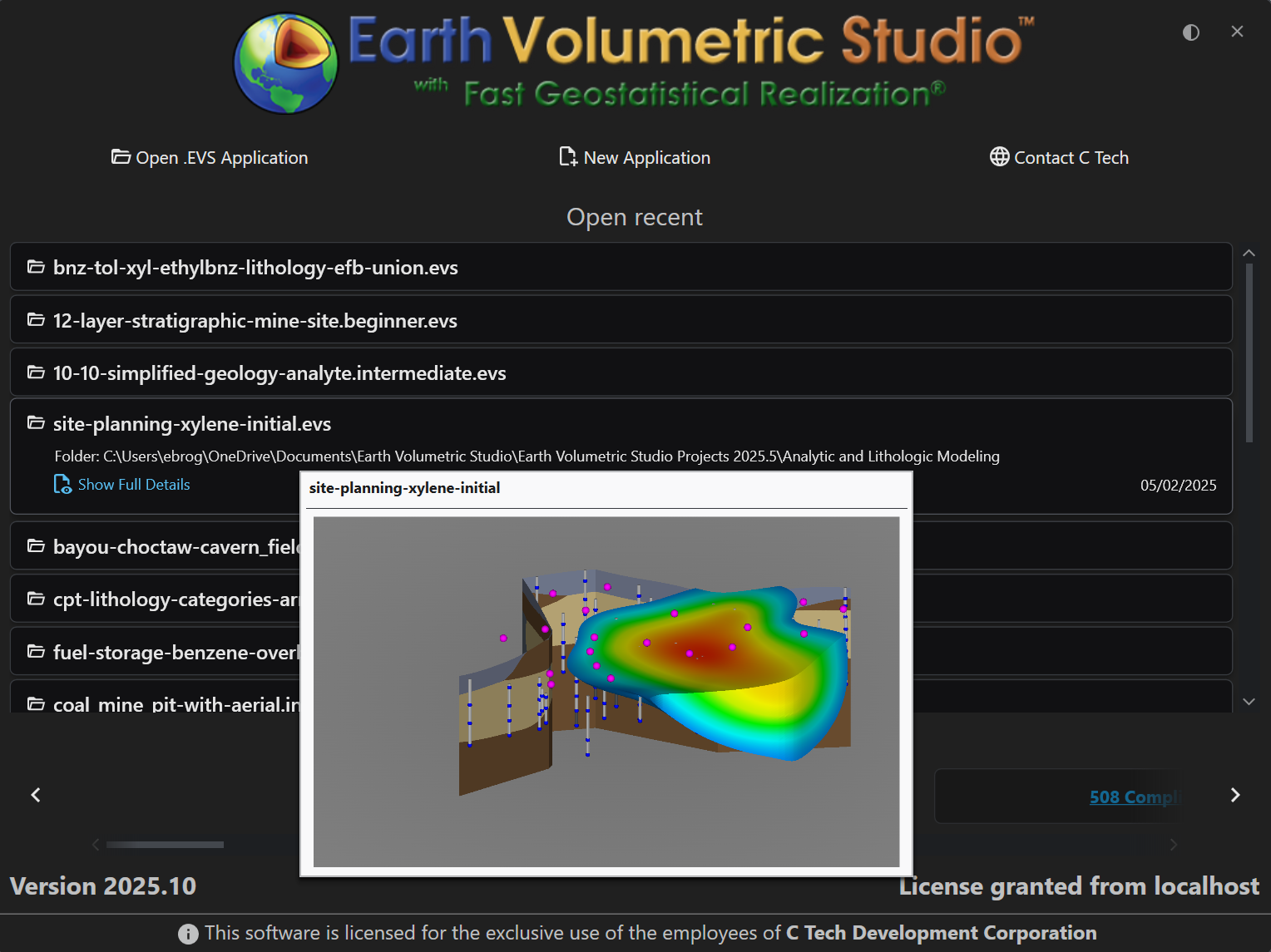
Each timeline is controlled through keyframe animation. You define specific points in time, called keyframes, where you set a specific value for one or more properties (timelines). For example, at time 0.0s, you might set an object’s opacity to 0%, and at time 2.0s, you set its opacity to 100%. EVS will then automatically calculate all the in-between values, creating a smooth transition (interpolation) from transparent to opaque over two seconds. By adding multiple timelines and setting keyframes for each, you can create complex, multi-faceted animations where many different aspects of your scene change simultaneously.

Accessing the Animation Window

The Animation Window can be opened through the Animation button in the Main Toolbar.

Animations Window Controls

The Animations window allows users to create, edit, and export animations by managing timelines and keyframes. The following tables describe the available commands found in the toolbar and the timeline management sidebar.

Animating a Property through Timelines

To animate a property, you must first add a timeline for it. This is an easy process using the Select Property dialog.

  1. Click the Add TimelineĀ  Ā button in the timeline management sidebar. This opens the first view of the Select Property dialog.
  2. This initial view presents a hierarchical list of every module and object in your current application. You can either browse through the list or use the search bar at the top to quickly find a specific module or object by name. Select the target object and click Next. Select Property dialog, first step: selecting a module. Select Property dialog, first step: selecting a module.
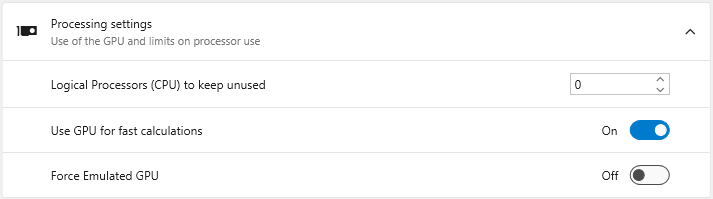
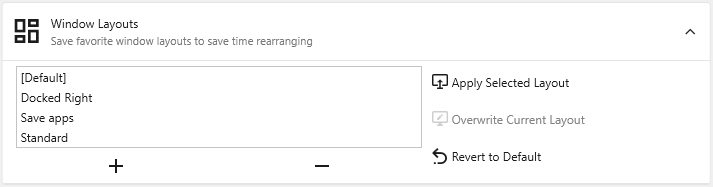
  3. After clicking Next, the dialog updates to show a list of all animatable properties for the module you selected. These properties are organized into categories (e.g., “Properties”, “Grid Settings”).
  4. Use the “Search for Property…” bar to filter the list, or browse to find the specific property you wish to animate. Select it from the list. Select Property dialog, second step: selecting a specific property from the chosen module. Select Property dialog, second step: selecting a specific property from the chosen module.
  5. Click Ok. A new timeline for the selected property will be added to the animation window, ready for you to add keyframes.

One you’ve added one or more timelines, you can add key frames. Animated sections will display in different colors, depending on the interpolation mode of the property in the timeline.

For example, in the following timeline, Azimuth and Inclination are interpolated linearly from 0s to 5s, then changed following a curve from 7s to 10s:

The two colors show different interpolation modes, which can be controlled by right clicking on the icon when values change in a timeline:

Different timelines will have various options for allowable interpolation modes, depending on the type of property being animated.

Timeline Management Commands

The left sidebar provides controls for managing the specific timelines included in your animation project.

ButtonIconDescription
Add Timeline Add an additional timeline to the animation.
Remove Timeline Remove the selected timeline from the animation.
Select All Select all timelines currently in the list.
Move Timeline Up Move the selected timeline up in the list order.
Move Timeline Down Move the selected timeline down in the list order.

Toolbar Commands

The top toolbar contains tools for file management, playback control, duration settings, keyframe manipulation, and value transfer.

GroupButtonIconDescription
FileOpen Browse to open a new .EVS Animation.
Save Save the current .EVS Animation.
PlaybackPreview Set animation to preview mode. When in preview mode, the animation can be run without generating an output file.
Play Modify output settings and generate or preview the animation. Clicking this opens the Output Formatsettings, allowing you to configure:
  • Resolution: Choose from common resolutions (e.g., 1080p, 720p) or set custom width and height.
  • Frame Rate: Select a standard frame rate (e.g., 24p, 30p, 60i).
  • Output Format: Select the Codec (e.g., H.264, H.265) and Quality (e.g., Very High, Medium).
  • Render/Preview: Choose to simply preview or render the final output.
DurationChange Length Change the total length of the animation (in seconds).
Key FramesAdd Key Frame Add a new key frame to the animation at the current time cursor position.
Delete Key Frame Delete the current key frame.
Snap to Key Frames Snap the current time cursor to existing key frames when dragging or navigating.
Set Duration Set the specific duration of the currently selected key frame.
Set Time Set the start time of the current key frame.
Key Frame ValuesAutomatically Push Values Automatically pull values from the application and overwrite all values in the selected timelines of the animation for the current keyframe.
Pull Values Automatically pull values from the application and overwrite all values in the selected timelines of the animation for the current keyframe.
Push Values Push the values from the selected timeline in the animation and set the corresponding values in the Application.
ZoomZoom LevelAdjust the visual scale of the timeline (e.g., 50%, 100%, 200%) or reset to the default view.


A highly recommended free legacy training video on how to use the Animator is available at this link:

Animation in Earth Volumetric Studio

The appearances of the animator controls have changed, but they are still recognizable, and the concepts in the video still apply.