Packaging data into your Applications has many advantages including:
- Integrating your application into a single file
- Making your application easier to share with others
- Ensuring the correct version of data files are associated with the application
- Minimizing or eliminating the possibility of application corruption should one or more files become modified or lost
- Packaged applications generally load faster
Generally you would not package data into an application during the early development of your project models. As we teach in our video tutorials we recommend that you frequently save your applications with a modified name (such as a serial number or -letter) so if you find you’ve gone down a wrong path you can go back to your last correct version.
I often find that it is best to work with a coarser resolution to keep compute times low and segregate my tasks depending on the scope of the project. Only once your work is nearing a final stage or you need to make interim deliverables to teammates would it make sense to package data with your application.
Subsections of Workbook 5: Packaging Data Into Your Applications
Packaging a single file is very simple, but is seldom necessary since you will generally use the option to package all of the files in your application.
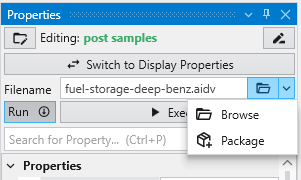
In every module with a file browser, you merely click on the drop-down button shown next to any filename property, and a Package button will appear.
To view your Packaged Files, click on Packaged Files button in the Main Toolbar:
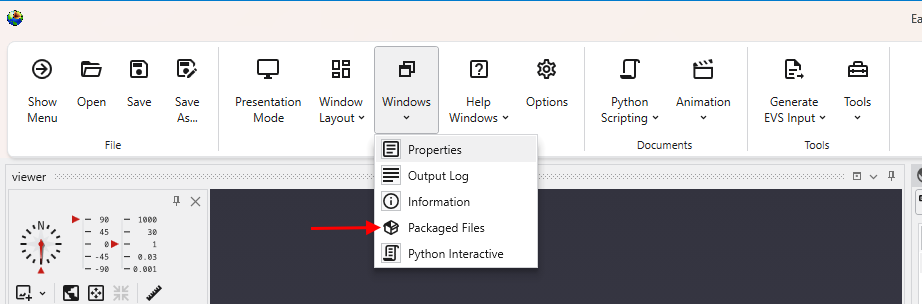
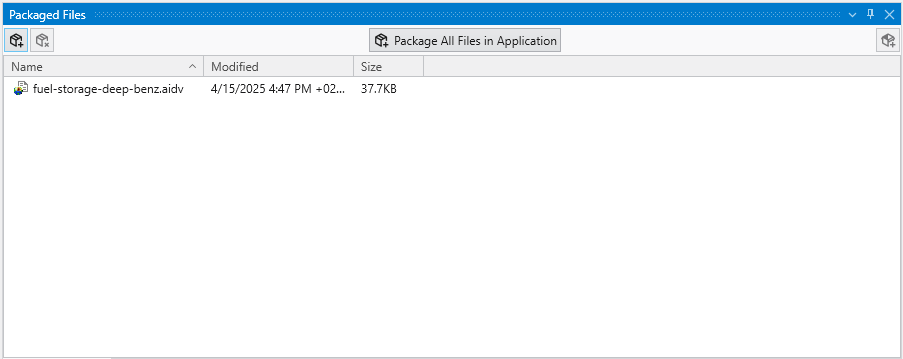
Which will open the Packaged Files window, if not open already.
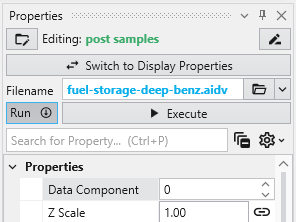
When a module is reading a packaged file, the file appears in the browser as light-blue text with no apparent path. However, if you hover over the file, you will see the path as:
package://fuel-storage-deep-benz.aidv
Once one or all files are packaged in a .EVS application, when you save the application, the data files will be saved “in” the .EVS file.
See more in the Packaged Files topic.
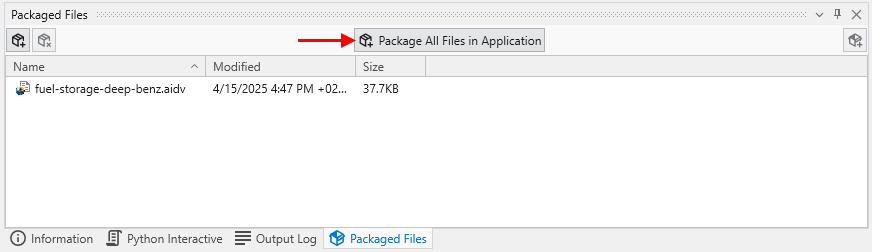
To Package all files in an Application, open the Packaged Files window and merely press the Package All Files in an Application button.
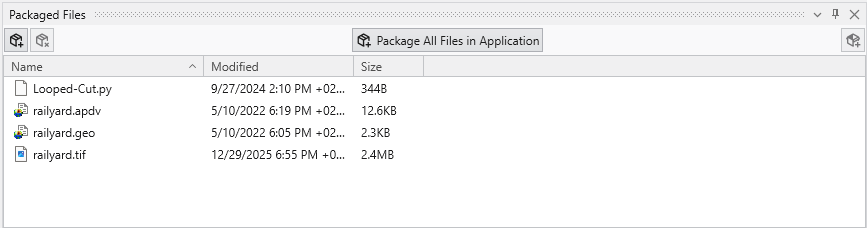
For the application railyard-looped-cut.intermediate.evs, the list of packaged files are:
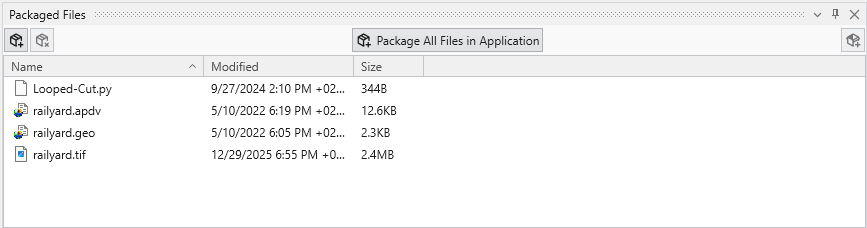
Once one or all files are packaged in a .EVS application, when you save the application, the data files will be saved “in” the .EVS file.
Note: The EVS modules requiring special treatment will be properly and automatically handled when using the Package All Files in an Application button.
Using a file that has been added to an application’s packaged data is easy, but is a bit different. The process involves selecting the file in the Packaged Files window with the left mouse and dragging and dropping it onto the file browser of the module where you wish to use it.
Below, we drop the railyard.apdv file from the Packaged Files onto the file browser of post samples #1
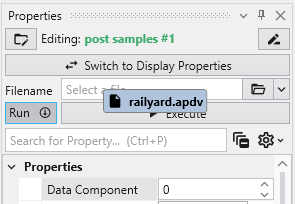
When we drop (release) the file it appears in the browser as light-blue text
Several EVS modules require special treatment in order to package their data. We summarize the main reasons why this is required for each module, but we will explain some of the reasons and advantages of the post-treatment application.
The affected modules are:
- import vector_gis
- overlay_aerial
- import wavefront obj
In general, these modules read file formats which are often not single file formats. The conversion during packaging converts the usable data to a single, packaged file in a format usable by EVS. In addition, steps are often taken to pick a format which will allow for smaller file sizes.
import vector gis
The packaging process converts these files to binary EVS Field Files (.efb files) and requires replacing the original modules with a new read evs fiel
overlay aerial
The special treatment for overlay aerial is quite different. Packaging is problematic when a module reads a file, but that process results in reading
Subsections of Modules Requiring Special Packaging Treatment
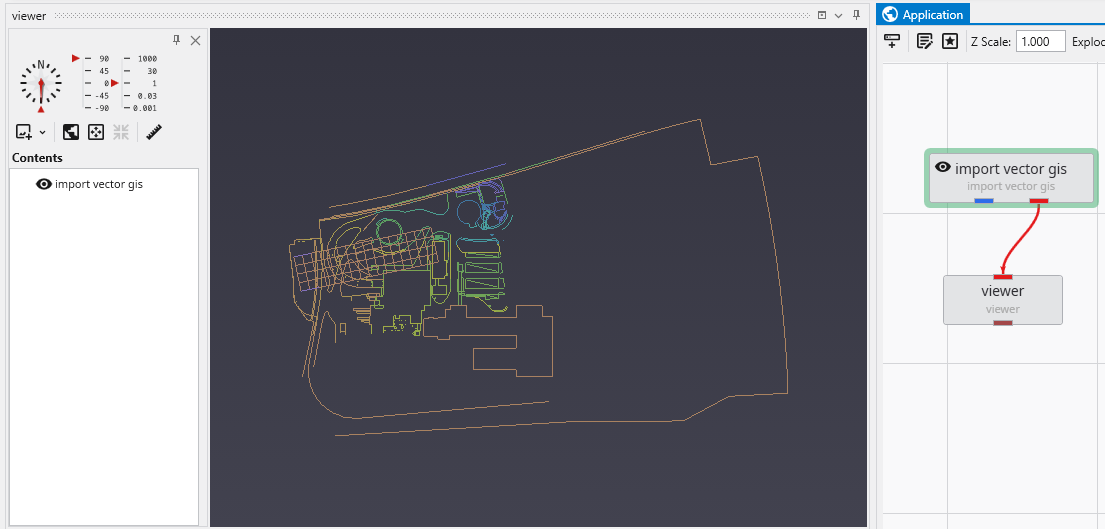
The packaging process converts these files to binary EVS Field Files (.efb files) and requires replacing the original modules with a new read evs field module. In this simple application:
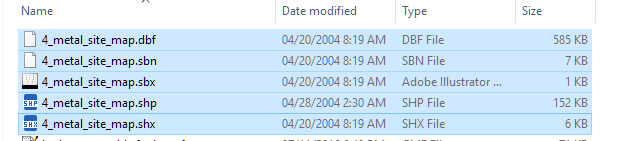
The shapefile actually consists of a set of 5 files which total 749 KB.
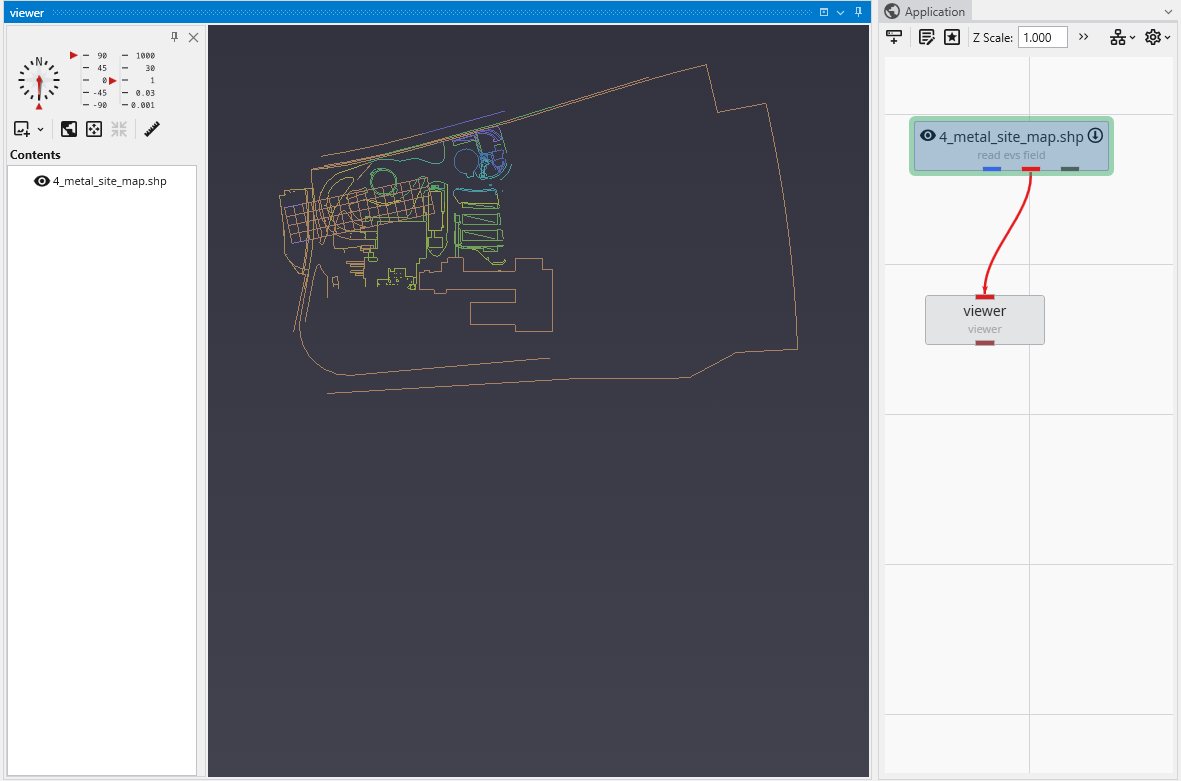
The import vector gis module, now has a “Convert to Packaged” button, which when we click on it does the following:
- Automatically replaces import vector gis with a read evs field module which is named based on the data file being read.
- Creates the efb file for you and adds it to your packaged data files
- It is half as big as the total shapefiles, and will load in less than 1/10th of the time
The special treatment for overlay aerial is quite different. Packaging is problematic when a module reads a file, but that process results in reading additional files (as with shapefiles). This also occurs with imagery when orthorectified images include an image file and a georeferencing file (e.g. world file, .gcp file, etc.).
To resolve this, overlay aerial’s “Convert to Packaged” button creates a GeoTIFF file that is both cropped and matched to the specified resolution in overlay aerial. This creates a new single image file which is generally dramatically smaller than the original files which were read. Your application is unchanged except that the Filename specified in overlay aerial will reference the new packaged geotiff file created by this process.