Basic Training: Workbooks Overview
The Earth Volumetric Studio Environment 2D Estimation Exporting from Excel to C Tech File Formats 3D Data Requirements Overview Packaging Data into Applications Geostatistics Overview Visualization Fundamentals
The workbooks in this help cover only the most basic functionality. We offer two levels of training videos which can be accessed at ctech.com which provide more comprehensive training from a novice to an advanced user. We offer two levels of training videos in addition to the limited workbooks which are built-into the software help system (and are included online). The training videos include:
Workbook 1: Earth Volumetric Studio Basics
Load an Application Let’s load an application to get an idea of how EVS works. Browse to Find and double click the file “painting-facility-interactive-labels.intermediate.evs”. The application will run and in less than one minute you will see: Mouse Transformation Transformations with the Mouse Now that we have an application loaded, let’s investigate the many ways we can interact with it. Rotate the model Hold down the left mouse button and move the mouse pointer in various directions. The model rotates. Vertical motions rotate the model about a horizontal axis. Horizontal motions rotate the model about a vertical axis. Roll is suppressed so that mouse rotations always keep vertical objects (e.g. telephone poles) vertical. Scale (zoom) the model
Workbook 2: 2D Estimation of Analytical Data
Instance Modules 2D Estimation: Instance Modules Now let’s see just how fast we can instance the modules to create a useful application. In the Modules section of the Application network window, type 2 This will show all modules beginning with the number 2. From this filtered list we can instance any of these modules by double-clicking on them. However, we can get the first one, 2d estimation by hitting Enter. Do that.
Workbook 3: Exporting from Excel to C Tech File Formats
- Creating PGF Files - Lithology * [Creating GEO Files - Stratigraphic Horizons from Vertical Borings](creating-geo-f
Workbook 4: Understanding 3D Data
Data Requirements Overview The collection and formatting of data for volumetric modeling is often the most challenging task for novice EVS users. This tutorial covers the instru Creating a Simple Application Let's begin by creating a very simple application. In the Modules pane in the Application window, type p in the Search for Module section. Viewing PGF Files With the simple application from the previous topic, let's read a PGF file and see that data represe
Workbook 5: Packaging Data Into Your Applications
Packaging data into your Applications has many advantages including:
Workbook 6: Geostatistics Overview
When a volumetric model is created, we generally use geostatistics to estimate (interpolate and extrapolate) data into the volume based on sparse meas
Core concepts for understanding 3D data visualization in EVS
Studio Projects Reference Applications
Each major release of Earth Volumetric Studio will include a corresponding release of Sample Projects, which we tend to refer to as 'Studio Projects'.
Subsections of EVS Training
The workbooks in this help cover only the most basic functionality. We offer two levels of training videos which can be accessed at ctech.com which provide more comprehensive training from a novice to an advanced user.
We offer two levels of training videos in addition to the limited workbooks which are built-into the software help system (and are included online). The training videos include:
As stated, the first category of training videos are free, whereas the second category are not. These classes range from $350 to $800 per person for classes that are 3 to 12 hours in duration. All of these classes are offered with a money-back guarantee. We ask that you use the knowledge you gained in the class for 30 days. At the end of that time if you feel that the class was not valuable to you and your company, we will refund the cost of the class. These provide students with far more than the mechanics of using Earth Volumetric Studio. The classes are taught by our most senior personnel with decades of experience with C Tech’s software and experience in earth science consulting projects including litigation support. The courses focus as much on why we do things as how they are done. Our goal is to graduate modelers with a deeper understanding of critical issues to consider in their daily modeling tasks, whether they are doing a quick first look at a corner gas station or working on litigation support for a Superfund site. New classes are announced on C Tech’s Mailing List and the registration form to enroll in these classes is on the website.
Let’s load an application to get an idea of how EVS works. Browse to Find and double click the file “painting-facility-interactive-labels.intermediate.evs”. The application will run and in less than one minute you will see:
Transformations with the Mouse Now that we have an application loaded, let’s investigate the many ways we can interact with it. Rotate the model Hold down the left mouse button and move the mouse pointer in various directions. The model rotates. Vertical motions rotate the model about a horizontal axis. Horizontal motions rotate the model about a vertical axis. Roll is suppressed so that mouse rotations always keep vertical objects (e.g. telephone poles) vertical. Scale (zoom) the model
Transformations with the Azimuth and Inclination Controls Azimuth and Inclination controls are available in two places and gives us more precise ways to transform (scale, pan and rotate) an object: The viewer’s Properties window. The viewer’s slide-out properties in the Viewer window. Double click on the viewer module to open the Properties window with view controls including sliders and an array of buttons. These controls allows you to instantly select a view from any azimuth and inclination. For a given (positive) inclination, selecting different azimuth buttons is equivalent to flying to different compass points on a circle at a constant elevation. The azimuth buttons are the direction from which you view your objects. (i.e. 180 degrees views the objects from the south). An inclination of 90 degrees corresponds to a view from directly overhead, 0 degrees is a view from the horizontal plane (side view) and -90 degrees is a view from the bottom.
At any time after modules have run, you can quickly obtain basic statistical and model extents data merely by double left mouse clicking on any FIELD (blue) output port. Let’s demonstrate this by using the second output port of the cut module When we double-click here, the following information appears in the Properties window.
Before we end this first workbook, let's interact with this application in another way.
Let's exit EVS.
EVS Project Structure for Maximum Portability
Create a 'project' folder with all of your data in one or more subfolders under that folder (any number of levels deep). As long as you don't put your
Subsections of Workbook 1: Earth Volumetric Studio Basics
Let’s load an application to get an idea of how EVS works.
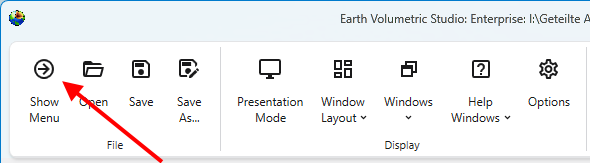
Browse to
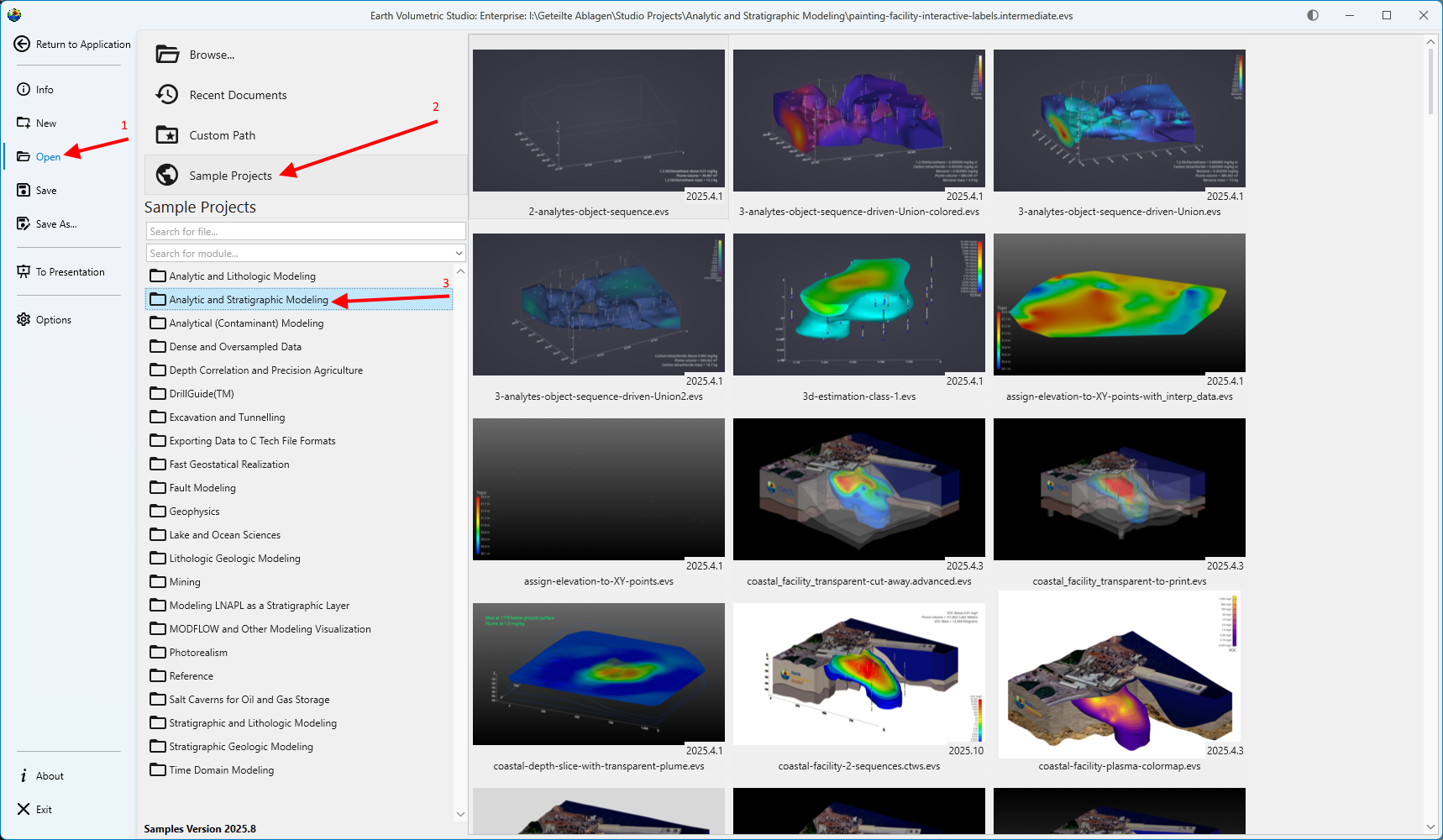
Find and double click the file “painting-facility-interactive-labels.intermediate.evs”.
The application will run and in less than one minute you will see:
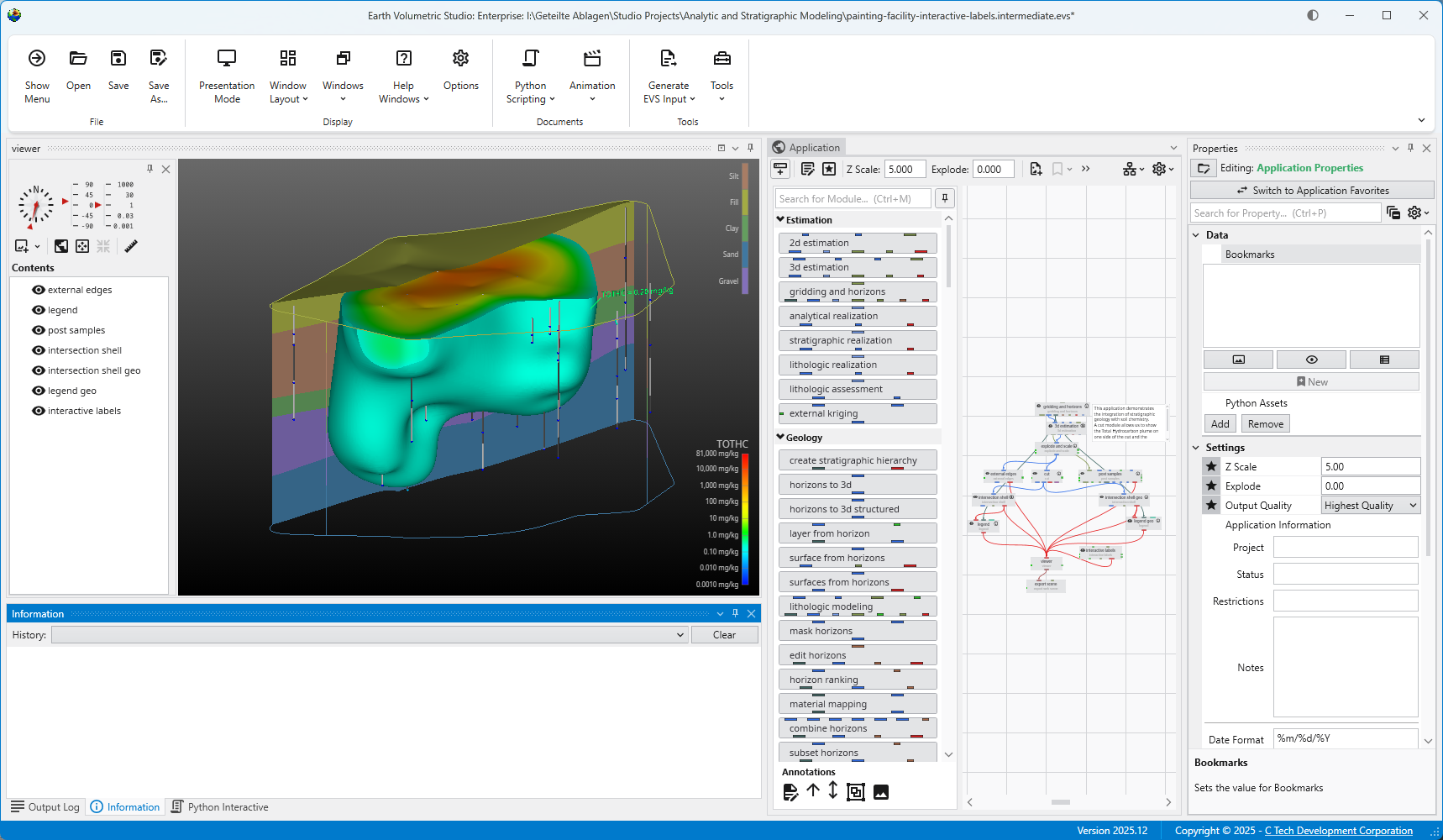
For more on opening applications see the topic Open Files.
Transformations with the Mouse
Now that we have an application loaded, let’s investigate the many ways we can interact with it.
Rotate the model
- Hold down the left mouse button and move the mouse pointer in various directions. The model rotates.
- Vertical motions rotate the model about a horizontal axis.
- Horizontal motions rotate the model about a vertical axis.
- Roll is suppressed so that mouse rotations always keep vertical objects (e.g. telephone poles) vertical.
Scale (zoom) the model
- The wheel on wheel mice also zooms in and out.
- Alternate method:
- Hold down both the Shift key and the left mouse button (or the middle button alone).
- Keeping the Shift key and mouse button held down, move the mouse pointer downward or to the left. As we do, the model scales down. Moving the mouse pointer upward or to the right scales up.
Move (Translate or Pan) the model
- Hold down the right mouse button and drag the object up, down, and around, then center the model.
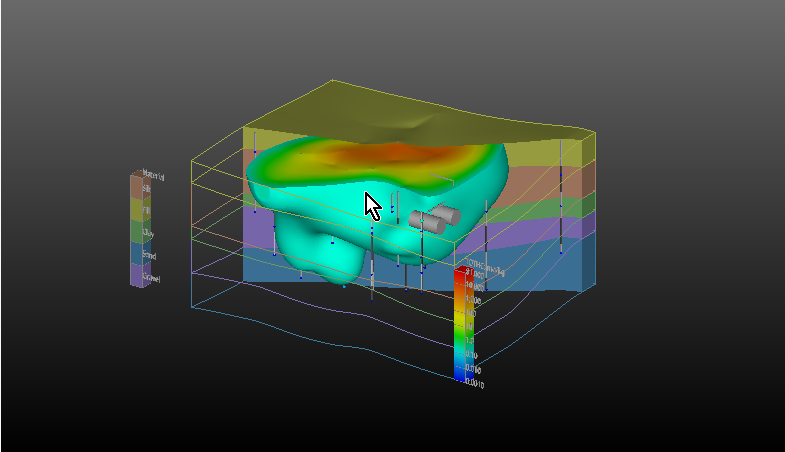
| Mouse-controlled operations | What to do |
|---|---|
| Translate | Drag the object with the right mouse button (RMB) |
| Rotate | Drag the object with the left mouse button (LMB) |
| Scale | Use the wheel to zoom in and out |
or
Hold down the Shift key and drag the object with the left mouse button (Shift-LMB)
or
Use the middle mouse button or wheel as a button without Shift |
Transformations with the Azimuth and Inclination Controls
Azimuth and Inclination controls are available in two places and gives us more precise ways to transform (scale, pan and rotate) an object:
- The viewer’s Properties window.
- The viewer’s slide-out properties in the Viewer window.
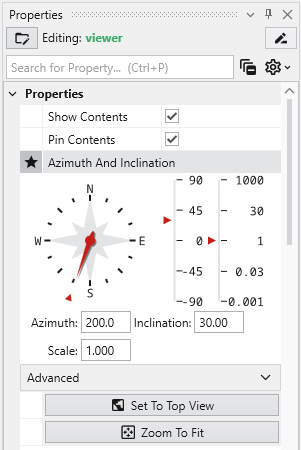
Double click on the viewer module to open the Properties window with view controls including sliders and an array of buttons. These controls allows you to instantly select a view from any azimuth and inclination. For a given (positive) inclination, selecting different azimuth buttons is equivalent to flying to different compass points on a circle at a constant elevation. The azimuth buttons are the direction from which you view your objects. (i.e. 180 degrees views the objects from the south). An inclination of 90 degrees corresponds to a view from directly overhead, 0 degrees is a view from the horizontal plane (side view) and -90 degrees is a view from the bottom.
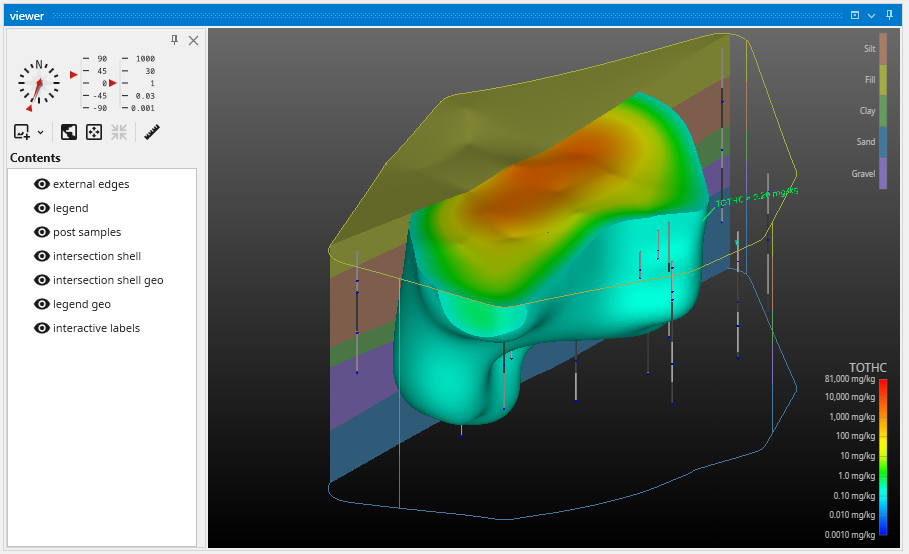
c. Use the Azimuth and Inclination Panel to obtain a specific view by setting the scale slider and inclination slider to desired settings and click once on the desired azimuth button. If you choose a scale of 1.0, an Inclination of 30 degrees and an azimuth of 200 degrees
The viewer will show:
The Advanced options provide the ability to allow rotations about a user defined center, as opposed to the default center of the objects, which is chosen by EVS. Additionally you can apply a ROLL to the view which will make vertical objects (such as the Z axis) not appear vertical. If you do not see the options, click on the Advanced category in the Properties window to expand them.
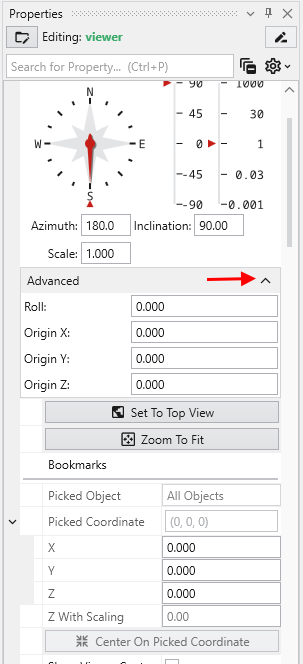
Below the Advanced options, there are three buttons
- Set to Top View: Returns the model view to Azimuth 180, Inclination 90 and Scale of 1.0
- Zoom To Fit: Returns the Scale to 1.0
- Center On Picked: This button is normally inactive, but is activated by probing with CTRL-Left mouse on any object in the view. The default center of an object shown in our viewer is midway between the min-max of the x, y and z dimensions. This button then causes the view to recenter on the selected point. When you pick a point on an object, the following information is displayed in the Information window.
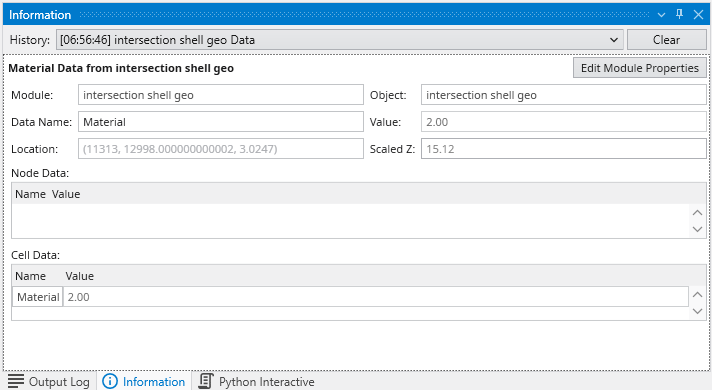
The Perspective Mode toggle switches to Perspective (vs. Orthographic) viewing. In perspective mode, parallel lines no longer appear parallel but instead would point to a vanishing point.
The Field of View determines the amount of perspective. Larger values result in more perspective distortion.
The Render selection allows you to choose between OpenGL and Software renderers. On some computers with minimal graphics cards Software renderer may perform better or be more stable.
Auto Fit Scene: The choices here include:
- On Significant Change: This is the default behavior which causes the view to recenter and rescale if the extents of the view would change significantly. Otherwise the view is unaffected.
- On Any Change: This causes the view to recenter and rescale if the extents of the view changes at all
- Never: The view will not change if objects change.
The Window Sizing options
- Fit to Window: The view size is determined by the size of the viewer window
- Size Manually: The view size is set in the Viewer Width and Height type-ins below to a specific size. The viewer then has scroll bars if the view size exceeds the window size.
At any time after modules have run, you can quickly obtain basic statistical and model extents data merely by double left mouse clicking on any FIELD (blue) output port.
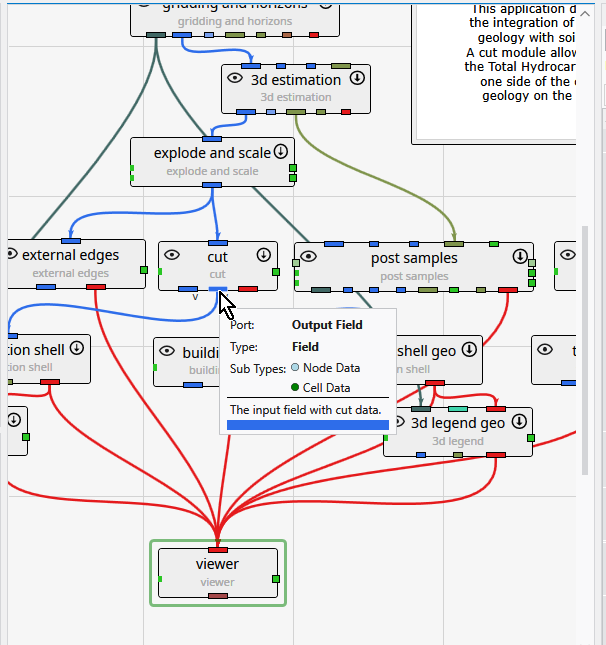
Let’s demonstrate this by using the second output port of the cut module
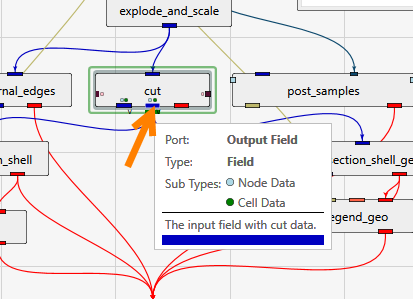
When we double-click here, the following information appears in the Properties window.
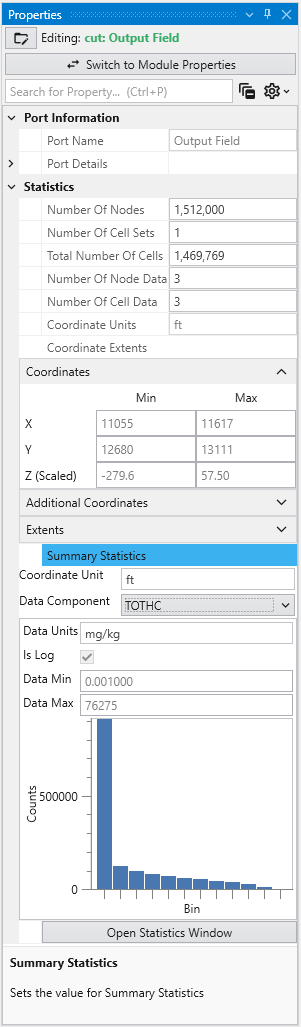
This quickly tells us that this port has a model with the following data and coordinate extents
- 211,200
- 181,779 cells
- We can select any of the three nodal data (TOTHC is shown)
- The X, Y & Z Minimum, Maximum and Extents are provided
For more comprehensive statistical analysis of the nodal data, click on the “Open Statistics Window” button, and the following appears.
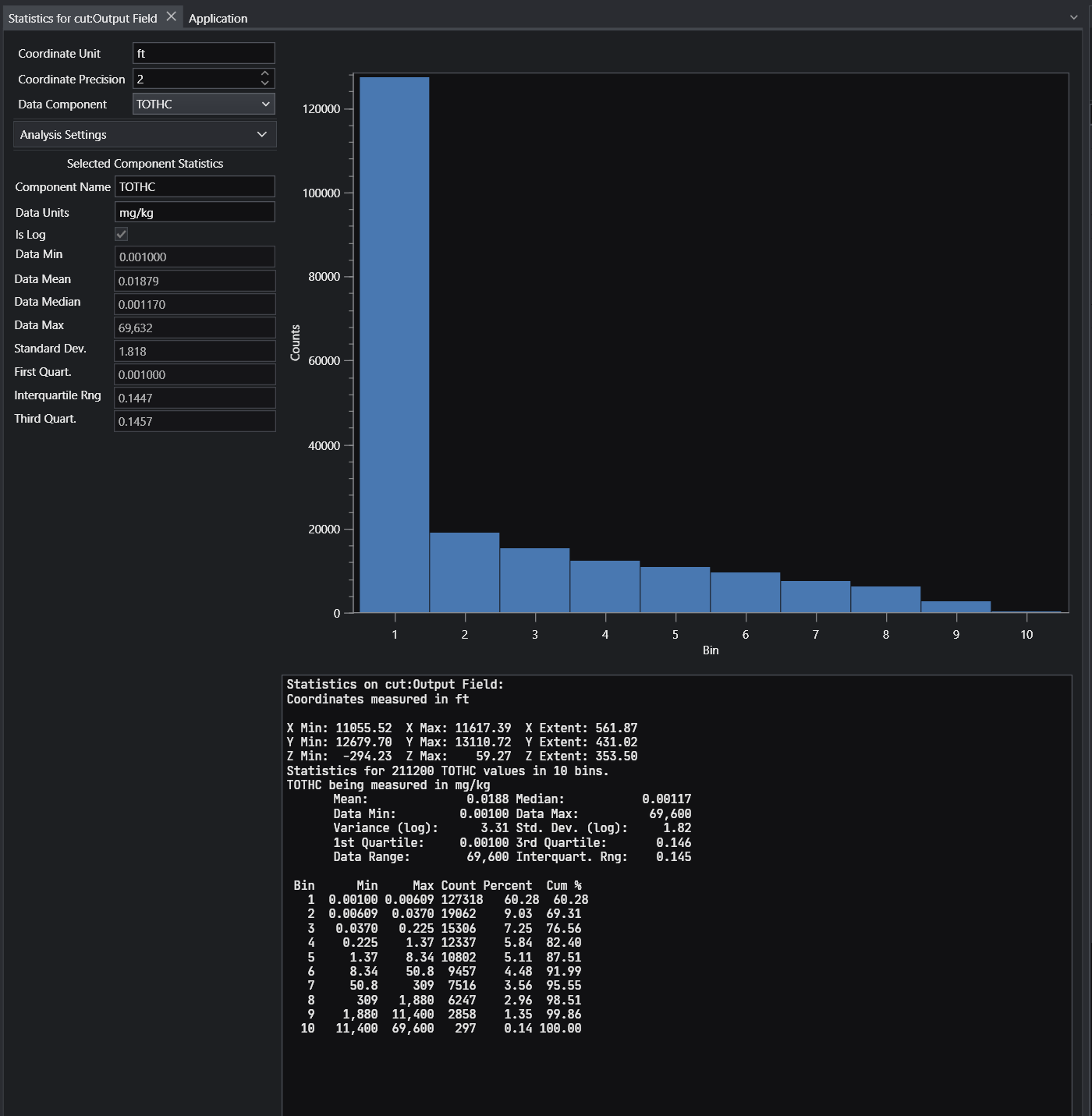
Before we end this first workbook, let’s interact with this application in another way.
In the Application window, double click on the intersection_shell module, and you will see a green border around it. This green border designates the selected module whose properties are available for editing.
This will open its Properties in the Properties window in the upper right. In this application, intersection_shell is performing two tasks. It is cutting the model using information provided by the cut module and it is also subsetting what remains by Total Hydrocarbon (TOTHC) level. It might seem strange at first that the cut module isn’t actually cutting the model. But if it did, it would only provide one side or the other. By giving us data that is the “signed” distance from the specified cutting plane, we are able to use cut’s data to create the cut for the front side giving us the plume and the back side giving us the geologic layers. We can also offset any distance from the theoretical cutting plane without actually moving the cutting plane, but only changing the “cut” Subsetting level. In fact, in this application we’re cutting 100 feet from the specified cutting plane.
Change the TOTHC Subsetting Level to be 2.0 and your view should look like this:
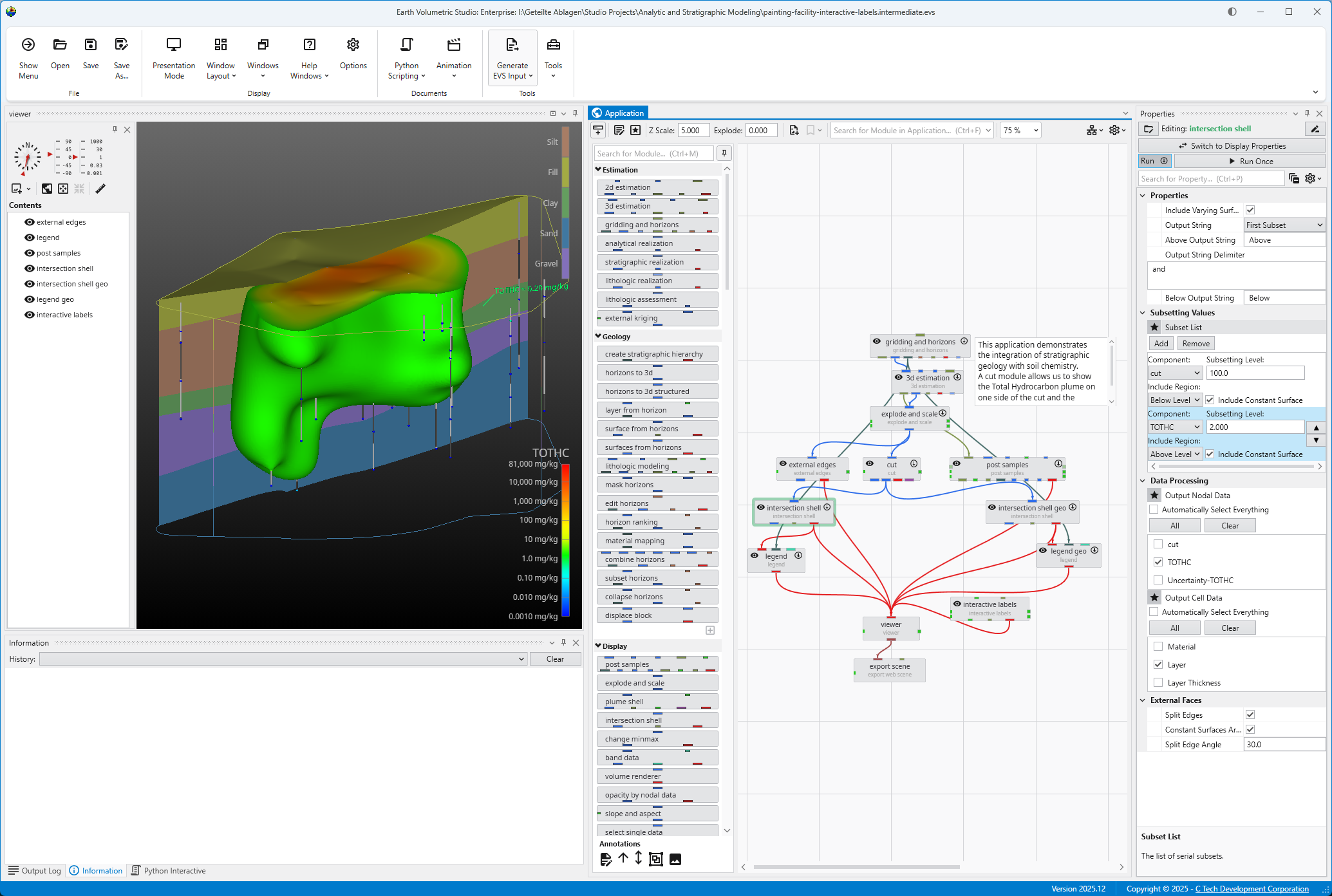
You can continue to experiment and see that you can view any subsetting level in less than a second.
Let’s exit EVS.
Open the Menu using the Show Menu button in the upper right corner. Select Exit at the bottom. Alternatively, exit EVS using the regular close icon at the upper right on the main window.
EVS exits after displaying a confirmation message.
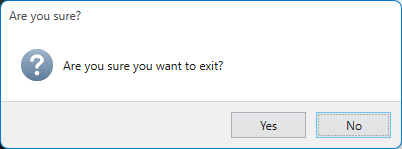
If you close the main window using the X in the upper left, it will prompt you similarly.
You have now completed Workbook 1.
Create a “project” folder with all of your data in one or more subfolders under that folder (any number of levels deep). As long as you don’t put your applications more than 2 levels deep inside of the project folder, everything will be relative, and moving the project folder (as a whole) will always “just work”.
An example would be:
- drive\some\path
- project
- applications
- data
- data sub 1
- data sub 2
- project
Alternatively, the most portable EVS Application is one where all of the data is packaged.
2D Estimation: Instance Modules Now let’s see just how fast we can instance the modules to create a useful application. In the Modules section of the Application network window, type 2 This will show all modules beginning with the number 2. From this filtered list we can instance any of these modules by double-clicking on them. However, we can get the first one, 2d estimation by hitting Enter. Do that.
We'll now connect these modules. Connections determine how data flows or is shared among modules, and affects the modules' order of execution. Use the
Let's execute the analysis module, 2d estimation, in order to produce a model based on the data file we will select. You will need to have installed
With the kriging interpolation results from 2d estimation, the next step is to refine the visualization. This can be accomplished by subsetting the
Subsections of Workbook 2: 2D Estimation of Analytical Data
2D Estimation: Instance Modules
Now let’s see just how fast we can instance the modules to create a useful application. In the Modules section of the Application network window, type 2
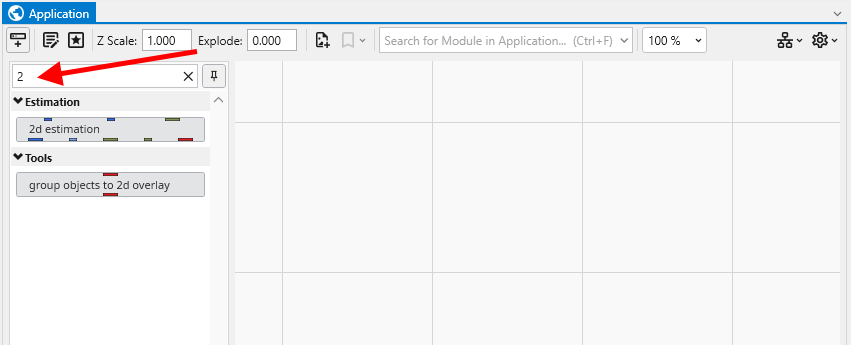
This will show all modules beginning with the number 2. From this filtered list we can instance any of these modules by double-clicking on them. However, we can get the first one, 2d estimation by hitting Enter. Do that.
When you hit enter, it also clears the filter (search) field.
Now type p. Double-click on plume, ~5th in the list.
Since we didn’t hit enter, we need to clear the p and now type e. Double-click on external edges, 7th in the list.
Finally, backspace or clear the e and type l for legend, finding it as the 5th module and double click on it too.
You may need to pan in the application to see our application should be:
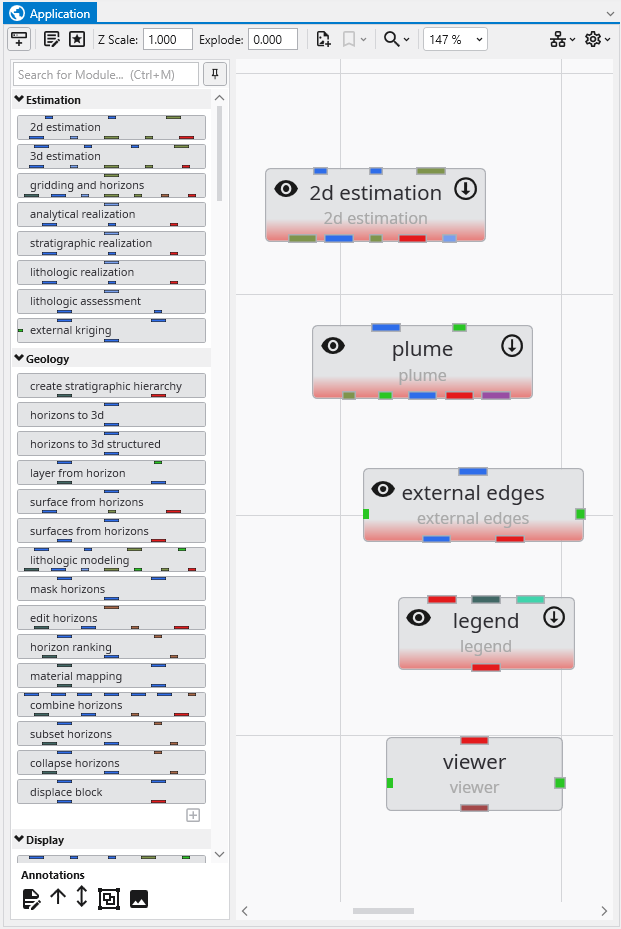
We’ll now connect these modules. Connections determine how data flows or is shared among modules, and affects the modules’ order of execution. Use the left mouse button to drag from one port to another to connect them.
We could leave these modules in their current positions, but let’s move them around so they better match how we want the data to flow. Adjust the positions to approximately match:
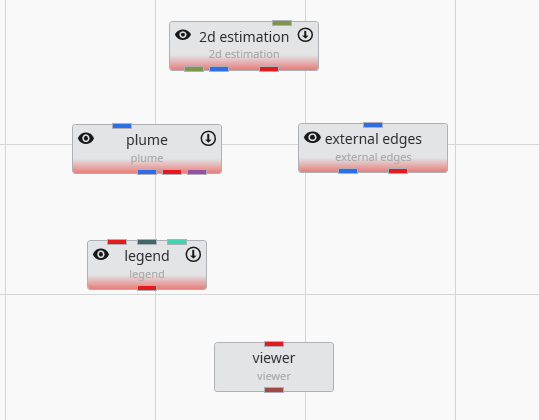
Then connect a few of them as shown below.
The method of connecting modules is detailed in the topic Connecting and Disconnecting Modules.
Info
The order in which we instance and connect modules is, with the exception of certain array connections, unimportant. We could have instanced and connected these modules in any order.
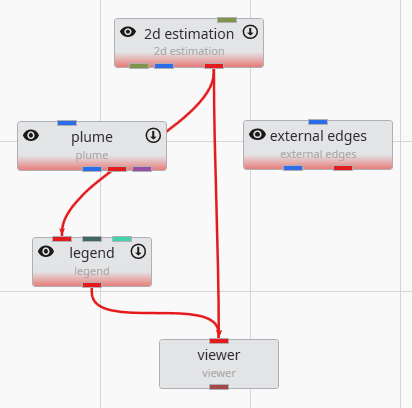
We are not connecting all of the modules at this time since we want to examine the simplest 2D kriging applications first and then make it more complex.
Let’s execute the analysis module, 2d estimation, in order to produce a model based on the data file we will select. You will need to have installed the Studio Projects specific to the version of Studio you have installed.
- First, double-left-click on 2d estimation to open its properties so you can see the window below
- Click on the Open button to the right of Filename and browse to Studio Projects/Analytic and Stratigraphic Modeling and choose railyard.apdv
- Then click “Execute”.
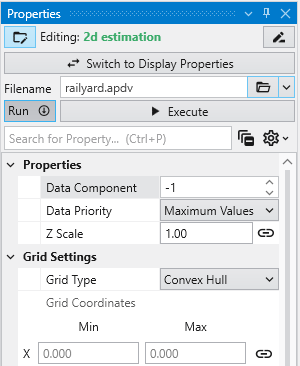
2d estimation reads the analyte (e.g. chemistry) data and begins the kriging process. In a very short time, it calculates the estimated concentrations for the grid we selected.
While it runs, 2d estimation prints messages to the Information Window such as percentage completion.
When it is done, the Output Log will show two lines, which when expanded will display:
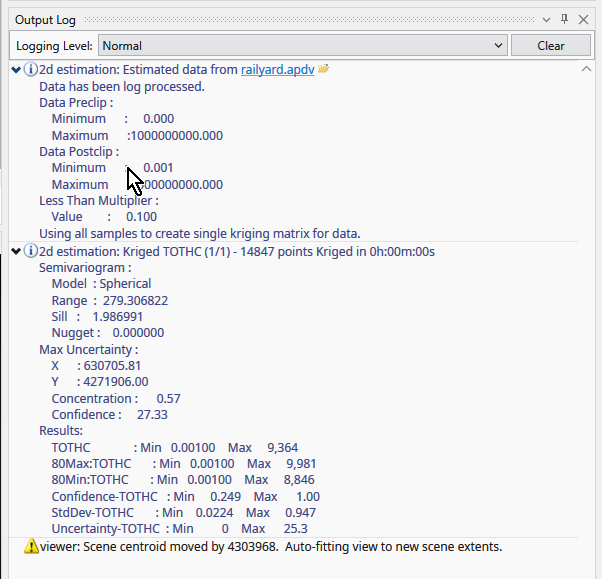
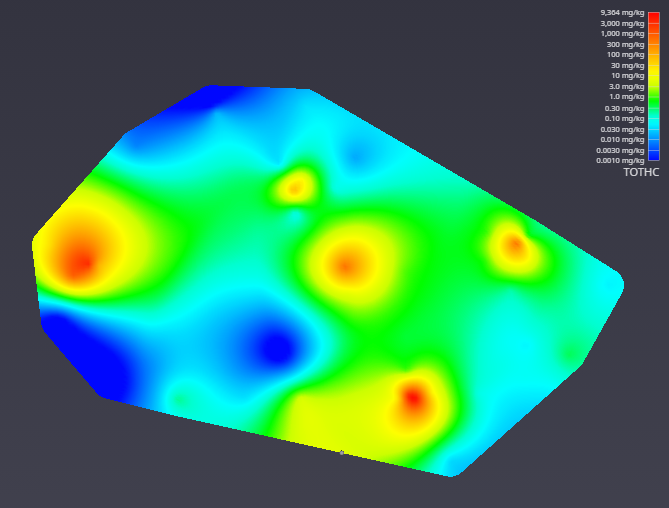
The viewer will promptly display a top view of the surface we have estimated. Your viewer should look like this:
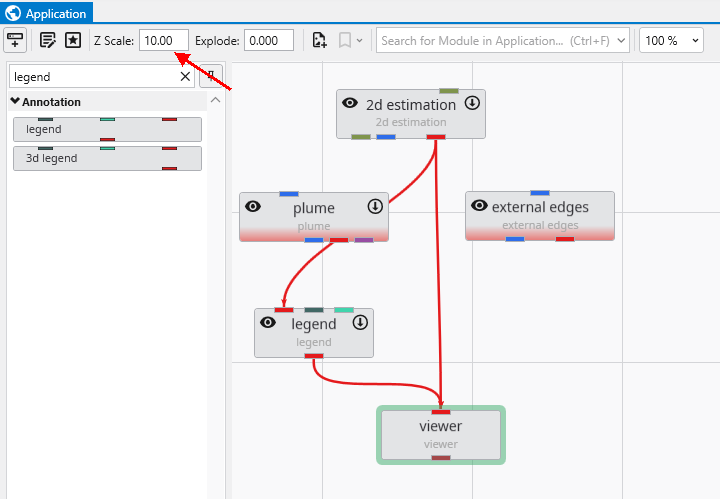
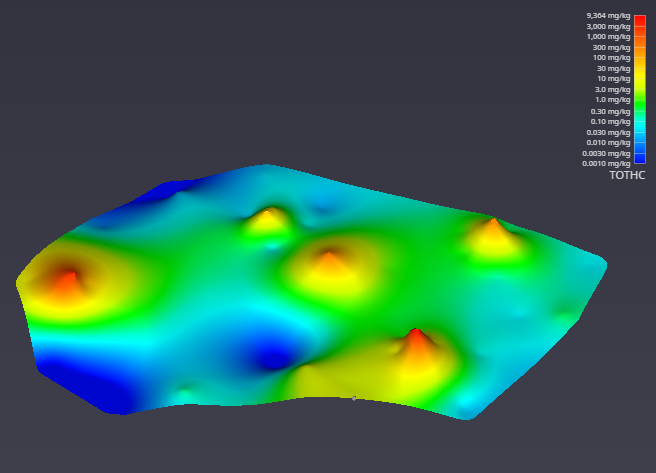
In the Application window, please change the Z Scale to 10. This will create an artificial topography to our surface where elevations correlate to concentration.
With a simple rotation of our model we now have
With the kriging interpolation results from 2d estimation, the next step is to refine the visualization. This can be accomplished by subsetting the output to display only the regions that fall within a specific value range.
To begin, connect the 2d estimation module to a plume module, and then connect the plume module to the viewer. This directs the data flow through the plume module, which will perform the subsetting operation before rendering the final output.
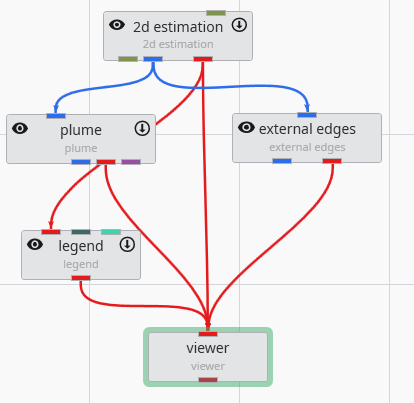
Initially, the viewer’s output may appear unchanged. This is because the 2d estimation and plume modules are rendering overlapping geometry. To isolate the output from plume, you can toggle the visibility of the 2d estimation module. Click the eye icon on the 2d estimation module in the Application Network to hide its output. This feature is essential for debugging complex applications, allowing you to focus on the output of specific modules.
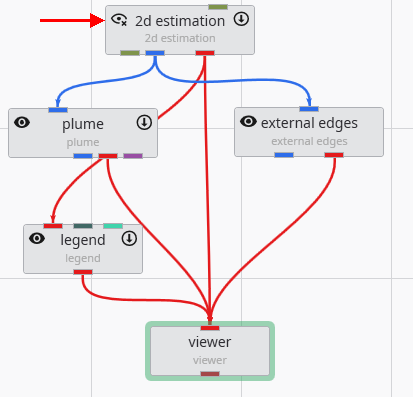
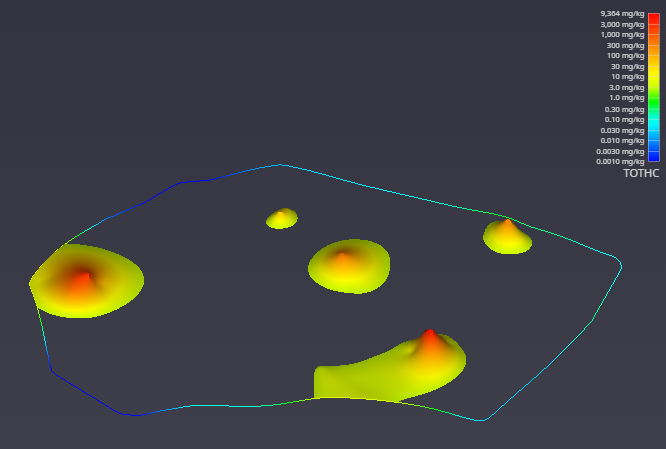
After hiding the upstream module, the viewer updates to show only the geometry from the plume module. The visualization is now more informative, displaying only the areas of interest where the TOTHC value is above 3.06. This default level was automatically determined from the data entering the plume module as a starting point for you to estimate a suitable value in the data range.
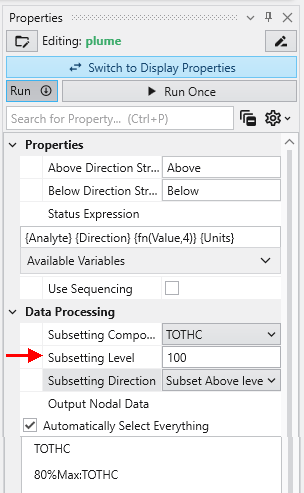
You can easily customize this filtering behavior. To demonstrate, select the plume module by double-clicking it. In the Properties window, set the Subsetting Level to 100.
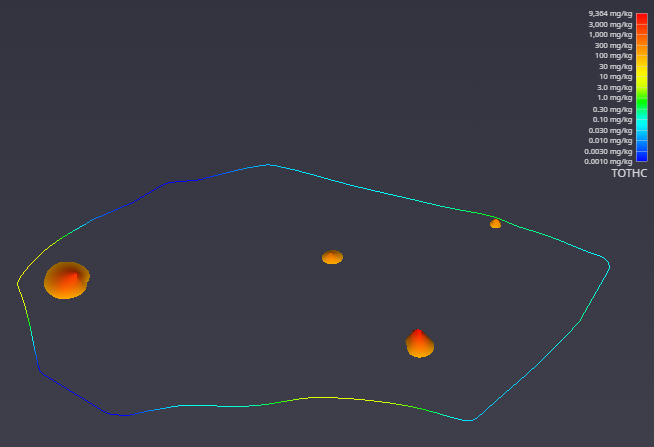
The viewer immediately reflects these changes. As a result, it now renders only the regions with a TOTHC value above 100, effectively further reducing the areas of high concentration. This feature allows you to interactively explore your data and isolate different phenomena within the dataset.
- Creating PGF Files - Lithology
- Creating GEO Files - Stratigraphic Horizons from Vertical Borings
- Creating APDV Files - Analyte Data Measured at Points
- Creating AIDV Files - Analyte Data Measured over Intervals
Creating AIDV Files - Analyte Data Measured over Intervals
Begin by selecting the 'Generate EVS Input' button in the Main Toolbar, and select AIDV File.
Creating APDV Files - Analyte Data Measured at Points
Begin by selecting the 'Generate EVS Input' button in the Main Toolbar, and select APDV File.
Creating GEO Files - Stratigraphic Horizons from Vertical Borings
Begin by selecting the 'Generate EVS Input' button in the Main Toolbar, and select GEO File.
Creating PGF Files - Lithology
Begin by selecting the 'Generate EVS Input' button in the Main Toolbar, and select PGF File.
Subsections of Workbook 3: Exporting from Excel to C Tech File Formats
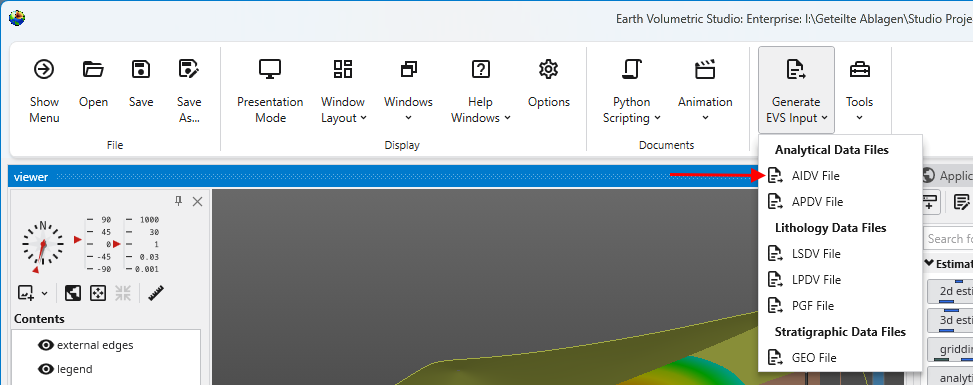
Begin by selecting the “Generate EVS Input” button in the Main Toolbar, and select AIDV File.
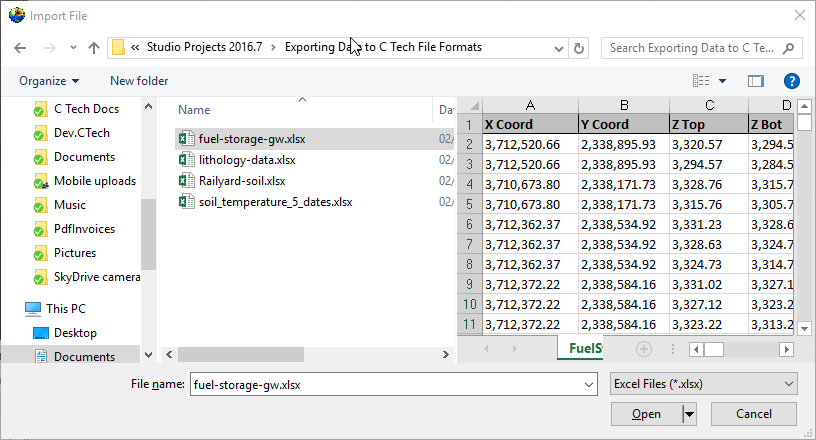
Let’s browse to the folder shown and select the file fuel-storage-gw.xlsx
You’ll need to select the appropriate table in the file. Some may have several, this one has only one named FuelStorage. Once you do, the program will attempt to automatically choose settings for you, but as you can see below, it isn’t perfect.
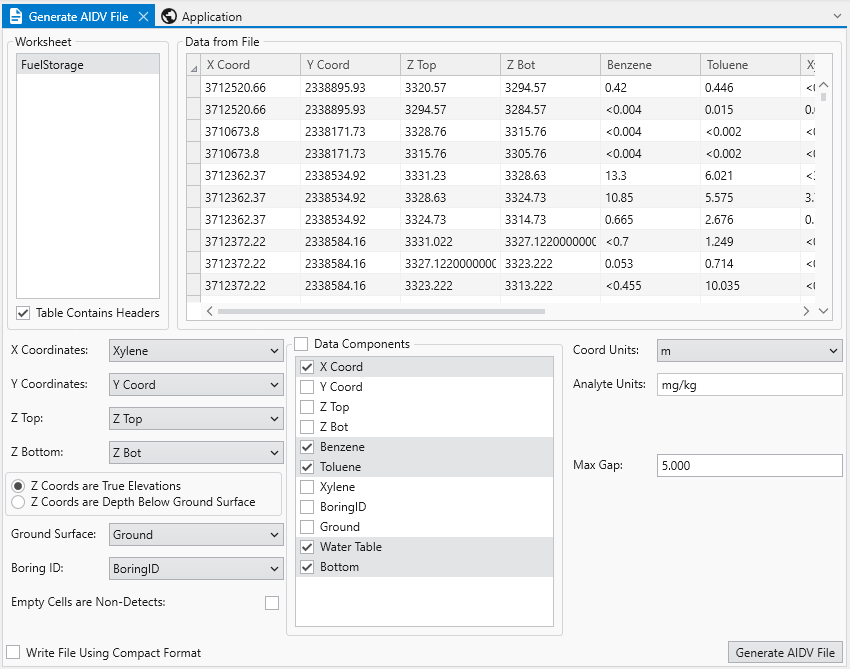
Since Xylene starts with the letter “X”, it was chosen as the X Coordinate. This is clearly wrong, however, everything else along the left side is correct. By default, the Data Components list will select whatever is left over. Sometimes this is handy, but often, and in this case it is excessive. This excel table includes water table and bottom of model elevations that we will want for a .GEO file, but not for the AIDV file. So we’ll need to make quite a few changes.
It also can’t know the correct units for your analytes nor your coordinate units. It is your responsibility to make sure these are correct or change them.
The last thing you MUST do is determine and choose a Max Gap parameter. This parameter takes some understanding to properly determine. I’ve looked at this excel file in detail and the screen intervals vary from 0.26 to 35.1 meters in length. The Max Gap parameter is the longest length we will allow to be converted into a single point when we convert intervals to points for kriging. I would recommend setting it to 5 for this data file. That means that any interval less than 5 meters will be represented by a single point at the center of the interval. Intervals longer than 5 meters will be represented by two or more points. Choosing a value too small will create oversampling along the Z direction and too large can result in plumes which become disconnected in Z. Fortunately there tends to be a large range of reasonable values. For this dataset, I expect that good results can be obtained with values ranging from 1 to 12.
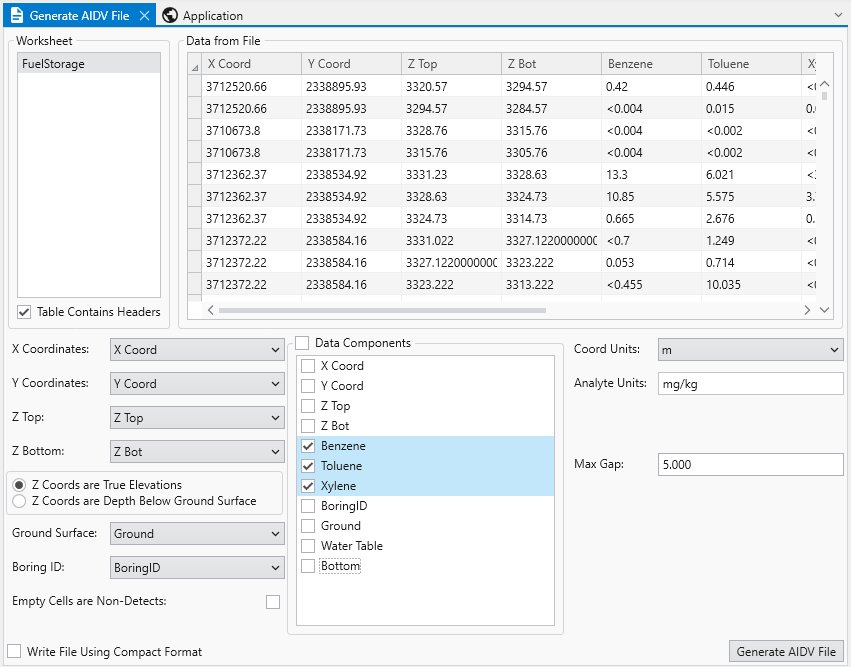
With all of our settings correct as shown above, all we need to do is click the Generate AIDV File button, and let’s call the file btx.aidv.
Info
I also want to point out the option “Empty Cells are Non-Detects”. In general this toggle should be off. Normally empty cells are interpreted as being Not-Measured. It is rare that an empty cell should be a non-detect, which also means that you have no information about detection limits.
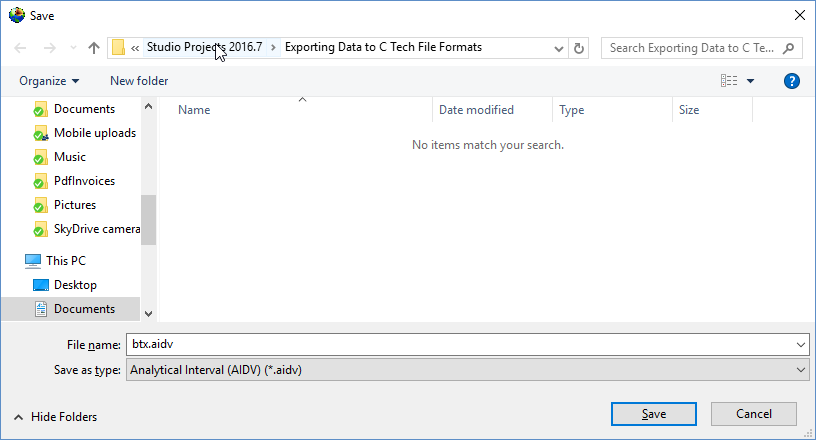
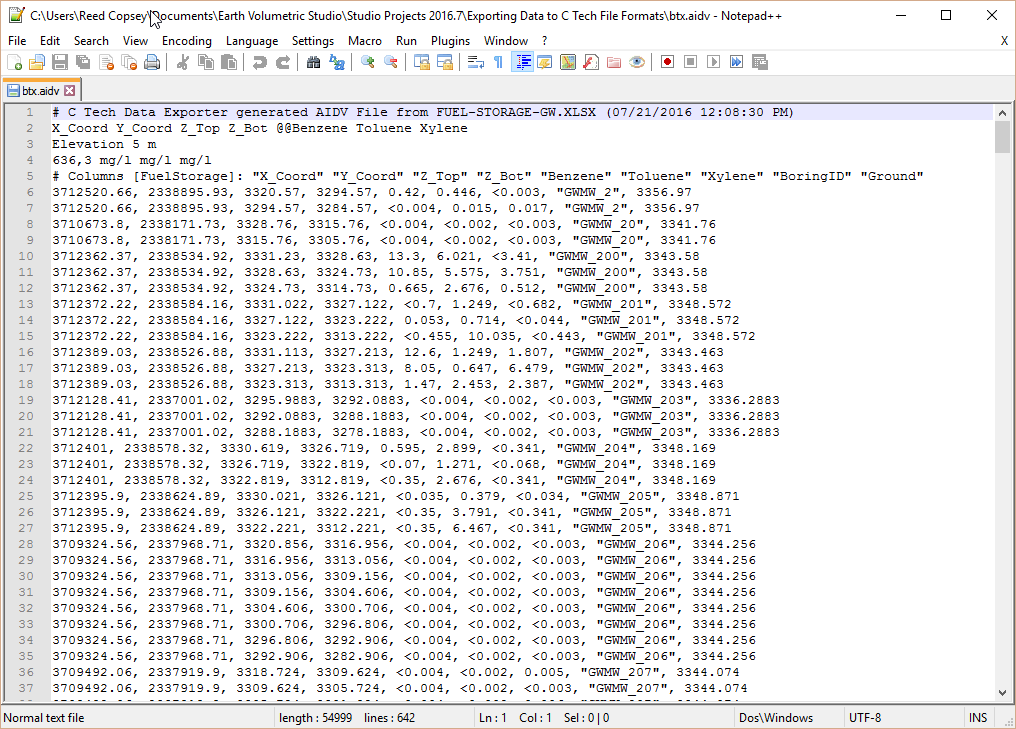
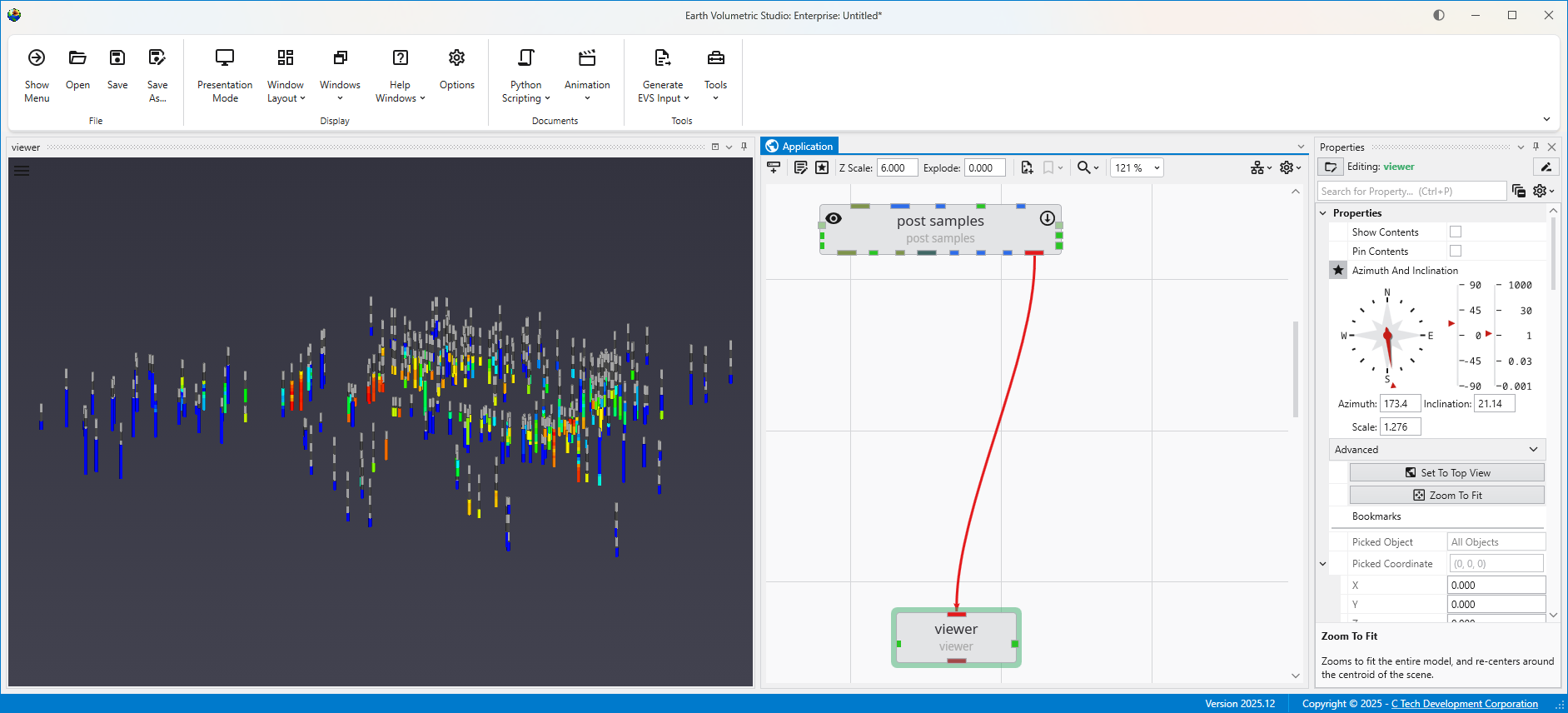
Our last two tasks will be to take a look at the file in a text editor and confirm that it works in Earth Volumetric Studio.
Although Windows comes with Notepad, it is really a very poor text editor since it lacks line numbers, column numbers, and the ability to handle large files. There are many freeware text editors, but the one we like is Notepad++.
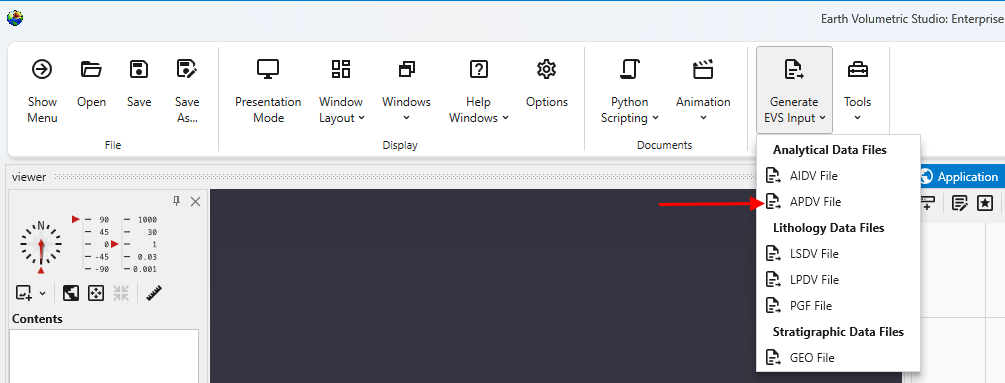
Begin by selecting the “Generate EVS Input” button in the Main Toolbar, and select APDV File.
Note: this topic builds upon Creating AIDV Files and assumes that you have completed that topic.
Let’s browse to the folder shown and select the file Railyard-soil.xlsx
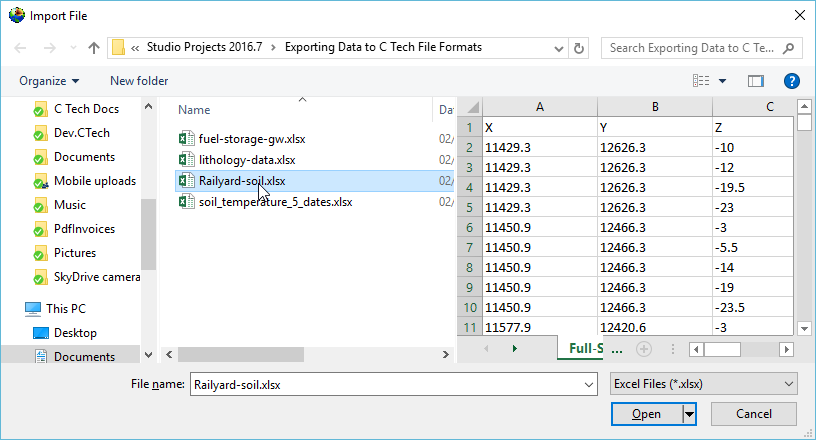
This file has three sheets and for this example, we’ll choose the second one. This particular sheet has Z coordinates represented as both true Elevation and Depth below ground surface. Both are commonly used and it is not uncommon to see both in a database as a convenience for people working with the data. Our exporter can use either one and there is no technical advantage of one over the other. However, the data file created will retain the Z coordinate option selected.
Since we used True Elevations for AIDV files, let’s work with Depths this time. The correct settings are:
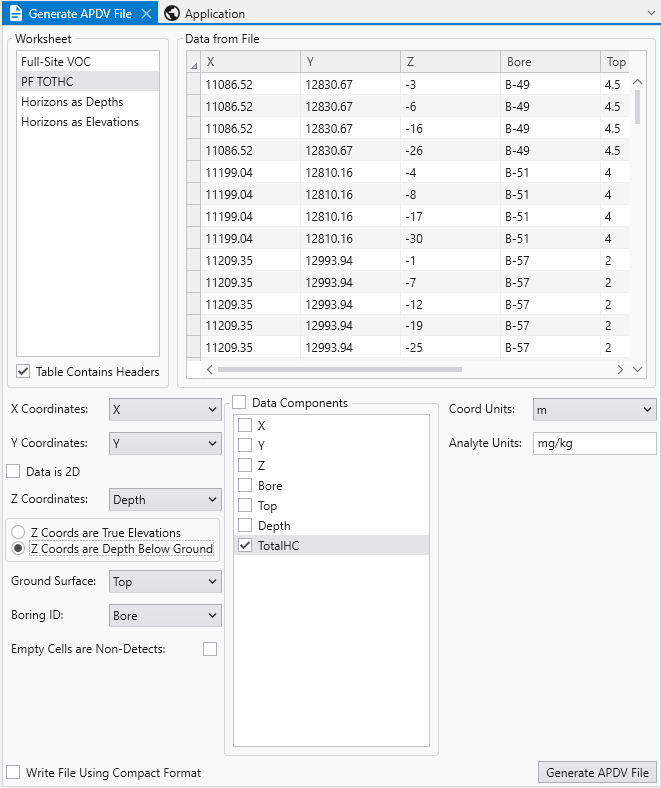
Please note that Top, which is our Ground Surface must be in true elevation since it is the reference surface used to define depths. Depths are always positive numbers with greater depth corresponding to lower elevations.
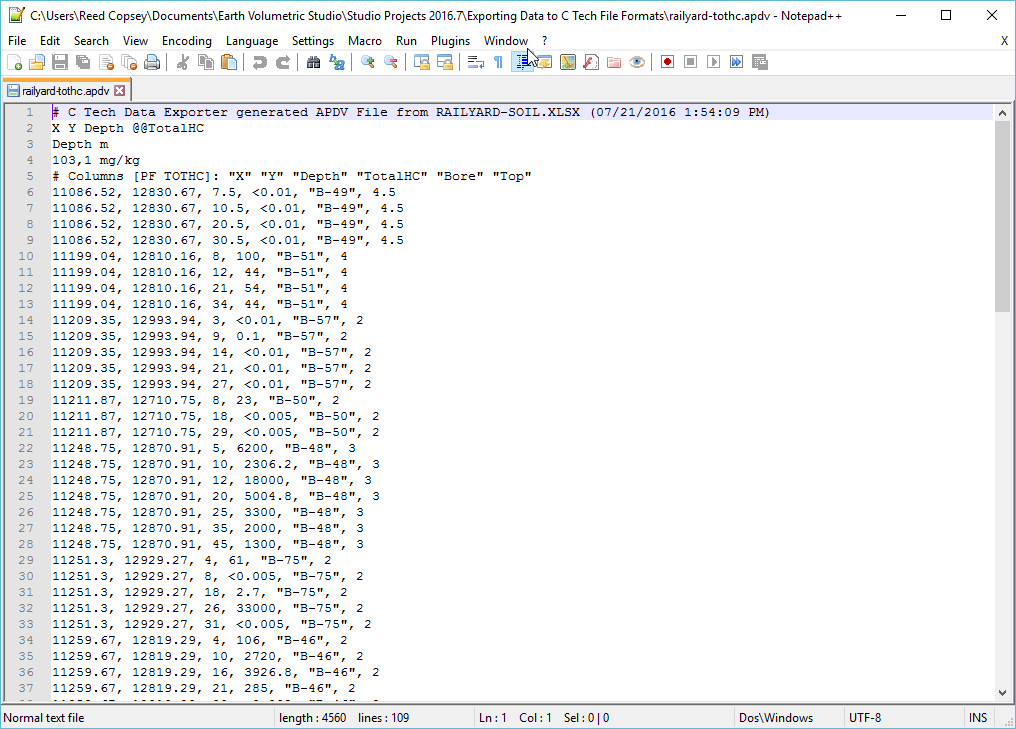
With all of our settings correct as shown above, all we need to do is click the Generate APDV File button, and let’s call the file railyard-tothc.apdv.
In notepad++ our file looks like:
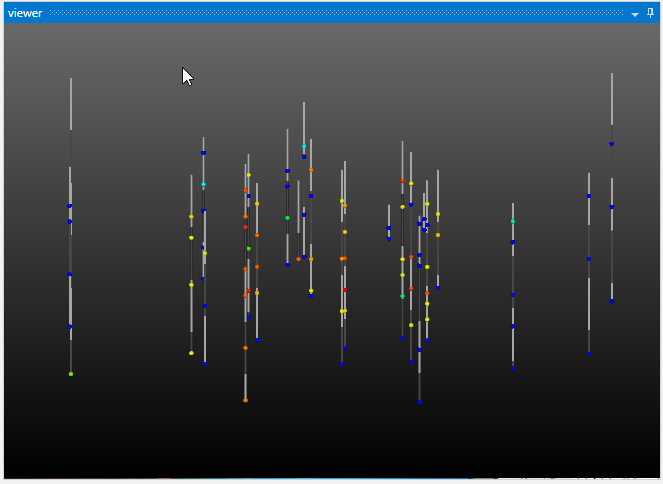
and if we look at this file in Studio with Z-Scale of 5 it is:
Begin by selecting the “Generate EVS Input” button in the Main Toolbar, and select GEO File.
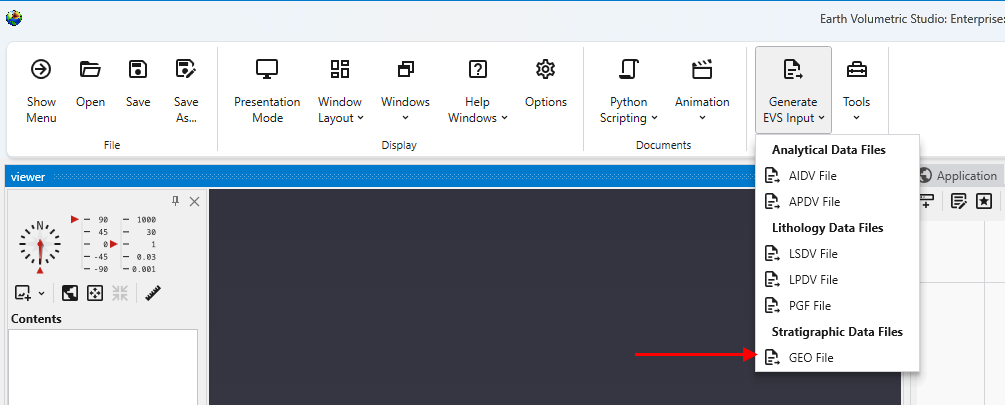
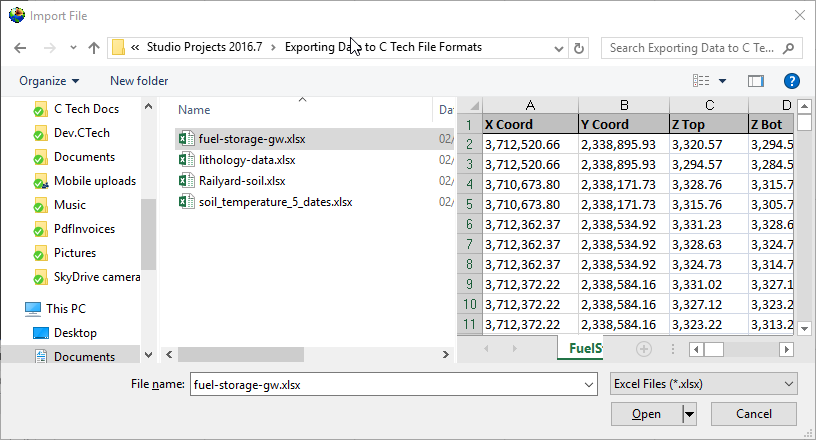
Let’s browse to the folder shown and select the file fuel-storage-gw.xlsx since we mentioned that this file had three surface which we can use for stratigraphic geology. In this case the three surfaces define just two layer which correspond to the vadose and saturated regions, however, that is an important minimal geology file for working with groundwater data.
If we select the only table, choose the correct settings and scroll to the far right we can see the fields that represent our bottom two surfaces:
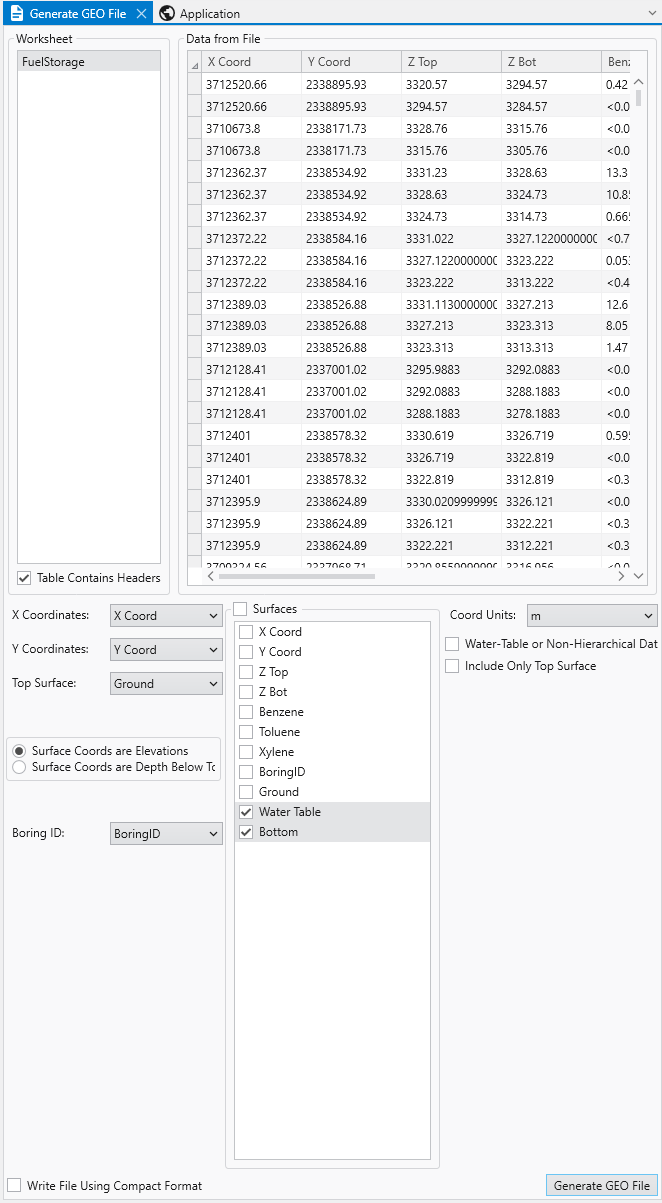
Based on the values for both surfaces, it is clear they are Elevations and not Depths. For the Surfaces selectors, we don’t choose Ground because it is already selected as the Top Surface. This file will have three surfaces defining two layers.
With all of our settings correct as shown above, all we need to do is click the Generate AIDV File button, and let’s call the file btx.geo.
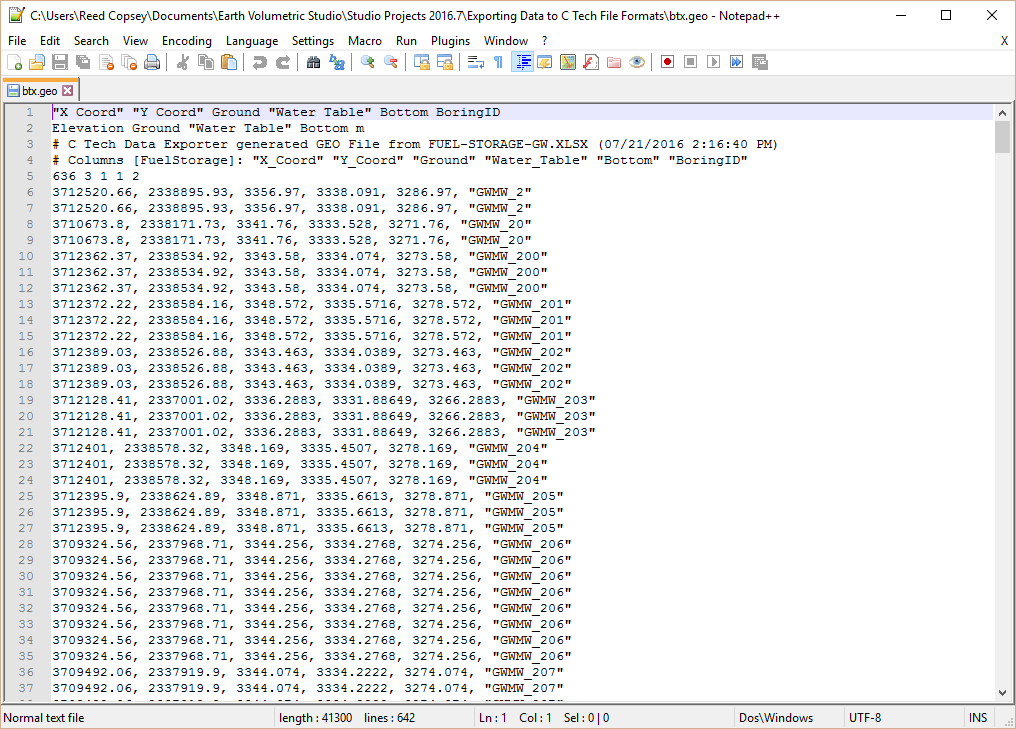
Since geo files are rather boring in post_samples, let’s do something a bit more interesting with this data.
Below is our application and its output. We cheated a bit and I want to explain where and why.
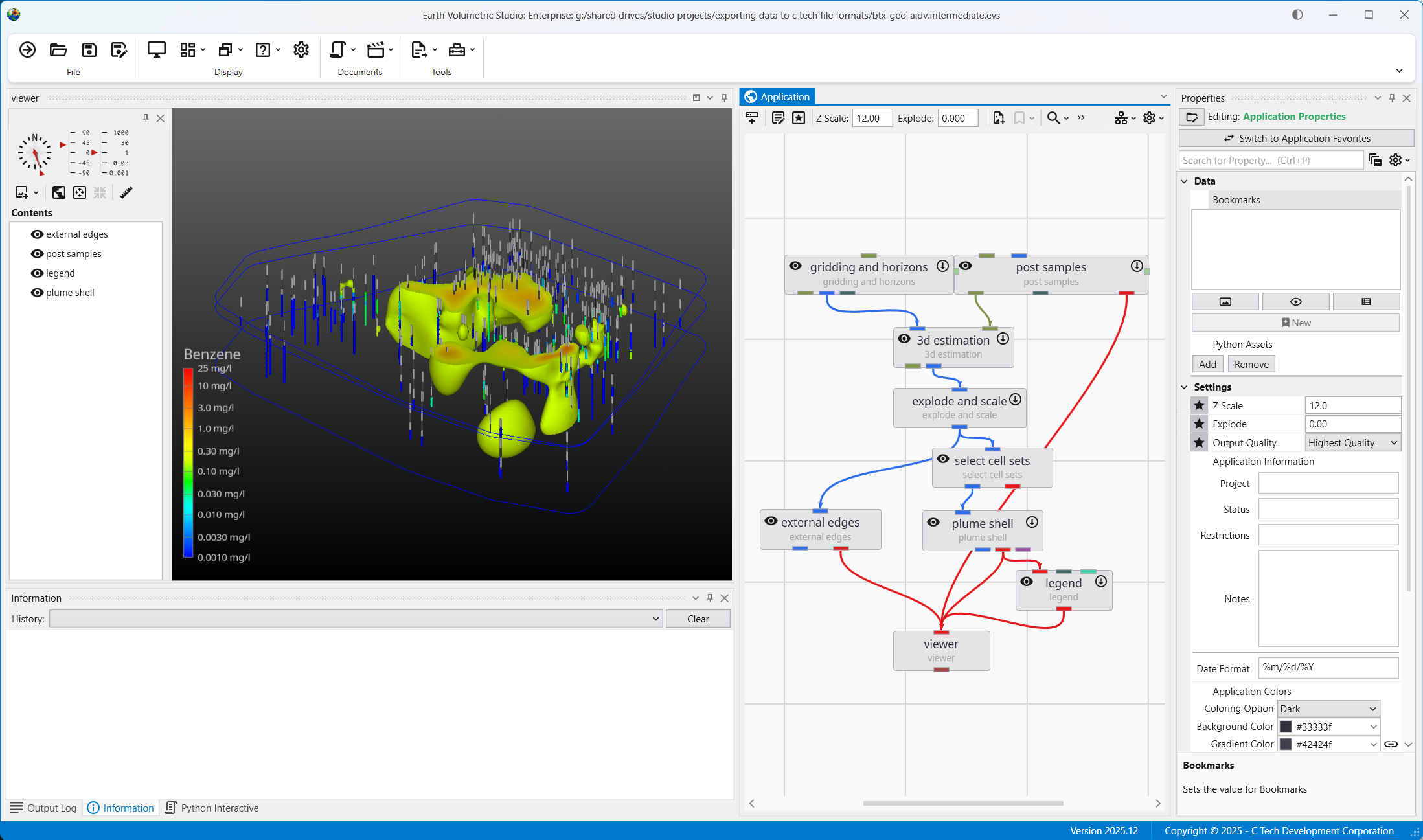
We’ve kriged groundwater data into both layers of our model. However it doesn’t make sense to ever display or do any volumetric analysis of groundwater data in the vadose zone. We could have used the subset horizons module to get only the single bottom layer corresponding to the saturated zone (aquifer) but if we did that, we wouldn’t have both stratigraphic layers which we are displaying with the external_edges module and could display with a variety of other techniques. In that case we would need to create a parallel path in our application where we would use horizons to 3d to create either the top layer only or both layers in order to display the geology separate from the groundwater chemistry.
So we cheated and kriged into both layers, but we used the select cell sets module to turn off the upper layer before we display the plume with plume_shell. If we wanted to do volumetrics, we would be sure to only do so for the bottom layer. Other than a few seconds used to krige into the vadose layer we’ve managed to get by with a simpler application.
Begin by selecting the “Generate EVS Input” button in the Main Toolbar, and select PGF File.
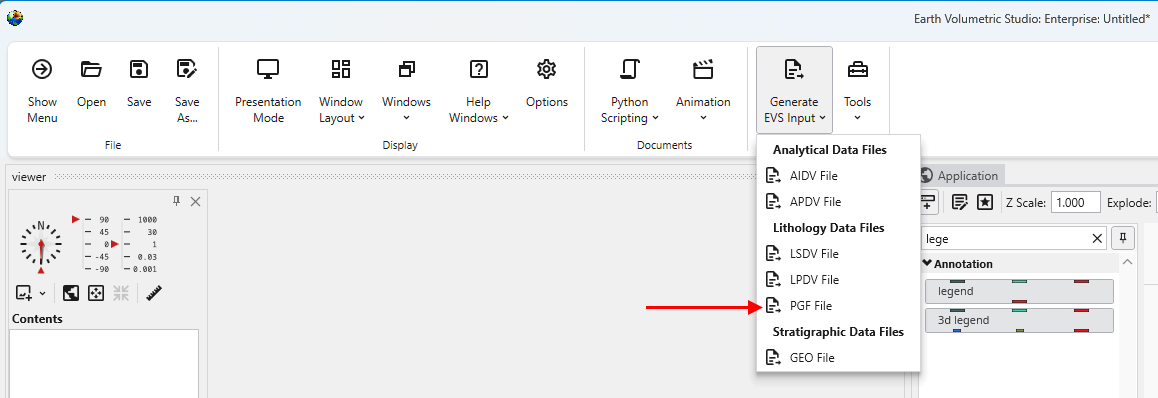
We’ll choose lithology-data.xlsx and its only table, DEMO.
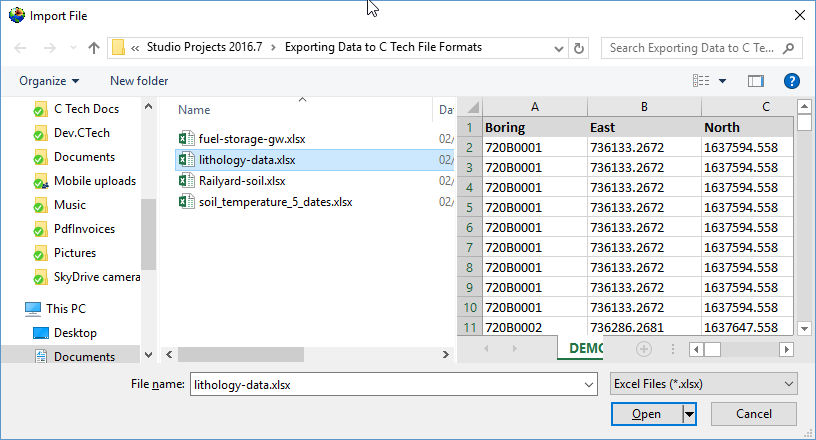
When you look at the table, it is clear that we have a Start and End (Top and Bottom), which means that we need to select the “Rows Are Intervals” toggle in the upper left. This toggle allows us to select separate X-Y-Z coordinates for the Start and End to handle non-vertical borings, but if the borings are vertical, both X and Y columns can be the same.
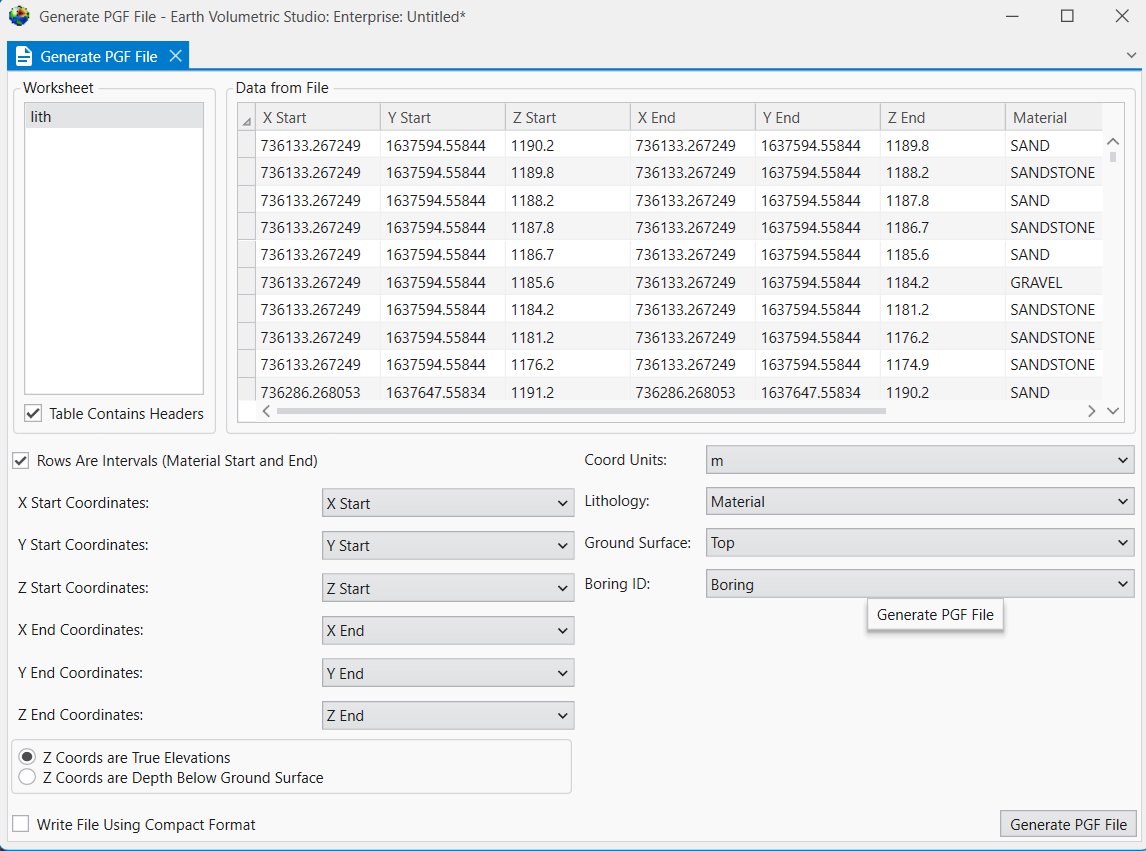
This is another table where we could work in Depths or Elevations. However for a PGF file, the file itself is always in Elevation, so if you choose depth, it just does the conversion before creating the file. We’ll just use the elevation fields directly. However, always make sure you’ve selected the right ones and be consistent.
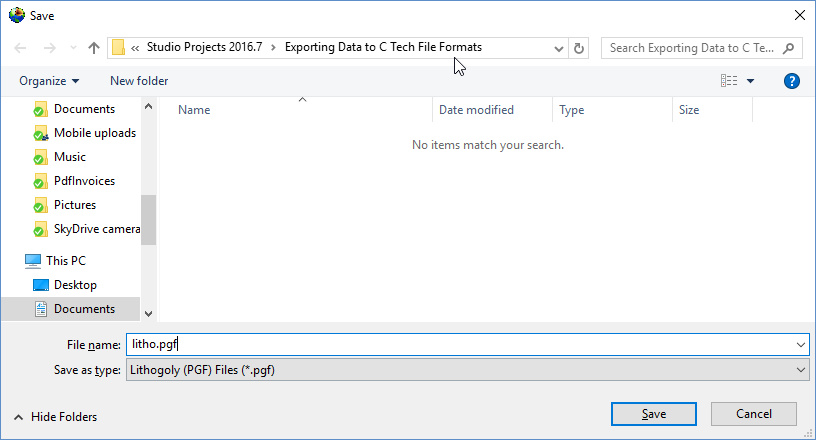
With all of our settings correct as shown above, all we need to do is click the Generate PGF File button, and let’s call the file litho.pgf.
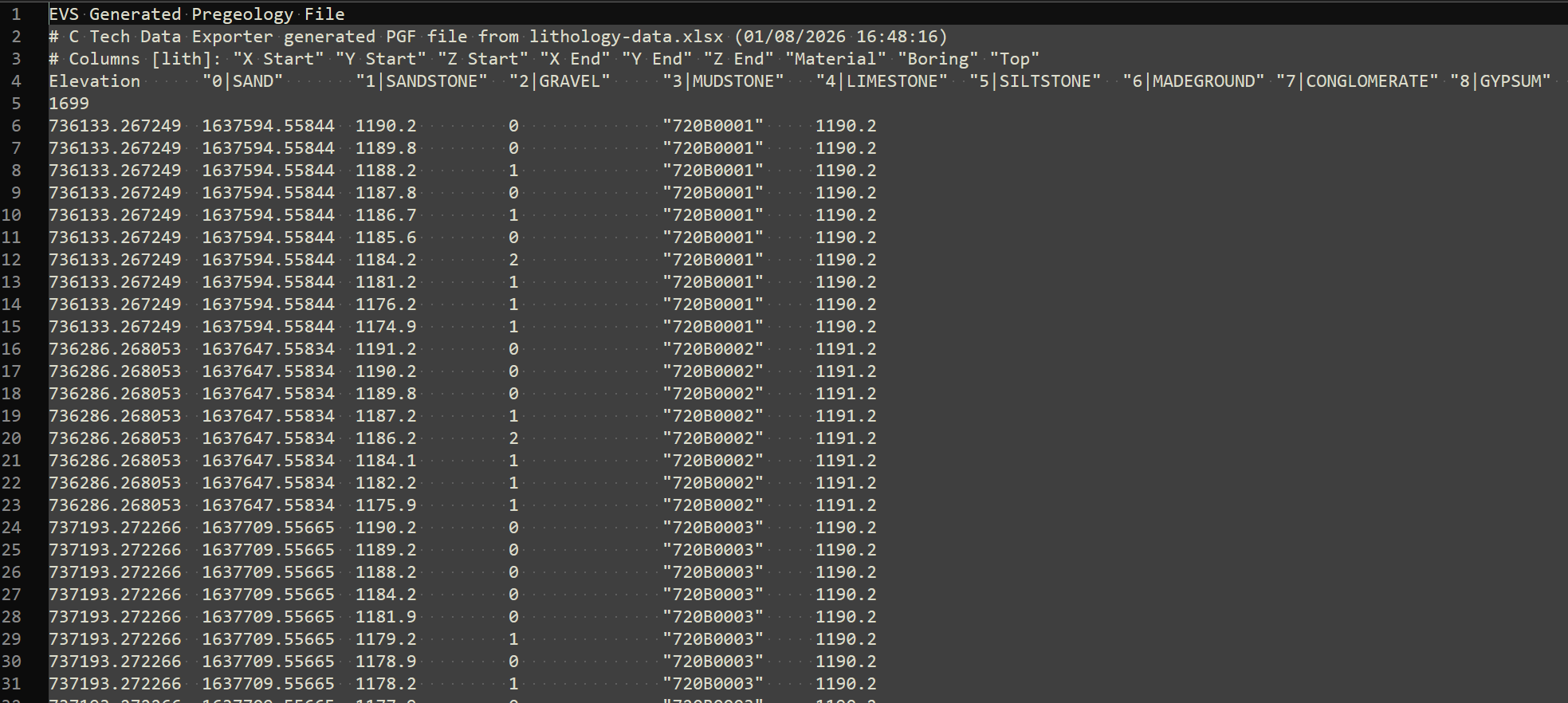
Below is the file in Notepad++
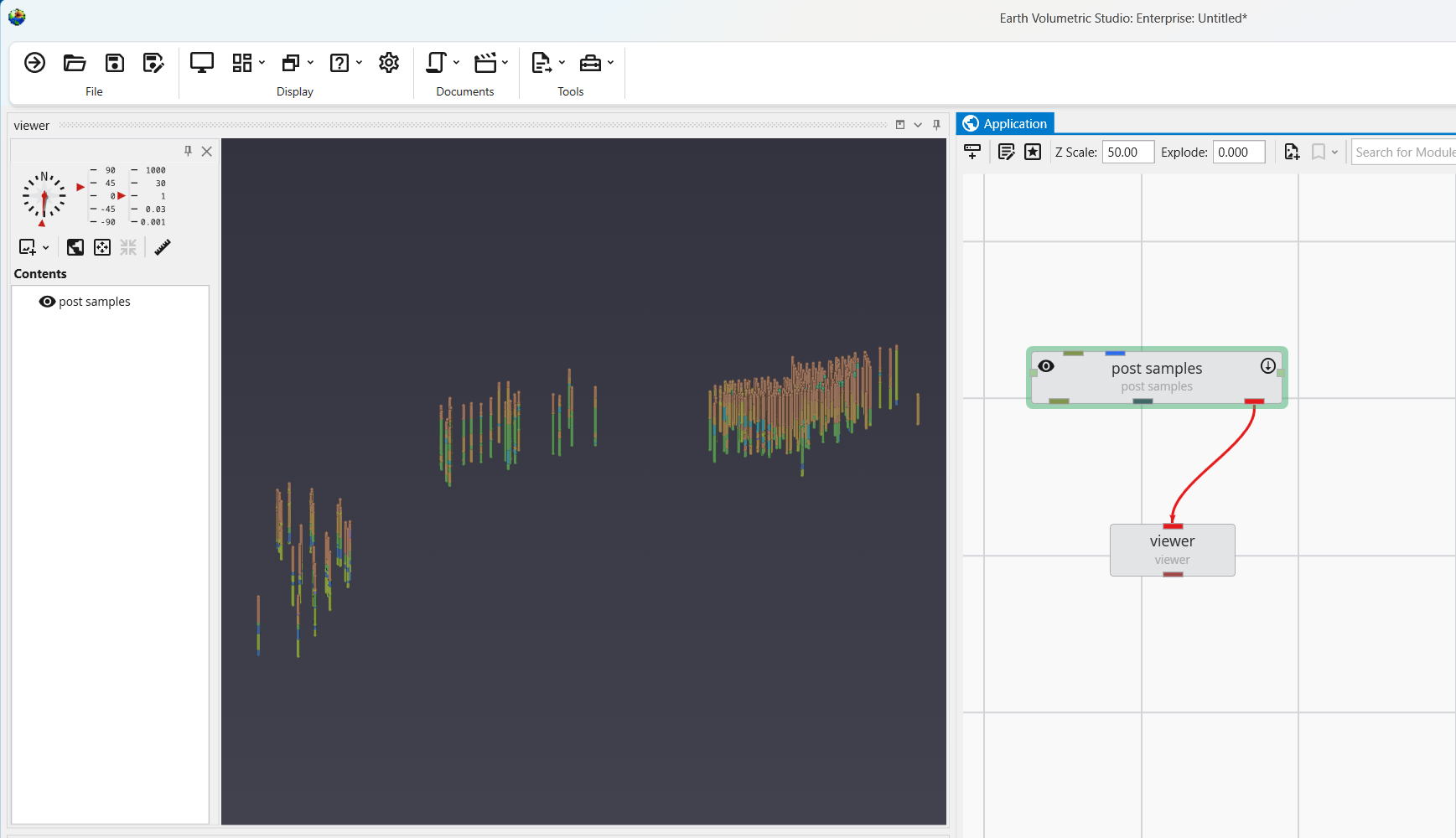
We can now load this file in post samples, where we can see that this dataset spans a very large set with borings in three distinct groupings. We need a Z-Scale of 50 to be able to see the borings well.
The collection and formatting of data for volumetric modeling is often the most challenging task for novice EVS users. This tutorial covers the instru
Let's begin by creating a very simple application. In the Modules pane in the Application window, type p in the Search for Module section.
With the simple application from the previous topic, let's read a PGF file and see that data represe
To view a GEO file, the process is nearly identical as with PGF.
GMF files are different than most other C Tech file formats in that the data is specifically NOT associated
APDV files represent analyte data which is measured at points. The data can be collected at scattered loca
AIDV files represent analyte data which is measured over an interval. The data is inherently collected alo
Subsections of Workbook 4: Understanding 3D Data
The collection and formatting of data for volumetric modeling is often the most challenging task for novice EVS users. This tutorial covers the instructions for preparing and reviewing all types of data commonly used in Earth Science modeling projects.
The next topics will demonstrate how to visualize these file formats, helping to ensure the quality and consistency of your data.
The following guidelines will simplify your data preparation:
- Use a single consistent coordinate projection (e.g. UTM, State Plane, etc.) for all data files used on a project, ensuring that X, Y and Z coordinate units are the same (e.g. meters or feet).
- For each file, you must know whether your Z coordinates represent Elevation or Depth below ground surface (most EVS data formats will accommodate both)
- Understand the data formats and what they represent. Below is a list of C Tech’s primary ASCII input file formats:
- Geologic Data
- PGF: A PGF file can be considered a group of file sections where each section represents the lithology for individual borings (wells). Typical borings logs can be easily converted to PGF format, and many boring log software programs export C Tech’s PGF format directly.
- GEO: This file format represents a series of stratigraphic horizons which define geologic layers. GEO files are limited to data collected from vertical borings and require interpretation to handle pinched layers and dipping strata. The create stratigraphic hierarchy module may be used to create GEO files from PGF files, though they can be created in other ways.
- GMF: This file format represents a series of stratigraphic horizons which define geologic layers. GMF files are not limited to vertical borings as GEO files are. Each horizon can have any number of X-Y-Z coordinates, however interpretation is still required to handle pinched layers and dipping strata. The create stratigraphic hierarchy module may be used to create GMF files from PGF files.
- Analytical Data
- Analytical Data files can be used for many types of data and industries including:
- Chemical or assay measurements
- Geophysical data (density, porosity, conductivity, gravity, temperature, seismic, resistance, etc.)
- Oceanographic & Atmospheric data (conductivity, temperature, salinity, plankton density, etc.)
- Time domain data representing any of the above analytes
- APDV: The Analytical Point Data Values (.apdv) format should be used for all analytical data which is (effectively) measured at a point. Even data which is measured over small consistent (less than 1-2% of vertical model extent) intervals should normally be represented as being measured at a single point (X-Y-Z coordinate) at the midpoint of the interval. Time domain data for a single analyte should use this format.
- AIDV: The Analytical Interval Data Values (.aidv) format should be used for all analytical data which is measured over a range of elevations (depths). Data which is measured over variable intervals, usually exceeding 2% of vertical model extent should use this format. Time domain data for a single analyte should use this format.
- Analytical Data files can be used for many types of data and industries including:
- Geologic Data
- The C Tech Data Exporter will export the above formats for data in Excel files and Microsoft Access databases. In all cases, the data source must contain sufficient information to create the desired output.
It is important to view your data prior to using it to build a model. There are many common file errors that can be quickly detected by viewing your raw data files, including:
- Transposing X & Y (Easting and Northing) coordinates
- Using Depth or Elevations incorrectly
- Consistency of geologic and analytical data
Let’s begin by creating a very simple application. In the Modules pane in the Application window, type p in the Search for Module section.
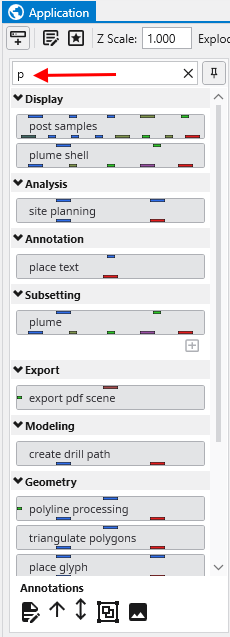
Notice that as soon as you type p, only those modules which start with this letter are displayed. The one we want in the first one listed, “post samples”.
We now want to copy the post_samples module into our Application window. We do this using the mouse. Left-click on “post samples” in the Modules window and hold the mouse down. Drag post samples to the Application Network window and place it above the viewer as shown below.
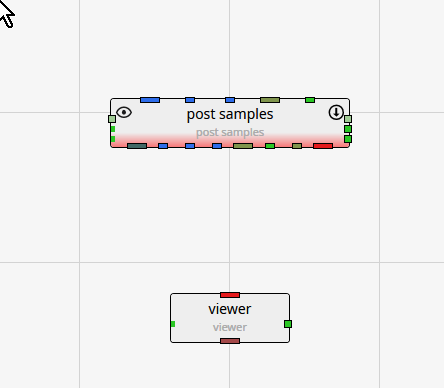
Note that post samples has a red border along the bottom. This tells us that the module has not yet run. This visual indication is very useful, especially with complex applications.
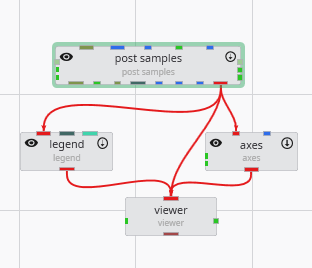
The next step is to connect post samples and the viewer. You can see that the only port color they have in common is red. Left-click in the red output port of post samples:
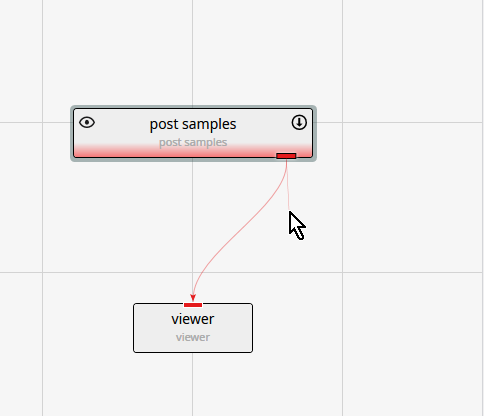
Then, while holding down the left-mouse, drag a short distance from the port, but near the thin-red connection, until the connection becomes bolder.
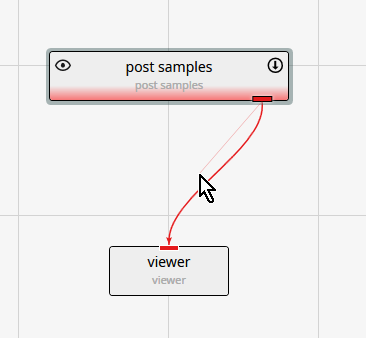
At this point, release the left mouse button and the connection is made. The reason for the thin and bolder lines is that there are often multiple modules that can be connected. All will be shown thin, but only the connection which is closest to the cursor will be bold.
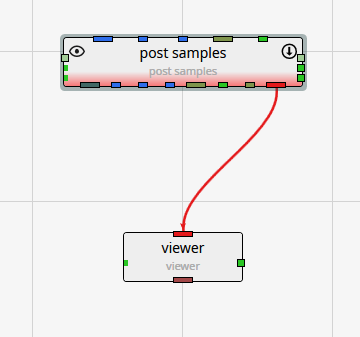
Deleting a connection
If we make an incorrect connection, we can delete the connection. To delete the connection, merely click on it to highlight it and then press the Delete key on your keyboard.
With the simple application from the previous topic, let’s read a PGF file and see that data represented in the viewer.
Double-left-click on post samples in the Application Network window to make its settings editable in the Properties window.
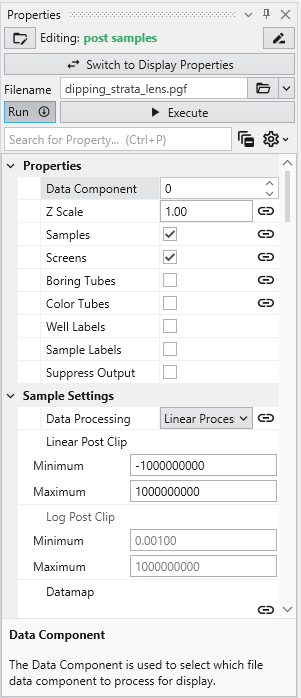
post samples will automatically adjust many of its settings based on the type of file read. Click on the Open button and browse to the Lithologic Geologic Modeling folder in Studio Projects and select dipping_strata_lens.pgf.
post samples will automatically run and your viewer should show a top view of:
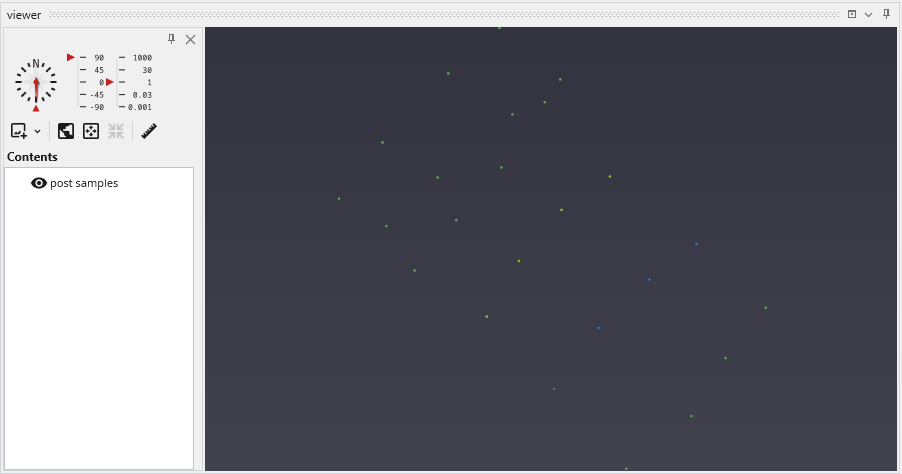
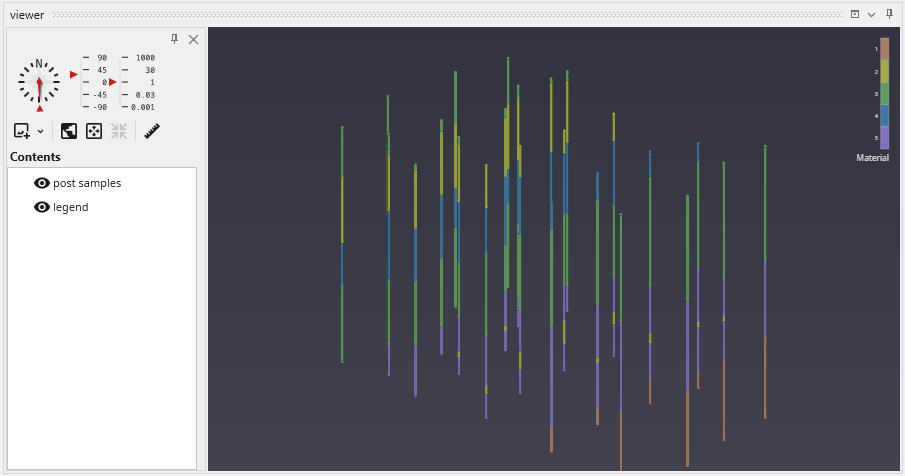
By default, we are seeing a top view of the borings represented in the PGF file. Using the left mouse button, rotate the view so you can see the 3D borings which are colored by lithology (geologic material).
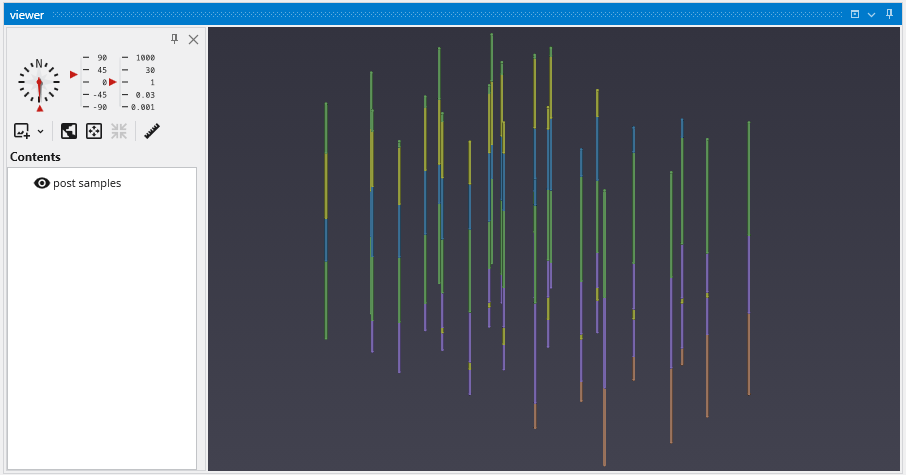
The image above demonstrates the default display of PGF (pregeology) files. The lithology intervals are colored by material and spheres are located at the beginning and end of each interval.
The colors represent material and range from purple (low) to orange-brown (high). Since this is geology, let’s add a legend to make it clear what materials correspond to our colors.
Type “l” in the Modules pane in the Application window and it will display
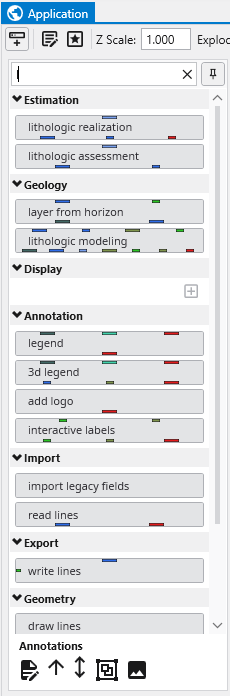
Copy legend to the Application (left-click and drag) and make the new connections as shown below
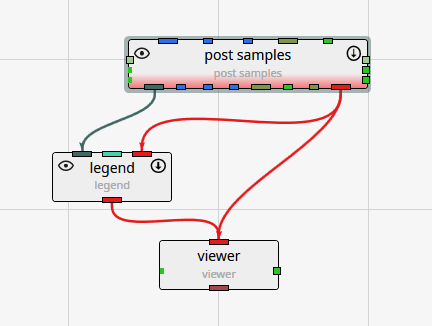
You can move the modules around so that your application and the associated connections between modules is as clear as possible. However, the arrangement (placement) of the modules does not affect how the application behaves. With legend our view becomes:
In the next topic, Viewing GEO Files, we’ll adjust colors
To view a GEO file, the process is nearly identical as with PGF.
Replace post_samples with a fresh instance of the module because when we read different file types, there are many settings in post samples which can change:
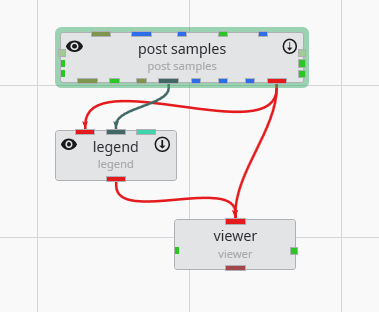
Click on the Open button and browse to the Lithologic Geologic Modeling folder in Studio Projects and select railyard_pgf.geo.
Your viewer (after rotating) should show:
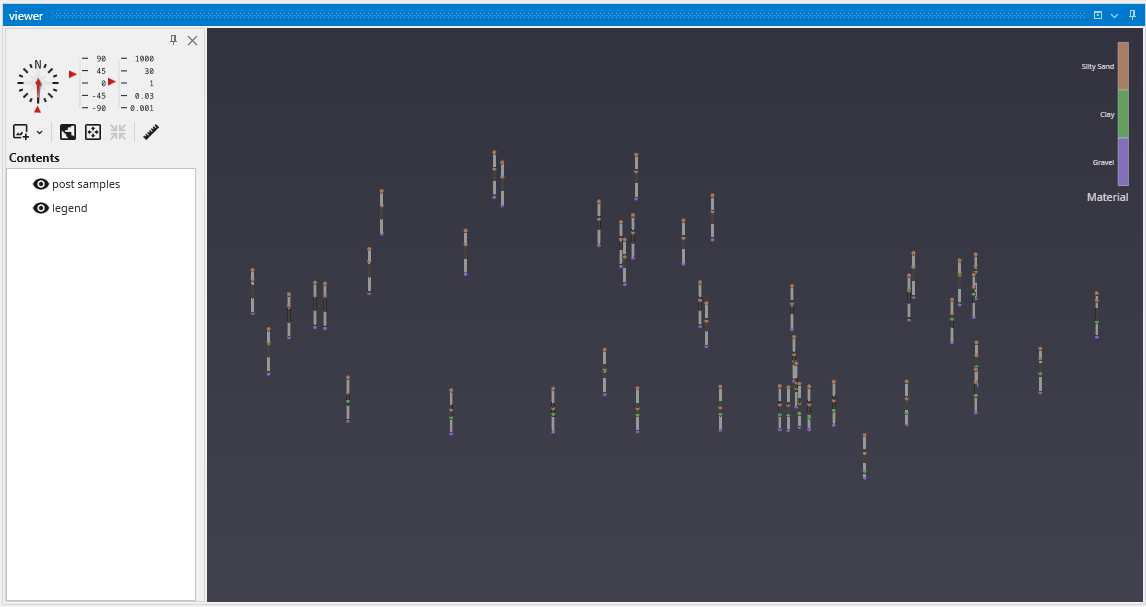
Your first question might be, why are the borings so short?
Welcome to the real world. In the last topic we were dealing with a site where the z-extent was comparable to the x & y extents. But for this site, the z extent is 5-10% of the x-y extent. In order to better see the Stratigraphy represented by our .GEO file, we need to apply some vertical exaggeration, which we also refer to as Z-Scale.
We find the Z-Scale parameter in one of 2 places. Either at the top of the Application window:
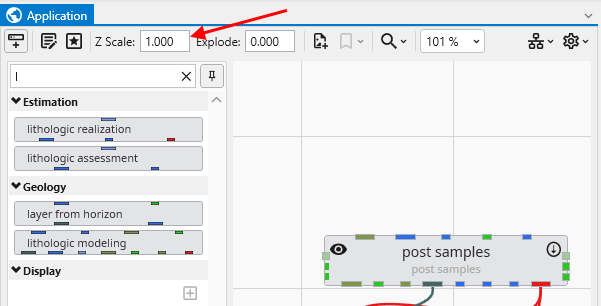
or in the Application Properties. To get to the Application Properties, double click on any blank space (not on a module or connection) in the Application.
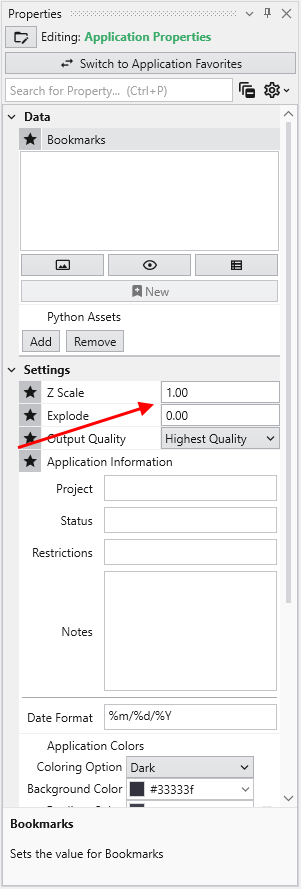
Notice if we change it here, to be 5, it changes on the Home tab and in every module which has a Z-Scale. Our viewer now shows:
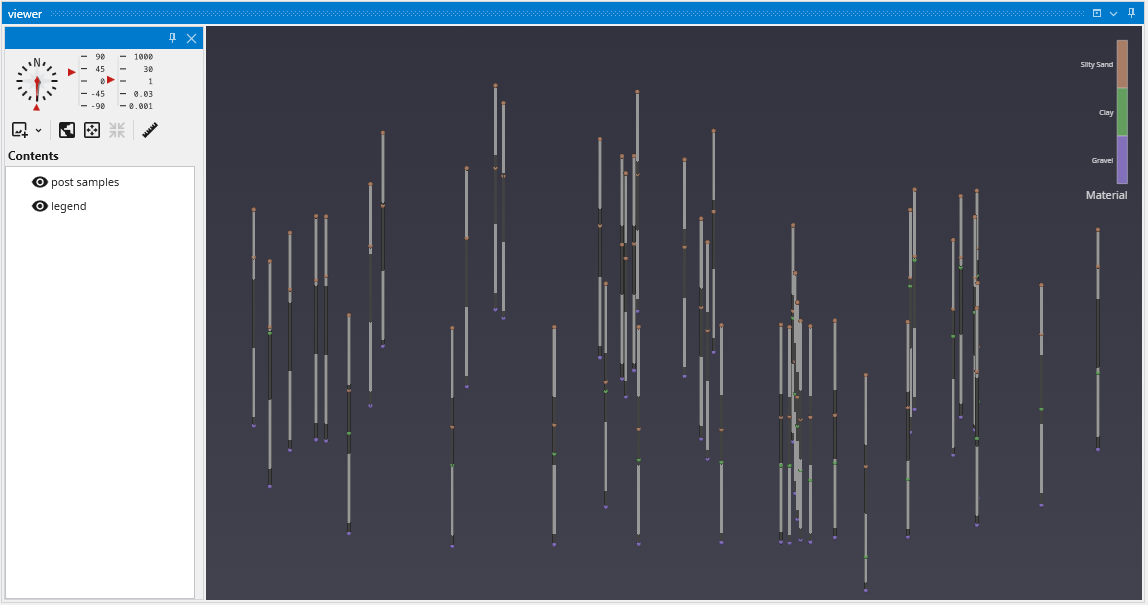
Please note: We could have changed the Z-Scale in post samples, but by doing so, we would have broken its link to the Global Z-Scale on the Home tab and Application Properties. In general you want all modules to share the Global Z-Scale, but there are times when you want control on a module-by-module basis. That is why we allow both.
GMF files are different than most other C Tech file formats in that the data is specifically NOT associated with borings. GMF files can be viewed using post samples, but file statistics can often be more useful, especially when dealing with large datasets.
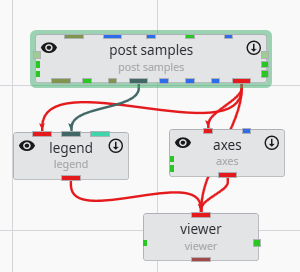
Let’s build a new application:
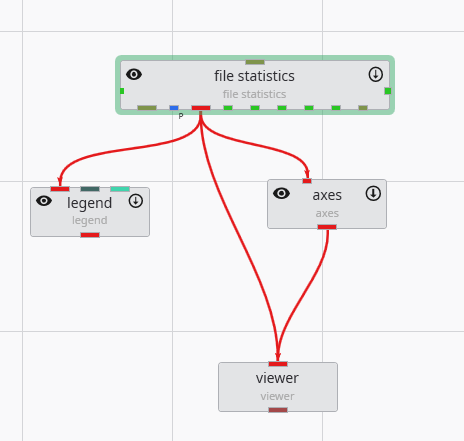
file statistics (and post samples) will only display a single surface of a GMF file at one time. The advantage of file statistics is that it will provide the extents and basic statistics information. The Data Component parameter determines which surface is displayed. 0 (zero) is the first surface.
file statistics outputs points which are colored by elevation (for GMF files).
Double click on file statistics and select the file Reference\bottom.gmf. In the Application window at the top or the Application Properties, make sure the Z-Scale is set to 5.0.
The viewer should show:
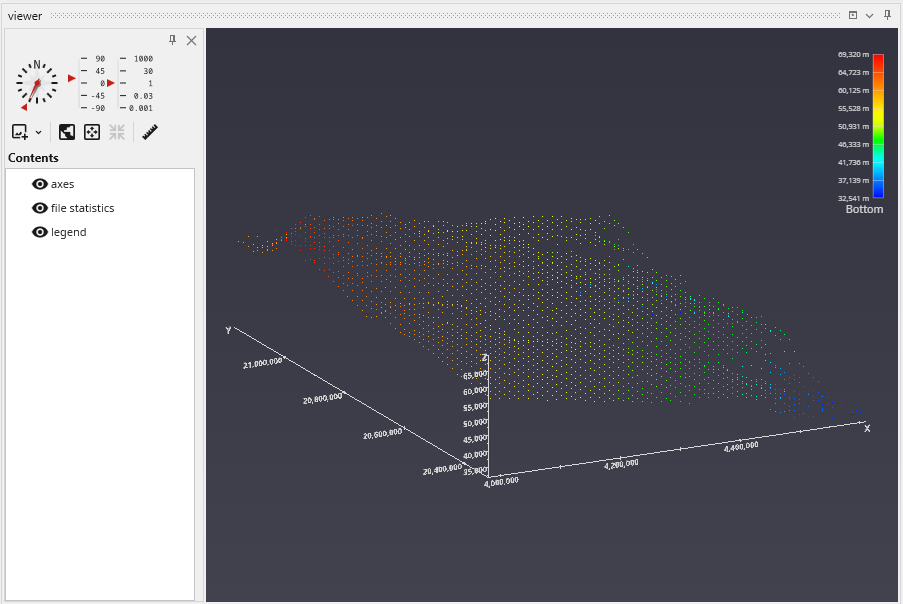
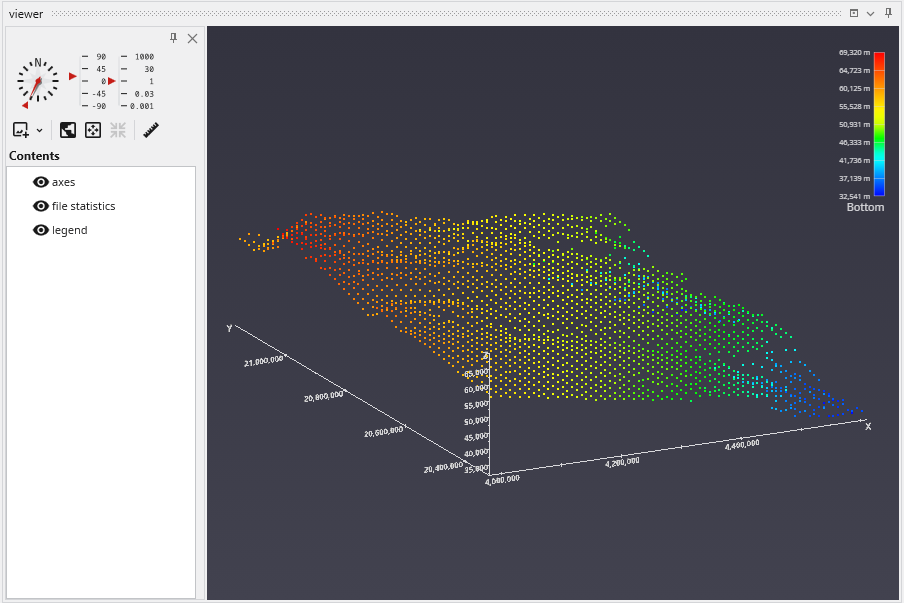
In the view above, each point is displayed as a single pixel point. You can increase the size to be a square of 2x2 pixels or larger using the Point Width parameter.
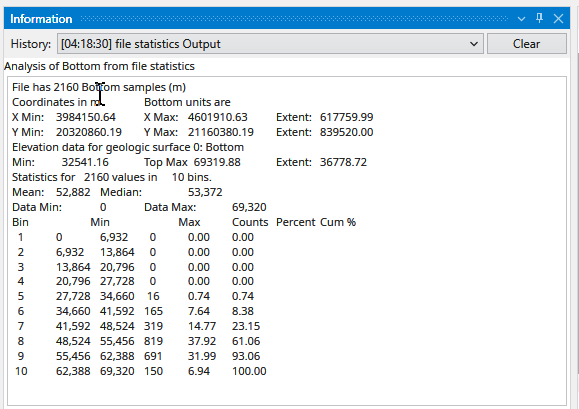
When file statistics runs, it provides the following information to the Information window.
Note that Number of Bins was set to 10, and Detailed Statistics was turned on.
APDV files represent analyte data which is measured at points. The data can be collected at scattered locations or along borings. When boring IDs are included in the file, post samples will draw the borings as well as the samples.
Create the following application. It is nearly identical to the application used for PGF files, but we do not need to connect the yellow port which contains geology or lithology names, as those are not applicable to APDV (or AIDV) files. However, if you do connect it, it won’t hurt anything.
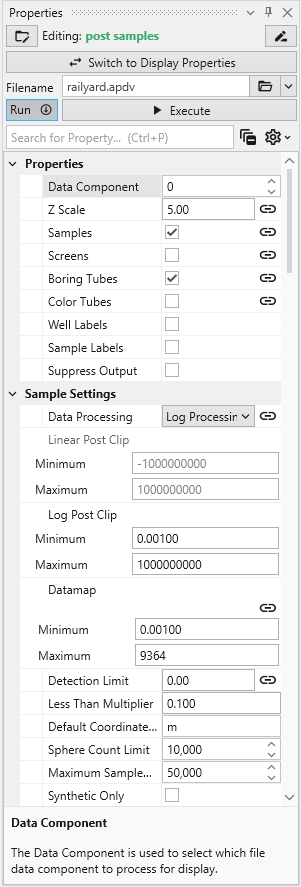
Double click on post samples to open its Properties window. Select Analytic and Stratigraphic Modeling\railyard.apdv and change the Z Scale to 5 on the Application window or Application Properties.
to show the following in the viewer.
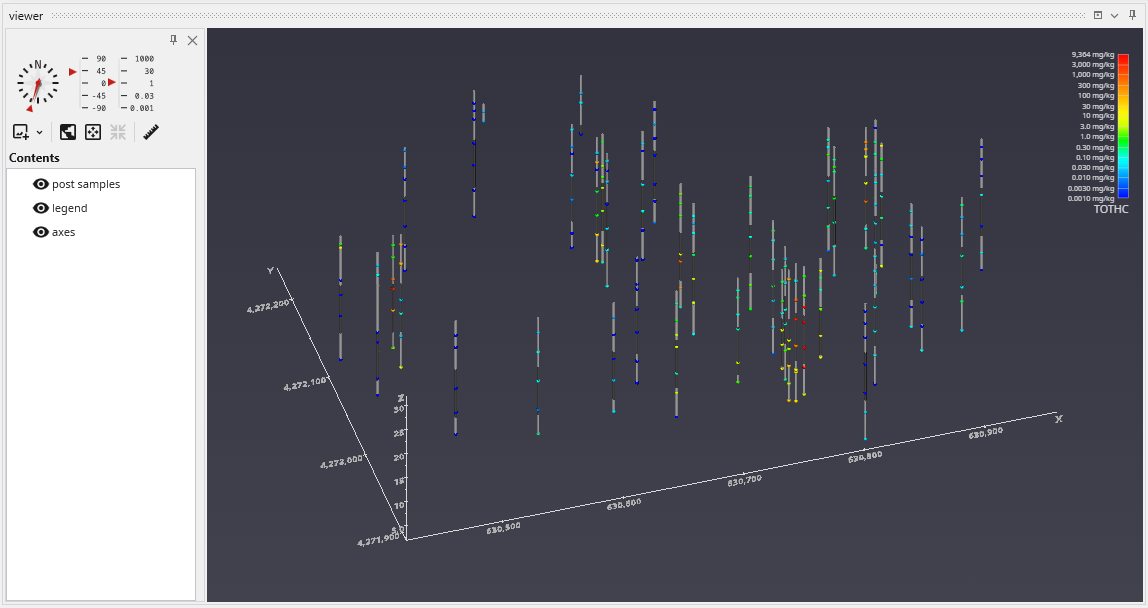
post samples has many options for displaying this type of data (also applicable to PGF, GEO, AIDV). These include (but are not limited to):
- displaying the data as colored tubes (with or without spheres/glyphs)
- using different glyphs to represent each sample (a sphere is the default glyph)
- changing the diameter of glyphs or tubes based on the data magnitudes
- labeling the samples and/or borings
Let’s see the four options above:
It is easy to display colored tubes. You can scroll down to the Color Tubesoption in the “Properties” cagtegory.
Check the Color Tubes option:
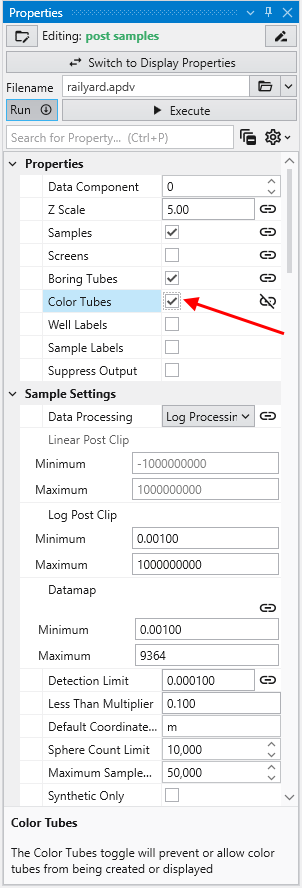
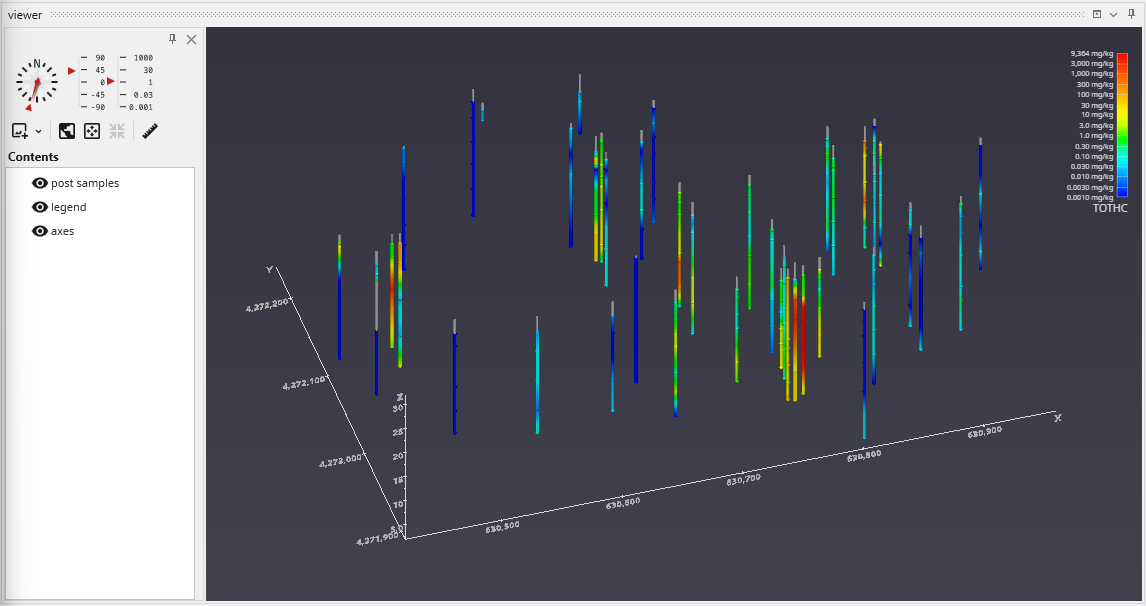
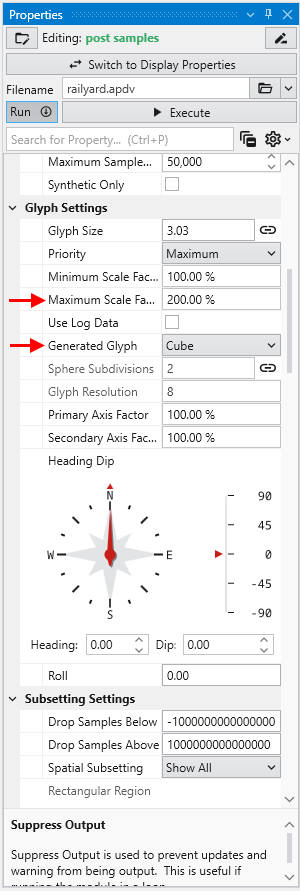
To change glyphs is incredibly simple. We just go to the Glyph Settings, and we’ll change the Generated Glyph to be Cube instead of the default Sphere, and we’ll also set the Maximum Scale Factor to be 200%
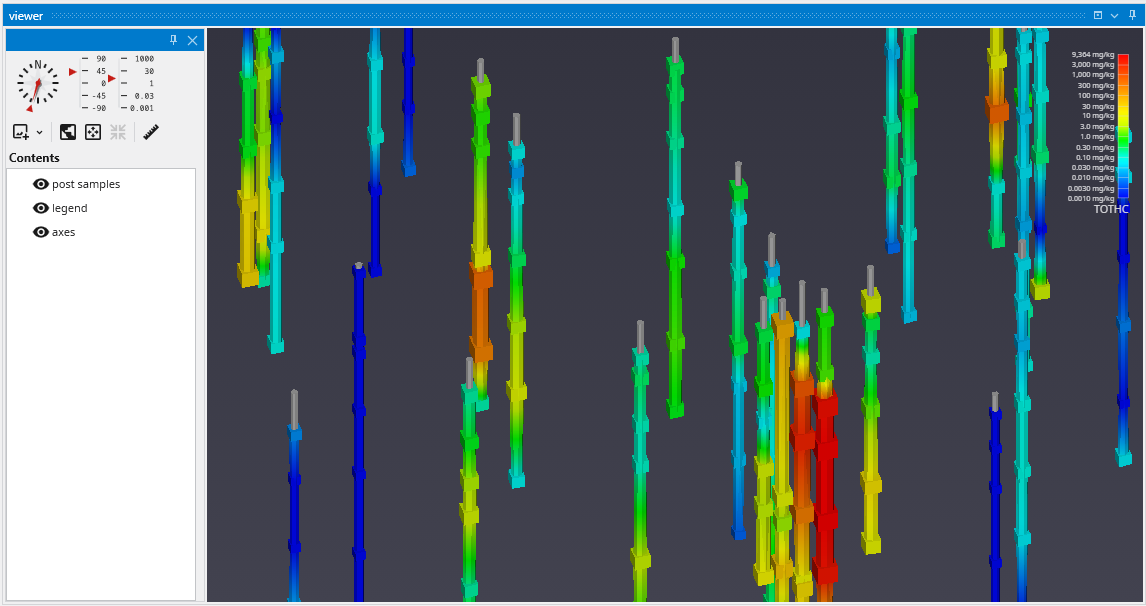
Since we’ve still left colored tubes on, our viewer shows:
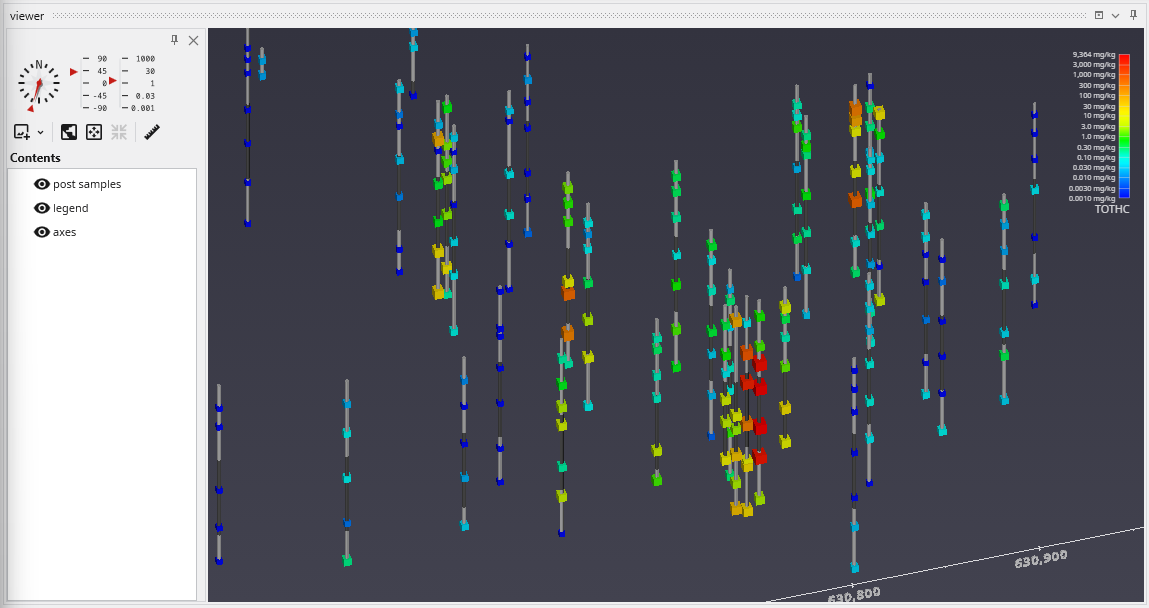
Before we make any other changes let’s uncheck the Color Tubes option again which will change our view to be:
Finally, we’ll add labels at each sample and the top of the borings:
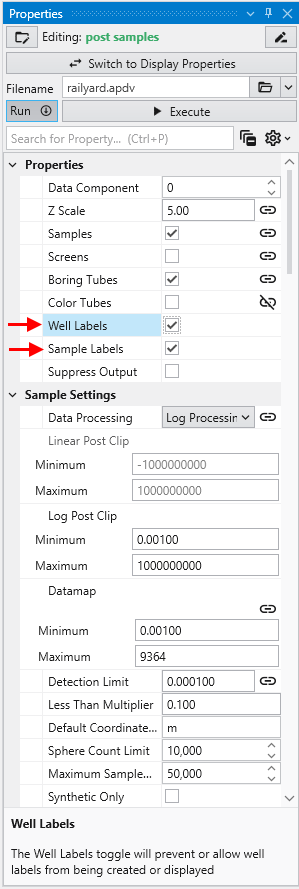
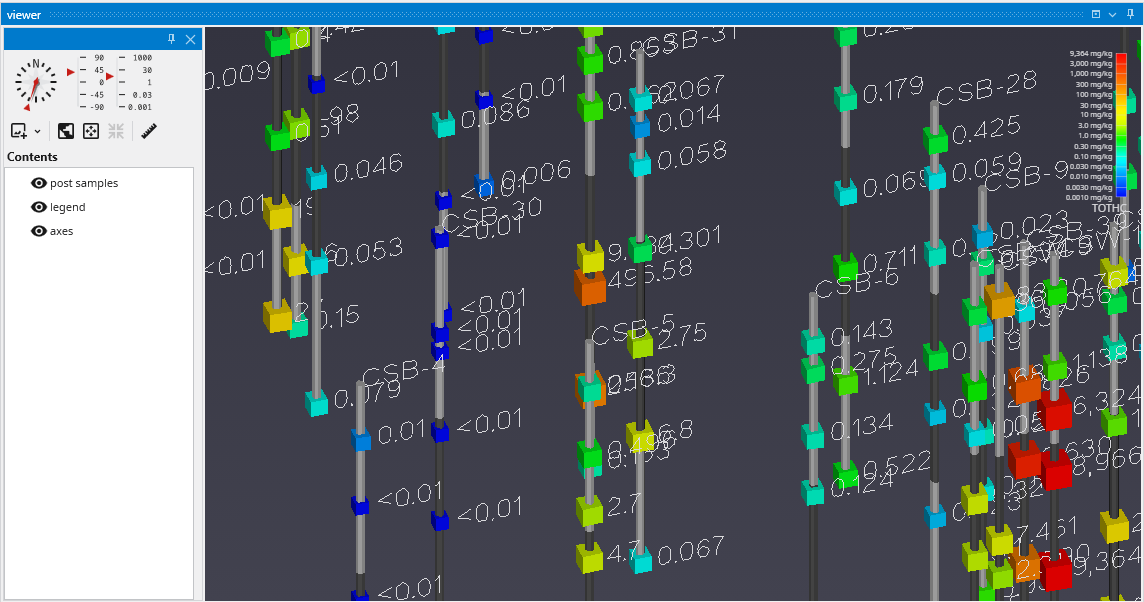
When working with dense datasets, sample labels can become cluttered and difficult to read. The post samples module includes label subsetting features to resolve this by intelligently blanking labels to improve clarity. This functionality is controlled by the Label Subsetting option in the Label Settings category.
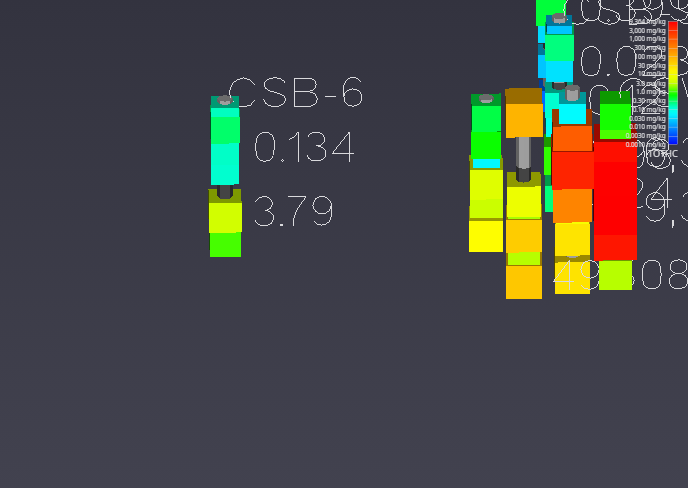
For example, if you set the Z Scale in the Application Properties to 1.0 and zoom in on a boring with dense data, such as CBS-6, you will see the problem of overlapping and unreadable labels:
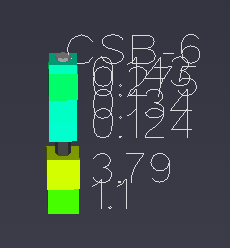
To resolve this, locate the Label Subsetting option and set it to Blank Labels.
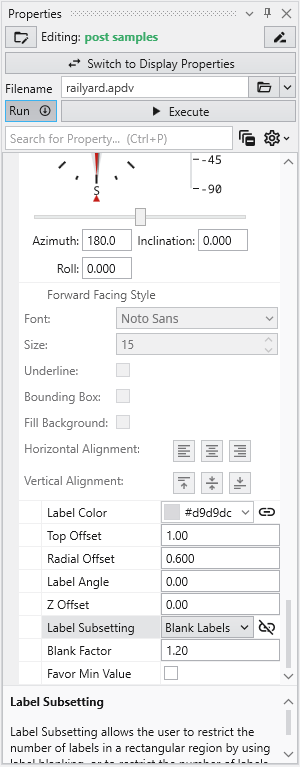
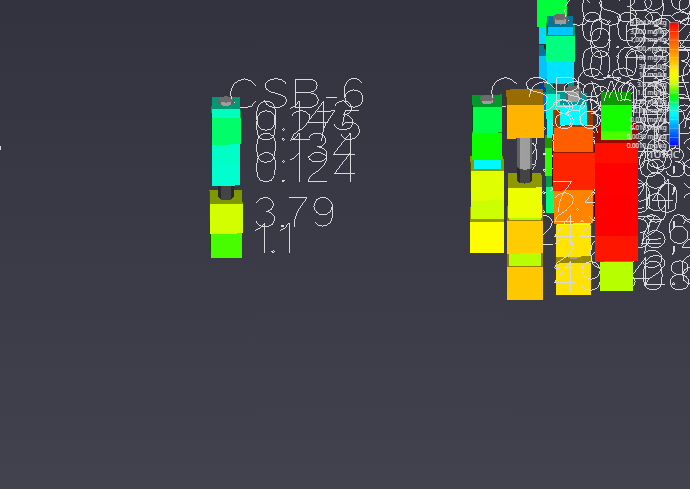
By default, Label Subsetting is set to None. Changing it to Blank Labels enables collision detection, which hides lower-priority labels that overlap with higher-priority ones. Label priority is determined by the sample’s value, with higher values taking precedence. Well labels, if enabled, are always given the highest priority. The result is a much cleaner and more informative visualization.
| Before: No Blanking | After: Blanking Enabled |
|---|---|
| 
|
You can further refine the display using the following settings:
- Blanking Factor: This setting controls the size of the buffer around each label used for collision detection. Increasing this value creates more space around labels, potentially blanking more of them.
- Boring Min/Max: This mode displays only one sample label per boring, either the one with the highest or lowest value. The Favor Min Value toggle determines which is shown.
AIDV files represent analyte data which is measured over an interval. The data is inherently collected along borings. Boring IDs are required in the file, and post samples will draw the borings as well as the sample intervals.
Create the following application. It is identical to the application used for APDV files.
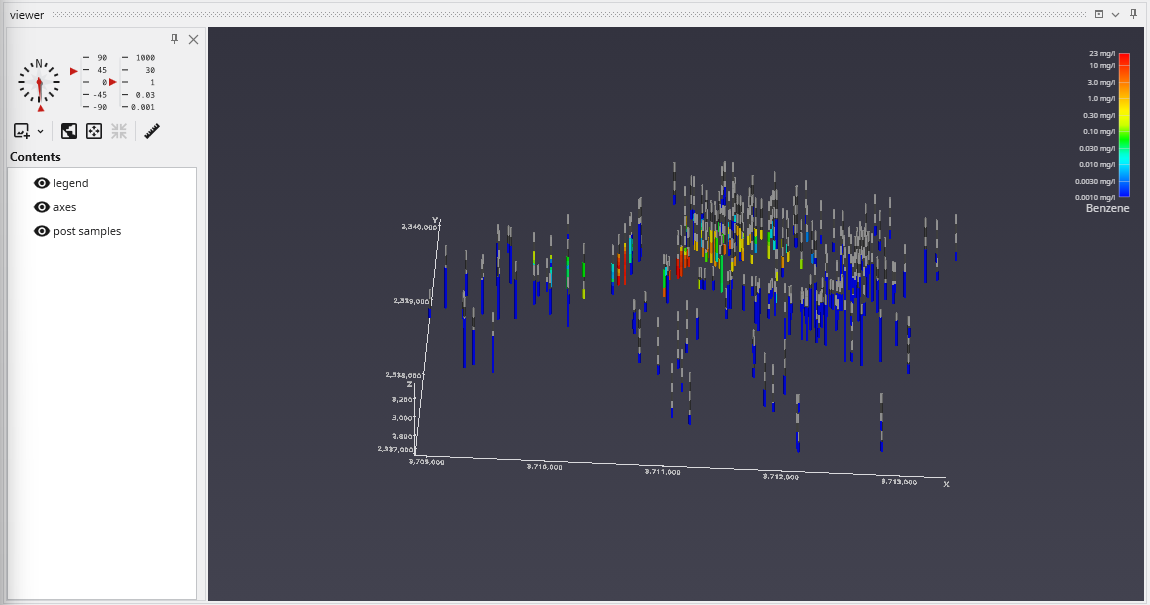
Let’s read the file in Studio Projects: Analytical (Contaminant) Modeling\fuel-storage-deep-benz.aidv
By default, post samples will display AIDV files as intervals of colored tubes representing the top and bottom of each sample screen.
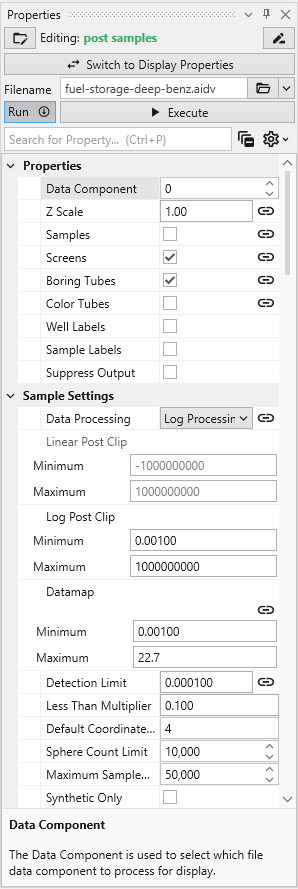
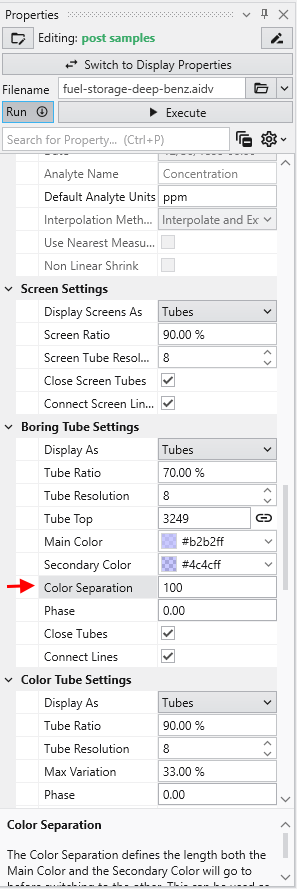
This dataset spans 779 feet in Z. One of our default settings is “Color Separation which colors the borings light-and-dark grey alternating every 10 units (feet) in depth. We want to change that parameter to be 100 feet for this data.
Packaging data into your Applications has many advantages including:
- Integrating your application into a single file
- Making your application easier to share with others
- Ensuring the correct version of data files are associated with the application
- Minimizing or eliminating the possibility of application corruption should one or more files become modified or lost
- Packaged applications generally load faster
Generally you would not package data into an application during the early development of your project models. As we teach in our video tutorials we recommend that you frequently save your applications with a modified name (such as a serial number or -letter) so if you find you’ve gone down a wrong path you can go back to your last correct version.
I often find that it is best to work with a coarser resolution to keep compute times low and segregate my tasks depending on the scope of the project. Only once your work is nearing a final stage or you need to make interim deliverables to teammates would it make sense to package data with your application.
Packaging a single file is very simple, but is seldom necessary since you will generally use the option to package all of the files in your applicatio
Packaging All Files in an Application
To Package all files in an Application, open the Packaged Files window and merely press the Package All Files in an Application button.
How to Read a Packaged File in a New Module
Using a file that has been added to an application's packaged data is easy, but is a bit different. The process involves selecting the file in the *Pa
Modules Requiring Special Packaging Treatment
Several EVS modules require special treatment in order to package their data. We summarize the main reasons why this is required for each module, but
Subsections of Workbook 5: Packaging Data Into Your Applications
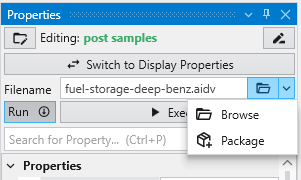
Packaging a single file is very simple, but is seldom necessary since you will generally use the option to package all of the files in your application.
In every module with a file browser, you merely click on the drop-down button shown next to any filename property, and a Package button will appear.
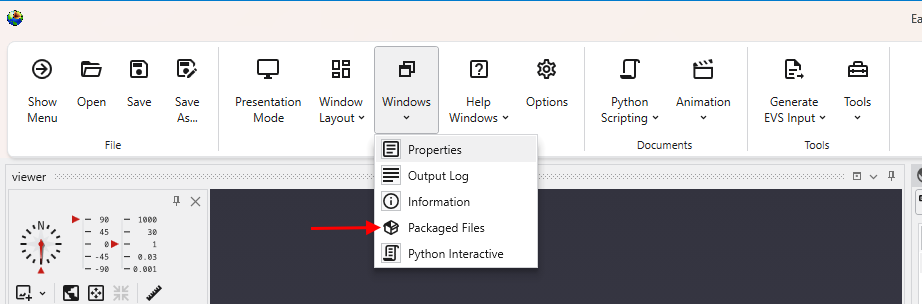
To view your Packaged Files, click on Packaged Files button in the Main Toolbar:
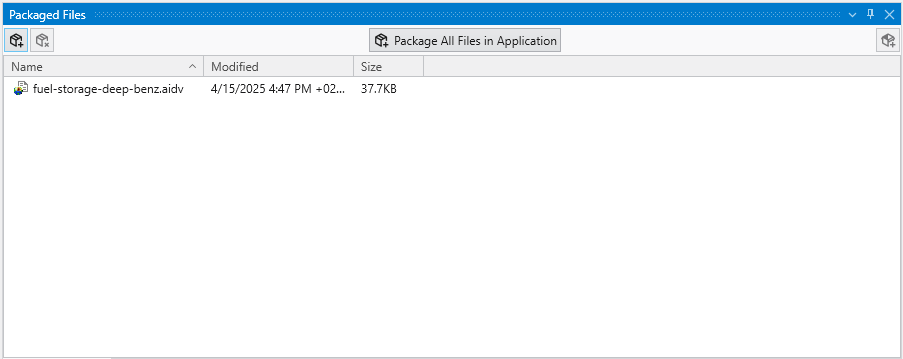
Which will open the Packaged Files window, if not open already.
When a module is reading a packaged file, the file appears in the browser as light-blue text with no apparent path. However, if you hover over the file, you will see the path as:
package://fuel-storage-deep-benz.aidv
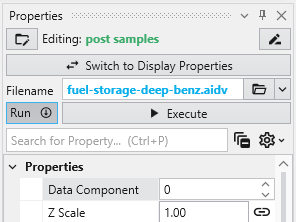
Once one or all files are packaged in a .EVS application, when you save the application, the data files will be saved “in” the .EVS file.
See more in the Packaged Files topic.
To Package all files in an Application, open the Packaged Files window and merely press the Package All Files in an Application button.
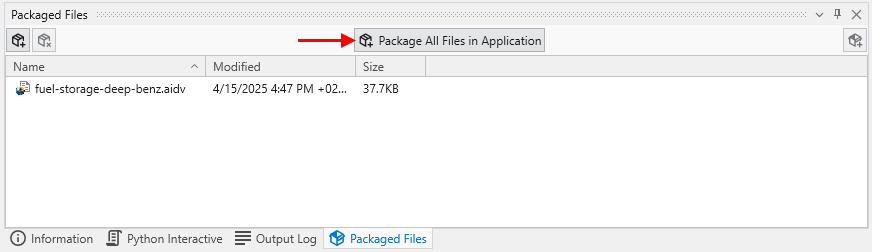
For the application railyard-looped-cut.intermediate.evs, the list of packaged files are:
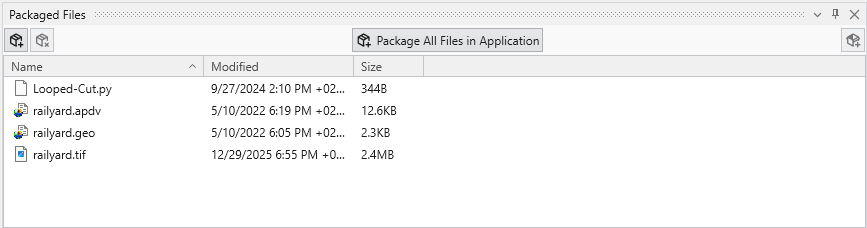
Once one or all files are packaged in a .EVS application, when you save the application, the data files will be saved “in” the .EVS file.
Note: The EVS modules requiring special treatment will be properly and automatically handled when using the Package All Files in an Application button.
Using a file that has been added to an application’s packaged data is easy, but is a bit different. The process involves selecting the file in the Packaged Files window with the left mouse and dragging and dropping it onto the file browser of the module where you wish to use it.
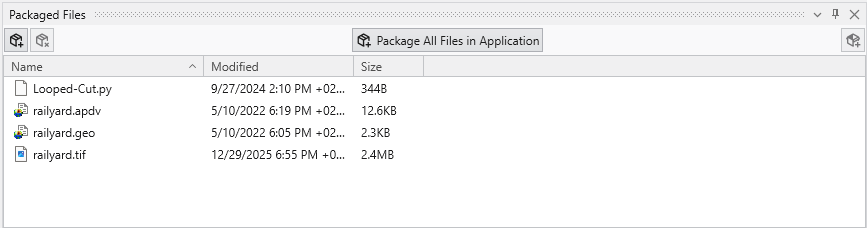
Below, we drop the railyard.apdv file from the Packaged Files onto the file browser of post samples #1
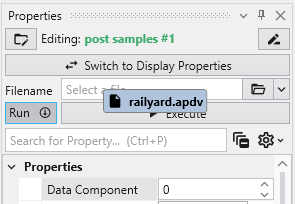
When we drop (release) the file it appears in the browser as light-blue text
Several EVS modules require special treatment in order to package their data. We summarize the main reasons why this is required for each module, but we will explain some of the reasons and advantages of the post-treatment application.
The affected modules are:
- import vector_gis
- overlay_aerial
- import wavefront obj
In general, these modules read file formats which are often not single file formats. The conversion during packaging converts the usable data to a single, packaged file in a format usable by EVS. In addition, steps are often taken to pick a format which will allow for smaller file sizes.
The packaging process converts these files to binary EVS Field Files (.efb files) and requires replacing the original modules with a new read evs fiel
The special treatment for overlay aerial is quite different. Packaging is problematic when a module reads a file, but that process results in reading
Subsections of Modules Requiring Special Packaging Treatment
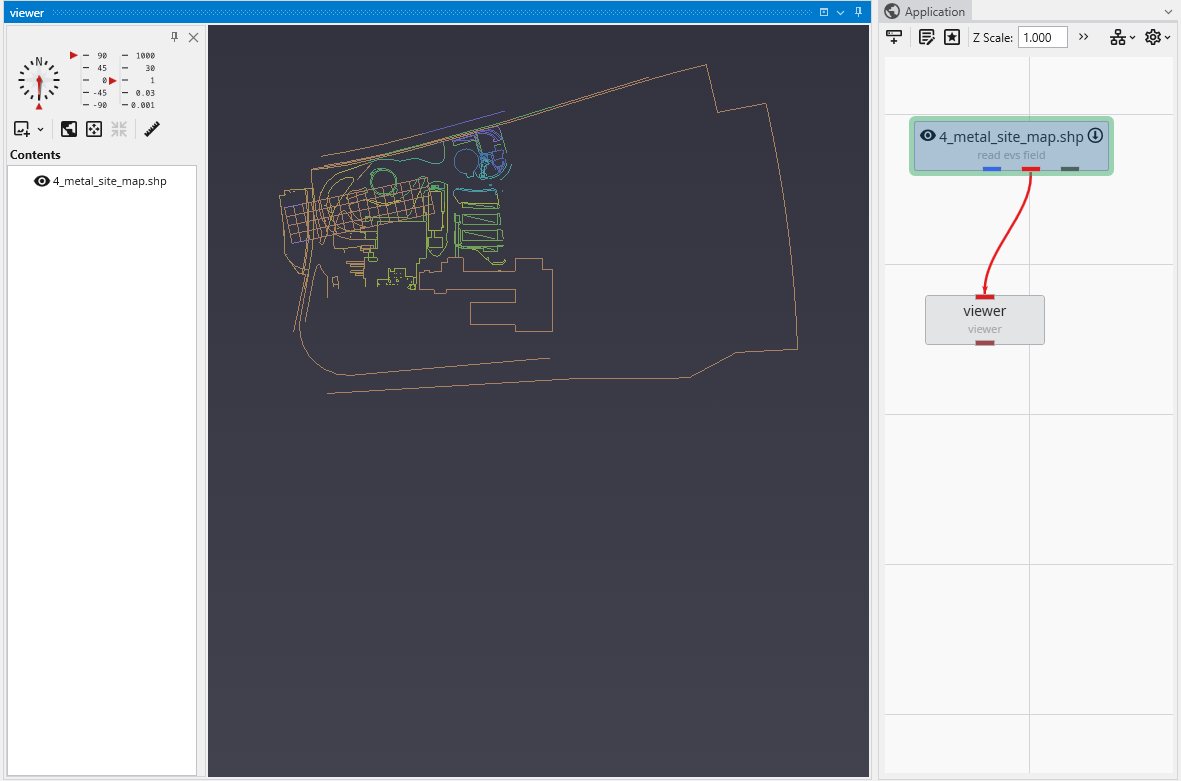
The packaging process converts these files to binary EVS Field Files (.efb files) and requires replacing the original modules with a new read evs field module. In this simple application:
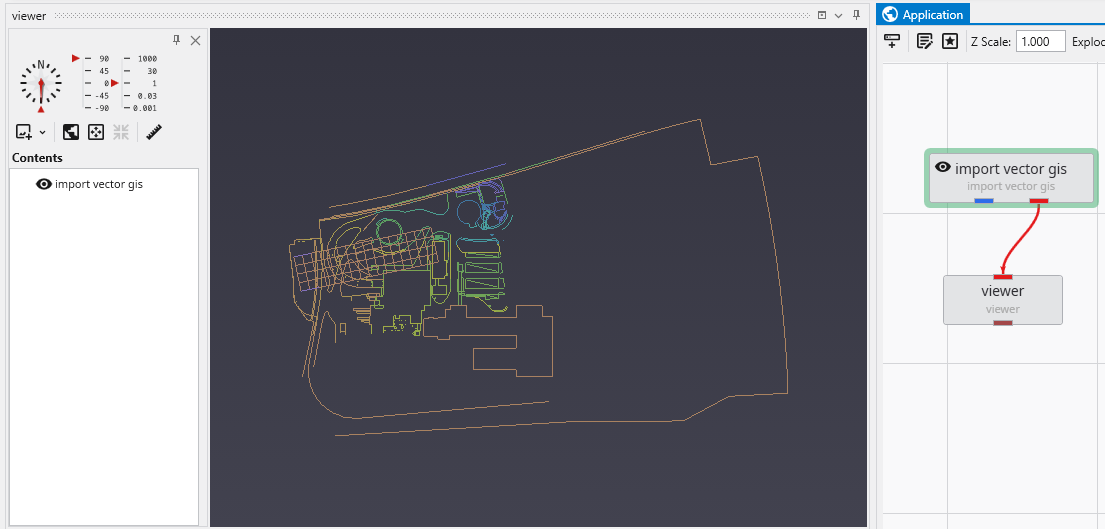
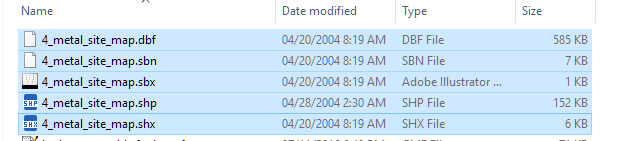
The shapefile actually consists of a set of 5 files which total 749 KB.
The import vector gis module, now has a “Convert to Packaged” button, which when we click on it does the following:
- Automatically replaces import vector gis with a read evs field module which is named based on the data file being read.
- Creates the efb file for you and adds it to your packaged data files
- It is half as big as the total shapefiles, and will load in less than 1/10th of the time
The special treatment for overlay aerial is quite different. Packaging is problematic when a module reads a file, but that process results in reading additional files (as with shapefiles). This also occurs with imagery when orthorectified images include an image file and a georeferencing file (e.g. world file, .gcp file, etc.).
To resolve this, overlay aerial’s “Convert to Packaged” button creates a GeoTIFF file that is both cropped and matched to the specified resolution in overlay aerial. This creates a new single image file which is generally dramatically smaller than the original files which were read. Your application is unchanged except that the Filename specified in overlay aerial will reference the new packaged geotiff file created by this process.
When a volumetric model is created, we generally use geostatistics to estimate (interpolate and extrapolate) data into the volume based on sparse measurements. The algorithm used is called kriging, which is named after a South African statistician and mining engineer, Danie G. Krige who pioneered the field of geostatistics. Kriging is not only one of the best estimation methods, but it also is the only one that provides statistical measures of quality of the estimate.
The basic methodology in kriging is to predict the value of a function at a given point by computing a weighted average of the known values of the function in the neighborhood of the point. The method is mathematically related to regression analysis. Both derive a best linear unbiased estimator, based on assumptions on covariances and make use of Gauss-Markov theorem to prove independence of the estimate and error.
The combination of kriging and volumetric modeling provides a much more feature rich model than is possible with any model that is limited to external surfaces and/or simpler estimation methods such as IDW or FastRBF. It allows us to perform volumetric subsetting operations and true volumetric analysis, and we can defend the quality of our models based on the limitations of our data.
In the coal mining industry, we can determine the quantity and quality of coal and its financial value. We can assess the amount and extraction cost of excavating overburden layers that must be removed or whether it is more cost effective to use tunneling to access the coal.
In the field of environmental engineering, where our software was born, volumetric modeling allows us to determine the spatial extent of the contamination at various levels as well as compute the mass of contaminant that is present in the soil, groundwater, water or air. During remediation efforts, this is critical, since we must confirm that the mass of contaminant being removed matches the reduction seen in the site, otherwise it is a clue that during the site assessment we have not found all the sources of contamination. This can result in remediation efforts which create contamination in some otherwise clean portions of the site.
The kriging algorithm provides us with only one direct statistical measure of quality, and that is Standard Deviation. However, C Tech uses Standard Deviation to compute three additional metrics which are often more meaningful. These are:
Inherent in the kriging process is the determination of the expected error or Standard Deviation at each estimated point. As we approach the location
The Confidence values are the answer to a question, and the wording of the question depends on whether you are Log Processing your data or not.
At first glance, confidence seems to be a reasonable measure of site assessment quality. If the confidence is high (and we are asking the right questi
Both krig_2d and 3d estimation include the ability to compute the Minimum and Maximum Estimate, which is computed using the nominal estimates and sta
Subsections of Workbook 6: Geostatistics Overview
Inherent in the kriging process is the determination of the expected error or Standard Deviation at each estimated point. As we approach the location of our samples, the standard deviation will approach zero (0.0) since there should be no error or deviation at the measured locations.
The units of standard deviation are the same as the units of your estimated analyte.
The figure below shows why one standard deviation corresponds to 68% of the occurences, whereas three sigma (standard deviations) covers 99.7%
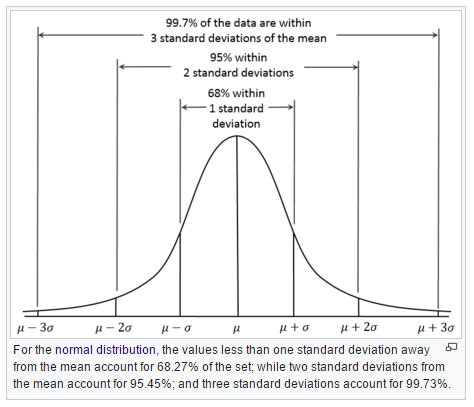
At a particular node in our grid, if we predict a concentration of 50 mg/kg and have a standard deviation of 7 mg/kg , then we can say that we have a ~68% confidence that the actual value will fall between 43 and 57 mg/kg.
The computation of the expected Minimum and Maximum estimates for a given Confidence level is what our Min/Max Estimate provides.
The Confidence values are the answer to a question, and the wording of the question depends on whether you are Log Processing your data or not.
- For the “Log Processing” case the question is: What is the “Confidence” that the predicted value will fall within a factor of “Statistical Confidence Factor” of the actual value?
- For the “Linear Processing” case, the question is: What is the “Confidence” that the predicted value will fall within a +/- tolerance “Statistical Confidence Tolerance” of the actual value?
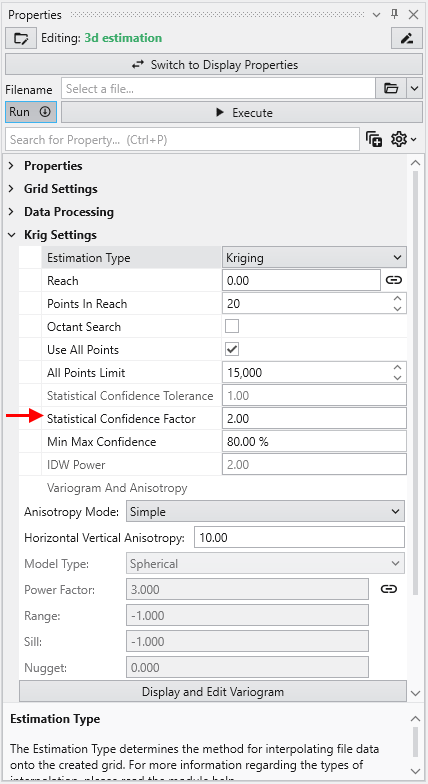
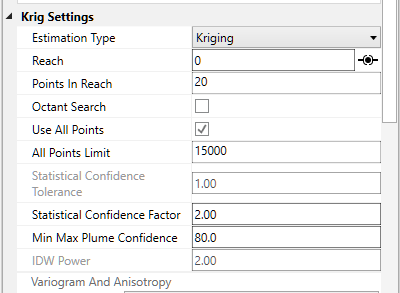
So if your “Statistical Confidence Factor” is 2.0 as shown for a Log Processing case above, the question is:
What is the “Confidence” that the predicted value will fall within a factor of 2.0 of the actual value?
The confidence is affected by your variogram and the quality of fit, but also by the range of data values and the local trends in the data where the Confidence estimate is being determined.
If your data spans several orders of magnitude, the confidences will be lower and if your data range is small the confidences will be higher depending also on the settings you use.
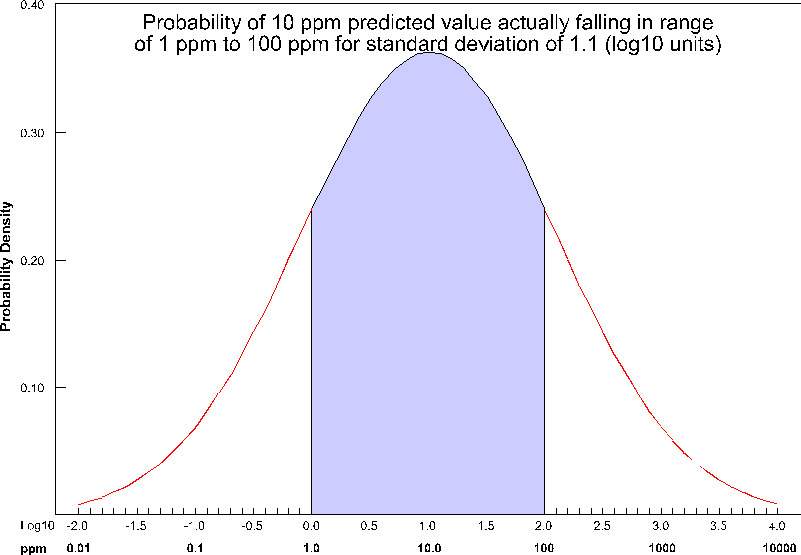
If the “Statistical Confidence Factor” were set to 10.0, because we are working on a log10 scale, EVS would take the log10 of the Statistical Confidence Factor (the value was 10, so the log is 1.0). It then compares the log concentration values and a corresponding standard deviation that was calculated for every node in our domain. For log concentrations, one unit is a factor of ten, therefore we are asking what is the probability that we will be within one unit. Above, where the Statistical Confidence Factor is 2.0, the questions would have been: What is the confidence that the predicted concentration will be within a factor of 2 of the actual concentration?
The actual calculation to determine confidence requires the standard deviation of the estimate at a node, and the Statistical Confidence Factor. The figure below shows the confidence (as the shaded area under the “bell” curve) for a Statistical Confidence Factor of 10 at a node where the predicted concentration was 10 ppm (1.0 as a log10 value) and the standard deviation for this point was 1.1 (in log10 units). For this example, the confidence would be ~64%, which means that 64% of the time, the value would lie in the shaded region.
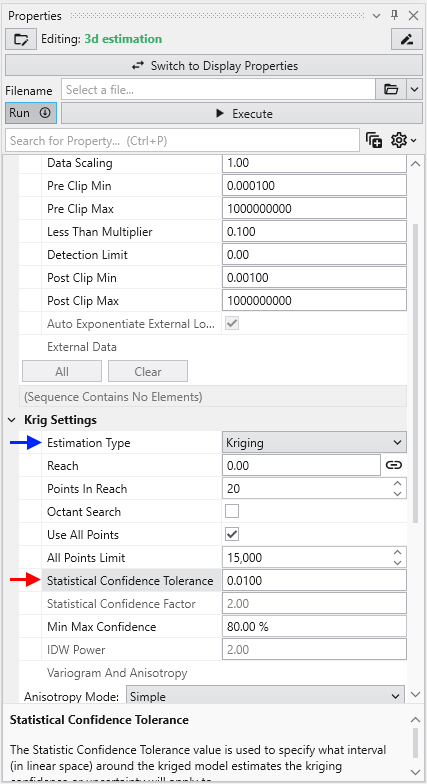
For example, consider the case where we are estimating soil porosity, and the input data values are ranging from 0.12 to 0.29. We would want to use “Linear Processing”, and since our values fall within a tight range of numbers we might want to use a “Statistical Confidence Tolerance” that was 0.01. The confidence values we would compute would then be based upon the following question:
What is the “Confidence” that the predicted porosity value will be within 0.01 of the actual value?
If we were careless and used a “Statistical Confidence Tolerance” of 1.0 all of our confidences would be 100% since it would be impossible to predict any value that would be off by 1.0.
However, if we used a “Statistical Confidence Tolerance” of 0.0001, it is likely that our confidence values would drop off very quickly as we move away from the locations where measurements were taken.
At first glance, confidence seems to be a reasonable measure of site assessment quality. If the confidence is high (and we are asking the right question), we can be assured of the reasonableness of the predicted values. You might be tempted to collect samples everywhere that the confidence was low, and if you did, your site would be well characterized.
But, there is a better, more cost-effective way. Instead of focusing on every place where confidence was low, we could focus on only those locations where there was low confidence and where the predicted concentration was reasonably high. We make that easy by providing the Uncertainty.
In EVS, uncertainty is high where concentrations are predicted to be relatively high (above the Clip Min), but the confidence in that prediction is low. If the goal is to find the contamination, using uncertainty allows for more rapid, cost effective site assessment. Uncertainty is the core of our DrillGuideTM technology which performs successive analyses using the location of Maximum Uncertainty to select new locations for sampling on each analysis iteration.
NOTICE: Uncertainty values should be considered unitless and their magnitudes cannot directly be used to assess the quality of a site assessment. Please observe the following precautions:
- Use Uncertainty as it was intended, as a guide to locations needing additional characterization.
- Do not use Uncertainty values directly to assess the quality of a site assessment
- A 50% reduction in Uncertainty magnitude cannot be construed as a 50% improvement in site assessment.
Our training videos cover the use of DrillGuide and how to properly use and interpret Uncertainty.
Both krig_2d and 3d estimation include the ability to compute the Minimum and Maximum Estimate, which is computed using the nominal estimates and standard deviations at every grid node based upon the user input Min-Max Plume Confidence.
The issue with our MIN or MAX plumes is that they represent the statistical Min or Max at every point in the grid. It is quite unrealistic to believe that you could possibly have a case where you’d find the actual concentration would trend towards either the Min or Max at all locations.
C Tech’s Fast Geostatistical Realizations^®^ (FGR^®^) creates more plausible cases (realizations) which allow the Nominal concentrations to deviate from the peak of the bell curve (equal probability of being an under-prediction as an over-prediction) by the same user defined Confidence. However, FGR^®^ allows the deviations to be both positive (max) and negative (min), and to fluctuate in a more realistic randomized manner.
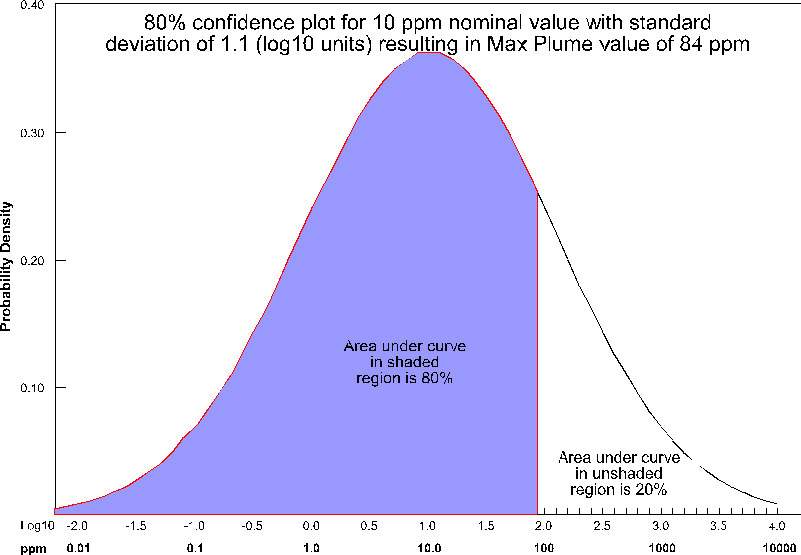
For the case of Max Plume and 80% confidence, at each node, a maximum value is determined such that 80% of the time, the actual values will fall below the maximum value (for that nominal concentration and standard deviation). This process is shown below pictorially for the case of a nominal value of 10 ppm with a standard deviation of 1.1 (log units). For this case, the maximum value at that node would be ~84 ppm. This process is repeated for every node (tens or hundreds of thousands) in the model.
Note that for this plot, the entire left portion of the bell curve is shaded. If we were assessing the minimum value, it would be the right side. Statistically, we are asking a different type of question than when we calculate confidence for our nominal concentrations.
If this Confidence value were set to ~81% then we would be adding one standard deviation to the nominal estimate to create the Max and subtracting one standard deviation to create the Min. The higher you set the Min-Max Plume Confidence the greater the multiplier for standard deviations which are added/subtracted to create the Max/Min.
Even though Min & Max Estimates may not be realistic “realizations” of a likely site state, they still provide the best technique to determine when your site is adequately characterized. Some sites may have very complex contaminant distributions and high gradients while others may be very simple. Applying a single standard for sampling based on fixed spacing will never be optimal.
It is up to the regulators and property owners to determine the ultimate criteria, but generally having the ability to assess the variation in the expected plume volume and the corresponding variation in analyte mass within, provides the best metric for assessing when a site has been sufficiently characterized.
Visualization Fundamentals
This section covers the foundational concepts for understanding how data is visualized in Earth Volumetric Studio.
As defined above, our discussion of environmental data will be limited to data that includes spatial information. When spatial data is collected with
Many methods of environmental data visualization require mapping (interpolation and/or extrapolation) of sparse measured data onto some type of grid.
Although there is great value in directly visualizing measured data; it does have many limitations. Without mapping sparse measured data to a grid, co
Rectilinear (a.k.a. uniform) grids are among the simplest type of grid. The grid axes are parallel to the coordinate axes and the cells are always rec
The convex hull of a set of points in two-dimensional space is the smallest convex area containing the set. In the x-y plane, the convex hull can be v
Triangular networks are defined as grids of triangle or tetrahedron cells where all of the nodes in the grid are exclusively those in the sample data.
Spatial interpolation methods are used to estimate measured data to the nodes in grids that do not coincide with measured points. The spatial interpolation methods differ in their assumptions, methodologies, complexity, and deterministic or stochastic nature. Inverse Distance Weighted Inverse distance weighted averaging (IDWA) is a deterministic estimation method where values at grid nodes are determined by a linear combination of values at known sampled points. IDWA makes the assumption that values closer to the grid nodes are more representative of the value to be estimated than samples further away. Weights change according to the linear distance of the samples from the grid nodes. The spatial arrangement of the samples does not affect the weights. IDWA has seen extensive implementation in the mining industry due to its ease of use. IDWA has also been shown to work well with noisy data. The choice of power parameter in IDWA can significantly affect the interpolation results. As the power parameter increases, IDWA approaches the nearest neighbor interpolation method where the interpolated value simply takes on the value of the closest sample point. Optimal inverse distance weighting is a form of IDWA where the power parameter is chosen on the basis of minimum mean absolute error.
The choice of surface rendering technique has a dramatic impact on model visualizations. Figure 1.25 is a dramatization that incorporates many common
The choice of color(s) to be used in a visualization affects the scientific utility of the visualization and has a large psychological impact on the a
The following provides hints and tips for obtaining optimal quality when printing. This assumes you are using a color printer, but it is important to
Once the model of the site has been created, visually communicating the information about that site generally requires subsetting the model. Subsettin
Subsections of Visualization Fundamentals
As defined above, our discussion of environmental data will be limited to data that includes spatial information. When spatial data is collected with a GPS (Global Positioning Satellite) system, the spatial information is often represented in latitude and longitude (Lat-Lon). Generally, before this data is visualized or combined with other data, it is converted to a Cartesian coordinate system. The process of converting from Lat-Lon to other coordinate systems is called projection. Many different projections and coordinate systems can be used. The single most important thing is maintaining consistency. Projecting this data is especially necessary for three-dimensional visualization because we want to maintain consistent units for x, y, and z coordinates. Latitude and longitude angle units (degrees, minutes and seconds) do not represent equal lengths and there is no equivalent unit for depth. Projections convert the angles into consistent units of feet or meters.
analyte (e.g. chemistry)
analyte (e.g. chemistry) data files must contain the spatial information (x, y, and optional z coordinates) as well as the measured analytical data. The file should specify the name of the analyte and should include information about the detection limits of the measured parameter. The detection limit is necessary because samples where the analyte was not detected are often reported as zero or “nd”. It is generally not adequate (especially when logarithmically processing this data) to merely use a value of 0.0.
If we want to be able to create a graphical representation of the borings or wells from which the samples were taken, the analyte (e.g. chemistry) data file should also include the boring or well name associated with each sample and the ground surface elevation at the location of that boring.
The chapter on analyte (e.g. chemistry) Data Files includes an in-depth look at the format used by C Tech Development Corporation’s Environmental Visualization System (EVS).
Geology
Geologic information is considerably more difficult to represent in a single, unified data format because of its nature and complexity. Geologic data files can be grouped into one of two classes, those representing interpreted geology and those representing boring logs. By some definitions, boring logs are interpreted since a geologist was required to assign materials based on core samples or some other quantitative measurements. However, for this discussion interpreted geology data will be defined as data organized into a geologic hierarchy.
C Tech’s software utilizes one of two different ASCII file formats for interpreted geologic information. These two file formats both describe points on each geologic surface (ground surface and bottom of each geologic layer), based on the assumption of a geologic hierarchy. Simply stated, geologic hierarchy requires that all geologic layers throughout the domain be ordered from top to bottom and that a consistent hierarchy be used for all borings. At first, it may not seem possible for a uniform layer hierarchy to be applicable for all borings. Layers often pinch out or exist only as localized lenses. Also layers may be continuous in one portion of the domain, but are split by another layer in other portions of the domain. However, all of these scenarios and many others can be usually be modeled using a hierarchical approach.
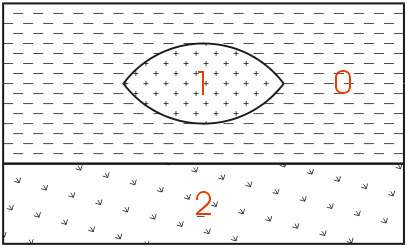
The easiest way to describe geologic hierarchy is with an example. Consider the example above of a clay lens in sand with gravel below.
Imagine borings on the left and right sides of the domain and one in the center. Those outside the center would not detect the clay lens. On the sides, it appears that there are only two layers in the hierarchy, but in the middle there are three materials and four layers.
EVS’s & MVS’s hierarchical geologic modeling approach accommodates the clay lens by treating every layer as a sedimentary layer. Because we can accommodate “pinching out” layers (making the thickness of layers ZERO) we are able to produce most geologic structures with this approach. Geologic layer hierarchy requires that we treat this domain as 4 geologic layers. These layers would be Upper Sand (0), Clay (1), Lower Sand (2) and Gravel (3).
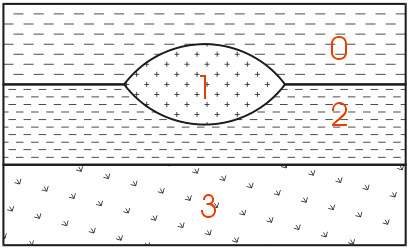
If desired, both Upper and Lower Sand can have identical colors or hatching patterns in the final output.
Figure 0.1 Geologic Hierarchy of Clay Lens in Sand
When this geologic model is visualized in 3D, both Upper and Lower Sand can have identical colors or hatching patterns. Since the layers will fit together seamlessly, dividing a layer will not change the overall appearance (except when layers are exploded).
For sites that can be described using the above method, it is generally the best approach for building a 3D geologic model. Each layer has smooth boundaries and the layers (by nature of hierarchy) can be exploded apart to reveal the individual layer surface features. An example of a much more complex site is shown below in Figure 1.3. Sedimentary layers and lenses are modeled within the confines of a geologic hierarchy.
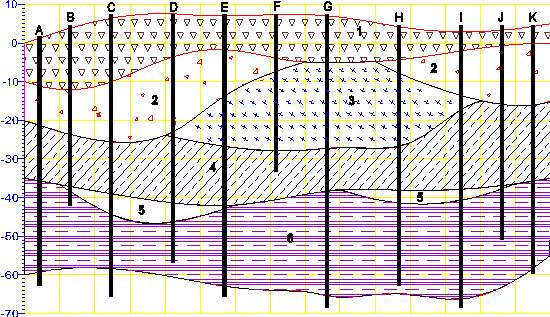
Figure 0.2 Complex Geologic Hierarchy
The hierarchical borehole based geology file format used for Figure 1.3 is described in the chapter on Borehole Geology Files.
With C Tech’s EVS software, there are two other geology file formats. One of them is a more generic format for interpreted (hierarchical) geologic information. With that format; x, y, and z coordinates are given for each surface in the model. There is no requirement for the points on each surface to have coincident x-y coordinates or for each surface to be defined with the same number of points. The borehole geology file format described above could always be represented with this more generic file format.
The last file format is used to represent the materials observed in each boring. Borings are not required to be vertical, nor is there any requirement on the operator to determine a geologic hierarchy. C Tech refers to this file format as Pregeology referring to the fact that it is used to represent raw 3D boring logs. This format is also considered to be “uninterpreted”. This is not meant to imply that no form of geologic evaluation or interpretation has occurred. On the contrary, it is required that someone categorizes the materials on the site and in each boring.
In C Tech’s EVS software, the raw boring data can be used to create complex geologic models directly using a process called Geologic Indicator Kriging (GIK). The GIK process begins by creating a high-resolution grid constrained by ground surface and a constant elevation floor or some other meaningful geologic surface such as rockhead. For each cell in the grid, the most probable geologic material is chosen using the surrounding nearby borings. Cells of common material are grouped together to provide visibility and rendering control over each material.
Many methods of environmental data visualization require mapping (interpolation and/or extrapolation) of sparse measured data onto some type of grid. Whenever this is done, the visualization includes assumptions and uncertainties introduced by both the gridding and interpolation processes. For these reasons, it is crucial to incorporate direct visualization of the data as a part of the entire process. It becomes the operator’s responsibility to ensure that the gridding and interpolation methods accurately represent the underlying data.
A common means for directly visualizing environmental data is to use glyphs. A “glyph” refers to a graphical object that is used as a symbol to represent an object or some measured data. For the purposes of this paper, glyphs will be positioned properly in space and may be colored and/or sized according to some data value. For a graphics display, the simplest of all glyphs would be a single pixel. A pixel is a dot that is drawn on the computer screen or rendered to a raster image. The issue of pixel size often creates confusion. Pixels (by definition) do not have a specific size. Their apparent size depends on the display (or printer) characteristics. On a computer screen, the displayed size of a pixel can be determined by dividing the screen width in inches or millimeters by the screen resolution in pixels. For example, a 19" computer monitor has a screen width of about 14.5 inches. If the “Desktop Area” is set to 1280 by 1024, the width of a pixel would be approximately 0.011 inches (~0.29 mm). If the “Desktop Area” were reduced, the apparent size of a pixel would increase.
There are virtually no limits to the type of glyph objects that may be used. Glyphs can be simple geometric objects (e.g. triangles, spheres, and cubes) or they can be representations of real-world objects like people, trees or animals.
Glyphs in 3D
It is once we move to the three-dimensional world that glyphs become much more interesting. In Figure 1.5, cubes (hexahedron elements) are positioned, sized and colored to represent chemical measurements made in soil at a railroad yard in Sacramento, California. Axes were added to provide coordinate references and this picture was rendered with perspective effects turned on. This results in a visualization where parallel lines do not remain parallel and objects in the foreground appear larger than those in the background.
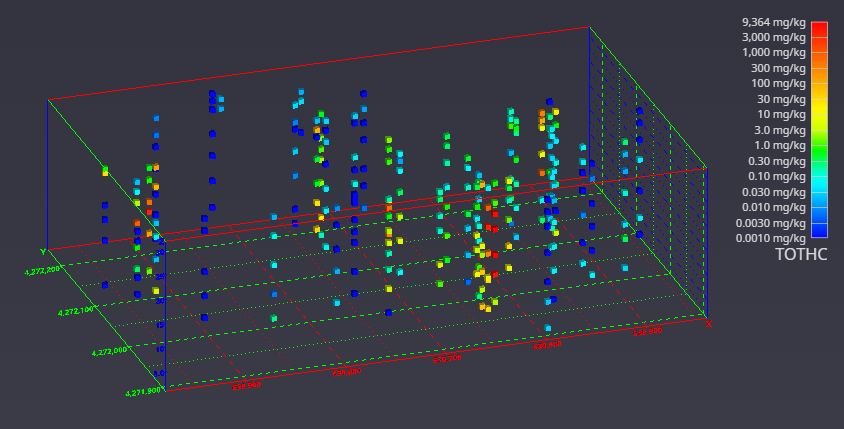
Figure 0.4 Three-Dimensional Cubic Glyphs
When representations of the borings are added, the figure becomes much more useful. Figure 1.6 shows the sample represented by colored spheres and tubes represent the borings. The tubes are colored alternating dark and light gray where the color changes on ten-foot intervals. This provides a reference to allow the viewer to quickly determine the approximate depth of the samples. The borings are also labeled with their designation. These last two figures both represent the same data, however it is clear which one provides the most useful information.
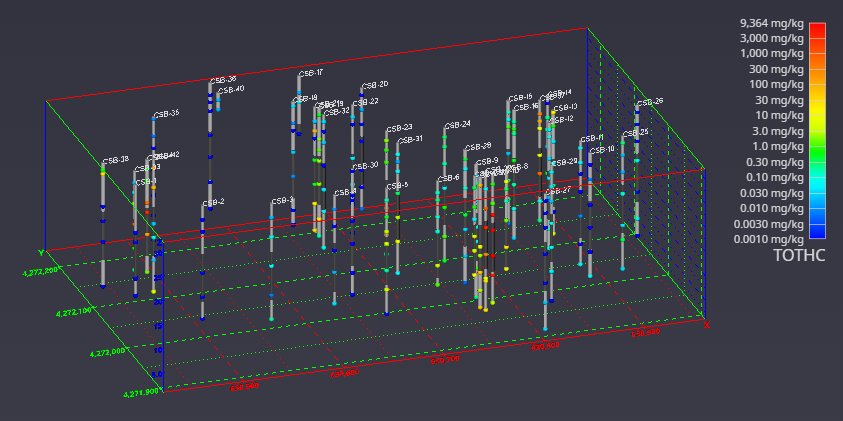
Figure 0.5 Three-Dimensional Glyphs with Boring Tubes
Glyphs can also be used to represent vector data. The most commonly encountered vector data represents ground water flow velocity. In this case, the glyph is not only colored and sized according to the magnitude of the velocity vector, but the glyph can also be oriented to point in the vector’s direction. For this type of application, an assymetric glyph (as opposed to a sphere or cube) is used. Figure 1.7 uses a glyph that is referred to as “jet”. It is an elongated tetrahedron that points in the direction of the vector. The data represented in this figure is predicted velocities output.
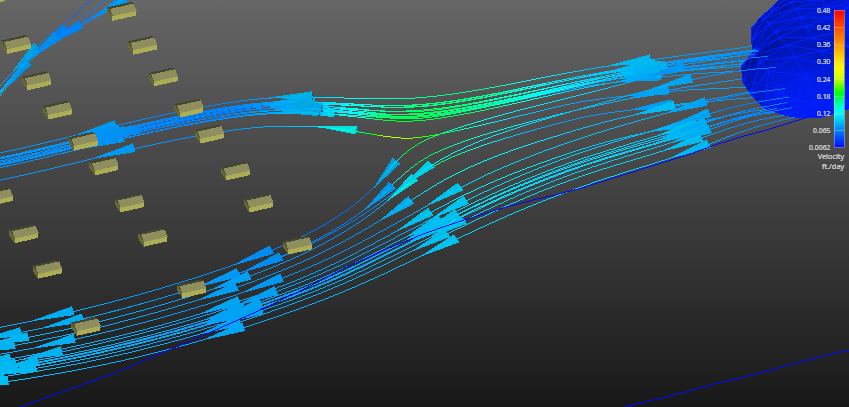
Figure 0.6 Three-Dimensional Glyphs Representing Vector Data
Although there is great value in directly visualizing measured data; it does have many limitations. Without mapping sparse measured data to a grid, computation of contaminant areas or volumes is not possible. Further, the techniques available for visualizing the data are very limited. For these reasons and more, significant attention should be paid to the process of creating a grid into which the data will be interpolated and extrapolated.
For this paper, a grid is defined as a collection of nodes and cells. Nodes are points in two or three-dimensions with coordinates and usually one or more data values. The word “cell” and “element” are both used as a generic term to refer to geometric objects. The cell type and the nodes that comprise their vertices define these objects. Commonly used cell types are described in Table 1.1 and Figure 1.2.
| Cell Type | Number of Nodes | Dimensionality |
|---|---|---|
| Point | 1 | 0 |
| Line | 2 | 1 |
| Triangle | 3 | 2 |
| Quadrilateral | 4 | 2 |
| Tetrahedron | 4 | 3 |
| Pyramid | 5 | 3 |
| Prism | 6 | 3 |
| Hexahedron | 8 | 3 |
Table 1.1 Common Cell Types
Dimensionality refers to the space occupied by the cell. Points have do not have length, width, or height, therefore their dimensionality is zero (0). Lines are dimensionality “1” because they have length. Dimensionality 2 objects such as quadrilaterals (quad) and triangles have area and dimensionality 3 objects ranging from tetrahedrons (tet) to hexahedrons (hex) are volumetric. When creating a two-dimensional grid, areal cells are used and for three-dimensional grids, volumetric cells are used.
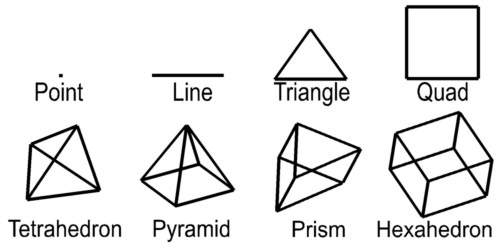
Figure 1.2 Common Cell Types
Rectilinear (a.k.a. uniform) grids are among the simplest type of grid. The grid axes are parallel to the coordinate axes and the cells are always rectangular in cross-section. The positions of all the nodes can be computed knowing only the coordinate extents of the grid (minimum and maximum x, y and optionally z). Two-dimensional rectilinear grids are comprised of quadrilateral cells. For a 2D grid with i nodes in the x direction and j nodes in the y direction, there will be a total of (i - 1)*(j - 1) cells.
The connectivity of the cells (the nodes that define each cell) can be implicitly determined because the nodes and cells are numbered in an orderly fashion. The advantages of rectilinear grids include the ease of creating them and the uniformity of cell area in 2D and cell volume in 3D. The disadvantages are that grid nodes are generally not coincident with the sample data locations and large areas of the grid may fall outside of the bounds of the data. A simple two-dimensional rectilinear grid is shown in Figure 1.9.
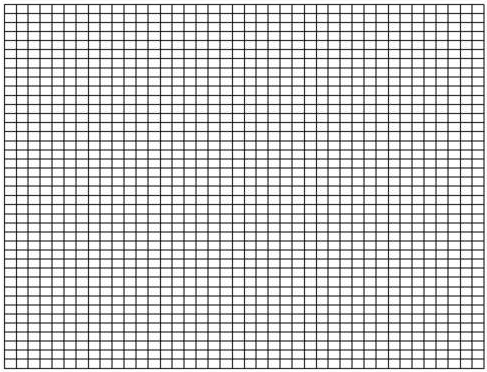
Figure 0.8 Two-Dimensional Rectilinear Grid
Three-dimensional rectilinear grids offer the simplest method for gridding a volume. They are constrained to rectangular parallel piped volumes and have hexahedral cells of constant size. (See Figure 1.10) For some processes and visualization techniques such as volume rendering, this is advantageous and may even be required. For a grid having i by j by k nodes there will be (i-1) * (j-1) * (k-1) hexahedron cells whose connectivity can be implicitly derived.
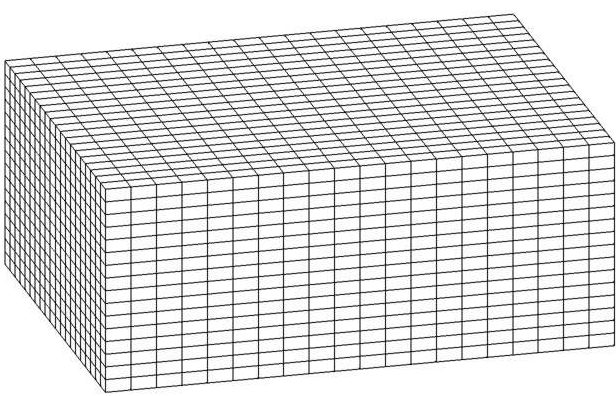
Figure 0.9 Three-Dimensional Rectilinear Grid
Finite Difference
The following type of grid derives its name from the numerical methods that it employs. Simulation software such as the USGS’s MODFLOW utilizes a finite difference numerical method to solve equilibrium and transient ground water flow problems. This solution method requires a grid that contains only rectangular cells. However the cells need not be uniform in size. For two-dimensional grids, this results in rectangular cells, however it is possible that no two cells are precisely the same size. Some simulation software requires that finite difference grids be aligned with the coordinate axes. EVS does not impose this restriction, but it does provide a means to export the grid transformed so that the grid axes are aligned. Figure 1.11 shows a rotated 2D finite difference grid. Smaller cells are concentrated in areas of the model where there are significant gradients in the data. For groundwater simulations this is usually where wells are located. For environmental contamination it should be the location of spills or areas where DNAPL (dense non-aqueous phase liquids) contaminant plumes were detected. The smaller cells provide greater accuracy in estimating the parameter(s) of interest.
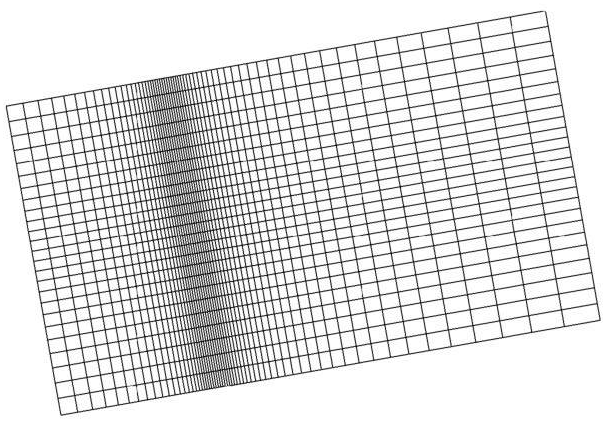
Figure 0.10 Two-Dimensional Rotated Finite Difference Grid
Three-dimensional finite difference grids have the same restrictions as 2D grids with respect to their x and y coordinates (cell width and length). However, the z coordinates of the grid (which define the cell thicknesses) are allowed to vary arbitrarily. This allows for creation of a grid that follows the contours of geologic surfaces. For a grid having i by j by k nodes there will be (i-1) * (j-1) * (k-1) hexahedron cells whose connectivity can be implicitly derived. However the coordinates of the nodes for this grid must be explicitly specified. Figure 1.12 shows the grid created to model the migration of a contaminant plume in a tidal basin.
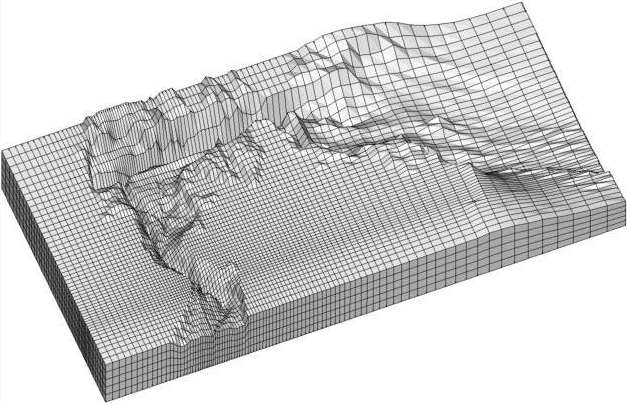
Figure 0.11 Three-Dimensional Finite Difference Grid
The convex hull of a set of points in two-dimensional space is the smallest convex area containing the set. In the x-y plane, the convex hull can be visualized as the shape assumed by a rubber band that has been stretched around the set and released to conform as closely as possible to it. The area defined by the convex hull offers significant advantages. Within the convex hull all parameter estimates are interpolations. The convex hull best fits the spatial extent of the data. Remember that the convex hull defines an area. That area can be gridded in many ways. EVS grids convex hull regions with quadrilaterals. Smoothing techniques are used to create a grid that has reasonably equal area cells. A two-dimensional example of a convex hull grid is shown in Figure 1.13. In this example, the domain of the model was offset by a constant amount from the theoretical convex hull. This results in rounded corners and a model region that is larger than the convex hull.
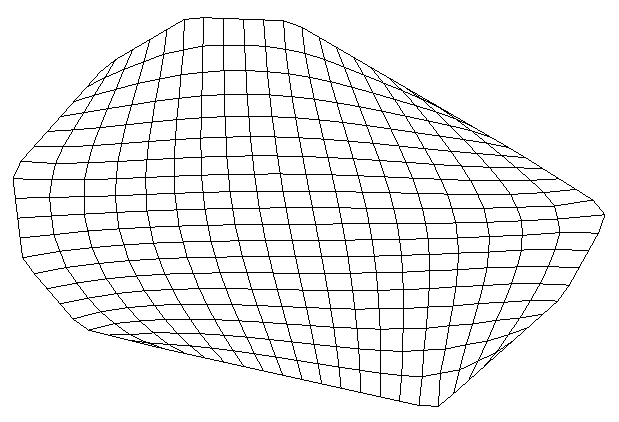
Figure 0.12 Convex Hull Grid with Offset
Adaptive Gridding
Adaptive gridding is the localized refinement of a grid to provide higher resolution in the areas or volumes surrounding measured sample data. Adaptive gridding or grid refinement can be accomplished in many different ways. In EVS, rectilinear, finite difference and convex hull grids can all be refined using a similar method. In two-dimensions a new node is placed precisely at the measured sample data location. Three additional nodes are placed to create a small quadrilateral cell within the cell to be refined. The corners of the small cell are connected to the corresponding corners of the cell being refined creating a total of five cells where the one previously was. The resulting nodal locations and grid connectivity must be explicitly defined.
Adaptively gridding offers many advantages. It assures that there will always be nodes at the precise coordinates of the sample data. This insures that the data minimum and maximum in the gridded model will match the sample data. It also provides greater fidelity in defining data trends in regions with high gradients. Figure 1.14 shows a two-dimensional adaptively gridded convex hull model. This model’s area was also offset from the convex hull. Since each sample data point results in a refined region, and the sample points define the convex hull, the regions in each corner of the model contain adaptively gridded cells.
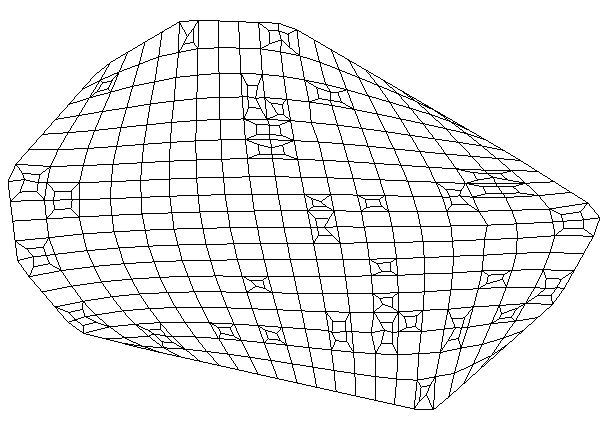
Figure 0.13 Adaptively Gridded Convex Hull Grid
Figure 1.15 is a close-up view of some refined cells near the lower right in Figure 1.14. It shows one of the special cases. If the point to be refined falls very near an existing cell edge, that edge is refined and the cells on either side of the edge are symmetrically refined. Since the edge must be broken into three segments, the cells on both sides must be affected.
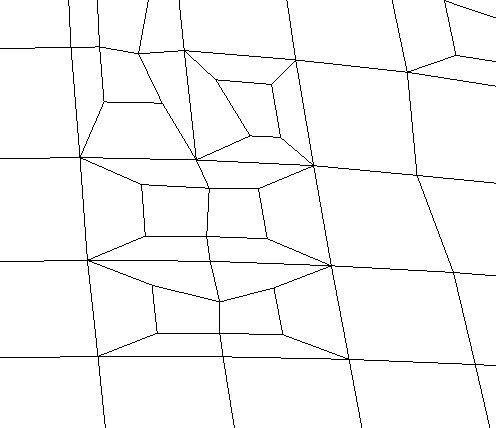
Figure 0.14 Close-up of Figure 1.14
The refinement process can also be applied to all types of 3D grids. When a sample falls in a hexahedron (hex) cell, a new much smaller hex cell is created with one of its’ corners located precisely at the coordinates of the sample point. The eight corners of the small cell are connected to the corresponding corners of the parent cell. This creates 7 hex cells that fully occupy the volume of the original cell. Since the 3D-refinement process occurs internal to the volume of the model, it is more difficult to visualize the process. In order to see the refined cells, removing all cells in the grid with any nodes that were below a thresholded concentration level created Figure 1.16. By choosing the threshold properly, several of the refined cells become visible.
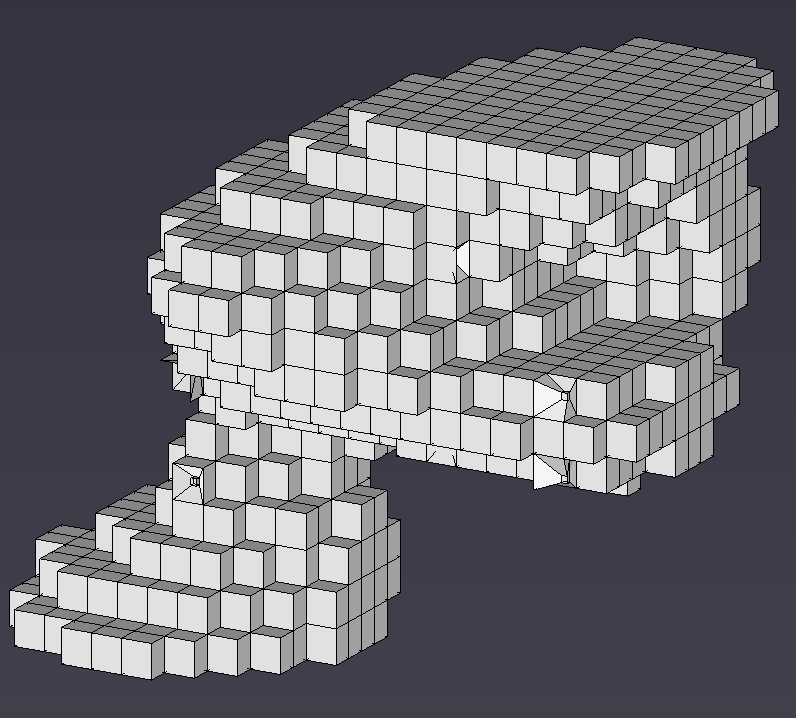
Figure 0.15 3D Adaptively Gridded Model
This figure (Figure 1.17) is an enlarged view of the right hand corner. It reveals the structure, relative sizes and connectivity resulting from 3D adaptive gridding.
Figure 0.16 Close-up of Figure 1.16
Triangular networks are defined as grids of triangle or tetrahedron cells where all of the nodes in the grid are exclusively those in the sample data. For these types of grids, the cell connectivity must be explicitly defined. In two dimensions, these grids are referred to as Triangulated Irregular Networks or TINs. The 3D equivalent grids are Tetrahedral Irregular Networks.
Triangulated Irregular Networks – 2D
Delaunay triangulation is one of the most commonly used methods for creating TINs. By definition, 3 points form a Delaunay triangle if and only if the circle defined by them contains no other point. Focusing on creating Delaunay triangles produces triangles with fat (large) angles that have preferred rendering characteristics. The boundary edges on the Delaunay network form the convex hull, which is the smallest area convex polygon to contain all of the vertices.
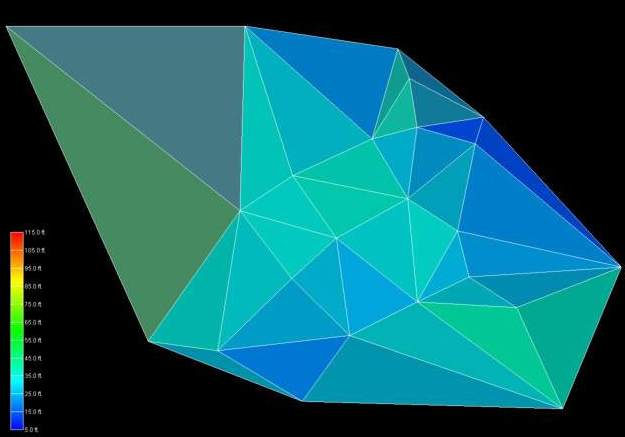
Figure 0.17 Flat-Shaded Delaunay TIN of Geologic Surface
The TIN surface above (Figure 1.18) has significant variation in the size of the triangles. This is a natural consequence of the grid’s being created using only nodes from the input data file. When such a surface is rendered with data, having very large triangles can result in very objectionable visualization anomalies. These anomalies result from rendering large triangles that have a range of data values that span a significant fraction of the total data range. There are many methods that could be used to assign color to each triangle. These methods are referred to as surface rendering modes.
Two of the most commonly used rendering modes are flat shading and Gouraud shading. Flat shading assigns a single color to the entire triangle. The color is computed based on the average elevation (data value) for that triangle, lighting parameters and orientation to the viewer camera. In the upper left corner we have a large single triangle that spans a significant range of elevations. When it is assigned a color that corresponds to the mean elevation for that triangle, that color will be wrong. More precisely, the color does not fall within the color scale. Note the color of the triangle in the upper right corner of Figure 1.18 and the one below it. The color of these triangles is outside the range of our color scale.
The problem of large triangles is no better when using Gouraud shading. Gouraud shading assigns colors to each node of the triangle based on the data values. This assures that the colors at the nodes (vertices of the triangles) will be correct. Colors are then interpolated over the area of the triangle based on lighting parameters and orientation to the viewer camera. Consider the triangle in the upper right hand corner of Figure 1.19. The upper right node is assigned the color blue (corresponding to a low value) and the upper left node is assigned the color red (corresponding to a high value). The color scale for this problem ranges from blue to cyan to green to yellow to red. However, for this anomalous situation the color that will be interpolated between blue and red along the uppermost edge will be magenta. Magenta is not a color in our range of colors.
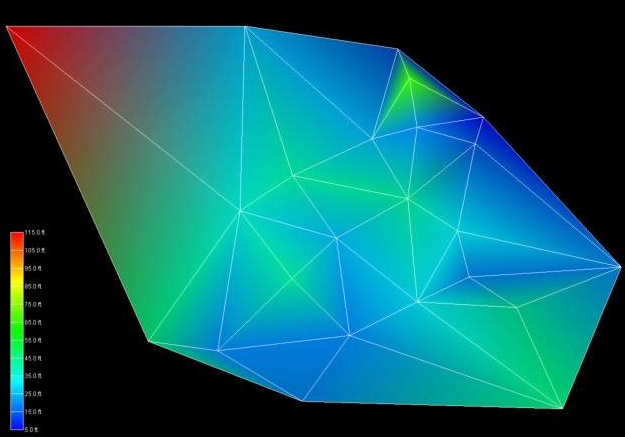
Figure 0.18 Gouraud-Shaded Delaunay TIN of Geologic Surface
To overcome the problems caused by large triangles, the triangles can be refined (subdivided) to create a grid that still contains points that honor the original input nodes, but has more uniform cell sizes. In Figure 1.20 (which has a spatial extent of 500 feet in x and 380 feet in y) it was specified that no triangle’s edge may exceed 45 feet in length. We must interpolate the elevation values (or our data values) to these new nodes created as a result of the triangle subdivision. The simplest means of doing this is bilinear interpolation. The refined TIN grid with bilinear interpolation and flat shaded triangles is shown in Figure 1.21. Note that the all of the triangles have appropriate colors. To avoid the large cell coloring problem (this is a problem with all cell types except points), no single cell should have data values at its nodes that span more than about 20 percent of the total data range.
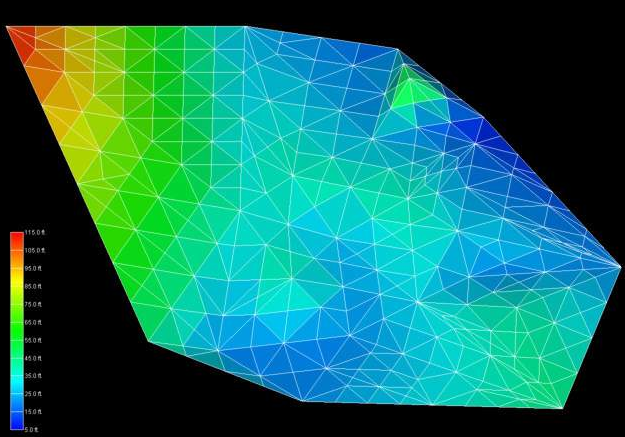
Figure 0.19 Flat-Shaded Subdivided TIN of Geologic Surface
If Gouraud shading is employed instead of flat shading, the resultant surface has a smoother appearance, however the fundamental linear interpolation along cell edges is still evident in the colors. If the maximum triangle size were made much smaller, the flat shaded model would approach the appearance of the Gouraud shaded model. However, without using a different interpolation approach the Gouraud-shaded model would not change dramatically.
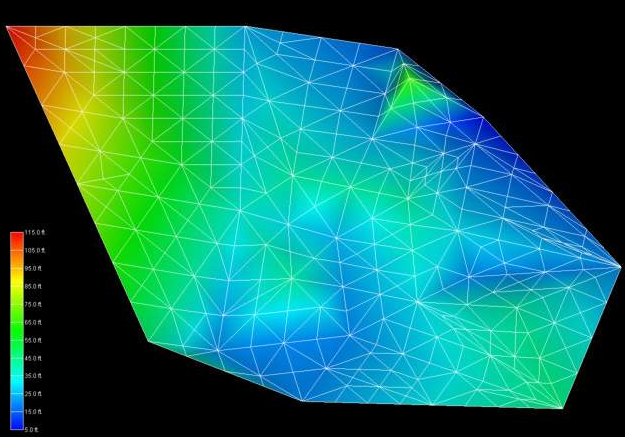
Figure 0.20 Gouraud-Shaded Subdivided TIN of Geologic Surface
EVS includes another technique for coloring surfaces. This method, called solid contours, assigns uniform color bands based on the data values. Figure 1.22 demonstrates this method that subdivides cells using bilinear interpolation. Because this method inherently includes triangle subdivision using bilinear interpolation, the figure would be identical whether the input grid was the large triangles from the original TIN surface or the refined smaller triangles. The boundaries of the colored bands are effectively isopachs (isolines) of constant elevation.
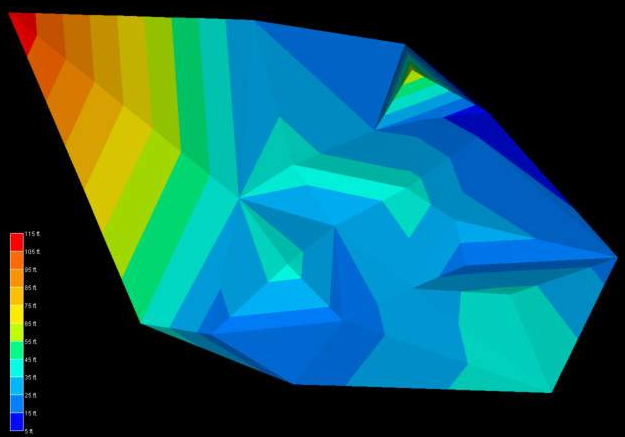
Figure 0.21 Solid Contour TIN of Geologic Surface
To complete this discussion and comparison of gridding and interpolation methods, the same data file was used to create a convex hull grid and the elevation data was estimated using EVS’s two-dimensional kriging software. Kriging will be discussed in more detail in section 1.3.3. This technique honors all of the original data points, but creates much smoother distributions between the values. The result shown in Figure 1.23 is a more realistic and aesthetically superior surface. Labeled isolines on 10 foot intervals were added to this figure. Note that these isolines are similar, but much smoother than those in Figure 1.22.
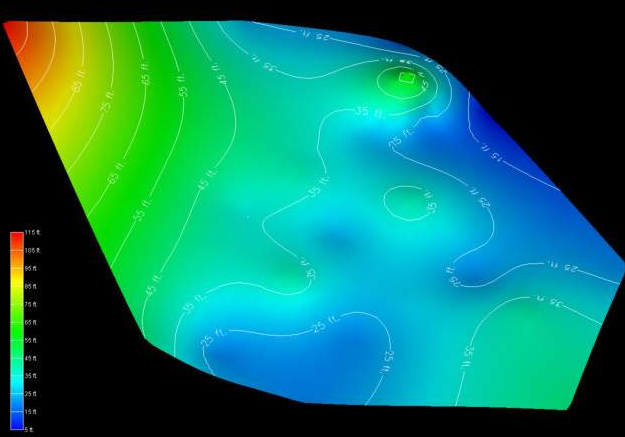
Figure 0.22 Kriged 2D Convex Hull Grid
Tetrahedral Irregular Networks – 3D
Tetrahedral Irregular Networks provide a method to create a volumetric representation of a three-dimensional set of points. As with a TIN, the nodes in the resulting grid are exclusively those in the original measured sample data. Tetrahedral Irregular Networks use tetrahedron cells to fill the three-dimensional convex hull of the data as shown in Figure 1.24. The result often contains cells of widely varying volumes having potentially large data variation across individual cells. For this and other reasons, this approach is not often used.
Figure 0.23 Tetrahedral Irregular Network
Spatial interpolation methods are used to estimate measured data to the nodes in grids that do not coincide with measured points. The spatial interpolation methods differ in their assumptions, methodologies, complexity, and deterministic or stochastic nature.
Inverse Distance Weighted
Inverse distance weighted averaging (IDWA) is a deterministic estimation method where values at grid nodes are determined by a linear combination of values at known sampled points. IDWA makes the assumption that values closer to the grid nodes are more representative of the value to be estimated than samples further away. Weights change according to the linear distance of the samples from the grid nodes. The spatial arrangement of the samples does not affect the weights. IDWA has seen extensive implementation in the mining industry due to its ease of use. IDWA has also been shown to work well with noisy data. The choice of power parameter in IDWA can significantly affect the interpolation results. As the power parameter increases, IDWA approaches the nearest neighbor interpolation method where the interpolated value simply takes on the value of the closest sample point. Optimal inverse distance weighting is a form of IDWA where the power parameter is chosen on the basis of minimum mean absolute error.
Splining
Splining is a deterministic technique to represent two-dimensional curves on three-dimensional surfaces. Splining may be thought of as the mathematical equivalent of fitting a long flexible ruler to a series of data points. Like its physical counterpart, the mathematical spline function is constrained at defined points. Splines assume smoothness of variation. Splines have the advantage of creating curves and contour lines that are visually appealing. Some of splining’s disadvantages are that no estimates of error are given and that splining may mask uncertainty present in the data. Splines are typically used for creating contour lines from dense regularly spaced data. Splining may, however, be used for interpolation of irregularly spaced data.
Natural Neighbors
Natural Neighbor interpolation is a deterministic method that estimates the value at a grid node based on a weighted average of the nearest sample points. The key to this method lies in how it determines which neighbors to use and how it calculates their weights. It uses a Voronoi diagram (or Thiessen polygons) of the sample data to identify the “natural neighbors” of a given grid node. The weights are then calculated based on the amount of area that a neighbor’s Voronoi cell “lends” to the Voronoi cell of the new grid node. This approach ensures that the interpolation is entirely local and that the influence of a sample point does not extend beyond its immediate neighbors. A significant advantage of Natural Neighbor interpolation is that it does not create artifacts or peaks where no data exists, and it smoothly handles clustered or sparse data. However, like other deterministic methods, it does not provide an estimate of prediction error.
Geostatistical Methods (Kriging)
Kriging is a stochastic technique similar to inverse distance weighted averaging in that it uses a linear combination of weights at known points to estimate the value at the grid nodes. Kriging is named after D.L. Krige, who used kriging’s underlying theory to estimate ore content. Kriging uses a variogram (a.k.a. semivariogram) which is a representation of the spatial and data differences between some or all possible “pairs” of points in the measured data set. The variogram then describes the weighting factors that will be applied for the interpolation. Unlike other estimation procedures investigated, kriging provides a measure of the error and associated confidence in the estimates. Cokriging is similar to kriging except it uses two correlated measured values. The more intensely sampled data is used to assist in predicting the less sampled data. Cokriging is most effective when the covariates are highly correlated. Both kriging and cokriging assume homogeneity of first differences. While kriging is considered the best linear unbiased spatial predictor (BLUP), there are problems of nonstationarity in real-world data sets.
The choice of surface rendering technique has a dramatic impact on model visualizations. Figure 1.25 is a dramatization that incorporates many common surface-rendering modes. These include Gouraud Shading, Flat Shading, Solid Contours, Transparency and Background Shading. In this figure, a plume is represented in each geologic layer of this model. The geologic layers are exploded and a unique rendering mode is used for each layer. This allows demonstrating five different surface rendering techniques. Section 1.2.5 included some discussion on surface rendering techniques. In the model, a very fine grid (in the x-y plane) was used and the flat shaded plume looks similar to the Gouraud shaded one. The solid contoured plume provides sharp color discontinuities at specific plume levels, however it provides no information about the variation of values within each interval.
The transparent plume was Gouraud shaded. Transparency could be applied to any of the surface rendering techniques except background shading. Transparency provides a means to see features or objects inside of the plume while still providing the basic shape of the plume. Objects inside a colored transparent object will have altered colors and the colors of the transparent object are affected by the color of the background and any other objects inside or behind the plume.
Background shading is a rather different approach. Each cell of the plume is colored the same color as the background. This makes the cell invisible, however the cell is still opaque. Objects that are behind the background shaded cells are not visible. In this example, the cell outlines are shown as lines colored by the concentration values. Background shading of the surfaces provides a “hidden line” rendering where the cells behind are not shown.
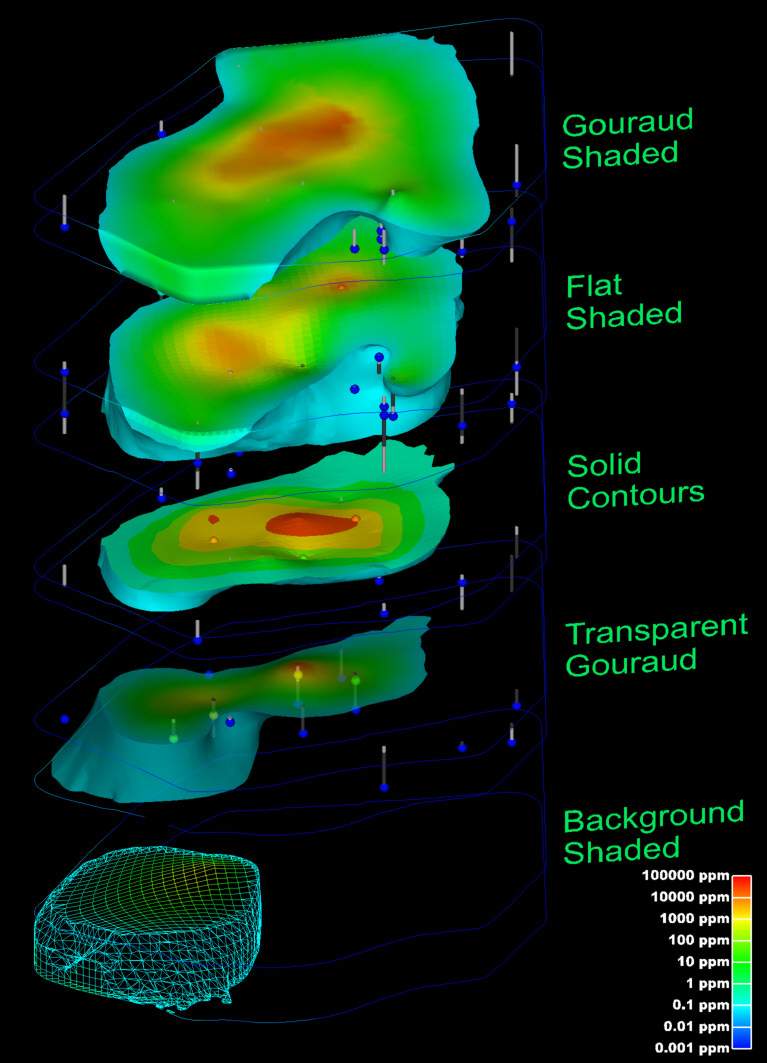
Figure 0.24 plume shell Showing Various Shading Methods
An example of the rendering mode called “no lighting” has not been included in this paper. This technique renders cells as a single color (similar to flat shading), but with no lighting or shading effects. This eliminates all three-dimensional clues about the surface and usually produces an undesirable affect.
Texture mapping is a process of projecting a raster image onto one or more surfaces. The images should be geo-referenced (see section 1.1.1.5) to ensure that the image’s features are placed in the correct spatial location. In Figure 1.26, a chlorinated hydrocarbon contaminant plume is shown at an industrial facility on the coast. Sand and rock geologic layers are displayed below the ocean layer. A color aerial photograph of the actual site was used to texture map and render the geologic layer that represents the ocean and was also applied to the three-dimensional representations of the site buildings as well as the ground surface.
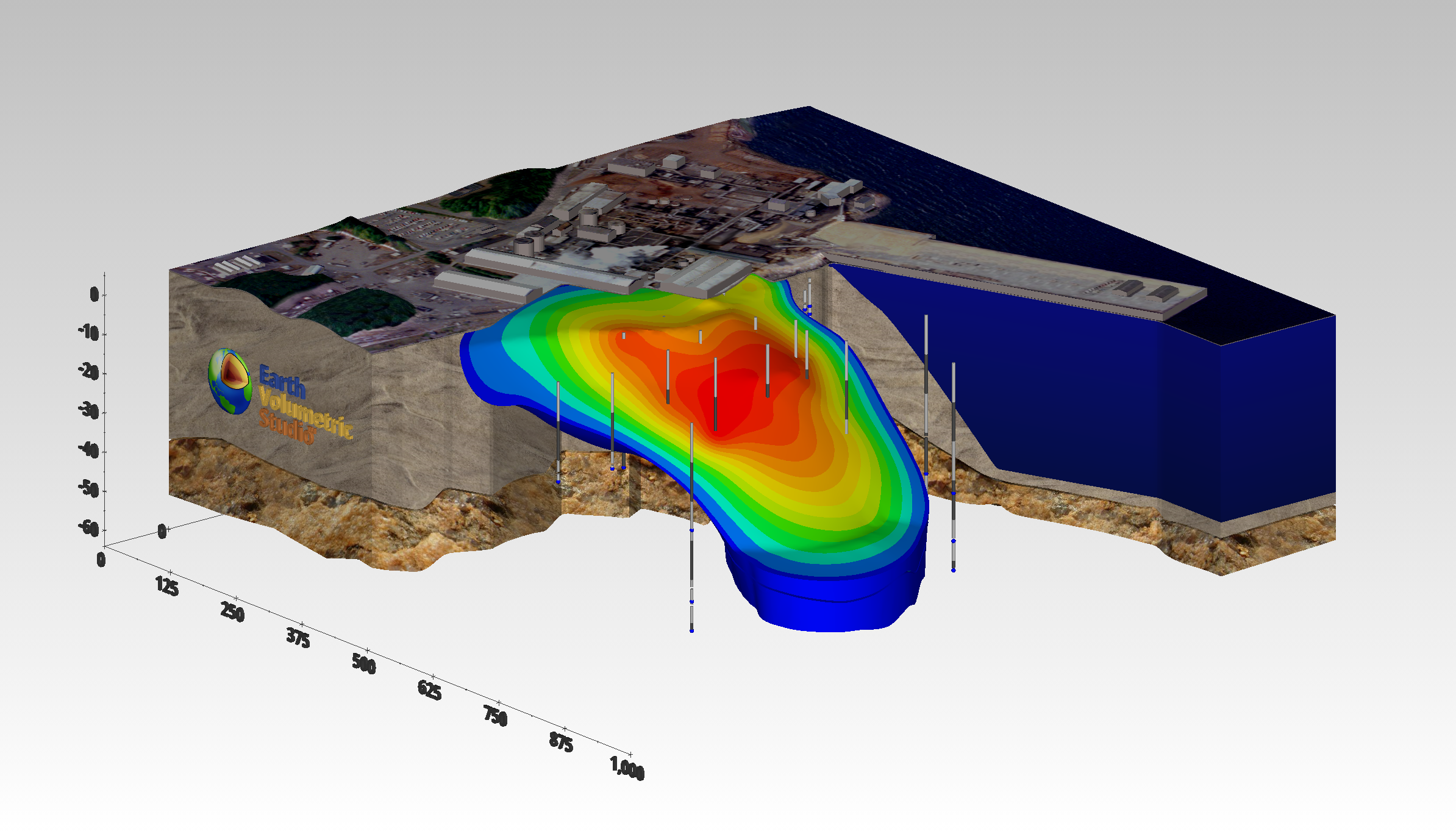
Figure 0.25 Coast Facility Showing Contaminant Plume, Geology with Texture Mapping
The choice of color(s) to be used in a visualization affects the scientific utility of the visualization and has a large psychological impact on the audience. Throughout this paper, a consistent color scale (a.k.a. datamap) has been used. This color scale associates low data values with the color blue and high data values with the color red. Values between the data minimum and maximum are mapped to hues that transition from red to yellow to green to cyan (light blue) to blue. People are accustomed to interpreting blue as a “cold” color and red as a “hot” color. For this reason, lay persons more easily understand this color spectrum. It also provides a reasonably high degree of color fidelity, allowing discrimination of small changes in data values.
However, many times color scales with vivid colors like red are deemed too alarming. Since there is not a universally (or even scientifically) accepted standard for color spectrums used for data presentation, the use of softer shades of color and the elimination of red or other garish colors from the spectrum cannot be challenged on a scientific or legal basis. The consequence of this is the distinct possibility of two different visualizations that both communicate the same information with completely different colors. Often the choice of colors is made on aesthetic or political grounds, governed more by the party being represented and their role in the site than by scientific reasons.
See more in the Datamaps topic.
The following provides hints and tips for obtaining optimal quality when printing. This assumes you are using a color printer, but it is important to note that the user may print grayscale images with a black and white printer if desired. This would of course be best implemented by creating grayscale colormaps to eliminate ambiguities associated with different colors that have the same gray-scale representation.
Optimal printing of a raster image requires taking several factors into consideration. First, you must know the characteristics of the printer and the intended size of the printed image. Printers vary considerably and no single recommendation can be appropriate. Color printers fall into three primary categories, inkjet, color laser, and dye sublimation. EVS, for example, produces raster images which are continuous tones with 256 shades each of red, green and blue for a total of 16.7 million possible colors (256 * 256 * 256). Color printers either produce continuous tones or approximate them using a pattern of primary colored pixels in an n-by-n grid.
Among these three printer categories there is considerable variation. Inkjet printers are generally capable of producing one of only eight primary colors for each printer pixel (or dot). These colors are white, black, cyan, magenta, yellow, red, green and blue. Inkjets must therefore use a grid of primary colored pixels to approximate continuous tones. The larger the grid (4 by 4 vs. 2 by 2) the better the color approximation. However, larger grids tend to create artifacts called jaggies that are visually undesirable. The challenge is to balance the need for smoother color rendition with the desire to have higher resolutions.
Dye sublimation printers are at the other end of the spectrum. Their ability to reproduce continuous tones makes the task of choosing a resolution easy. A typical dye-sub printer has a resolution of 300 dots per inch (dpi). If the intended size of the final printed image is 10 inches wide by 7 inches tall, then the optimal image size is 10*300 by 7*300 or 3000 x 2100 pixels. If quicker image creation and print times are desired, a compromise resolution would be exactly half or 1500 wide by 1050 high.
It is best to have an integer number of printer pixels for each “source” image pixel. When the image size is half of the printer pixel resolution, each source pixel gets a 2-by-2 grid. The n-by-n grid concept applies to all types of printers. This “rule” is actually a guideline for best results. Other resolutions (non-integer ratios) create banding artifacts that are usually objectionable.
For inkjet printers you should always allow for at least a 2x2 grid and usually 3x3 to 5x5 gives the best results. For an EPSON printer with 720x1440-dpi resolution you should use the smaller resolution number (720) for your calculations. The printer uses the additional resolution to better approximate the colors.
Example: For a printer with 720 dpi, to print an image 9 by 7.5 inches (landscape) we recommend that you start at a 4x4 grid which gives an effective printed resolution of 180 dpi. Your image width and height would therefore be:
Width = 9.0 * 180 = 9.0 * (720/4) = 1620
Height = 7.5 * 180 = 9.5 * (720/4) = 1350
Finally, color laser printers vary in their abilities to approximate continuous tones. This means that the rules to apply will be somewhere between dye-sub and inkjet properties.
Once the model of the site has been created, visually communicating the information about that site generally requires subsetting the model. Subsetting is a generic term used to convey the process of displaying only a portion of the information based on some criteria. The criteria could be “display all portions of the model with a y coordinate of 12,700. This would result in a slice at y = 12,700 through the model orthogonal to the y (or North) axis. As this slice passes through geologic layers and/or contaminated volumes, a cross-section of those objects would be visible on the slice. Without subsetting, only the exterior faces of the model will be visible.
When evaluating subsetting operations, the dimensionality of input and output should be considered. As an example, consider the slice described above. If a slice is passed through a volume, the output is a 2D planar surface. If that same slice passes through a surface, the result is a line. Slices reduce the dimensionality of the input by one. The sections below will discuss a few of the more common subsetting techniques.
Plume Visualization
Contaminant plume visualization employs one of the most frequently used subsetting operations. This is accomplished by taking the subset of all regions of a model where data values are above or below a threshold. This subset is also referred to as a volumetric subset and its threshold value as the subsetting level. When creating the objects that represent the plumes, two fundamentally different approaches can be employed. One approach creates one or more surfaces corresponding to all regions in the volume with data values exactly equal to the subsetting level and all portions of the external surfaces of the model where the data values exceed the subsetting level. This results in a closed but hollow representation of the plume. This method, which was used in Figure 1.26, has a dimensionality one less than the input dimensionality.
The other approach subsets the volumetric grid outputting all regions of the model (cells or portions thereof) that exceed the subsetting level. This method has the same dimensionality output as input. The disadvantages of this approach are the need to compute and deal with the all interior volumetric cells and nodes. The advantages include the ability to perform additional subsetting and to compute volumetric or mass calculations on the subset volume.
Cutting and Slicing
Within C Tech’s EVS software there is a significant distinction between the terms cut and slice. Slices create objects with dimensionality one less than the input dimensionality. If a volume is sliced the result is a plane. If a surface is sliced the result is one or more lines. If a line is sliced, one or more points are created. Figure 1.29 has three slice planes passing through a volume which has total hydrocarbon concentrations on a fine 3D grid. The horizontal slice plane is transparent and has isolines on ½ decade intervals.
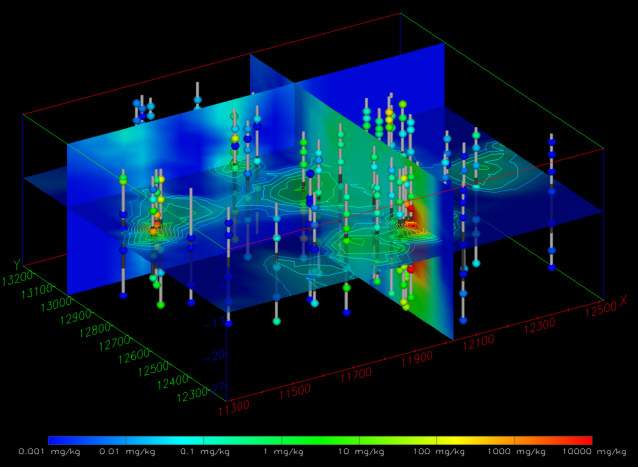
Figure 0.28 Three Slice Planes Passing Through a 3D Kriged Model
By comparison, cutting still uses a plane, but the dimensionality of input and output are the same. Cutting outputs all portions of the objects on one side of the cutting plane. If a volume is cut, a smaller volume is output. In Figure 1.30, the top half of the grid was cut away, but the plume at 1000 ppm is displayed in this portion of the volume. The lower half of the model also has labeled isolines on ½ decade intervals.
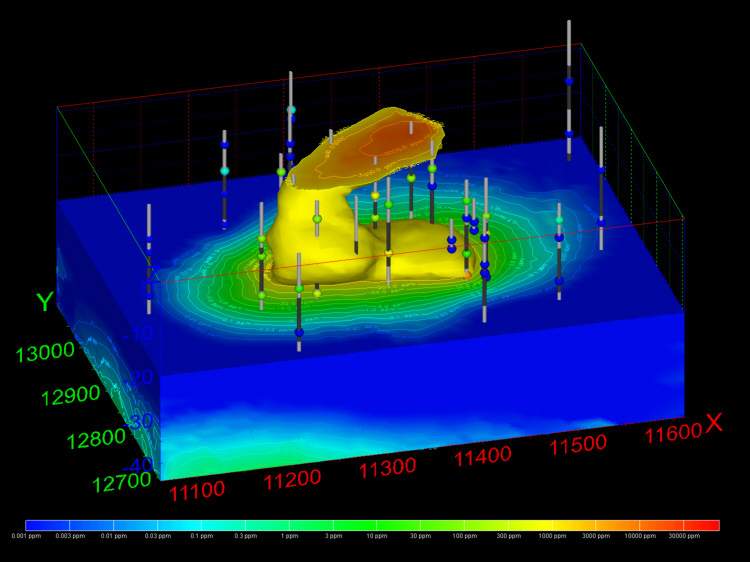
Figure 0.29 Cut 3D Kriged Model with Plume and Labeled Isolines
Isolines
Isolines (sometimes referred to as isopachs) have output dimensionalities that are one less than the input dimensionality. Surfaces with data result in isolines or contour lines that are paths of constant value on the surface(s). Isolines can be labeled or unlabeled. Various labeling techniques can be employed ranging from values placed beside the lines to labels that are incorporated into a break in the line path and mapped to the three-dimensional contours of the underlying surface. Examples of visualizations using isolines are shown in Figures 1.30 and 1.26.
Each major release of Earth Volumetric Studio will include a corresponding release of Sample Projects, which we tend to refer to as “Studio Projects”.

We strongly recommend that all users download the Sample Projects with each new release since these will be a major reference that we will use as a part of technical support. If you call or email Support, asking how to do something, the odds are very high that the answer will often be to take a look at one of the sample applications in Studio Projects. This will give you more than a quick answer, it will provide you with a detailed example, with real world data which will allow you to see precisely how to create the model and output that you require.
Some of our sample applications include very advanced topics such as:
- Automation using Python
- Time domain data: both geology and chemistry
- Creation of multi-frame vector outputs
- 4DIMs
- 3D PDFs
- 3D Web-published
When you install Studio Projects, they are included in a special way. If you are in Studio and select File.Open you will see
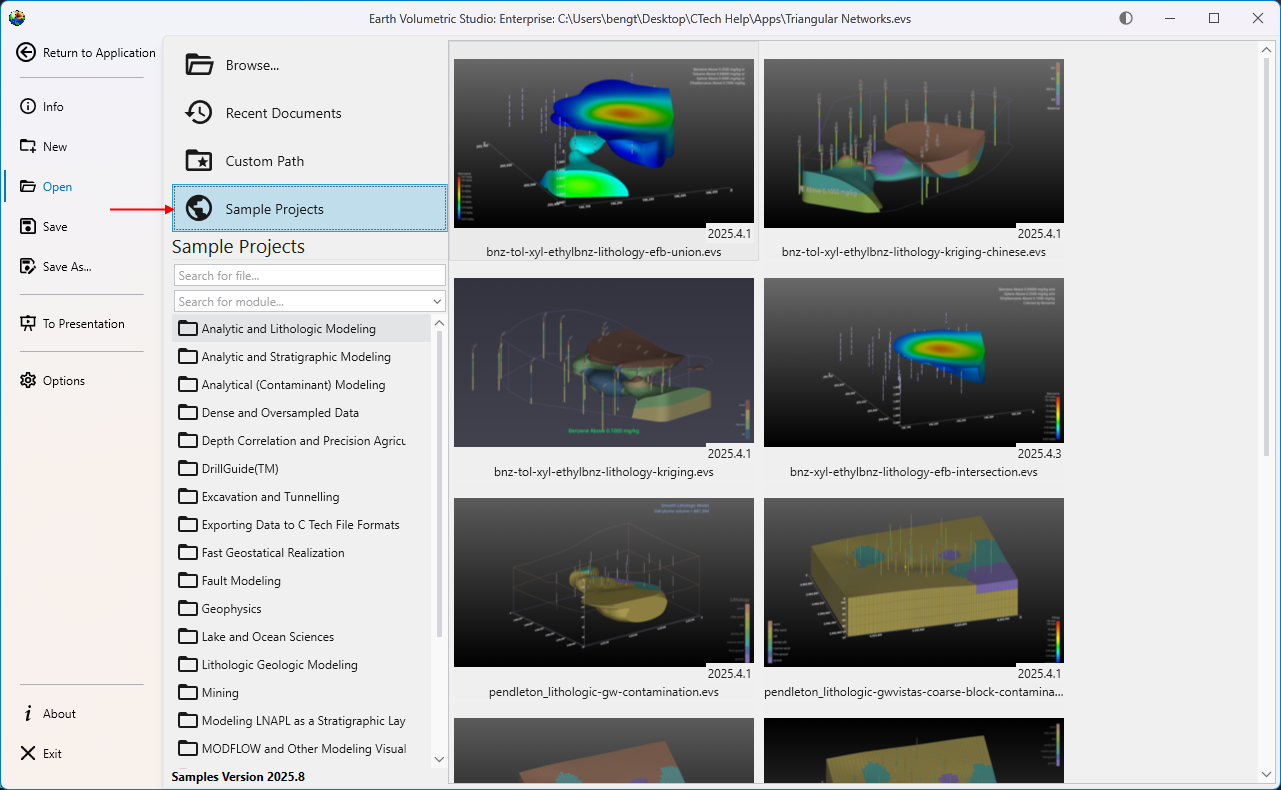
When you select Sample Projects and then select any folder in the list, you will see a large thumbnail image of the output created by each application to quickly allow you to select applications based on their output.
Over time, we expect the number of project folders to grow, and each includes real world data and applications to address the challenges of that data. There is some redundancy among the applications, since some are intentionally simple, while others are increasingly complex to provide more advanced examples.
There is a great deal to be learned by a self-paced exploration of these projects.