The development of EVS Presentations (EVSP) from EVS Applications will nearly always require modification to your EVS application. The key steps are:
- Save your application (ideally under a new name, as you will be modifying it for the process of making an EVSP).
- Replace Disallowed Moduleswith acceptable replacements, if applicable.
- See Disallowed Modules and Replacements for specifics on which modules need to be replaced.
- Note: Not all Disallowed Modules have replacements which can be included in EVS Presentations. For example, many 3d exporters must just be removed altogether.
- Modules which create a model (gridding and horizons, 3d estimation, etc) must be removed. This is done by saving an EF2 file (using write evs field) of their output, and then using that EF2 file in read evs field as a replacement of the network portion doing the model creation.
- Packageall data files referenced in any modules.
- There cannot be any externally referenced data files.
- Some modules cannot be packaged and are automatically replaced by the packaging process. These include:
- import vector gis
- import cad
- import wavefront obj
- Best if you don’t do this step sooner.
- See Packaged Files and Packaging Data Into Your Applications for details on the process.
- Add all desired module properties to Application Favorites, so they can be accessed once the application is saved as an EVS Presentation.
- EVS Presentation files do not allow access to module properties unless they are added to the Application Favorites.
- Backup your application as an EVS application to serve as an editable backup.
- This is essential, should you wish to add additional module properties later.
- Convert the application to an EVS Presentation (.evsp file).
- This is not a reversible process, which is why you want the backup from step 5.
Convert To Presentation
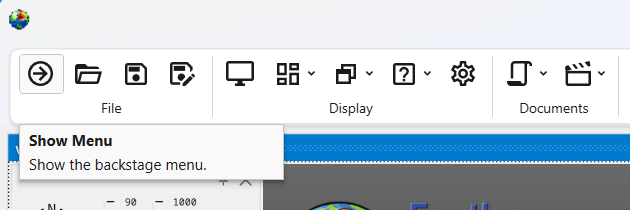
The option to convert your current application to an .EVSP file is not a reversable process. To access this, choose Show Menu in the Main Toolbar:
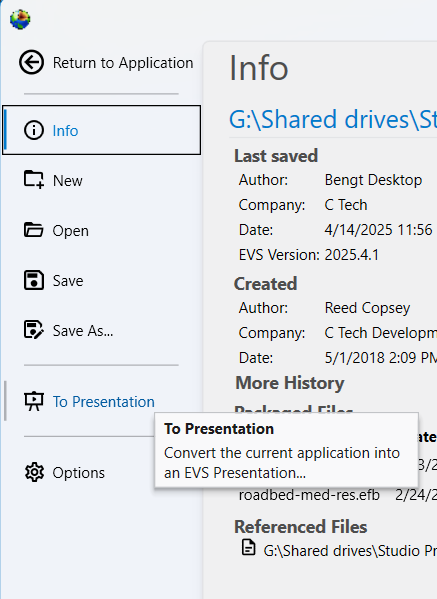
This will open the Menu. Choose To Presentation to convert to an EVS Presentation:
Disallowed Modules and Replacements
The following table lists all disallowed modules and their replacements if there are any. Some modules, primarily interactive modules (e.g. modify data 3d and create stratigraphic hierarchy) and export modules (e.g. export cad and export vector gis).
| Disallowed Module | Category | Replacement |
|---|---|---|
| external kriging | Estimation | read evs field |
| 2d estimation | Estimation | read evs field |
| 3d estimation | Estimation | read evs field |
| scat to tri | Estimation | read evs field |
| scat to unif | Estimation | read evs field |
| modify data 3d | Estimation/editing | none |
| combine horizons | Geologic modeling | read evs field |
| edit horizons | Geologic modeling | read evs field |
| horizon ranking | Geologic modeling | read evs field |
| lithologic modeling | Geologic modeling | read evs field |
| gridding and horizons | Geologic modeling | read evs field |
| create stratigraphic hierarchy | Geologic modeling | none |
| material mapping | Geologic modeling | read evs field |
| drill path | Geometry | none |
| analytical realization | Geostatistics | read evs field |
| lithologic realization | Geostatistics | read evs field |
| stratigraphic realization | Geostatistics | read evs field |
| well decommission | Geostatistics | none |
| read geometry | Import | read evs field |
| export horizon to raster | Export | none |
| export horizons to vistas | Export | none |
| export georeferenced image | Export | none |
| write evs_field | Export | none |
| export web scene | Export | none |
| export pdf scene | Export | none |
| export 3d scene | Export | none |
| export vector gis | Export | none |
| export cad | Export | none |
| export nodes | Export | none |
| write_lines | Export | none |
| cell_computation | Python | |
| (Enterprise License Only) | read evs field | |
| (for Floating Licenses) | ||
| node_computation | Python | |
| (Enterprise License Only) | read evs field | |
| (for Floating Licenses) | ||
| trigger_script | Python | |
| (Enterprise License Only) | none | |
| (for Floating Licenses) |
Restricted Functions:
In addition to the disallowed modules, certain integrated functions are restricted such as:
- Writing 3D Scene files (for C Tech Web Scenes, 3D PDFs, etc)
- Animator (creation of bitmap animations such as .MP4 files)
- Tools Tab: All functions
- Open Python Script
- Enterprise License customers may package Python scripts using the trigger_script module
EVSP Outputs:
The EVSP itself is intended to be the primary output, therefore the ability to create any outputs while and end-user works with an EVSP is limited to bitmap images. End-users will not be able to write any 3D type outputs (CTWS, GLB, Shapefiles, CAD files, etc.).