The creation of C Tech 3D (Web) Scenes (.CTWS files) is very simple, but creating an optimized model output requires some forethought and planning.
Virtually any EVS model can be exported as CTWS, but there are a few very important considerations:
C Tech’s 3D Scenes have a powerful ToC (Table of Contents or model tree) that provides control over visibility, opacity and rendering settings for each module in your application that is connected to the viewer.
The name of each entry in the ToC will be the name of the module. Therefore, renaming the modules so that they are descriptive of the content of that module is strongly recommended.
Modules whose Visibility should be controlled as a group, should pass through a properly renamed group objects module.
- Modules connected to the viewer via a group should still be appropriately named because they show up when the group is expanded.
Bookmarks provide easy control over views, module visibility and Sequence(s) state.
COMING SOON: Animations are a progression of frames which control camera orientations & all sequences’ states & visibilities
CTWS Animations can be compared to bitmap animations (e.g. .AVI or .MP4 files) which represent an ordered sequence of images that progress from start to end, telling a story.
- CTWS Animations frames are analogous to the images in a bitmap animation.
Animations are produced by the model creator such that each frame can have a unique set of properties from within the content and visibility options of the CTWS:
- A camera orientation
- Visibilities for all modules (objects) in the table of contents
- The selected states from all sequences
Below is an EVS model which we are using to demonstrate the creation process.
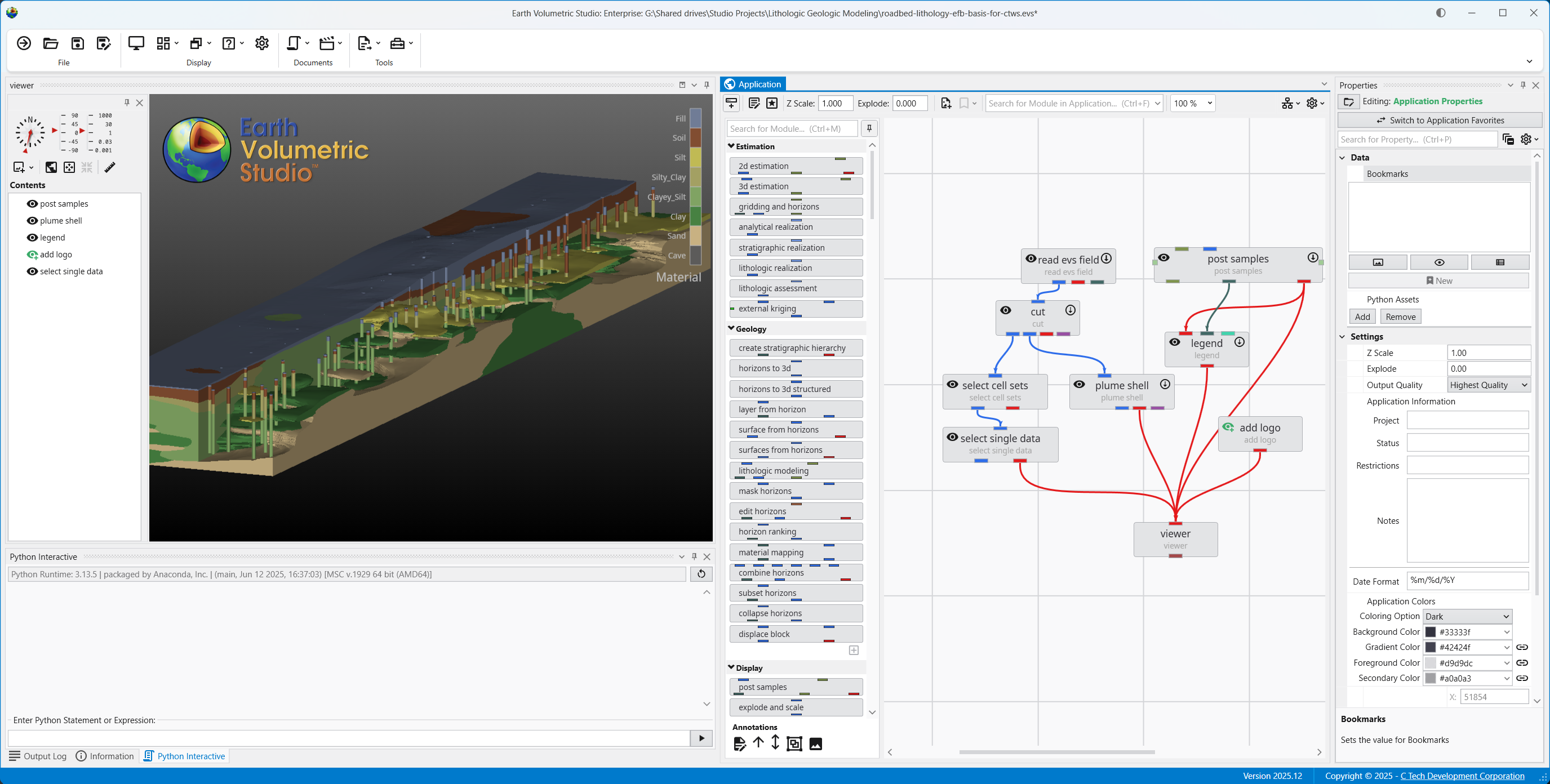
Please note that all modules have default names and none have name that are particular representative of the content they represent. We have the following modules connected to the viewer and describe what their content and function is:
- plume shell: outputs the complete West portion of the cut model
- select single data: outputs the East portion of the cut model with selected materials visible
- post samples: Lithology Borings
- legend: Legend of Lithologic materials
- add logo: C Tech’s logo
After appropriate renaming of the modules we have our application almost ready to go. Please note that the order of the modules in the ToC is determined initially by the order they were connected to the viewer.
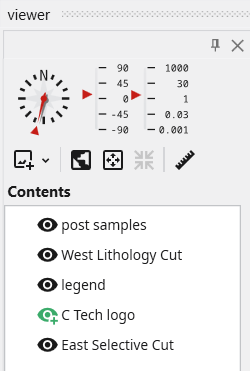
These names may not reflect all renaming until you rearrange or save and load the application.
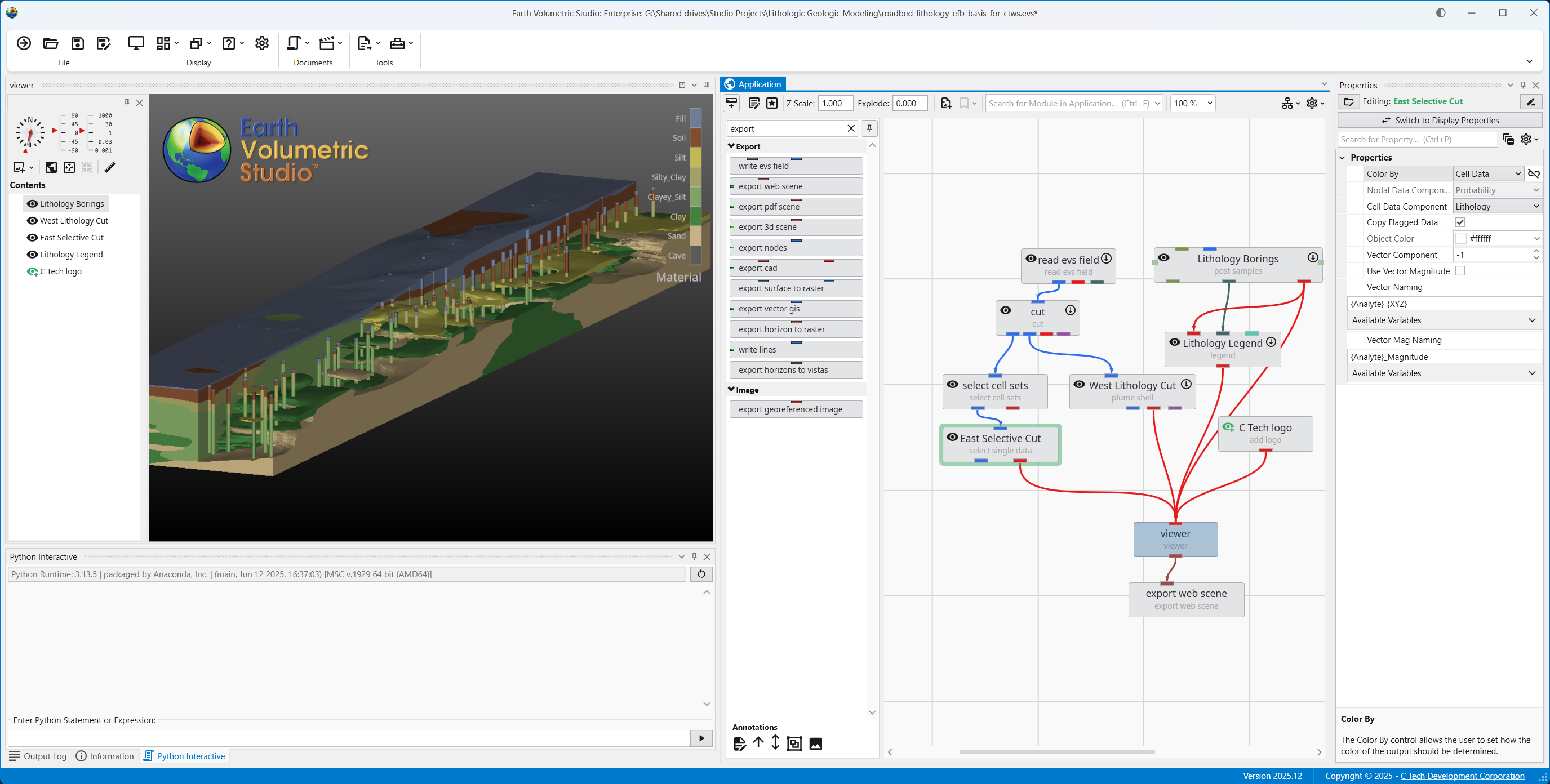
To create a CTWS, we will use the export web scene module. We will add this to the network.
After rearranging the order by dragging them up or down and renaming the rest of the modules, we now have:
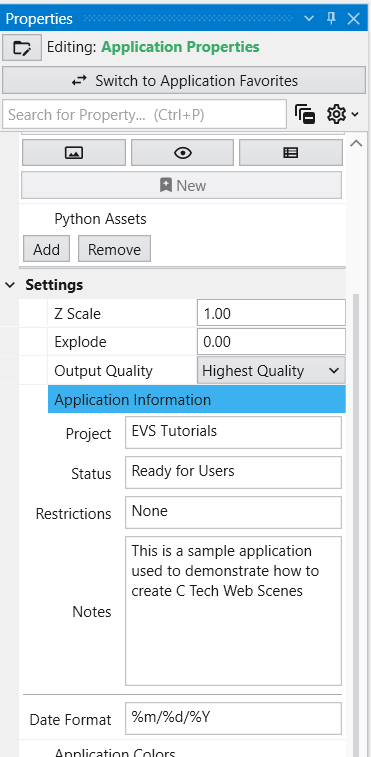
In the Application Properties, under Application Information, we add some basic information which will be used when exported to CTWS.
All you need to do now is click Save in export web scene and enter a file name.
To see how we use the CTWS created, please visit the dedicated C Tech Scene Viewer Help.