When you open a 3D PDF for the first time, you will likely see the Poster Image, and you may see that 3D content is disabled.
We are showing what may happen if your Adobe Reader (or Adobe Acrobat) settings do not have Enable playing of 3D content set to On.
You can choose to trust this particular document (one time or always)
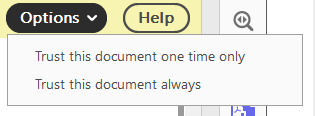
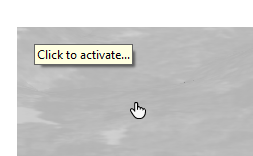
If we do the above, what we see is the Poster image. When we hover over it, Adobe Reader (or Acrobat) will display “Click to Activate”
But it is much better to change your Preferences. Choose Edit > Preferences to open these settings and turn on the selected option:
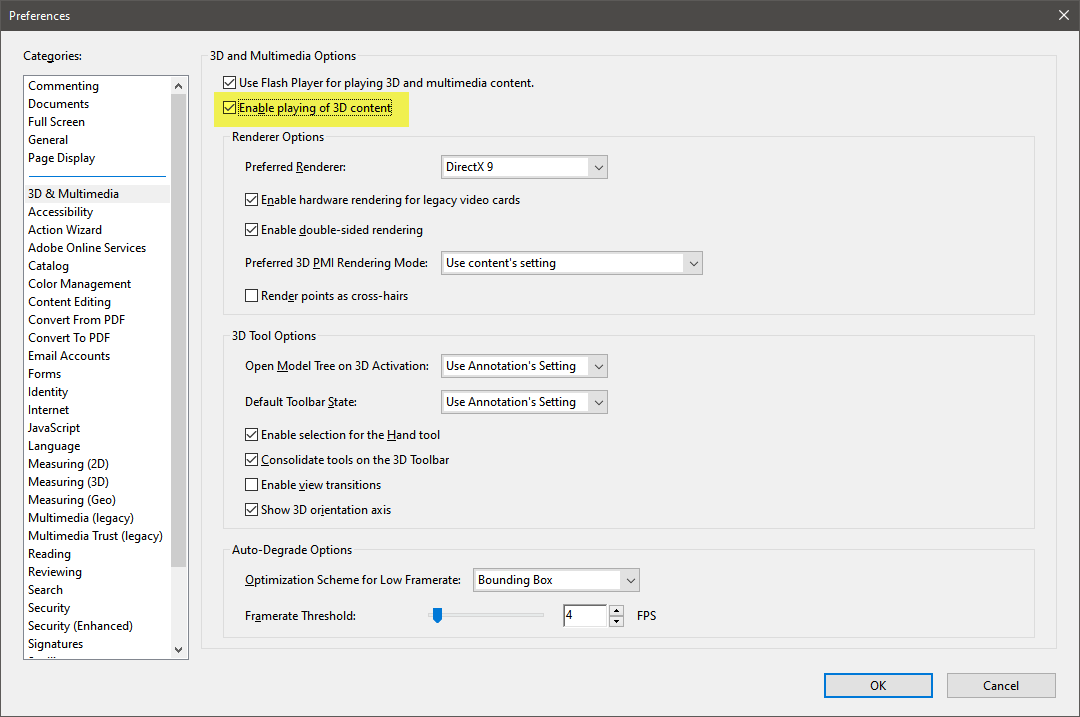
With the above settings, Adobe will always activate the 3D Content, but only once you “Click to Activate”
Notice in the view below that our Top and Bottom margins are larger than the specified Minimum Margin of 0.7".
This is because the aspect ratio of our EVS Viewer was wider (more landscape or panoramic) than the specified U.S. Letter paper size in Landscape (11" wide by 8.5" tall). For this scenario:
- 0.7" margins were applied to the Left and Right sides
- Larger margins were applied to Top and Bottom to avoid distortion of the Poster Image which was automatically created and included in the EVSPDF.
In the image below I have also expanded the Model Tree (Table of Contents).
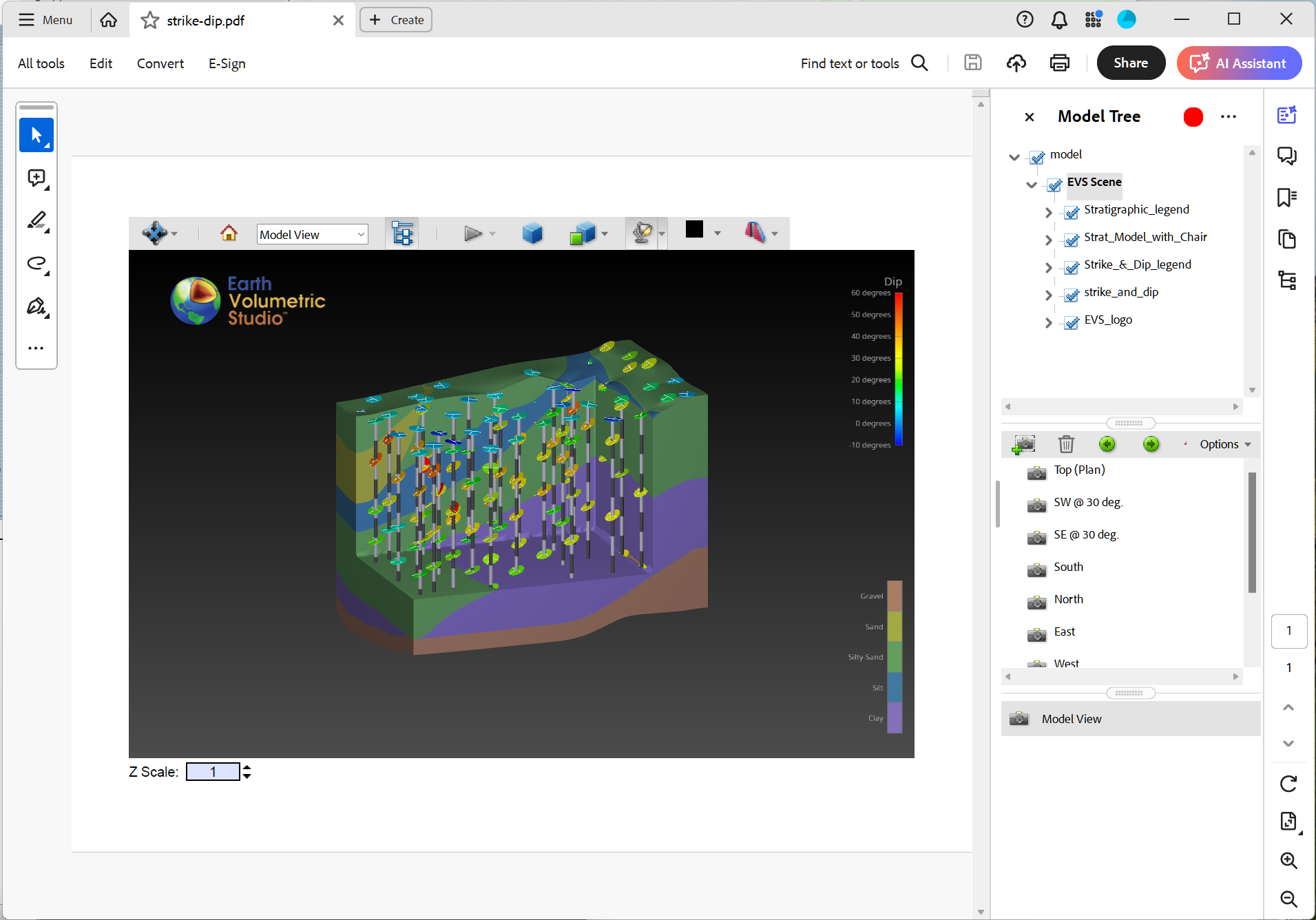
If we turn off the Strat_Model_with_Chair object we see:
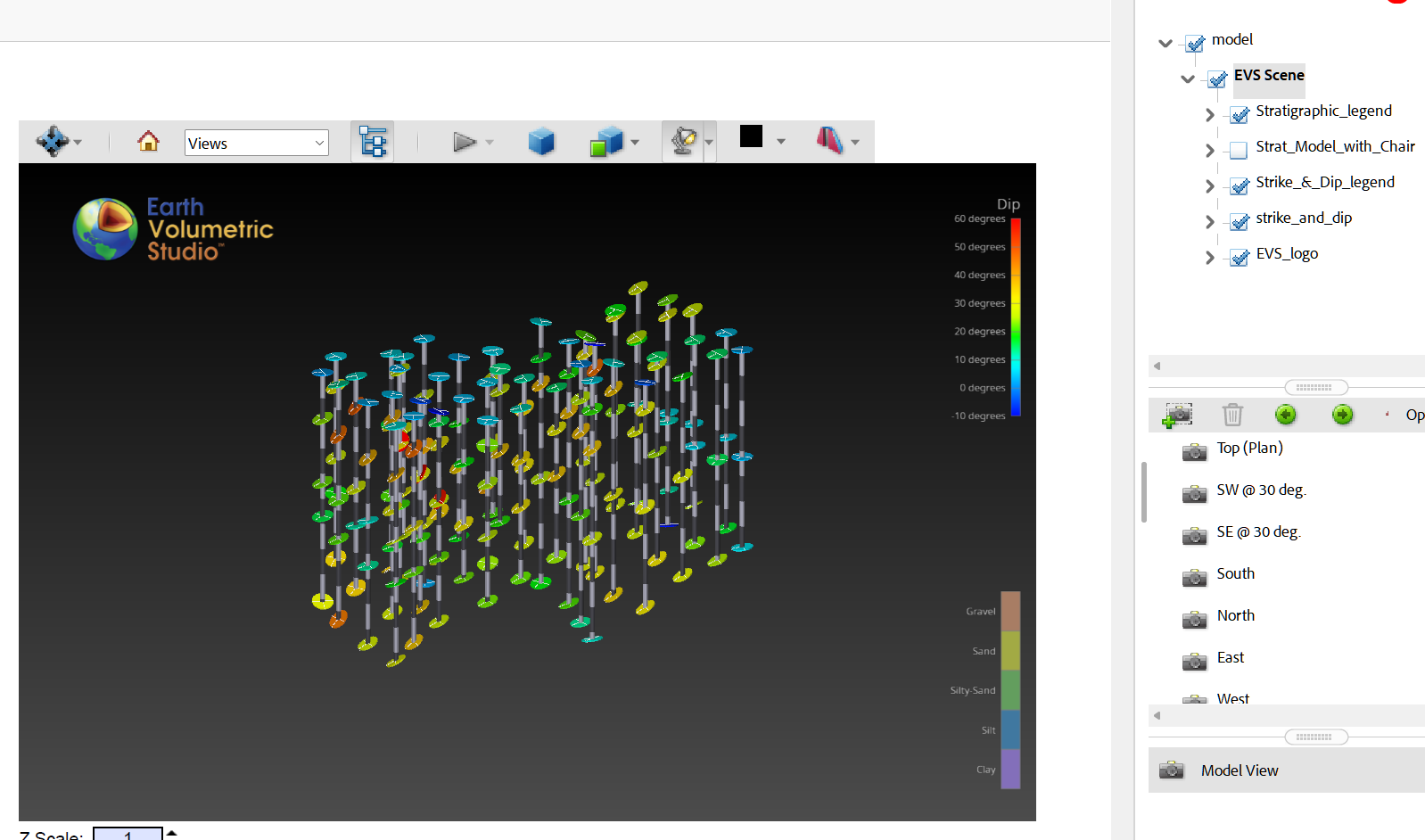
You can control the visibility of all objects in the ToC.
Finally, please notice the view buttons. If you created Bookmarked Views in EVS they will also be shown.
The Model View is the one shown in EVS when the EVSPDF was created.