ISSUE: Default Adobe Reader displays yellow security warning banner for 3D PDFs.
Each individual PDF user can change local settings in the menu with:
- Go to Edit > Preferences > 3D & Multimedia and then select the Enable playing 3D content checkbox.
- For more on this subject see: Adobe Enabling 3D Content Playback
- Enterprise IT can configure the end-user settings via
HKCU\Software\Adobe\Acrobat Reader\<version>\3D\bEnable3DContent
- Enterprise IT can disable and lock 3D rendering so that the user cannot change the setting via
HKLM\SOFTWARE\Policies\Adobe\(product name)\(version)\FeatureLockDown\bEnable3D
ISSUE: Making 3D PDFs larger and/or Full Screen
There are known bugs in Adobe Reader and Acrobat for the Full Screen Multimedia option. If you right-click in the background of a 3D PDF you will see these options:
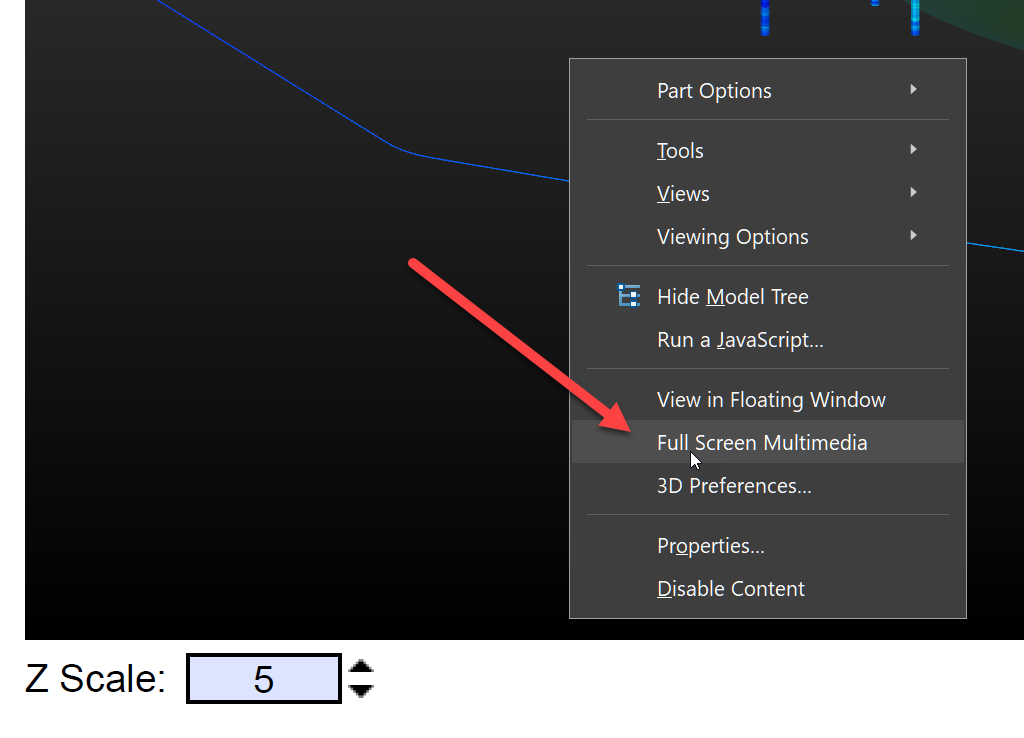
This option does not work reliably and generally causes substantial display errors. Instead we recommend this option in the View menu in Adobe Reader or Acrobat
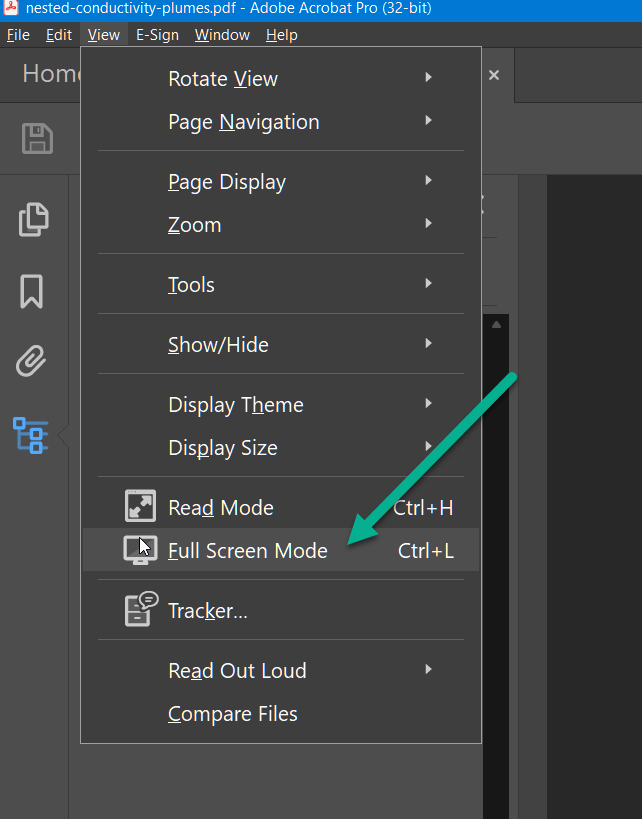
Once in this full screen mode you can further zoom on a page containing a 3D PDF if necessary.