Be sure to use Export PDF Scene in Studio.
The following is a list of guidelines that must be considered when making Earth Volumetric Studio models that will be output as 3D PDF files using the C Tech 3D PDF Converter.
Studio exports EVSPDF Files with the Export PDF Scene module. Export PDF Scene works only if you have a PDF license on the same computer or you have an Enterprise license with the PDF Converter option.
The use of VRML is not recommended because Table of Contents is poorly supported in VRML.
- Do not use the Forward Facing font option in any modules (e.g. post_samples, etc.)
- Do not use volume rendering. None of the techniques are supported.
- This includes the volume_renderer and the adjust_opacity modules.
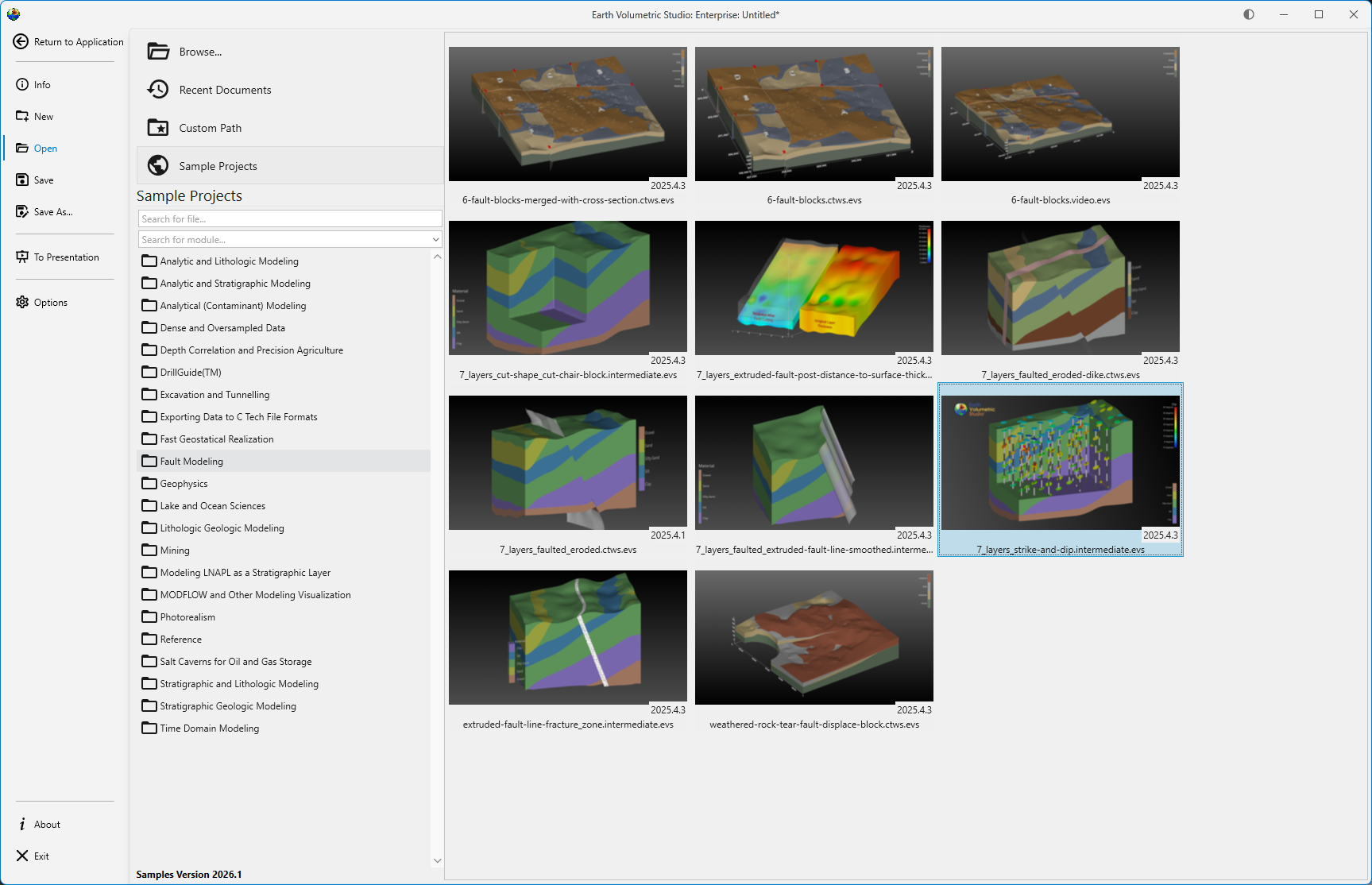
Let’s begin by loading one of the Studio sample projects:
Whose output is:
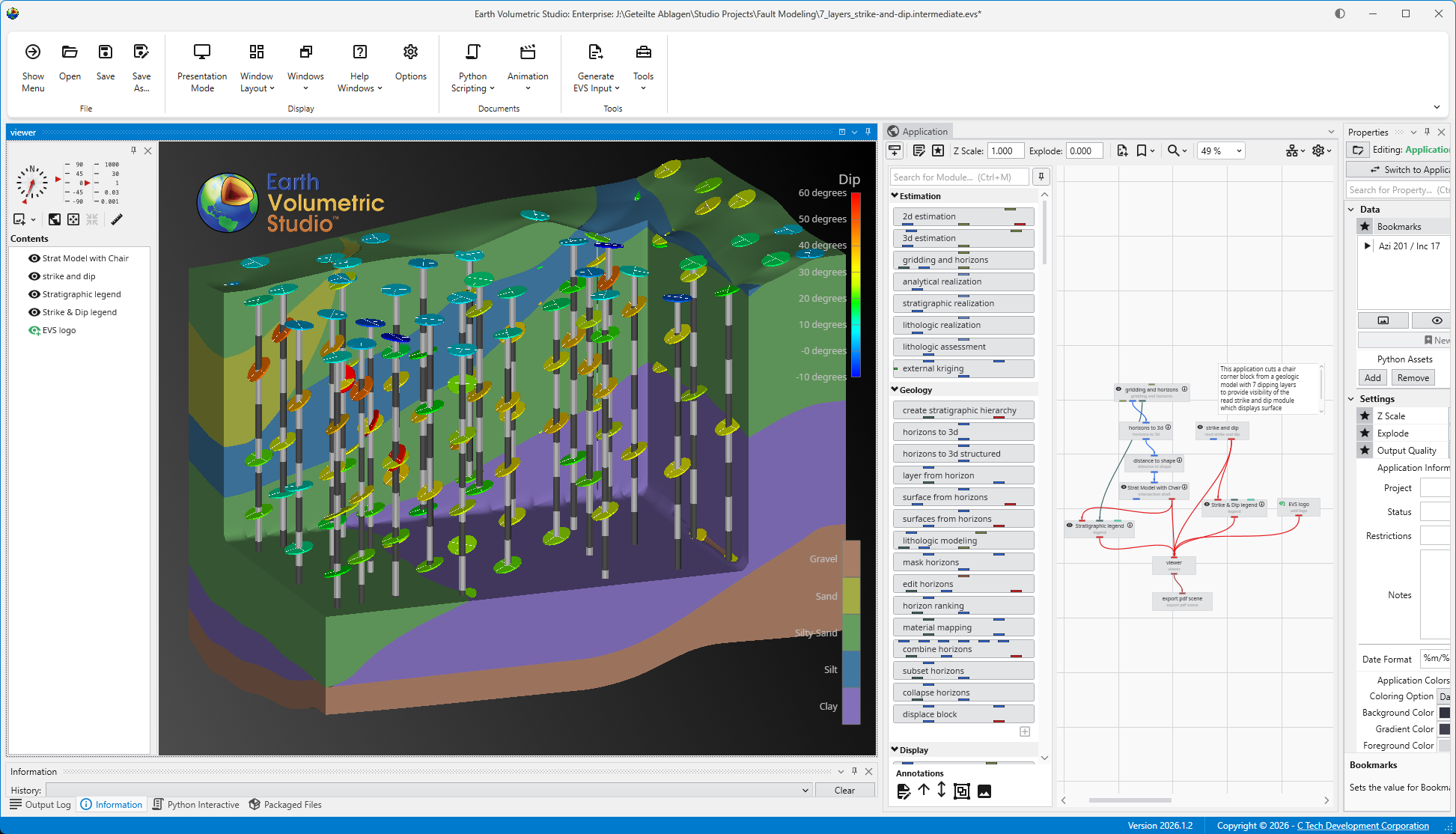
This application has two legends and a logo. This is exported to our intermediate format .EVSPDF using the export pdf scene module. When this format is used:
- The .EVSPDF file will be quickly created.
- It will build a useful Table of Contents using the names of modules connected to the viewer.
- Rename your modules to make a more informative Table of Contents
- It contains a poster image at the resolution of your viewer.
- It will inherit the Z Scale of your model so this is properly displayed in the 3D PDF.
Now we’re ready to do the conversion. Open the C Tech 3D PDF Converter.
Drag and Drop your .EVSPDF file into the Input File box. If you add a Title (which is optional) it will become the highest level object in the Table of Contents.
All other default settings will be fine.
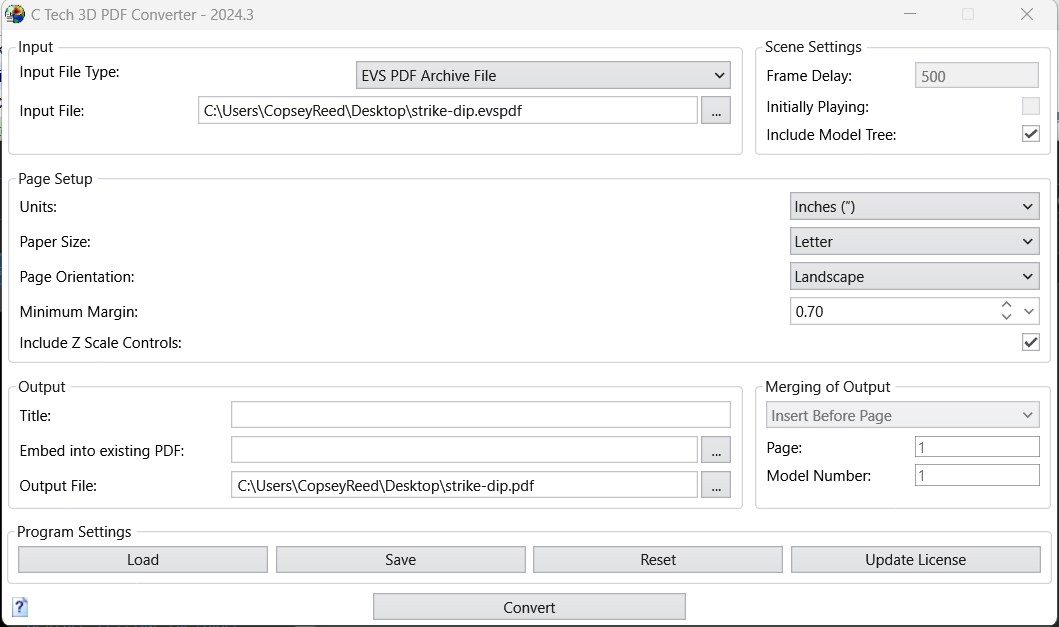
Note above, that we’ve turned on Include Z Scale Controls and we’ve set Z Scale as Created to be 2.0 which matches the Global Z Scale in our application.
The conversion takes only a few seconds, and when it finishes it displays this message:
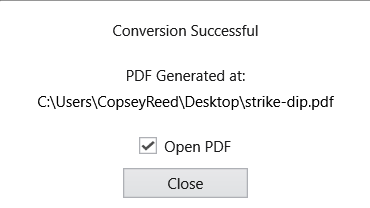
When you close this window, the PDF file opens in Adobe, however, that is for the next topic!